
1. Introduction
Thank you for choosing the Itek Monitor GGF. This 27-inch WQHD (2560x1440) Fast IPS monitor is designed to provide an immersive visual experience with its 165Hz refresh rate and 1ms response time, making it ideal for gaming, multimedia, and professional use. This manual provides essential information for setting up, operating, and maintaining your monitor. Please read it thoroughly before use and retain it for future reference.
2. Safety Information
- Always place the monitor on a stable, flat surface to prevent it from falling.
- Do not block ventilation openings. Ensure adequate space around the monitor for proper airflow.
- Use only the power adapter supplied with the monitor.
- Keep the monitor away from water, moisture, and extreme temperatures.
- Do not attempt to open or repair the monitor yourself. Refer all servicing to qualified personnel.
- Unplug the monitor from the power outlet during lightning storms or when unused for long periods.
3. Package Contents
Please check the package contents upon opening. If any items are missing or damaged, contact your retailer.
- Itek Monitor GGF 27-inch Display
- Monitor Stand (Base and Neck)
- Power Adapter
- DisplayPort Cable
- User Manual
- Screws for Stand Assembly
4. Product Overview
4.1 Key Features
- Display: 27-inch Flat Fast IPS Panel
- Resolution: WQHD 2560x1440 pixels
- Refresh Rate: 165Hz
- Response Time: 1ms OD (Overdrive)
- Aspect Ratio: 16:9
- Adaptive Sync: FreeSync compatible, G-Sync compatible
- HDR Support: Yes
- Special Features: Flicker-Free, Low Blue Light Filter, Frameless Design, Anti-glare screen, VESA Mountable (Wall Mount Type)
- Audio: Integrated speakers
- Connectivity: DisplayPort, HDMI, USB, Audio Out
4.2 Monitor Front View
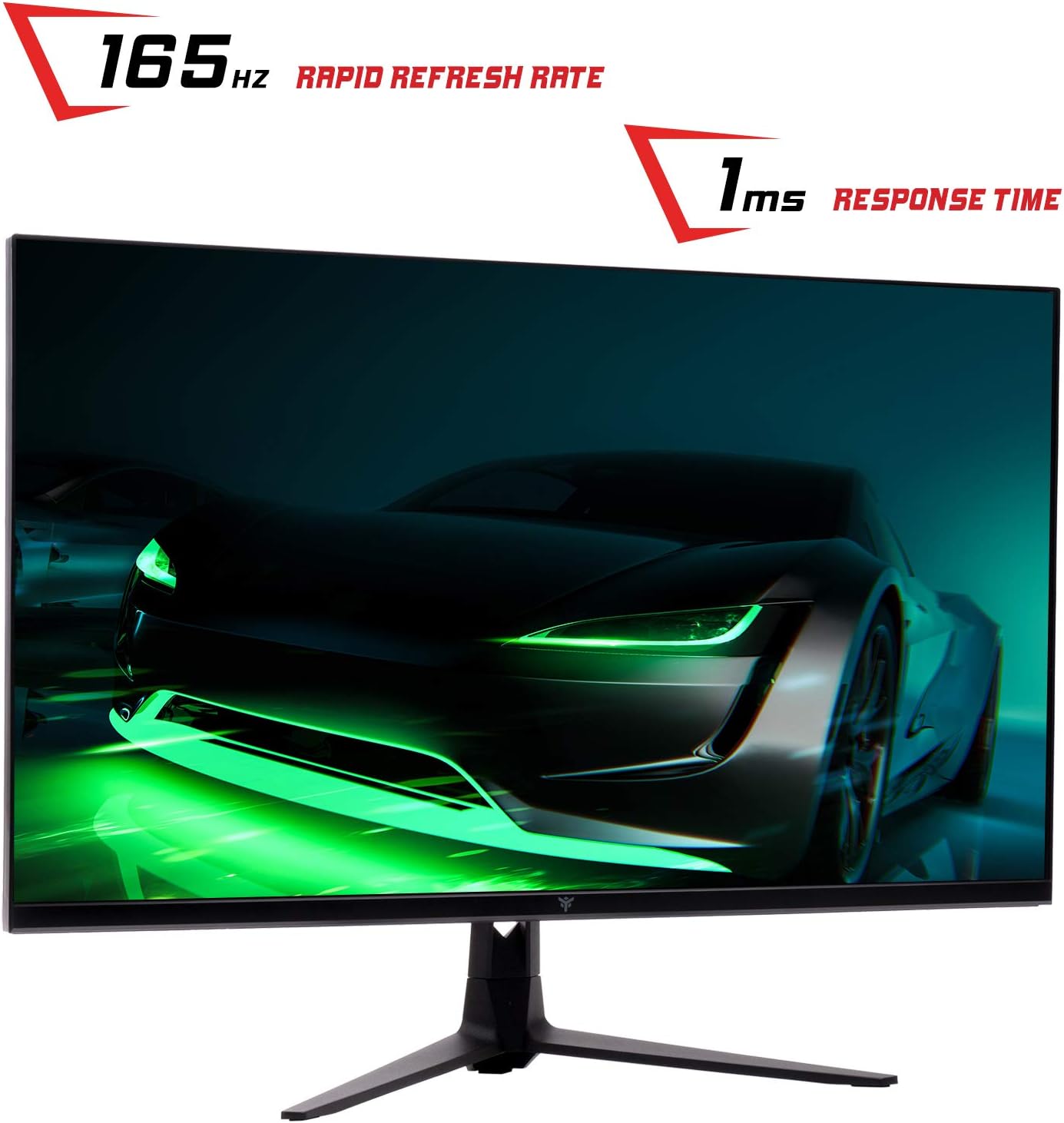
The image below illustrates the monitor's front view, highlighting its rapid refresh rate and quick response time for smooth visuals.
4.3 Monitor Rear View and LED Effects
The rear of the monitor features an attractive design with LED lighting effects and a projected logo, enhancing its aesthetic appeal.

4.4 Connection Ports
The monitor provides various connection options for compatibility with multiple devices.

Detailed connection port information:
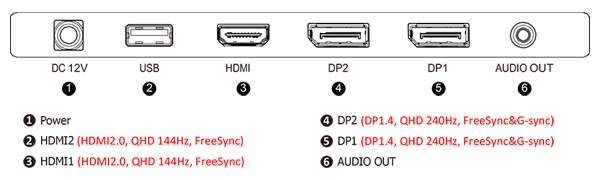
- 1. Power (DC 12V): Connect the power adapter here.
- 2. USB: For connecting USB devices.
- 3. HDMI1 (HDMI 2.0): Supports QHD 144Hz, FreeSync.
- 4. DP2 (DisplayPort 1.4): Supports QHD 240Hz, FreeSync & G-sync.
- 5. DP1 (DisplayPort 1.4): Supports QHD 240Hz, FreeSync & G-sync.
- 6. Audio Out: For connecting external audio devices like headphones or speakers.
5. Setup
5.1 Assembling the Stand
- Carefully remove the monitor and stand components from the packaging.
- Attach the stand neck to the monitor panel using the provided screws.
- Attach the stand base to the stand neck, securing it with the appropriate screws.
- Place the assembled monitor on a stable, flat surface.
5.2 Connecting to a Computer/Console
- Ensure both the monitor and your computer/console are powered off.
- Connect one end of the DisplayPort cable (or HDMI cable) to the corresponding port on your computer's graphics card.
- Connect the other end of the cable to the DisplayPort (DP1 or DP2) or HDMI port on the monitor. For optimal performance, use DisplayPort for 165Hz refresh rate.
- Connect the power adapter to the monitor's DC 12V input, then plug the power adapter into a wall outlet.
- If desired, connect external audio devices to the Audio Out port.
6. Operating Instructions
6.1 Powering On/Off
Press the power button, usually located on the back or bottom of the monitor, to turn it on or off. The power indicator light will illuminate when the monitor is on.
6.2 On-Screen Display (OSD) Menu
The OSD menu allows you to adjust various monitor settings. Typically, joystick or button controls are located on the back or bottom of the monitor to navigate the OSD.
- Picture Settings: Adjust brightness, contrast, sharpness, and color temperature.
- Color Settings: Fine-tune RGB values, gamma, and color modes.
- Input Select: Manually switch between DisplayPort and HDMI inputs.
- OSD Settings: Adjust OSD language, transparency, and timeout.
- Gaming Features: Enable/disable Adaptive Sync, adjust overdrive, and other gaming-specific enhancements.
6.3 Adaptive Sync (FreeSync/G-Sync)
This monitor supports Adaptive Sync technology, compatible with both AMD FreeSync and NVIDIA G-Sync, to eliminate screen tearing and stuttering for a smoother gaming experience. Ensure your graphics card supports this feature and that it is enabled in your graphics driver settings.

6.4 Flicker-Free and Low Blue Light
The monitor incorporates Flicker-Free technology to reduce eye strain during prolonged use and a Low Blue Light filter to minimize harmful blue light emissions, promoting eye comfort.

7. Maintenance
7.1 Cleaning the Monitor
- Always unplug the monitor before cleaning.
- Use a soft, lint-free cloth lightly dampened with water or a mild, non-abrasive screen cleaner.
- Do not spray cleaner directly onto the screen.
- Avoid using harsh chemicals, solvents, or abrasive materials.
7.2 Storage
If storing the monitor for an extended period, disconnect all cables, pack it in its original packaging (if available), and store it in a cool, dry place away from direct sunlight and extreme temperatures.
8. Troubleshooting
| Problem | Possible Cause | Solution |
|---|---|---|
| No image on screen | Monitor not powered on; Incorrect input selected; Video cable loose or faulty. | Ensure power cable is connected and monitor is on. Press OSD button to select correct input source. Check video cable connections. |
| Image is blurry or distorted | Incorrect resolution; Graphics driver issue. | Set display resolution to 2560x1440. Update graphics card drivers. |
| No sound from speakers | Volume too low; Audio output not selected; External speakers connected. | Adjust monitor volume. Ensure monitor is selected as audio output in OS settings. Disconnect external speakers if using internal ones. |
| Screen flickering | Refresh rate mismatch; Faulty cable. | Ensure refresh rate is set to 165Hz in display settings. Try a different DisplayPort or HDMI cable. |
| Adaptive Sync not working | Feature not enabled; Incompatible graphics card. | Enable FreeSync/G-Sync in monitor OSD and graphics card control panel. Ensure your GPU supports Adaptive Sync. |
9. Specifications
| Feature | Specification |
|---|---|
| Brand | Itek |
| Model Number | ITMF27I161QHD |
| Screen Size | 27 Inches |
| Resolution | WQHD 2560 x 1440 Pixels |
| Panel Type | Fast IPS |
| Refresh Rate | 165 Hz |
| Response Time | 1 Millisecond (OD) |
| Aspect Ratio | 16:9 |
| Screen Surface | Flat, Anti-glare |
| Brightness | 350 cd/m² |
| Viewing Angle | 178 Degrees |
| Color Gamut Value | 1.073 (billion colors) |
| Connectivity | 2x DisplayPort (1.4), 1x HDMI (2.0), 1x USB, Audio Out |
| Adaptive Sync | FreeSync compatible (G-Sync compatible) |
| Special Features | Blue Light Filter, Wall Mountable (VESA), Frameless, Flicker-Free, HDR |
| Power Input | 12 Volt |
| Dimensions (DxWxH) | 18.3P x 61.4l x 45.8H cm |
| Weight | 6.66 Kilograms |
9.1 Energy Label Information
For detailed energy efficiency information, please refer to the official EU EPREL database via the QR code or link below.

10. Warranty Information
The Itek Monitor GGF comes with a 24-month warranty from the date of purchase. This warranty covers manufacturing defects and malfunctions under normal use. It does not cover damage caused by misuse, accidents, unauthorized modifications, or external factors. Please retain your proof of purchase for warranty claims.
11. Customer Support
For technical assistance, warranty claims, or product inquiries, please contact Itek customer support:
- Manufacturer: ITEK
- Website: www.itek.it / www.itekevo.com
- Email: info@itekevo.com
- Phone: +390514388100


