
1. Introduction
Thank you for choosing the Rii RK200 Wireless Keyboard and Mouse Combo. This product is designed to provide a convenient and efficient input solution for various devices. It features a 2.4GHz wireless connection, offering reliable performance and broad compatibility.
This manual will guide you through the setup, operation, and maintenance of your new wireless keyboard and mouse combo. Please read it carefully to ensure proper usage and to maximize the lifespan of your devices.
2. Package Contents
Please check the package for the following items:
- 1 x Rii Wireless Keyboard
- 1 x Rii Wireless Mouse
- 1 x USB Receiver (Dongle)
- 1 x User Manual
Note: AAA batteries for the keyboard and AA batteries for the mouse are not included and must be purchased separately.
3. Setup Instructions
3.1 Battery Installation
- For the Mouse: Open the battery compartment cover on the underside of the mouse. Insert one (1) AA battery, ensuring correct polarity (+/-). Close the cover.
- For the Keyboard: Open the battery compartment cover on the underside of the keyboard. Insert one (1) AAA battery, ensuring correct polarity (+/-). Close the cover.
Important: The USB receiver is stored in a compartment on the underside of the mouse. Remove it before use.

Figure 3.1: Location of the USB receiver and battery compartments. The mouse requires 1 AA battery, and the keyboard requires 1 AAA battery (batteries not included).
3.2 Connecting the USB Receiver
- Locate the USB receiver stored in the battery compartment of the mouse.
- Plug the USB receiver into an available USB port on your computer, laptop, Smart TV, Android Box, or other compatible device.
- The system will automatically detect and install the necessary drivers. This is a Plug & Play device, requiring no manual driver installation.
- Turn on the mouse using the On/Off switch located on its underside.
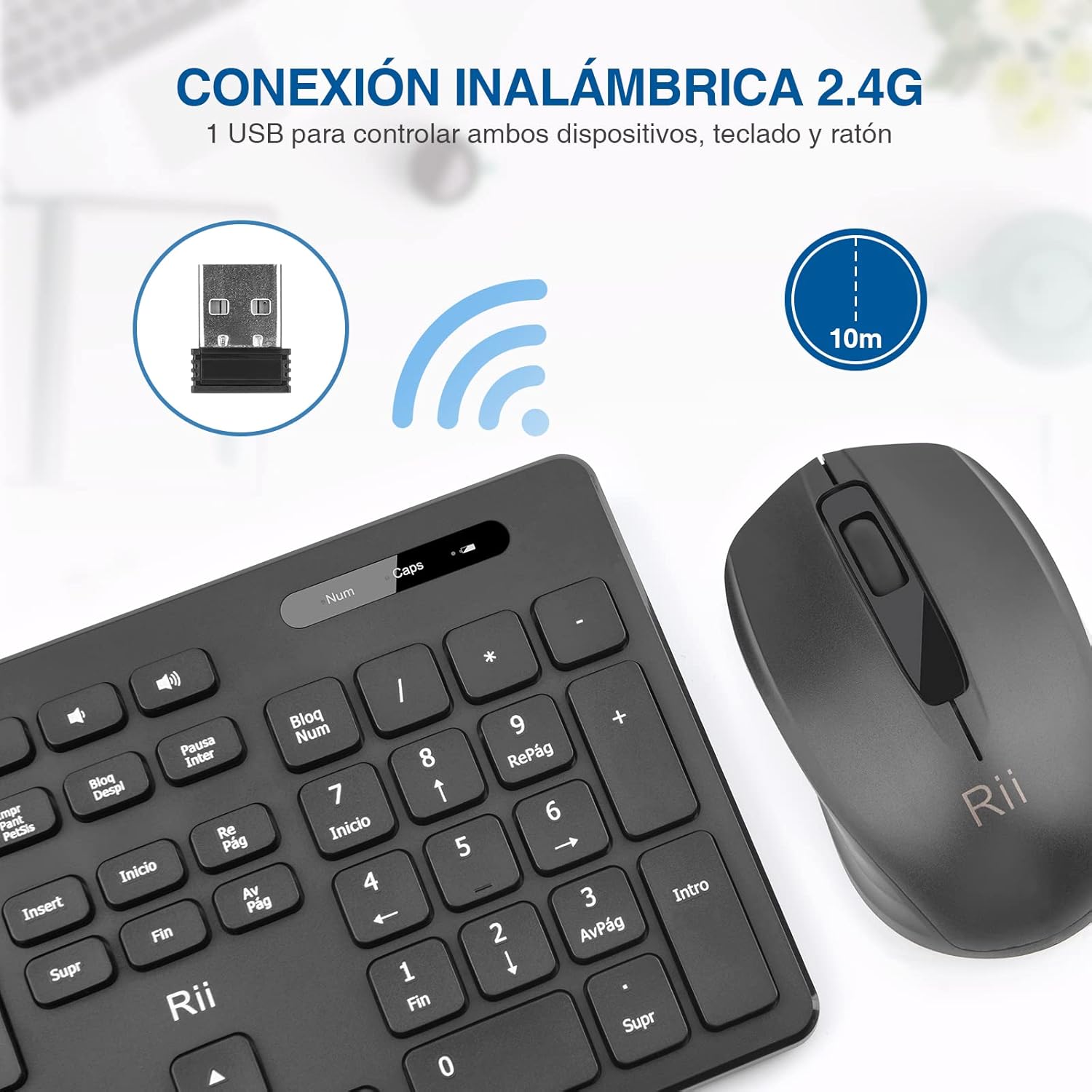
Figure 3.2: The 2.4G wireless USB receiver enables connection for both keyboard and mouse, with an effective range of up to 10 meters.
4. Operating Instructions
4.1 Basic Operation
- The keyboard features a standard QWERTY layout with silent keys for comfortable typing.
- The mouse is designed for ergonomic comfort and precise navigation.
- Both devices operate simultaneously through the single USB receiver.
4.2 DPI Adjustment (Mouse)
The mouse sensitivity (DPI) can be adjusted to suit your preference. The available DPI settings are 1000 and 1600 DPI. Refer to the mouse's specific button (if present) or software settings on your device to switch between these sensitivities.

Figure 4.1: The Rii RK200 combo is durable and portable, with the mouse offering adjustable DPI settings of 800/1200/1600 (Note: Product description states 1000/1600 DPI).
4.3 Indicator Lights (Keyboard)
The keyboard includes indicator lights for:
- Battery Indicator: Illuminates to indicate low battery status.
- Caps Lock Indicator: Illuminates when Caps Lock is active.
- Num Lock Indicator: Illuminates when Num Lock is active.

Figure 4.2: The keyboard features dedicated indicators for battery status, Caps Lock, and Num Lock.
5. Maintenance
5.1 Cleaning
To clean your keyboard and mouse, use a soft, dry cloth. For stubborn dirt, slightly dampen the cloth with water or a mild cleaning solution. Avoid using harsh chemicals or abrasive materials, as these can damage the surface.
5.2 Battery Replacement
When the battery indicator on the keyboard lights up, or if the mouse becomes unresponsive, it's time to replace the batteries. Follow the battery installation steps in Section 3.1.
6. Troubleshooting
- No Response from Keyboard/Mouse:
- Ensure the USB receiver is securely plugged into a working USB port.
- Check if the mouse is turned on using the On/Off switch.
- Replace the batteries in both the keyboard (1x AAA) and mouse (1x AA) with fresh ones.
- Try plugging the USB receiver into a different USB port on your device.
- Ensure there are no strong wireless interference sources nearby.
- Lag or Intermittent Connection:
- Ensure the devices are within the effective operating range (8-10 meters) of the USB receiver.
- Move the USB receiver closer to the keyboard and mouse, or use a USB extension cable if necessary.
- Check for potential interference from other 2.4GHz wireless devices.
- Keyboard Typing Incorrect Characters:
- Verify that the correct keyboard layout is selected in your operating system settings. This keyboard features a QWERTY Spanish layout.
7. Specifications
| Feature | Specification |
|---|---|
| Brand | Rii |
| Model | RK200 |
| Color | Black |
| Connectivity Technology | 2.4GHz Wireless (USB Receiver) |
| Keyboard Layout | QWERTY (Spanish) |
| Keyboard Lifespan | Over 10 million clicks |
| Mouse Sensitivity (DPI) | 1000/1600 DPI |
| Mouse Lifespan | Up to 30 million clicks |
| Operating Voltage | 2.2V to 3V DC |
| Effective Distance | 8-10 meters |
| Compatible Operating Systems | Windows 7/8/10, Mac, Linux, Android |
| Compatible Devices | PC, Laptop, Smart TV, Android Box, Raspberry Pi 3 B+ |
| Keyboard Battery | 1 x AAA (not included) |
| Mouse Battery | 1 x AA (not included) |

Figure 7.1: Dimensions of the Rii RK200 keyboard (43.9cm x 12.5cm) and mouse (11.5cm x 6.6cm).
8. Warranty and Support
8.1 Warranty Information
This product comes with a standard manufacturer's warranty. Please refer to the warranty card included in your package or contact your retailer for specific warranty terms and conditions. Keep your purchase receipt as proof of purchase.
8.2 Customer Support
If you encounter any issues or have questions not covered in this manual, please contact Rii customer support or your product retailer for assistance. Contact information can typically be found on the product packaging or the official Rii website.


