
Introduction
Thank you for choosing the Vocal-Star P180 Portable Karaoke Machine and PA Speaker. This device combines a powerful PA speaker with karaoke functions, Bluetooth connectivity, and MP3 playback, making it suitable for various audio needs. This manual provides essential information for safe and efficient operation of your new system.
Safety Information
- Read all instructions before operating the device.
- Keep the unit away from water or moisture.
- Do not block ventilation openings.
- Use only attachments/accessories specified by the manufacturer.
- Unplug the unit during lightning storms or when unused for long periods.
- Refer all servicing to qualified service personnel.
Package Contents
Please check that all items listed below are included in your package:
- Vocal-Star P180 Karaoke Machine / PA Speaker Unit
- 2 x Wireless Microphones
- Remote Control
- Power Adapter
- User Manual (this document)

Product Overview
Control Panel
The main control panel is located on the top of the unit, providing access to various functions and adjustments.
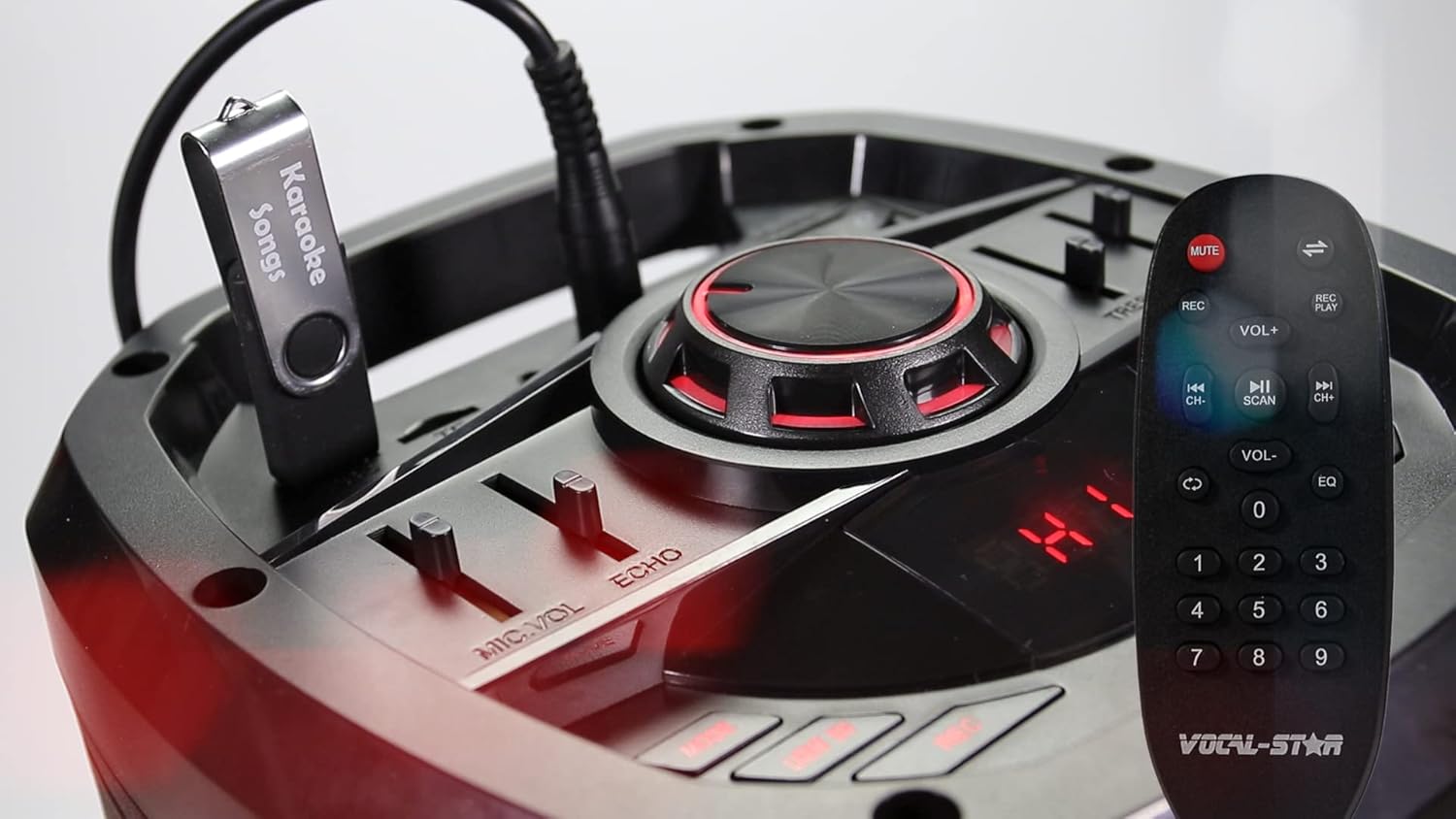
- Master Volume Knob: Adjusts the overall sound output level.
- MIC VOL Slider: Controls the volume of the connected microphones.
- ECHO Slider: Adjusts the echo effect for the microphones.
- TREBLE Slider: Adjusts the high-frequency audio levels.
- BASS Slider: Adjusts the low-frequency audio levels.
- Mode Button: Switches between input modes (Bluetooth, USB, SD, AUX, FM Radio).
- Play/Pause Button: Controls media playback.
- Previous/Next Track Buttons: Navigates through tracks in USB/SD mode.
- USB Port: For connecting USB flash drives for MP3 playback.
- SD Card Slot: For inserting SD cards for MP3 playback.
Rear Panel Connections
The rear panel provides additional input and power connections.
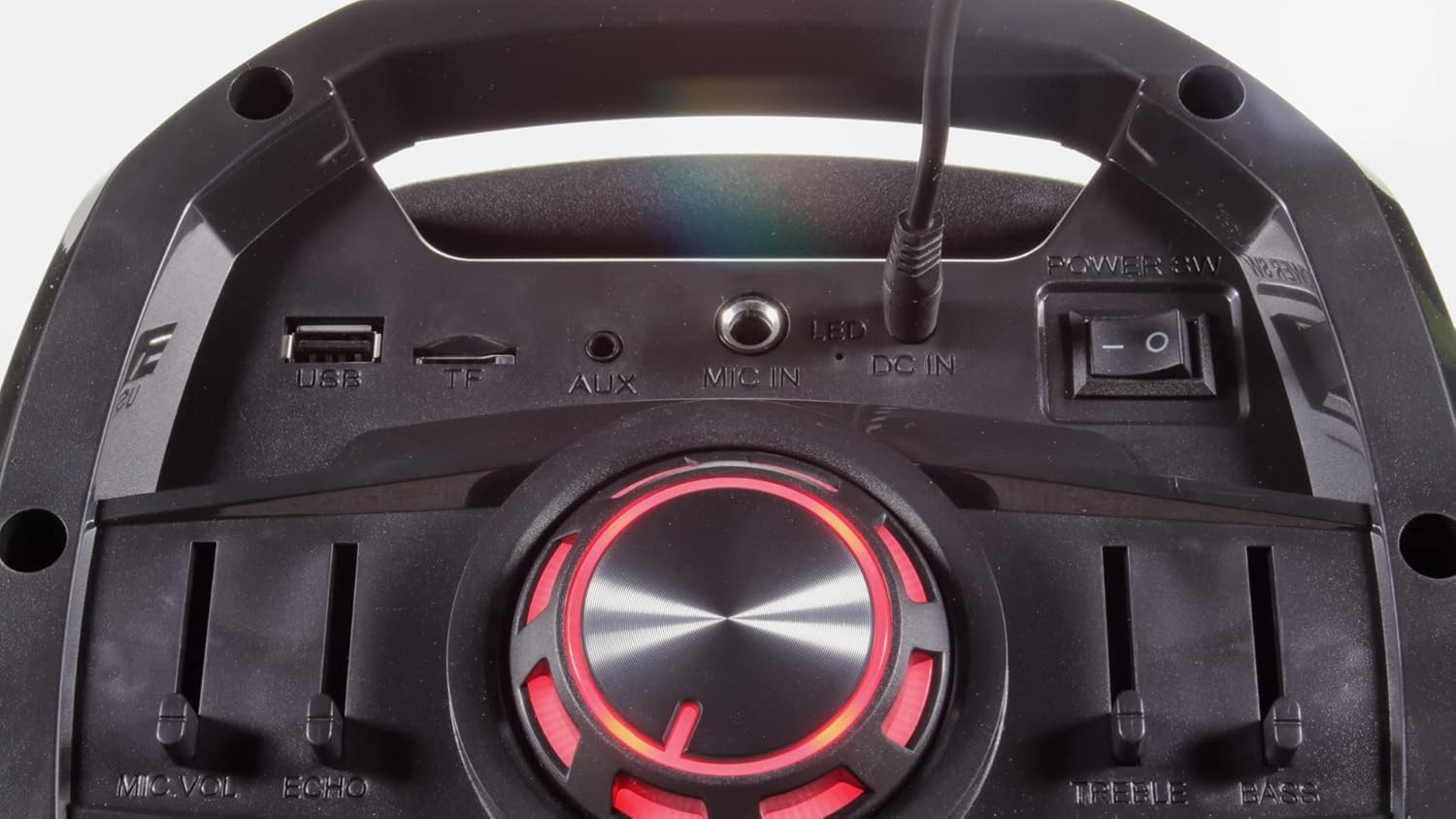
- USB Port: For connecting USB flash drives.
- TF (MicroSD) Card Slot: For inserting MicroSD cards.
- AUX IN: 3.5mm auxiliary input for external audio devices.
- MIC IN: 6.35mm jack for an additional wired microphone or guitar.
- DC IN: Power input for the included power adapter.
- Power Switch: Turns the unit on or off.
- LED Switch: Controls the LED light effects on the woofers.
Setup
- Unpacking: Carefully remove all components from the packaging. Retain packaging for future transport or storage.
- Power Connection: Connect the provided power adapter to the DC IN port on the unit and then to a suitable power outlet. Ensure the unit is fully charged before first use for optimal battery life.
- Power On: Flip the main Power Switch to the "ON" position. The display will illuminate.
- Microphone Batteries: Insert 2 AA batteries into each wireless microphone (batteries not included).
Operating Instructions
Bluetooth Connection
Connect your smartphone, tablet, or other Bluetooth-enabled device to the P180 for wireless audio streaming.
- Turn on the P180 unit.
- Press the "Mode" button until "BLUE" appears on the display, indicating Bluetooth mode. The unit will enter pairing mode automatically.
- On your external device, enable Bluetooth and search for available devices.
- Select "Vocal-Star" from the list of devices. A confirmation tone will sound when successfully paired.
- You can now play audio from your device through the P180 speaker.


USB/SD Card Playback
Play MP3 audio files directly from a USB flash drive or SD card.
- Insert a USB flash drive into the USB port or an SD card into the SD card slot.
- Press the "Mode" button until the display shows "USB" or "SD". The unit will automatically begin playing compatible audio files.
- Use the Play/Pause and Previous/Next buttons to control playback.
Microphone Usage
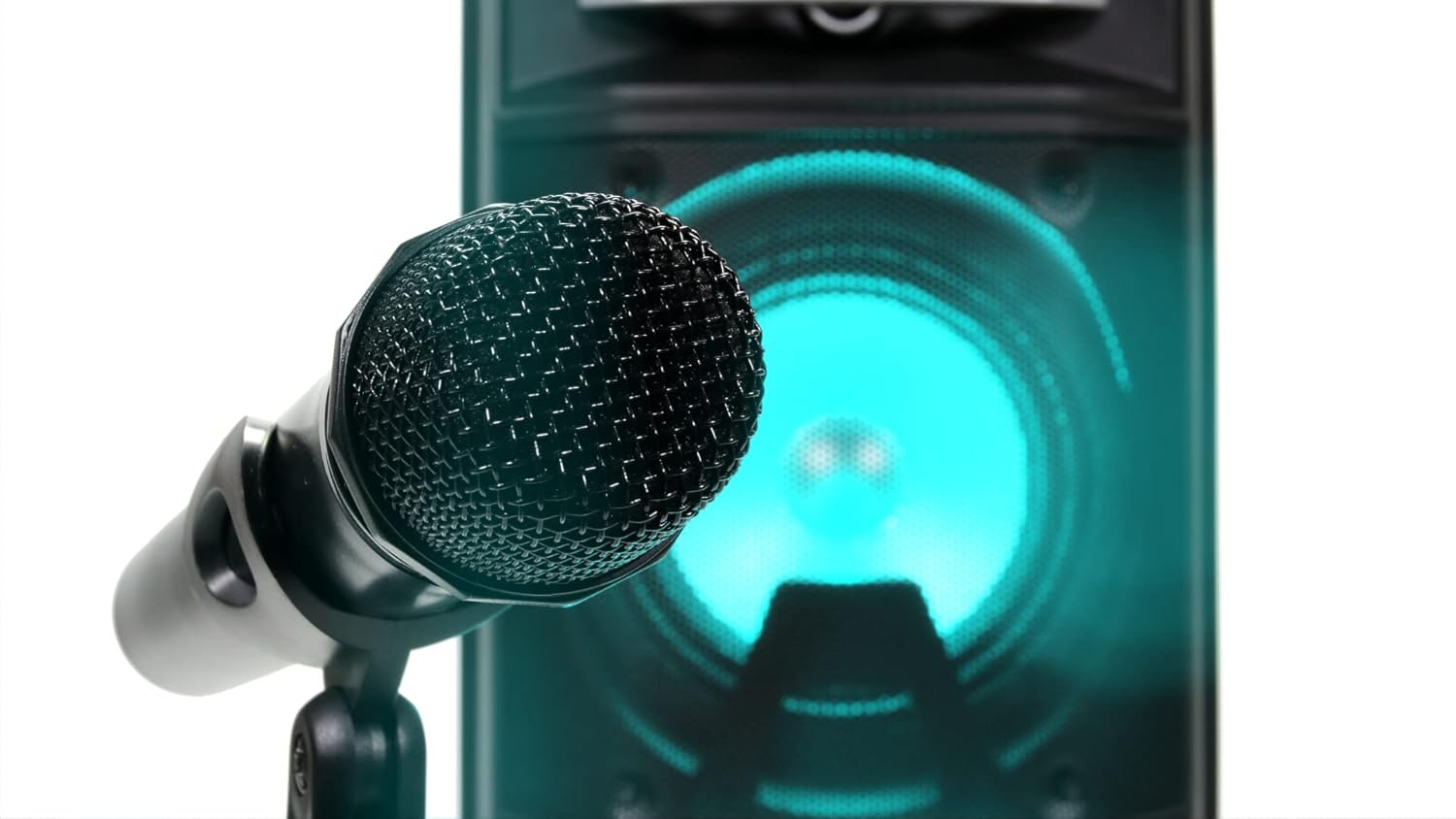
The P180 comes with two wireless microphones. An additional wired microphone or guitar can be connected.
- Ensure batteries are correctly inserted into the wireless microphones.
- Turn on the wireless microphones. They should automatically connect to the P180 unit.
- Adjust the "MIC VOL" slider on the control panel to set the microphone volume.
- Use the "ECHO" slider to add an echo effect to the vocals.
- For a wired microphone or guitar, connect it to the "MIC IN" jack on the rear panel.
Audio Equalization (EQ)
Adjust the sound output to your preference using the Treble and Bass sliders.
- TREBLE: Move the slider up to increase high frequencies for brighter sound, or down to reduce them.
- BASS: Move the slider up to increase low frequencies for deeper bass, or down to reduce them.
LED Light Effects
The P180 features integrated LED lights on its woofers for visual enhancement.
- Use the "LED" switch on the rear panel to turn the lights on or off.
- The lights will cycle through various colors automatically.

Auxiliary Input (AUX IN)
Connect external audio sources using a 3.5mm audio cable.
- Connect one end of a 3.5mm audio cable to the AUX IN port on the P180.
- Connect the other end to the headphone jack or audio output of your external device.
- Press the "Mode" button until "AUX" appears on the display.
- Control playback and volume from your external device.
Maintenance
- Cleaning: Use a soft, dry cloth to clean the exterior of the unit. Do not use liquid cleaners or abrasive materials.
- Storage: When not in use, store the unit in a cool, dry place, away from direct sunlight and extreme temperatures.
- Battery Care: If the unit will not be used for an extended period, remove batteries from the wireless microphones to prevent leakage.
Troubleshooting
| Problem | Possible Cause | Solution |
|---|---|---|
| No power | Unit not charged or power adapter not connected. | Connect the power adapter and ensure it's plugged into a working outlet. Check battery level. |
| No sound output | Volume too low, incorrect input mode, or device not connected properly. | Increase master volume. Select the correct input mode (Bluetooth, USB, AUX). Ensure external device volume is up. |
| Microphones not working | Microphones off, low batteries, or MIC VOL slider too low. | Turn on microphones. Replace batteries. Increase MIC VOL slider. |
| Bluetooth pairing failed | P180 not in Bluetooth mode, or device too far. | Ensure P180 is in Bluetooth mode. Move device closer. Try unpairing and re-pairing. |
Specifications
- Brand: Vocal-Star
- Model Number: VS-P180-KM
- Color: Black
- Connectivity: Bluetooth, USB, TF (MicroSD), AUX, MIC IN
- Power Output: 200W Max
- Special Features: Echo effect, LED lights, Digital MP3 audio player, Remote control
- Number of Speakers: 2
- Power Source: Battery powered, Electric wired
- Battery Composition: Lithium-ion (for main unit), AA (for microphones)
- Compatible Devices: Speaker, Smartphones, Tablets, Laptops, Smart TVs (with Bluetooth)
Warranty and Support
For warranty information and technical support, please refer to the documentation provided at the time of purchase or contact Vocal-Star customer service directly. Keep your proof of purchase for any warranty claims.


