1. Introduction
This manual provides essential instructions for the proper use, installation, and maintenance of the Brother BTD60BK Black Ink Bottle. Adhering to these guidelines ensures optimal performance and longevity of your Brother Ink Tank printer.
2. Product Overview
The Brother BTD60BK is a genuine black ink bottle designed for Brother Ink Tank System printers. It offers a high page yield of approximately 6500 pages, providing an economical solution for high-volume printing. Using genuine Brother ink ensures consistent print quality and protects your printer from potential damage.

Figure 2.1: Front view of the Brother BTD60BK Black Ink Bottle packaging, showing the product name and compatible printer series.

Figure 2.2: Back view of the Brother BTD60BK Black Ink Bottle packaging, highlighting the "Use genuine" seal and manufacturer information.
3. Compatibility
The Brother BTD60BK Black Ink Bottle is compatible with the following Brother Ink Tank printer models:
- DCP-T510W
- DCP-T710W
- MFC-T910DW
- HL-T4000DW
- DCP-T220 / DCP-T226 / DCP-T310
- DCP-T420W / DCP-T426W
- DCP-T525W
- DCP-T720W
- DCP-T825W / DCP-T820W
- MFC-T810W / MFC-T910DW
- MFC-T920DW / MFC-T925DW
- MFC-T4500DW
Always verify your printer model's compatibility before purchasing and installing ink.
4. Setup and Installation
Follow these steps to correctly refill your Brother Ink Tank printer with the BTD60BK Black Ink:
- Prepare the Printer: Ensure your printer is powered on. Open the ink tank cover on your printer. Locate the black ink tank.
- Open the Ink Bottle: Carefully twist off the cap of the Brother BTD60BK ink bottle. Do not squeeze the bottle.
- Insert the Bottle: Hold the ink bottle upright and insert its nozzle firmly into the black ink tank's refill port. The bottle is designed to fit only in the correct color tank.
- Refill the Tank: Allow the ink to flow into the tank. The ink bottle is designed to stop flowing automatically when the tank is full, preventing overfilling. Do not squeeze the bottle during this process.
- Remove the Bottle: Once the ink stops flowing, gently remove the bottle from the refill port.
- Close the Covers: Securely close the ink tank cover and then the main printer cover.
- Confirm Refill: Your printer may prompt you to confirm the ink refill. Follow the on-screen instructions on your printer's display.
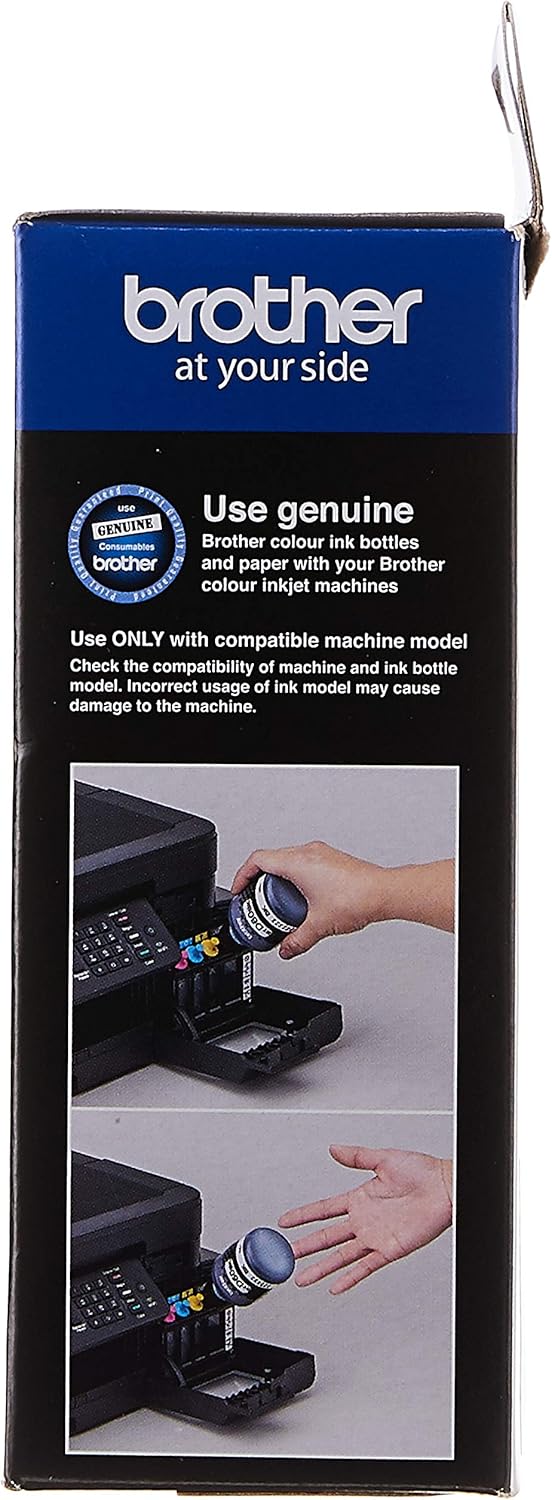
Figure 4.1: Visual guide demonstrating the process of inserting the ink bottle into the printer's ink tank for refilling.
Important: Use ONLY genuine Brother ink bottles. Using non-Brother ink may cause damage to your printer and void its warranty.
5. Operating (Printing)
After successful ink installation, your printer is ready for operation. Ensure your printer is connected to your computer or network and that the necessary drivers are installed. Refer to your printer's specific user manual for detailed printing instructions.
- Check Ink Levels: Regularly monitor ink levels through your printer's software utility or display panel.
- Print Quality: For best results, use recommended paper types and print settings.
6. Maintenance
Proper maintenance helps ensure consistent print quality and extends the life of your printer and ink:
- Storage: Store unused ink bottles upright in a cool, dark place, away from direct sunlight and extreme temperatures.
- Avoid Contamination: Do not mix different types or brands of ink.
- Printer Cleaning: Periodically perform print head cleaning and nozzle checks through your printer's maintenance utility to prevent clogs.
7. Troubleshooting
If you encounter issues, consider the following common solutions:
- Low Ink Warning: If the printer indicates low ink, refill the corresponding ink tank as described in Section 4.
- Poor Print Quality:
- Perform a print head cleaning cycle.
- Check for clogged nozzles by printing a nozzle check pattern.
- Ensure you are using genuine Brother ink.
- Verify that the paper type and print quality settings are appropriate for your task.
- Ink Leaks: Ensure the ink bottle cap is securely closed after use and that the ink tank covers are properly sealed on the printer. If a leak persists, contact Brother support.
For more complex issues, consult your printer's comprehensive user manual or Brother's official support website.
8. Specifications
| Model Number | BTD60BK |
| Ink Color | Black |
| Page Yield (Approx.) | 6500 pages |
| Bottle Style | Plastic Bottle |
| Package Dimensions (L x W x H) | 5.5 x 6.5 x 16.0 cm |
| Manufacturer | Brother |
9. Safety Information
- Keep ink bottles out of reach of children.
- Do not ingest ink. If swallowed, seek medical attention immediately.
- Avoid contact with eyes. If ink gets into eyes, flush immediately with water and seek medical attention.
- Avoid prolonged skin contact. Wash hands thoroughly after handling ink.
- Do not expose ink bottles to open flames or high heat.
10. Warranty and Support
For information regarding product warranty, technical support, or service, please refer to the official Brother website or contact Brother customer support in your region. Using genuine Brother consumables is often a prerequisite for warranty coverage.
You can find more details about this product on its Amazon page: Brother BTD60BK Black Ink Bottle.


