
Introduction
This manual provides essential instructions for the safe operation, setup, and maintenance of your Protocol Director HD Foldable Drone. Please read this manual thoroughly before operating the drone to ensure proper function and to prevent damage or injury.
The Protocol Director HD is a foldable drone equipped with a live streaming HD camera, designed for capturing aerial video and photos. It features an intuitive 2.4 GHz remote control, an altitude sensor for stable flight, and a free downloadable app for enhanced camera control and flight path drawing.
Safety Precautions
- Always operate the drone in open, unobstructed areas, away from people, animals, and obstacles.
- Do not operate near airports, restricted airspace, or sensitive facilities.
- Maintain a safe distance from power lines, trees, and water bodies.
- Ensure all propellers are securely attached and undamaged before each flight.
- Do not fly in strong winds or adverse weather conditions.
- Keep fingers and hair away from rotating propellers.
- Adult supervision is recommended for users under 18 years of age. Recommended age for operation is 14 years and up.
- Only use original Protocol replacement parts and accessories.
- Do not attempt to modify the drone or its components.
- Turn off the drone and remote control when not in use.
Package Contents
Verify that all items are present in the package:
- Protocol Director HD Foldable Drone with Camera
- Remote Control with Phone Mount
- USB Charging Cable
- 2 x Drone Batteries
- Travel Bag
- Instruction Manual (this document)
- Spare Parts: Blades, Screwdriver

Image: The Protocol Director HD Foldable Drone, showcasing its compact design with propellers extended and camera visible at the front.
Setup
1. Charging the Drone Battery
- Insert one of the drone batteries into the USB charging cable.
- Connect the USB charging cable to a USB power source (e.g., computer USB port, USB wall adapter).
- The charging indicator light on the USB cable will illuminate during charging and turn off when fully charged.
- Charging typically takes approximately 60-90 minutes. Do not overcharge.
2. Installing Remote Control Batteries
- Open the battery compartment on the back of the remote control.
- Insert 4 AA batteries (not included), ensuring correct polarity (+/-).
- Close the battery compartment securely.

Image: The drone's remote control with a smartphone securely mounted, displaying a live feed from the drone's camera.
3. Unfolding the Drone
- Gently unfold each of the four rotor arms until they click into place.
- Ensure all arms are fully extended and locked before flight.
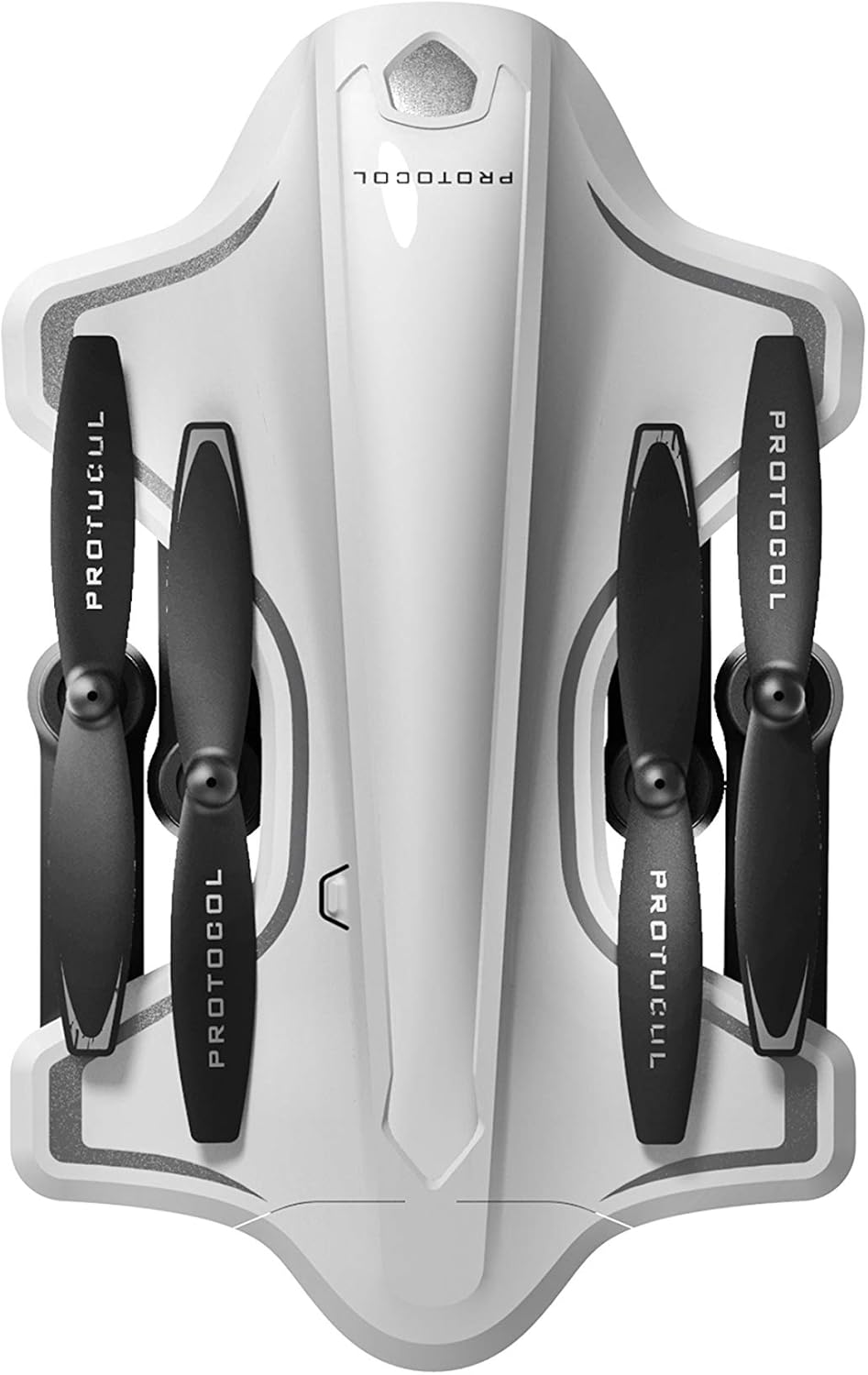
Image: The Protocol Director HD Foldable Drone in its compact, folded configuration, ready for transport.
4. Installing the Drone Battery
- Locate the battery compartment on the drone.
- Insert the fully charged drone battery, ensuring it is securely seated.
- Close the battery compartment cover.
5. Downloading the App (Optional for Camera Features)
- Search for the "Protocol Director HD" app in your smartphone's app store (iOS or Android).
- Download and install the free application.
- Mount your smartphone onto the remote control's phone mount.
Operating Instructions
1. Powering On and Pairing
- Place the drone on a flat, level surface.
- Turn on the drone by pressing the power button. The drone's lights will flash.
- Turn on the remote control.
- Push the left joystick (throttle) all the way up, then all the way down. The drone's lights will become solid, indicating successful pairing.
2. Calibrating the Gyroscope
After pairing, it is recommended to calibrate the gyroscope for stable flight:
- With the drone on a flat surface, push both joysticks down and to the right simultaneously for a few seconds.
- The drone's lights will flash rapidly and then become solid, indicating calibration is complete.
3. Basic Flight Controls
The Protocol Director HD features auto launch, hover, and land functions due to its altitude sensor.
- Auto Launch: Press the dedicated auto launch button on the remote. The drone will ascend to a stable hovering altitude.
- Throttle (Left Joystick):
- Push up: Increase altitude
- Push down: Decrease altitude
- Push left/right: Rotate drone left/right (yaw)
- Directional Control (Right Joystick):
- Push up: Fly forward
- Push down: Fly backward
- Push left: Fly left (strafe)
- Push right: Fly right (strafe)
- Auto Land: Press the dedicated auto land button. The drone will slowly descend and land.
- Speed Selection: Use the speed button on the remote to cycle through three selectable speeds (low, medium, high).
4. Camera and App Features
Connect your smartphone to the drone's Wi-Fi network (usually named "Protocol_Drone_XXXXXX") to access live streaming and advanced camera functions via the app.
- Live Streaming: View the drone's camera feed in real-time on your smartphone.
- Video Recording: Initiate and stop video recording (480p resolution) through the app.
- Photo Capture: Take still images through the app.
- Multiple Camera Angles: The app supports three different camera angles (Aerial, POV, Selfie) for varied content creation.
- Audio Recording: The app allows for audio recording alongside video.
- Draw Your Own Flight Path: Utilize the app's feature to draw a flight path on your screen, and the drone will follow it.
- VR Capability: The app is VR capable; VR goggles are sold separately.
Maintenance
- Propeller Inspection: Regularly check propellers for cracks, bends, or damage. Replace any damaged propellers using the provided spare parts and screwdriver.
- Cleaning: Use a soft, dry cloth to clean the drone and remote control. Avoid using liquids or harsh chemicals.
- Battery Care:
- Do not overcharge batteries.
- Store batteries in a cool, dry place.
- Remove batteries from the drone and remote control during long periods of non-use.
- Storage: Fold the drone arms for compact storage in the provided travel bag when not in use. Store in a cool, dry environment.
Troubleshooting
| Problem | Possible Cause | Solution |
|---|---|---|
| Drone does not power on. | Battery not charged or incorrectly installed. | Ensure battery is fully charged and correctly inserted. |
| Remote control does not power on. | AA batteries are dead or incorrectly installed. | Replace AA batteries, checking polarity. |
| Drone and remote do not pair. | Pairing sequence not followed correctly. | Ensure drone is on, then remote. Push left joystick up then down completely. |
| Drone drifts during flight. | Gyroscope needs calibration; uneven surface at launch. | Land the drone, place on a flat surface, and recalibrate the gyroscope (both joysticks down and right). |
| One propeller does not spin. | Propeller damaged or motor issue. | Check for obstructions. Replace damaged propeller. If issue persists, contact support. |
| No live video feed on smartphone. | Not connected to drone's Wi-Fi; app not open. | Ensure smartphone is connected to the drone's Wi-Fi network and the app is running. |
Specifications
| Brand | Protocol |
| Model Name | Director HD |
| Model Number | 6182-7RCHA |
| Dimensions (Folded) | Approximately 4.75 inches (length) |
| Dimensions (Extended) | Approximately 9 inches (length, including blades) |
| Weight | 0.94 Kilograms (940g) |
| Camera Resolution | 480p (Video Capture) |
| Connectivity | Wi-Fi (for app control and live streaming), 2.4 GHz (for remote control) |
| Stabilization | 6-axis motion-sensitive auto stabilizers, Altitude sensor |
| Speed Modes | Three selectable speeds |
| Drone Battery | Rechargeable (2 included) |
| Remote Control Battery | 4 x AA batteries (not included) |
| Material | Plastic (Crash-resistant) |
| Recommended Age | 14 years and up |
Warranty and Support
For warranty information, technical support, or to purchase replacement parts, please visit the official Protocol website or contact their customer service department. Keep your purchase receipt as proof of purchase.
Website: www.protocolny.com (Example link, actual link may vary)
Contact: Refer to the Protocol website for contact details, including phone numbers or email support.