
1. Product Overview
The PAWHITS WM156-HEI is a 2.4GHz wireless controller designed for gaming, featuring a semi-transparent blue shell and customizable LED lighting. It offers a comfortable, lightweight design and vibration feedback for an immersive gaming experience.
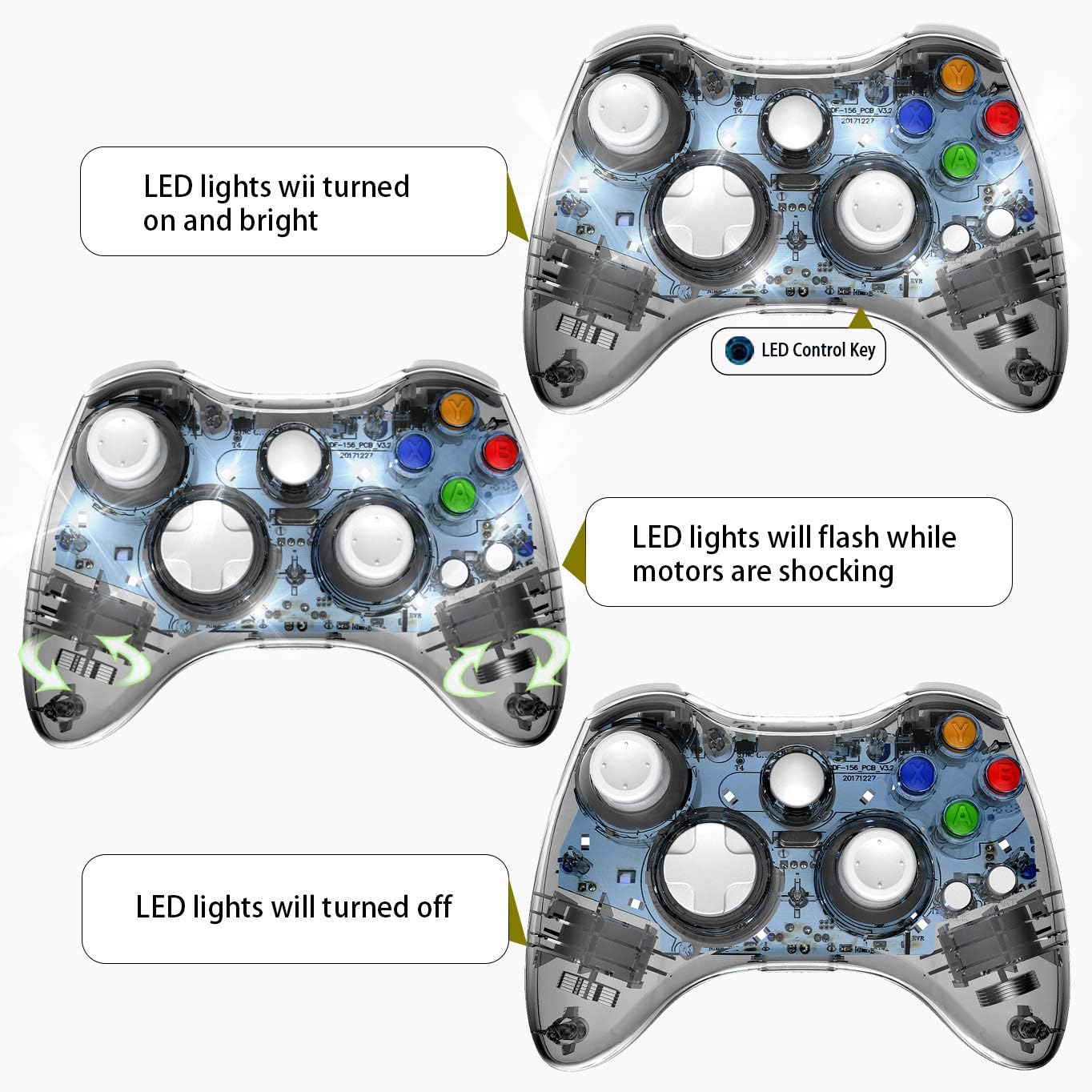
Image 1: The PAWHITS Wireless Controller demonstrating its three LED light modes: steady on, flashing during vibration, and off. The LED Control Key is indicated.
2. Package Contents
- PAWHITS Wireless Controller (WM156-HEI)
- 2.4GHz USB Receiver
- User Manual (this document)
Note: 2x AA batteries are required and not included in the package.
3. Controller Layout

Image 2: Detailed view of the controller's button layout, including L-Stick, R-Stick, D-Pad, HOME button, BACK button, START button, four function control buttons (A, B, X, Y), RB, LB, RT, LT triggers, earphone hole, wired interface, and SYNC button. Dimensions are also shown.
- L-Stick / R-Stick: Analog joysticks for movement and camera control.
- D-Pad: Directional pad for precise input.
- A/B/X/Y Buttons: Standard action buttons.
- HOME Button: Access system menus.
- BACK Button: Typically used for secondary functions or menu navigation.
- START Button: Typically used to pause or start games.
- RB/LB: Shoulder buttons.
- RT/LT: Analog triggers.
- Earphone hole: For connecting compatible headsets.
- Wired interface: For wired connection or charging (if applicable).
- SYNC Button: For pairing the controller with the USB receiver.
4. Setup Instructions
4.1. Battery Installation
- Locate the battery compartment on the back of the controller.
- Open the battery cover.
- Insert two (2) standard AA batteries, ensuring correct polarity (+/-).
- Close the battery cover securely.
For eco-friendly power solutions, rechargeable AA batteries (e.g., NiMH) are recommended.
4.2. Connecting to Your Device (PC)
- Plug the 2.4GHz USB receiver into an available USB port on your PC.
- Turn on the controller by pressing the HOME button.
- Press the SYNC button on the controller (located near the wired interface, as shown in Image 2).
- The controller's LED indicators will flash while searching for the receiver and become solid once connected.
- The controller is now ready for use.
The 2.4GHz wireless technology provides a stable connection within a 10-meter range.
5. Operating Instructions
5.1. Basic Controls
Refer to Section 3, "Controller Layout," for the location of all buttons and sticks. The controller functions similarly to standard gamepads, with analog sticks for movement/camera, a D-Pad for directional input, and various action buttons and triggers.
5.2. LED Light Control
The controller features a customizable LED light strip. You can cycle through three modes using the LED Control Key located on the back of the controller.
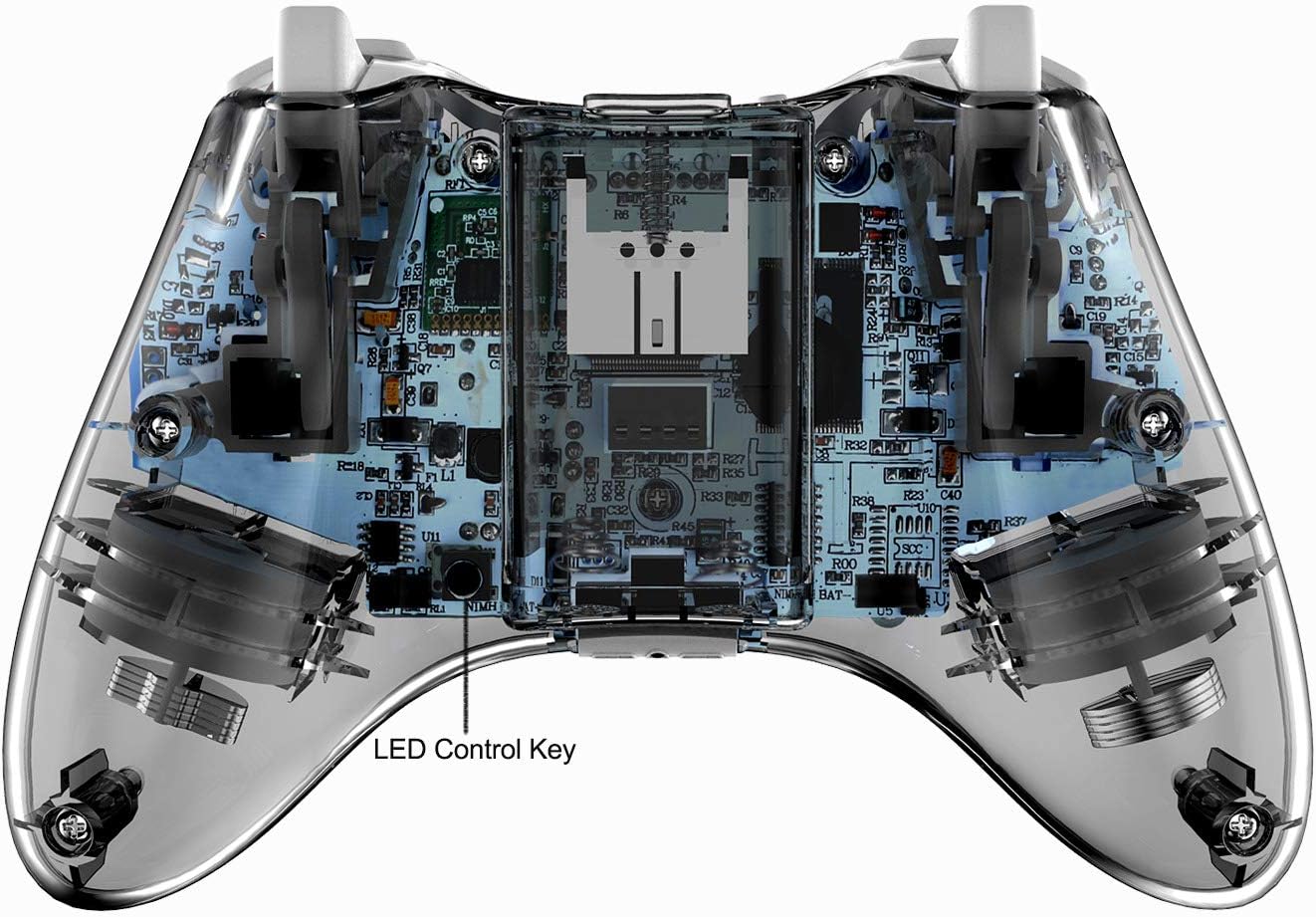
Image 3: The back of the PAWHITS Wireless Controller, highlighting the location of the LED Control Key.
- Press once: LED lights turn on steady.
- Press twice: LED lights enter breathing mode (pulsating).
- Press three times: LED lights turn off.
Additionally, the LED lights will flash when the controller's vibration motors are active, providing visual feedback during gameplay.
5.3. Player Position Indicators
The four LED indicators on the controller display player positions (1P-4P) for seamless multiplayer coordination.
6. Maintenance
- Cleaning: Use a soft, dry cloth to clean the controller. Avoid using harsh chemicals or abrasive materials.
- Storage: Store the controller in a cool, dry place away from direct sunlight and extreme temperatures.
- Battery Care: Remove batteries if the controller will not be used for an extended period to prevent leakage.
- Handling: Avoid dropping the controller or subjecting it to strong impacts, as this may damage internal components.
7. Troubleshooting
| Problem | Possible Cause | Solution |
|---|---|---|
| Controller does not turn on. | Low or dead batteries; incorrect battery installation. | Replace batteries with fresh AA batteries, ensuring correct polarity. |
| Controller does not connect to PC. | USB receiver not plugged in; controller not synced; out of range. | Ensure USB receiver is securely plugged in. Press the SYNC button on the controller. Move closer to the PC (within 10 meters). |
| Connection drops intermittently. | Interference; low battery; distance from receiver. | Ensure no strong wireless interference sources nearby. Replace batteries. Reduce distance to the USB receiver. |
| Buttons or joysticks are unresponsive. | Software issue; physical damage; calibration needed. | Restart your PC. Check game settings. If issues persist, contact customer support. |
| LED lights are not working. | LED mode is off; controller malfunction. | Press the LED Control Key on the back of the controller to cycle through modes. If still unresponsive, contact customer support. |
8. Specifications
| Feature | Detail |
|---|---|
| Brand | PAWHITS |
| Model Number | WM156-HEI |
| Connectivity Technology | 2.4GHz Wireless |
| Controller Type | Wireless Gamepad |
| Compatible Devices | PC |
| Power Source | 2 x AA Batteries (not included) |
| Wireless Range | Up to 10 meters (33 feet) |
| Product Dimensions | 6.04 x 4.13 x 2.46 inches |
| Item Weight | 8.8 ounces |
| Special Features | Customizable LED lighting (steady, breathing, off), Vibration feedback, Player position indicators (1P-4P) |
9. Warranty and Support
For warranty information and technical support, please refer to the documentation included with your purchase or contact PAWHITS customer service directly. Keep your purchase receipt as proof of purchase.
Manufacturer: PAWHITS