
Introduction
The CenturyLink C3000A gateway provides reliable, high-speed broadband connectivity for home and small-office environments. This device supports bonded VDSL2 and modern DSL variants, including pair-bonding, vectoring, and G.fast, ensuring multi-gigabit aggregate performance on compatible lines while maintaining backward compatibility with standard ADSL/VDSL deployments. It features dual-band 802.11ac Wi-Fi, offering robust 2.4 GHz and 5 GHz coverage suitable for 4K streaming, online gaming, and managing a smart-home network. The C3000A also includes built-in latency and line-stability features to ensure clear voice and video communication. For wired connections and networked storage, it is equipped with multiple Gigabit Ethernet ports and a USB 3.0 host port. Designed for ease of use, it supports IPv6, TR-069 provisioning, and remote firmware management for simplified activation and maintenance by your Internet Service Provider (ISP). Intuitive LED indicators and setup guides facilitate a straightforward installation process.
Package Contents
Verify that your package contains the following items:
- CenturyLink C3000A Wireless AC Gateway Router
- Power Adapter
- Ethernet Cable (may vary by package)
- DSL Phone Cable (may vary by package)
Product Features
- Bonded VDSL2 Support: Compatible with advanced DSL technologies for high-speed internet access.
- Dual-Band 802.11ac Wi-Fi: Provides robust 2.4 GHz and 5 GHz wireless coverage for various devices.
- Multiple Gigabit Ethernet Ports: For reliable wired connections to computers, gaming consoles, and other network devices.
- USB 3.0 Host Port: Enables networked storage or sharing of USB devices.
- WPA/WPA2 Wireless Encryption: Ensures secure wireless network communication.
- IPv6 Support: Future-ready for the next generation of internet protocols.
- TR-069 Provisioning: Allows for remote management and updates by your ISP.
Physical Overview
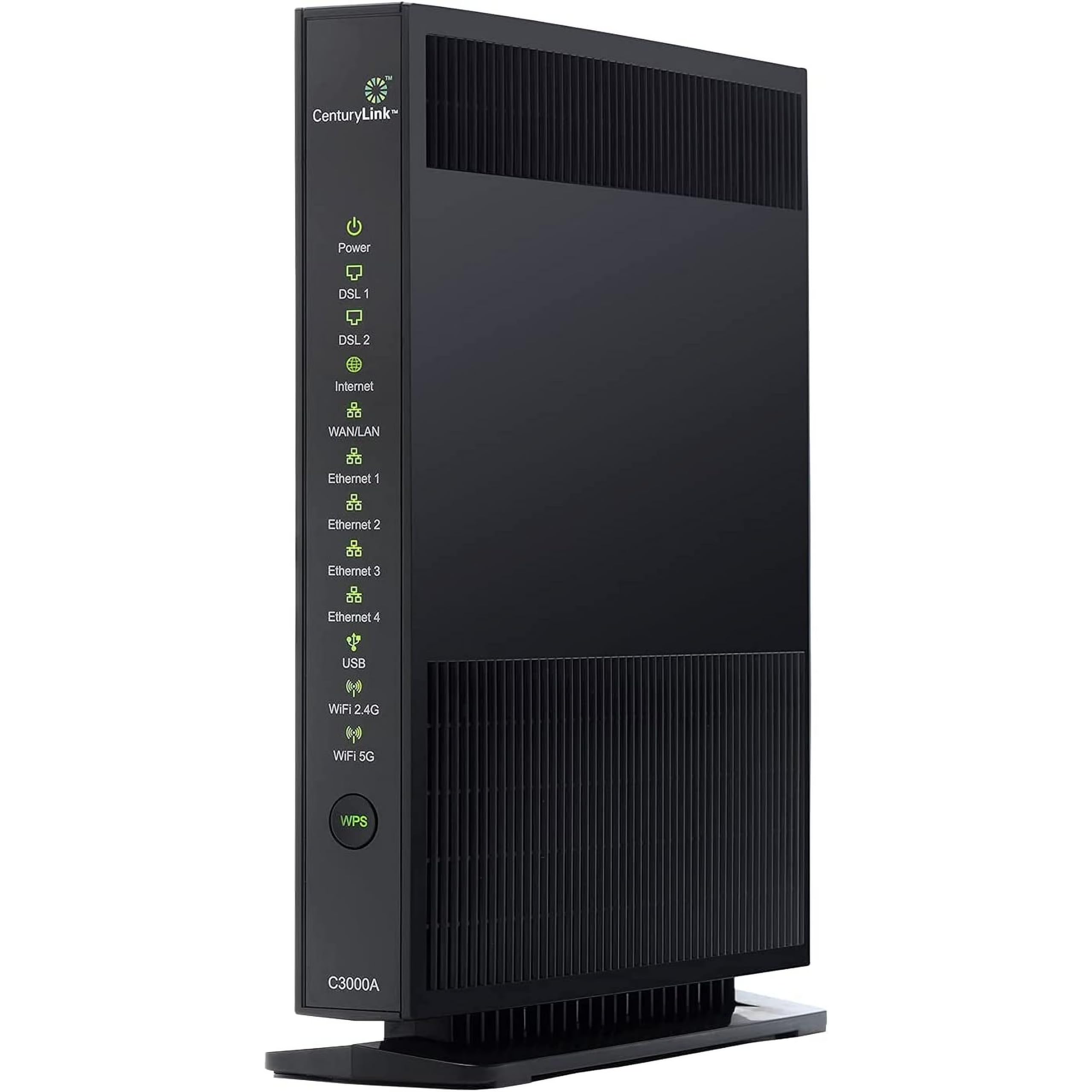
Image 1: Front and rear view of the CenturyLink C3000A Wireless AC Gateway Router. The front panel displays LED indicators for Power, DSL 1, DSL 2, Internet, WAN/LAN, Ethernet 1-4, USB, Wi-Fi 2.4G, Wi-Fi 5G, and a WPS button. The rear panel shows the 12V==2A power input, USB port, Reset button, Ethernet ports 1-4, and DSL port.
Front Panel Indicators (LEDs)
- Power: Indicates power status. Solid green for normal operation.
- DSL 1 / DSL 2: Indicate DSL line synchronization. Solid green when synchronized.
- Internet: Indicates internet connection status. Solid green when connected.
- WAN/LAN: Indicates WAN or LAN activity.
- Ethernet 1-4: Indicate activity on the respective Ethernet ports.
- USB: Indicates activity on the USB port.
- Wi-Fi 2.4G / Wi-Fi 5G: Indicate activity for the 2.4 GHz and 5 GHz wireless networks, respectively.
- WPS Button: Used for Wi-Fi Protected Setup to easily connect devices.
Rear Panel Ports
- 12V==2A Power Input: Connects to the provided power adapter.
- USB Port: For connecting USB storage devices or other peripherals.
- Reset Button: Recessed button to restore factory default settings. Use a paperclip to press and hold for 10 seconds.
- Ethernet Ports (1-4): RJ-45 ports for wired network connections.
- DSL Port: RJ-11 port for connecting to the DSL line from your wall jack.
Setup
Step 1: Connect the Gateway
- Connect one end of the provided DSL phone cable to the DSL port on the rear of the C3000A gateway.
- Connect the other end of the DSL phone cable to your wall phone jack. If you have a phone connected to the same line, use a DSL filter (not included).
- Connect the power adapter to the 12V==2A Power Input on the rear of the gateway and plug it into an electrical outlet.
- Wait for the gateway to power on. The Power LED should turn solid green.
Step 2: Verify DSL and Internet Connection
- Observe the DSL 1 and DSL 2 LEDs. They should turn solid green, indicating successful synchronization with the DSL line. If only one DSL line is active, only DSL 1 will be solid green.
- Observe the Internet LED. It should turn solid green, indicating a successful connection to the internet. This may take a few minutes.
Step 3: Connect Your Devices
- Wired Connection: Connect an Ethernet cable from one of the Ethernet ports (1-4) on the gateway to the Ethernet port on your computer or other network device.
- Wireless Connection:
- Find the Wi-Fi network name (SSID) and password (WPA/WPA2 key) located on a sticker on the gateway.
- On your wireless device (laptop, smartphone, tablet), search for available Wi-Fi networks.
- Select your gateway's SSID (e.g., "CenturyLinkXXXX") and enter the password when prompted.
- Alternatively, press the WPS button on the front of the gateway and then activate WPS on your device within two minutes to establish a connection without entering the password.
Step 4: Access the Gateway Interface (Optional)
To configure advanced settings, open a web browser on a connected device and navigate to the gateway's default IP address (commonly http://192.168.0.1 or http://192.168.1.1). You will need to enter the administrator username and password, which are typically found on the gateway's sticker or in your ISP's documentation.
Operating Instructions
Connecting to Wi-Fi
The C3000A supports dual-band Wi-Fi, offering both 2.4 GHz and 5 GHz networks. The 2.4 GHz band provides wider coverage and better penetration through walls, while the 5 GHz band offers faster speeds over shorter distances and less interference. You can connect your devices to either network based on your needs.
- 2.4 GHz Network: Ideal for devices further away from the gateway or for general browsing.
- 5 GHz Network: Recommended for high-bandwidth activities like 4K streaming and online gaming, especially for devices closer to the gateway.
Using the USB Port
The USB 3.0 port on the rear of the gateway can be used to connect external storage devices (e.g., USB hard drives or flash drives) to create network-attached storage (NAS). This allows all devices on your network to access shared files. Refer to the gateway's web interface for configuration options.
Guest Wi-Fi Network (If Available)
Some configurations of the C3000A may allow you to set up a separate guest Wi-Fi network. This provides internet access to visitors without giving them access to your main network resources. Check the gateway's web interface for this feature.
Maintenance
Firmware Updates
The C3000A gateway's firmware is typically managed and updated remotely by CenturyLink to ensure optimal performance and security. You generally do not need to manually update the firmware. If you encounter issues, your ISP may push an update.
Resetting the Gateway
If you experience persistent network issues or forget your administrator password, you can perform a factory reset. Locate the recessed Reset button on the rear panel. With the gateway powered on, use a paperclip or similar pointed object to press and hold the button for approximately 10 seconds until the LEDs flash. The gateway will restart with factory default settings. Warning: A factory reset will erase all custom configurations, including Wi-Fi names and passwords.
Cleaning
Keep the gateway clean and free from dust to ensure proper ventilation. Use a soft, dry cloth to wipe the exterior. Do not use liquid cleaners or abrasive materials.
Troubleshooting
- No Power:
Ensure the power adapter is securely connected to the gateway and a working electrical outlet. Check if the Power LED is illuminated.
- No DSL Synchronization (DSL 1/2 LEDs off or blinking):
Verify that the DSL phone cable is securely connected to both the gateway's DSL port and the wall jack. Ensure no phone is sharing the line without a DSL filter. Contact CenturyLink if the issue persists.
- No Internet Connection (Internet LED off or red):
Check if the DSL LEDs are solid green. If they are, the issue might be with your ISP's service. Power cycle the gateway by unplugging it for 30 seconds and plugging it back in. If the problem continues, contact CenturyLink support.
- Slow Wi-Fi Speed or Frequent Disconnections:
Ensure the gateway is placed in a central location, away from obstructions and interference sources (e.g., microwaves, cordless phones). Try connecting to the 5 GHz network for closer devices. Reduce the number of active devices or bandwidth-intensive activities. Consider a factory reset if issues persist after other troubleshooting steps.
- Cannot Access Gateway Interface:
Ensure your device is connected to the gateway via Ethernet or Wi-Fi. Verify the correct IP address (http://192.168.0.1 or http://192.168.1.1). If you forgot the password, perform a factory reset.
Specifications
| Model Name | C3000A |
| Brand | CenturyLink (Manufactured by Actiontec) |
| Connectivity Technology | Ethernet, DSL |
| Wireless Communication Standard | 802.11ac |
| Frequency Band Class | Dual-Band (2.4 GHz, 5 GHz) |
| Special Feature | WPS (Wi-Fi Protected Setup) |
| Compatible Devices | Phone, Tablet, WiFi-Enabled Devices, Media Streaming Devices, Computer, PC, Mac, Gaming Consoles |
| Recommended Uses | Home, Small Office |
| Included Components | Router, Power Adapter |
| Item Weight | 1 pound |
| Package Dimensions | 11.81 x 9.06 x 2.24 inches |
| Color | Black |
Warranty and Support
Product Warranty
For specific warranty information regarding your CenturyLink C3000A gateway, please refer to the documentation provided by CenturyLink or contact their customer support directly. Warranty terms typically cover manufacturing defects for a specified period.
Return Policy
If purchased from a retailer, the product may be subject to a return policy, such as a 30-day refund/replacement period. Please check with your point of purchase for their specific return guidelines.
Technical Support
For technical assistance, service activation, or advanced configuration support, please contact CenturyLink customer service. They can provide specific guidance related to your internet service and gateway settings.
CenturyLink Support: Please visit the official CenturyLink website or refer to your service agreement for contact information.


