
Introduction
This manual provides detailed instructions for the installation, operation, and maintenance of your Ampire RVM051-5" TFT Monitor. Please read this manual thoroughly before use to ensure proper function and longevity of the device.
Safety Information
Important safety precautions to follow:
- Do not expose the monitor to extreme temperatures or direct sunlight for prolonged periods.
- Ensure proper ventilation to prevent overheating.
- Disconnect power before cleaning or performing any maintenance.
- This monitor is not suitable for 24-hour continuous surveillance use and may be damaged if used as such.
- Only use the provided power cable and accessories.
Package Contents
Verify that all items are present in the package:
- 5" Monitor
- Suction Cup Mount
- Adhesive Foot Mount
- Connection Cable
Technical Specifications
| Feature | Value |
|---|---|
| Display | 5" (12.7 cm) Digital HD TFT LCD (Color) |
| Backlight | LED |
| Aspect Ratio | 16:9 |
| Resolution | 800 x 480 pixels (HD) |
| Video Inputs | 2 x FBAS RCA (1 Vss, 75 ohms) |
| System | Automatic NTSC/PAL switching |
| Automatic Power-on | 2 seconds |
| Power Supply | 10-32V DC |
| Operating Temperature | -20 °C to 60 °C |
| Storage Temperature | -30 °C to 80 °C |
| Monitor Dimensions | 126 x 83 x 33 mm |
| Pixel Error Standard | ISO 9241-307, Pixel Error Class II |
| Menu Language | English/Chinese |
| Certifications | CE- E13 10R-02 2332, RoHS, WEEE |
Setup and Installation
Mounting Options
The Ampire RVM051-5" monitor offers flexible mounting options to suit your vehicle's interior.
Using the Suction Cup Mount
- Clean the desired mounting surface (e.g., windshield, dashboard) thoroughly.
- Attach the suction cup mount to the back of the monitor.
- Press the suction cup firmly against the clean surface and engage the lever to secure it.
- Adjust the monitor's angle for optimal viewing.
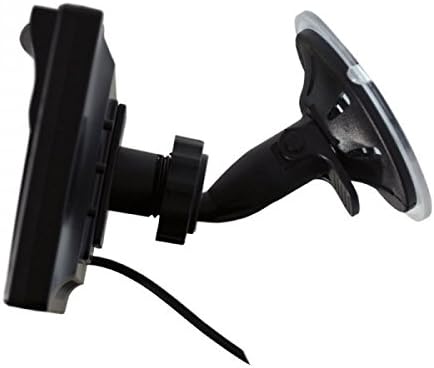
Image: The Ampire RVM051-5" monitor with its suction cup mount, showing the adjustable arm and base.
Using the Adhesive Foot Mount
- Clean the desired mounting surface thoroughly.
- Attach the adhesive foot mount to the back of the monitor.
- Remove the protective film from the adhesive pad.
- Press the mount firmly onto the surface for at least 30 seconds. Allow adhesive to cure for several hours before use.
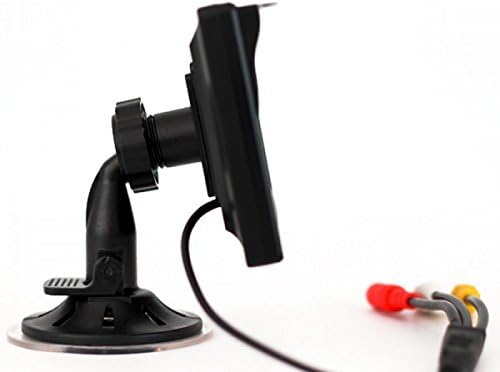
Image: The Ampire RVM051-5" monitor with its adhesive foot mount, providing a stable base for dashboard installation.
Connecting the Monitor
The monitor features two video inputs (RCA) and a power input.
- Connect the provided connection cable to the monitor's power input.
- Connect the power cable to a 10-32V DC power source in your vehicle. Ensure correct polarity.
- For a rearview camera, connect the camera's video output (RCA) to one of the monitor's video inputs (e.g., Video 1).
- For an additional video source (e.g., DVD player, DVB-T receiver), connect its video output (RCA) to the second video input (Video 2).
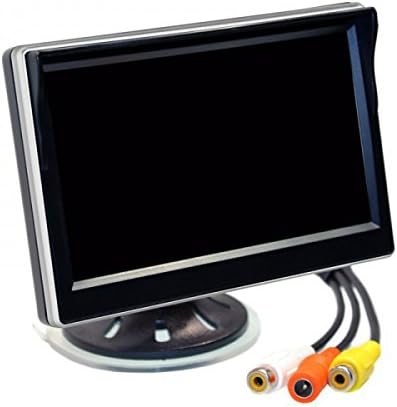
Image: The back of the Ampire RVM051-5" monitor, highlighting the two RCA video input jacks and the power input.
Operation
Powering On/Off
The monitor will automatically power on within 2 seconds when a video signal is detected on the active input. It will power off when no signal is present or power is disconnected.
Switching Video Inputs
The monitor supports two video inputs. You can switch between them using the control buttons on the monitor. Refer to the on-screen display (OSD) for current input selection.
Adjusting Display Settings
Use the control buttons to navigate the on-screen menu. You can adjust settings such as brightness, contrast, color, and aspect ratio. The menu language can be set to English or Chinese.

Image: The Ampire RVM051-5" monitor displaying a live feed, showcasing its clear image quality for vehicle applications.
Maintenance
Cleaning the Monitor
To clean the monitor screen and casing:
- Turn off the monitor and disconnect it from the power source.
- Use a soft, lint-free cloth slightly dampened with water or a mild, non-abrasive screen cleaner.
- Gently wipe the screen and casing. Do not spray liquid directly onto the monitor.
- Avoid using harsh chemicals, solvents, or abrasive materials, as they can damage the surface.
Storage
If storing the monitor for an extended period, ensure it is kept in a cool, dry place within the specified storage temperature range (-30 °C to 80 °C).
Troubleshooting
| Problem | Possible Cause | Solution |
|---|---|---|
| No image on screen. | No power; Incorrect video input selected; Loose video cable; No video signal from source. | Check power connection; Select correct input; Secure video cables; Verify video source is active. |
| Image is distorted or flickering. | Poor video signal; Loose cable connection; Interference. | Check video cable for damage; Ensure connections are secure; Relocate monitor or cables away from interference sources. |
| Monitor does not turn on automatically. | No video signal detected; Power issue. | Ensure video source is active and connected; Check power supply. |
| Menu language is incorrect. | Language setting needs adjustment. | Access the OSD menu and change the language setting to English. |
Warranty and Support
This product is covered by a standard manufacturer's warranty. Please refer to your purchase documentation for specific warranty terms and conditions.
For technical support or service inquiries, please contact your authorized Ampire dealer or visit the official Ampire website.
Note: The monitor is not designed for 24-hour surveillance use. Damage resulting from such use is not covered under warranty.