
1. Product Overview
The EZoneTronics Android Car Radio is a double DIN multimedia system designed for in-car entertainment and navigation. It features a touch screen display, Android operating system, built-in Bluetooth, Wi-Fi connectivity, and GPS capabilities. This unit supports various applications and media playback, enhancing your driving experience.
Key Features:
- Steering Wheel Control: Compatible with factory steering wheel controls (resistive analog signal input only). Digital CANBUS signals may require an external converter.
- GPS Navigation: Integrated GPS module. Download preferred map applications from the Play Store after connecting to Wi-Fi.
- Built-in Wi-Fi: Allows downloading applications from the Play Store.
- Bluetooth & FM Radio: Bluetooth for hands-free calls and music streaming. FM radio with preset stations for real-time traffic, news, and weather.
Included Components:
The package includes the Android Player unit, GPS Antenna, Power Harness, 2 USB adapters, User Manual, RCA output wire, Camera Input wire, and 2 Installation brackets.

Figure 1: EZoneTronics Android Car Radio unit and included accessories.
2. Installation
Proper installation is crucial for optimal performance. It is recommended to have the unit installed by a professional if you are unfamiliar with car audio wiring.
2.1 Wiring Connections:
- Power Harness: Connect the main power harness to your vehicle's power supply, ensuring correct positive, negative, and accessory connections.
- GPS Antenna: Connect the GPS antenna and position it in a location with a clear view of the sky for best signal reception.
- USB Adapters: Utilize the provided USB adapters for connecting external devices or media.
- RCA Output: Connect to external amplifiers or subwoofers using the RCA output wires.
- Camera Input: Connect a rearview camera to the dedicated camera input wire for parking assistance.
2.2 Steering Wheel Control (SWC):
If your vehicle has factory steering wheel controls based on a resistive analog signal, the SWC feature can be retained by connecting the appropriate wires. For vehicles using a digital CANBUS data signal, an additional digital-to-resistive converter may be required. If your car does not have factory SWC, an external steering wheel controller (wired connection) can be added.

Figure 2: Steering Wheel Control in operation.
3. Operation
3.1 Basic Controls:
The unit features a fully capacitive touch screen for control. Side buttons typically include Power, Volume Up/Down, Home, and Back functions.
3.2 GPS Navigation:
After connecting to a Wi-Fi network, access the Play Store to download your preferred navigation application. Ensure the GPS antenna is properly installed for accurate positioning.

Figure 3: GPS Navigation Function.
3.3 Bluetooth Connectivity:
Enable Bluetooth on your mobile phone and search for the car radio. Pair the devices to enable hands-free calling, access your phone book, and stream audio via A2DP.

Figure 4: Bluetooth features including hands-free calls and EQ regulation.
3.4 Wi-Fi and App Installation:
Connect the unit to a Wi-Fi hotspot (e.g., from your mobile phone) to access the Play Store. You can download and install various applications, including streaming services like Netflix.
3.5 Mirror Link Function:
The Mirror Link function allows you to display your smartphone screen on the car radio. Android phones can be controlled via USB, while iPhones can mirror video and audio wirelessly.
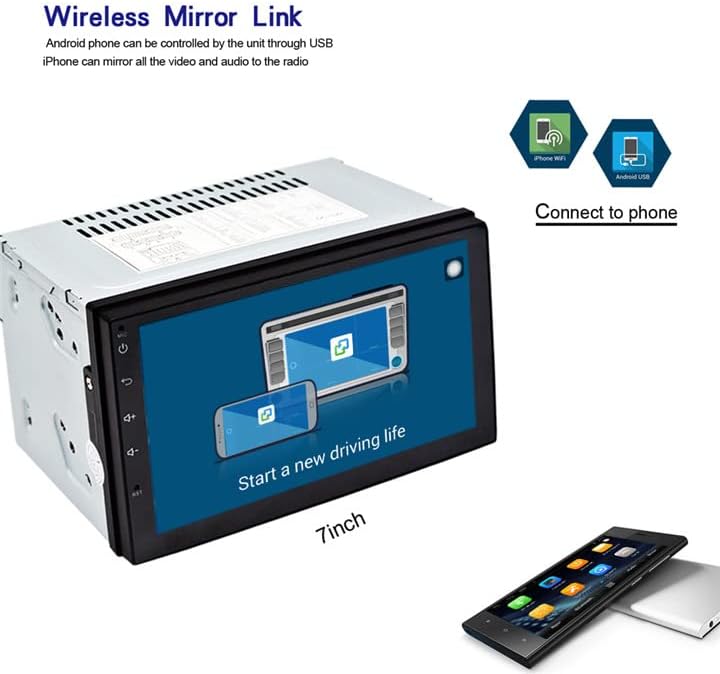
Figure 5: Wireless Mirror Link setup.
3.6 FM Radio:
Access the FM radio function to tune into local stations. You can save your favorite stations as presets for quick access.

Figure 6: FM Radio interface.
4. Specifications
| Feature | Description |
|---|---|
| Brand | EZoneTronics |
| Model Number | 10 |
| Connectivity Technology | Bluetooth, Wi-Fi |
| Controller Type | Android |
| Special Features | Built-In Bluetooth, Touchscreen |
| Compatible Devices | Smartphone |
| Connector Type | USB |
| Audio Output Mode | Stereo |
| Surround Sound Channel Configuration | 4.0 |
| Video Encoding | H.264 |
| Output Power | 45 Watts |
| Number of Channels | 4 |
| Supported Internet Services | Netflix |
| Control Method | App, Touch |
| Audio Output Type | Bluetooth |
| Format | WMA |
| Manufacturer | Rhythm Electronics Limited |

Figure 7: Product Dimensions.
5. Troubleshooting
If you encounter issues with your EZoneTronics Android Car Radio, please refer to the following general troubleshooting steps:
- No Power: Check all power connections, including the main power harness and vehicle's fuse box. Ensure the accessory wire is correctly connected.
- No Sound: Verify speaker connections and ensure the volume is not muted or set to minimum. Check RCA connections if using external amplifiers.
- GPS Signal Issues: Ensure the GPS antenna is installed in a location with an unobstructed view of the sky. Check antenna connection to the unit.
- Bluetooth Connection Problems: Ensure Bluetooth is enabled on both the car radio and your mobile device. Try unpairing and re-pairing the devices.
- Touch Screen Unresponsive: Try restarting the unit. If the issue persists, a factory reset might be necessary (refer to the on-screen settings for this option).
- App Malfunctions: Ensure the unit is connected to Wi-Fi and the app is updated to the latest version. Clear the app's cache or reinstall it if necessary.
For persistent issues, contact EZoneTronics customer support for further assistance.
6. Safety Information
Always prioritize safety while operating your vehicle. Do not operate the car radio in a way that distracts you from driving. Adjust settings or interact with applications only when the vehicle is safely parked. Adhere to all local traffic laws and regulations.


