1. Introduction
This manual provides comprehensive instructions for the setup, operation, and maintenance of your Ducky One 2 RGB Full Size Mechanical Keyboard (Model DKON1808ST). The Ducky One 2 RGB features an updated design, an enhanced RGB interface for customizable lighting, and modern USB-C connectivity. Please read this manual thoroughly to ensure proper use and to maximize your keyboard's potential.

Image: Top-down view of the Ducky One 2 RGB Full Size Mechanical Keyboard, showcasing its full layout and initial RGB lighting on specific keys.
2. Package Contents
Verify that all items are present in the package:
- Ducky One 2 RGB Full Size Mechanical Keyboard (DKON1808ST)
- Detachable USB-C to USB-A Cable
- Additional PBT Double Shot Keycaps (random colors)
- Keycap Puller
- User Manual (this document)
3. Setup
Follow these steps to set up your Ducky One 2 RGB keyboard:
- Unpack: Carefully remove the keyboard and all accessories from the packaging.
- Connect Cable: Locate the USB-C port on the back of the keyboard. Connect the USB-C end of the provided cable to the keyboard and the USB-A end to an available USB port on your computer.
- Power On: Your computer should automatically detect the keyboard. No additional drivers are typically required for basic functionality.
- Optional Software: For advanced RGB customization and macro programming, Ducky may provide optional software. Refer to the official Ducky website for the latest software downloads and instructions.

Image: Detail of the USB-C port on the Ducky One 2 RGB keyboard, showing the connection point for the detachable cable.
4. Operating Instructions
4.1 Basic Keyboard Functions
The Ducky One 2 RGB functions as a standard full-size keyboard. All keys perform their labeled actions. The keyboard features Cherry MX Brown switches, providing a tactile bump for keystroke confirmation.

Image: Angled view of the Ducky One 2 RGB keyboard, showing the full layout and the illuminated RGB backlighting.
4.2 RGB Lighting Customization
The Ducky One 2 RGB offers extensive lighting customization both through on-board controls and optional software.
- On-board Controls: Use the Function (Fn) key in combination with specific keys (often F10, F11, F12, or arrow keys) to cycle through lighting modes, adjust brightness, and change colors. Refer to the keyboard's keycap legends for specific combinations.
- Software Customization: For more detailed control, download the Ducky RGB software from the official Ducky website. This software allows for per-key lighting customization, advanced effects, and integration with systems like Razer's Chroma broadcasting.
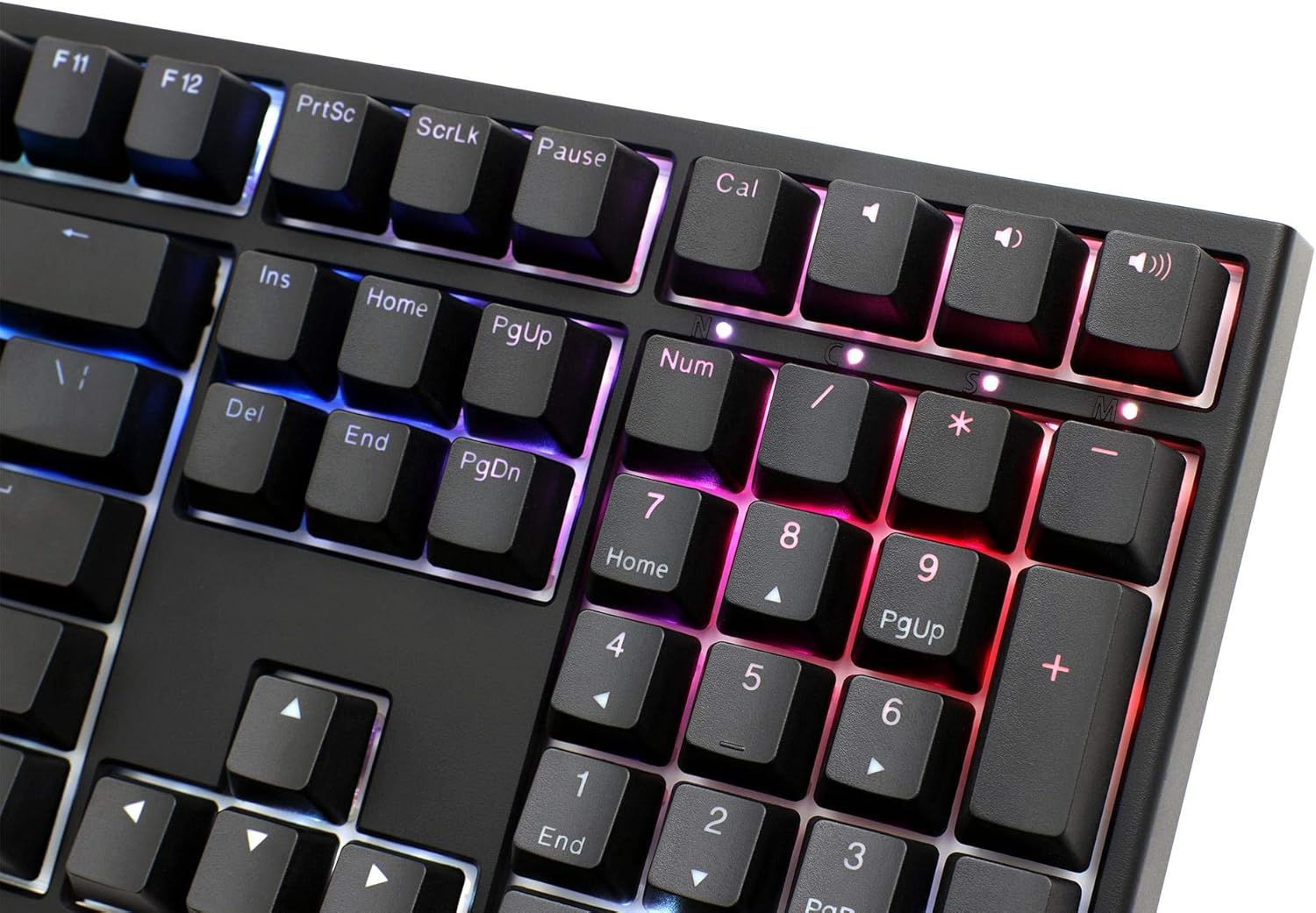
Image: Close-up of the numeric keypad on the Ducky One 2 RGB keyboard, demonstrating the customizable RGB lighting effects.
4.3 Macro Programming
The Ducky One 2 RGB supports on-the-fly macro recording. Consult the detailed instructions on the official Ducky website or the full user manual for specific key combinations and procedures to record and assign macros.
4.4 N-Key Rollover (NKRO)
The keyboard features USB N-Key Rollover, ensuring that every key press is registered accurately, even when multiple keys are pressed simultaneously. This is particularly beneficial for fast typing and gaming.
5. Maintenance
Proper maintenance ensures the longevity and performance of your keyboard.
- Cleaning:
- Disconnect the keyboard from your computer.
- Use a soft brush or compressed air to remove dust and debris from between the keycaps.
- For stubborn dirt, gently wipe the keycaps with a damp cloth and mild soap solution. Ensure no liquid enters the keyboard.
- Keycap Removal: Use the provided keycap puller to carefully remove keycaps for cleaning or replacement. Grip the keycap firmly and pull straight up. Avoid excessive force to prevent damage to the switch.

Image: Side profile of the Ducky One 2 RGB keyboard, illustrating the keycap height and ergonomic design.
6. Troubleshooting
If you encounter issues with your Ducky One 2 RGB keyboard, refer to the following common solutions:
| Issue | Possible Cause / Solution |
|---|---|
| Keyboard not detected by computer |
|
| RGB lighting not working or inconsistent |
|
| Specific keys not responding |
|
7. Specifications
- Model: DKON1808ST
- Brand: Ducky
- Switch Type: Cherry MX Brown
- Layout: Full Size
- Connectivity: USB-C (Detachable)
- Backlighting: RGB
- Keycaps: Double Shot PBT and ABS
- N-Key Rollover: USB N-Key Rollover
- Weight: 771.11 g
- Operating System Compatibility: Windows, Linux, macOS
8. Warranty and Support
Ducky products are manufactured to high-quality standards. For warranty information, please refer to the warranty card included with your product or visit the official Ducky website. For technical support, driver downloads, and frequently asked questions, please visit the Ducky support page:
Please retain your proof of purchase for warranty claims.


