
Introduction
This manual provides instructions for the J-Tech Digital Wireless Ergonomic Vertical Mouse, model V628M-2.4GP. This mouse is designed to promote a natural hand and arm position, aiming to reduce wrist strain and discomfort during extended use. It features wireless connectivity, adjustable DPI settings, and is compatible with both Mac and PC systems.
Package Contents
- J-Tech Digital Wireless Ergonomic Vertical Mouse (V628M-2.4GP)
- USB Nano Transceiver
- AA Battery (1.5V)
- User Manual
Product Overview
The J-Tech Digital V628M-2.4GP mouse features a vertical design for ergonomic comfort and several functional buttons for efficient operation.

Image: Mouse Button Layout
This image illustrates the various buttons on the J-Tech Digital V628M-2.4GP vertical mouse. Key buttons include the Left Click, Scroll Wheel, Right Click, DPI Button, Forward Button, and Back Button. These are essential for navigating and interacting with your computer.
- Left Click: Primary selection button.
- Scroll Wheel: For vertical scrolling and middle-click functionality.
- Right Click: Secondary selection button, typically for context menus.
- DPI Button: Adjusts mouse sensitivity (DPI).
- Forward Button: Navigates forward in web browsers or file explorers.
- Back Button: Navigates backward in web browsers or file explorers.
- On/Off Switch: Located on the bottom of the mouse to conserve battery.
- USB Receiver and AA Battery Compartment: Located on the bottom of the mouse.
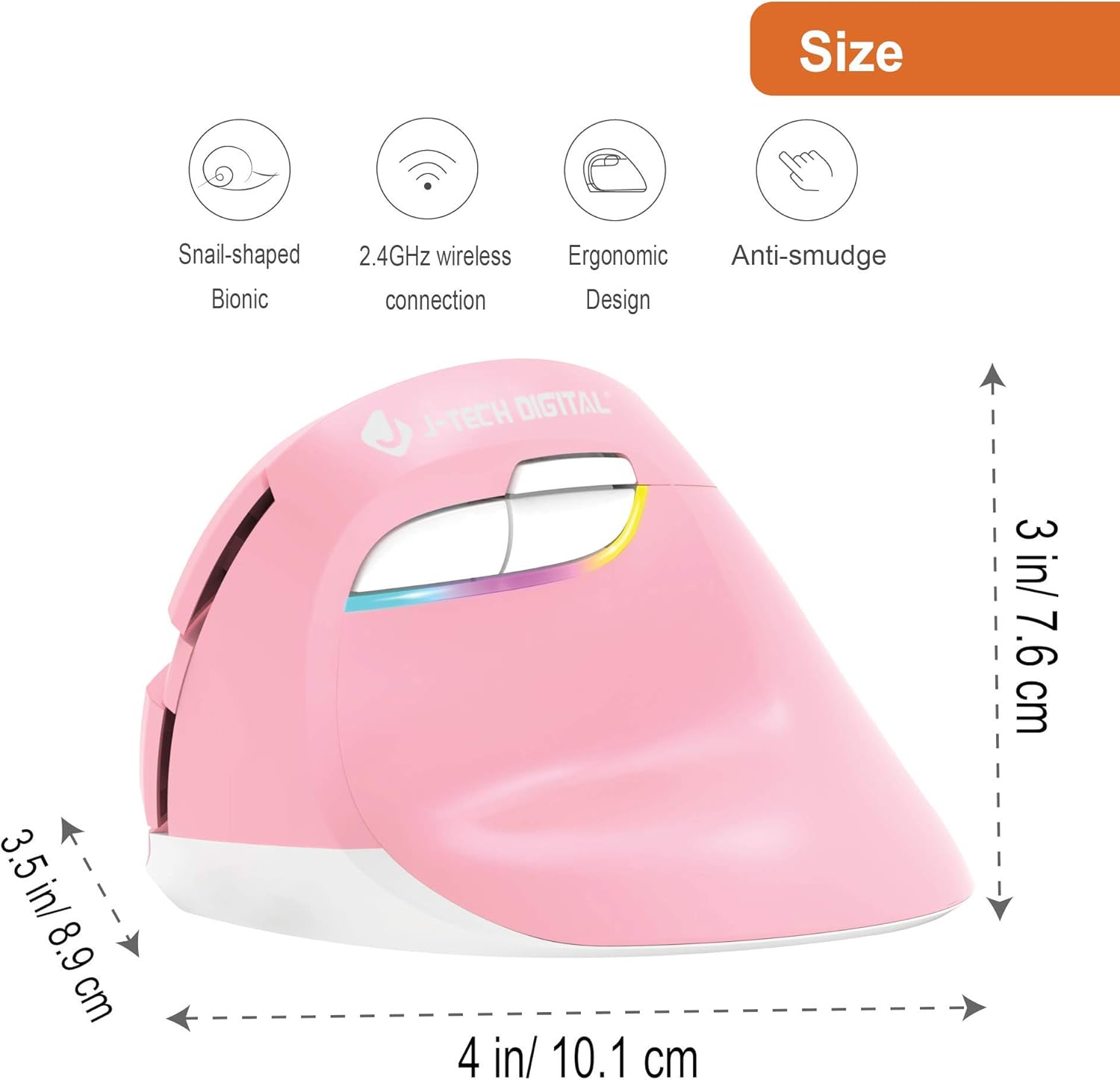
Image: Mouse Dimensions
This image provides the physical dimensions of the J-Tech Digital V628M-2.4GP mouse, measuring approximately 4 inches (10.1 cm) in length, 3.5 inches (8.9 cm) in width, and 3 inches (7.6 cm) in height. This model is designed for smaller hands.

Image: Ergonomic Design Comparison
This image illustrates the ergonomic benefits of the vertical mouse design. It shows how the vertical orientation promotes a natural handshake position, reducing pressure on the carpal tunnel area compared to the pronated wrist position required by a traditional mouse.
Setup Guide
- Install the AA Battery:
Locate the battery compartment on the underside of the mouse. Open the compartment cover. Insert the provided 1.5V AA battery, ensuring correct polarity (+/-). Close the battery compartment cover securely.
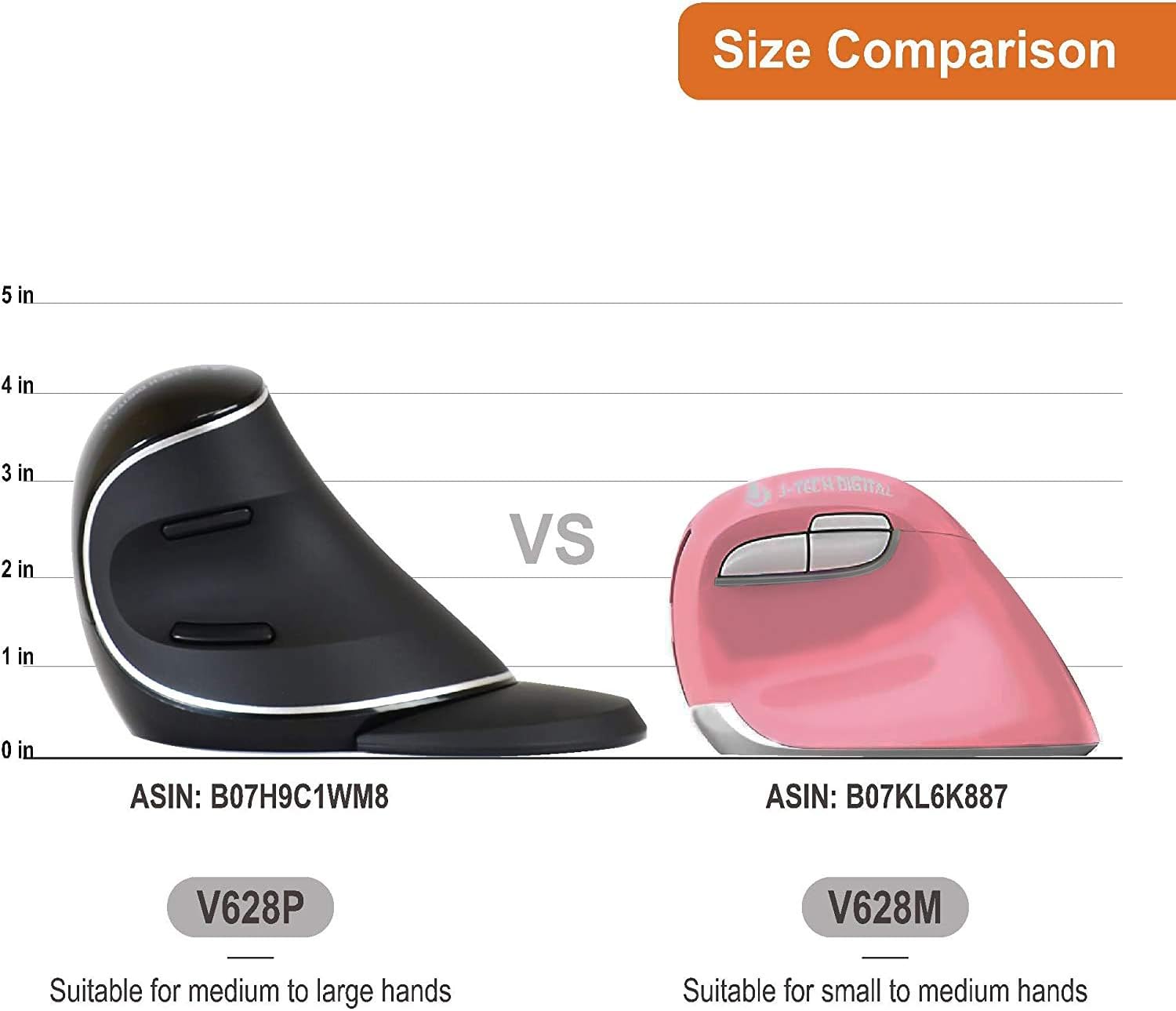
Image: Battery and USB Receiver Compartment
This image displays the bottom of the mouse, indicating the location of the AA battery compartment and the storage slot for the USB Nano Transceiver. The USB receiver is stored inside the battery compartment for convenience. - Connect the USB Nano Transceiver:
The USB Nano Transceiver is stored inside the battery compartment. Carefully remove it. Plug the USB Nano Transceiver into an available USB port on your computer (Mac or PC). The operating system should automatically detect and install the necessary drivers.
- Power On the Mouse:
Slide the On/Off switch, located on the bottom of the mouse, to the "ON" position. The mouse is now ready for use.
Operating Instructions
DPI Adjustment
The mouse features three adjustable DPI (Dots Per Inch) settings to control cursor speed and sensitivity. You can switch between these settings using the DPI button located near the forward and back buttons.

Image: Adjustable DPI Settings
This image illustrates the DPI button and the available sensitivity levels: 800 DPI, 1200 DPI, and 1600 DPI. Pressing the DPI button cycles through these settings, allowing you to choose the cursor speed that best suits your task.
- Press the DPI button to cycle through the available settings: 800 DPI, 1200 DPI, and 1600 DPI.
- A lower DPI setting results in slower, more precise cursor movement, suitable for detailed work.
- A higher DPI setting results in faster cursor movement, ideal for general browsing or larger screens.
Forward and Back Buttons
The dedicated Forward and Back buttons provide quick navigation in web browsers and file explorers, enhancing productivity.
- Press the Forward button to move to the next page or folder.
- Press the Back button to return to the previous page or folder.
Maintenance
- Cleaning: Use a soft, dry cloth to clean the mouse surface. Avoid using harsh chemicals or abrasive materials.
- Battery Replacement: When the mouse performance degrades or stops responding, replace the AA battery. Follow the battery installation steps in the Setup Guide.
- Storage: When not in use for an extended period, turn off the mouse using the On/Off switch to conserve battery life. You can store the USB Nano Transceiver inside the battery compartment.
Troubleshooting
| Problem | Solution |
|---|---|
| Mouse not responding. |
|
| Cursor movement is erratic or jumpy. |
|
| Wireless connection issues. |
|
If you continue to experience issues, please refer to the Warranty and Support section for technical assistance.
Specifications
- Model: V628M-2.4GP
- Connectivity: 2.4GHz Wireless (USB Nano Transceiver)
- DPI Settings: 800 / 1200 / 1600 DPI
- Battery Type: 1 x AA (1.5V)
- Compatibility: Mac and PC
- Dimensions (L x W x H): Approximately 4 x 3.5 x 3 inches (10.1 x 8.9 x 7.6 cm)
- Weight: Approximately 0.01 ounces
- Special Features: Ergonomic Vertical Design, Forward/Back Buttons
Warranty and Support
All J-Tech Digital products include a 1-year manufacturer warranty. Additionally, free lifetime technical support is available from our customer support team.
For technical assistance or warranty claims, please visit the J-Tech Digital Store or contact their customer support directly. Support is available Monday through Friday: 9 AM - 6 PM CST.


