
1. Introduction
The Zerone Sport Action DV Camera is a compact and portable device designed for capturing high-definition video during various outdoor activities. Featuring 1080P and 720P recording options, a 120-degree wide-angle lens, and an IPX-4 waterproof aluminum alloy shell, this camera is built for durability and ease of use. It includes a built-in microphone for audio recording and provides vibration feedback for operational status.
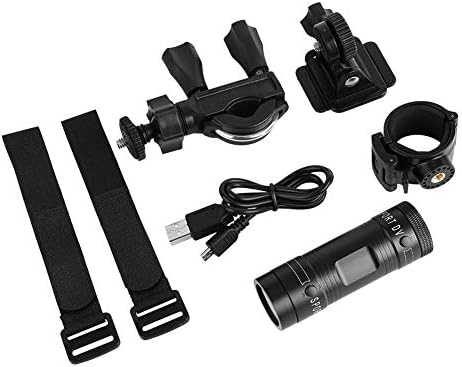
Image 1.1: The Zerone Sport Action DV Camera unit.
2. Safety Information
- Do not expose the camera to extreme temperatures or direct sunlight for extended periods.
- While the camera features an IPX-4 waterproof rating, it is designed to withstand splashes and light rain. Do not submerge or soak the camera in water.
- Keep the device away from strong magnetic fields.
- Use only the specified charging cable and power adapter to prevent damage.
- Do not attempt to disassemble or modify the camera, as this will void the warranty and may cause damage.
- Store the camera in a dry, cool place when not in use.
3. Package Contents
Please check the package to ensure all items are present:
- Zerone Sport Action DV Camera Unit
- USB Charging Cable
- Mounting Accessories (e.g., bike mount, helmet mount, strap mounts)
- Rechargeable Battery (may be pre-installed)
- User Manual (this document)
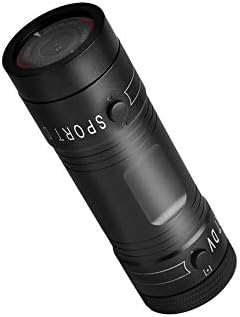
Image 3.1: Contents of the Zerone Sport Action DV Camera package, showing the camera, USB cable, and various mounting options.
4. Camera Overview
Familiarize yourself with the camera's components and controls.
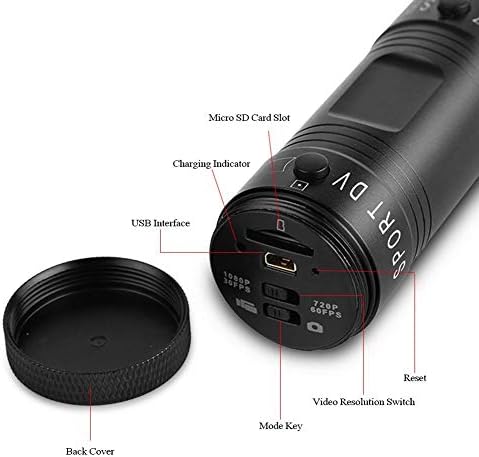
Image 4.1: Detailed view of the camera's rear end, highlighting the Micro SD card slot, USB interface, charging indicator, mode key, video resolution switch (1080P 30fps / 720P 60fps), and reset button.
- Micro SD Card Slot: Insert your Micro SD card here. A card is required for operation.
- Charging Indicator: Displays charging status. A red light indicates charging; it turns off when fully charged.
- USB Interface: For charging and connecting to a computer.
- Mode Key: Used to switch between recording modes (e.g., video, photo).
- Video Resolution Switch: Selects between 1080P 30fps and 720P 60fps recording resolutions.
- Reset Button: Used to reset the device if it becomes unresponsive.
- Power Button (Front): Located on the front side of the camera.
- Record/Stop Button (Back): Located on the back side of the camera.
5. Setup
5.1 Charging the Battery
- Connect the camera to a USB power source (e.g., computer, wall adapter) using the provided USB cable.
- The red light on the back of the camera will illuminate, indicating that it is charging.
- Once fully charged, the red light will turn off.
- Note: If the camera blinks red and blue when plugged in, it indicates that an SD card is not inserted. This is not a charging indicator.
5.2 Inserting a Micro SD Card
A Micro SD card (not included) is required for recording video and photos. The camera supports Micro SD cards up to a certain capacity (check product packaging for maximum supported size, typically 32GB or 64GB for similar devices).
- Unscrew the back cover of the camera.
- Locate the Micro SD card slot (refer to Image 4.1).
- Gently insert the Micro SD card into the slot until it clicks into place. Ensure the card is oriented correctly.
- Replace the back cover, ensuring it is securely tightened to maintain water resistance.
5.3 Mounting the Camera
The camera comes with various mounting accessories for different applications.
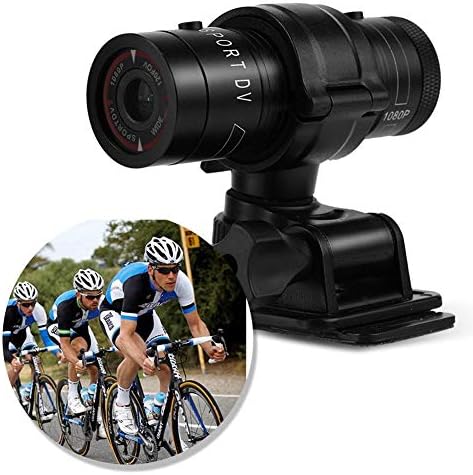
Image 5.1: The camera attached to a bicycle handlebar, demonstrating one of its mounting options.
- Bike Mount: Use the clamp mount to attach the camera securely to bicycle handlebars or other tubular structures.
- Helmet Mount: Utilize the adhesive or strap mounts to fix the camera to a helmet.
- Strap Mounts: For attaching to various gear or body parts.
Ensure all mounts are securely fastened before engaging in activities to prevent the camera from falling.
6. Operating the Camera
6.1 Power On/Off
- To power on, press and hold the Power Button (front switch) until the camera vibrates.
- To power off, press and hold the Power Button again until the camera vibrates once.
6.2 Selecting Video Resolution
Before recording, select your desired video resolution using the switch on the back of the camera (refer to Image 4.1).
- Slide the switch to "1080P 30fps" for Full HD video at 30 frames per second.
- Slide the switch to "720P 60fps" for HD video at 60 frames per second.
6.3 Recording Video
- Ensure the camera is powered on.
- Press the Record/Stop Button (back switch) to start recording. The camera will vibrate three times to indicate recording has started.
- To stop recording, press the Record/Stop Button again. The camera will vibrate once to indicate recording has stopped.
6.4 Connecting to a Computer
To transfer files or access recorded content:
- Ensure the camera is powered off.
- Connect the camera to your computer using the provided USB cable.
- The camera will be recognized as a removable storage device.
- You can then access and transfer your video files.
7. Maintenance
- Cleaning: Use a soft, dry cloth to clean the camera body. For the lens, use a specialized lens cleaning cloth and solution. Avoid abrasive materials.
- Storage: When not in use for extended periods, store the camera in a cool, dry place. Ensure the battery is partially charged (around 50%) to prolong its lifespan.
- Water Resistance: Regularly check that the back cover is securely tightened to maintain the IPX-4 water resistance. Avoid exposing the USB port or SD card slot to moisture when the cover is open.
- Battery Care: Avoid fully discharging the battery frequently. Recharge it when the low battery indicator appears.
8. Troubleshooting
| Problem | Possible Cause | Solution |
|---|---|---|
| Camera does not power on. | Battery is depleted. | Charge the camera fully. |
| Camera blinks red and blue, then turns off. | No Micro SD card inserted or card is faulty. | Insert a functional Micro SD card. Ensure it is properly seated. |
| Cannot record video. | No Micro SD card, card full, or card error. | Insert a Micro SD card, delete old files, or format the card (this will erase all data). |
| Poor video quality. | Lens is dirty; low light conditions; incorrect resolution setting. | Clean the lens. Ensure adequate lighting. Select 1080P resolution for higher detail. |
| Camera is unresponsive. | Software glitch. | Use a thin object (like a paperclip) to press the Reset Button (refer to Image 4.1). |
9. Specifications
| Feature | Detail |
|---|---|
| Brand | Zerone |
| Model Number | Zeronefg3h149y2s |
| Video Capture Resolution | 1080p (30fps), 720p (60fps) |
| Lens Angle | 120-degree A+ grade wide-angle |
| Waterproof Rating | IPX-4 (splash-proof) |
| Shell Material | Aluminum Alloy |
| Photo Sensor Technology | CMOS |
| Maximum Aperture | 1.8 Millimeters |
| Flash Memory Type | Micro SD (card not included) |
| Video Capture Format | AVI |
| Supported Audio Format | AAC, MP3, PCM, FLAC, or Dolby Digital/AC-3 |
| Connectivity Technology | USB |
| Item Weight | 10.8 ounces (approx. 306 grams) |
| Product Dimensions | 11.81 x 6.3 x 5.91 inches (approx. 30 x 16 x 15 cm) |
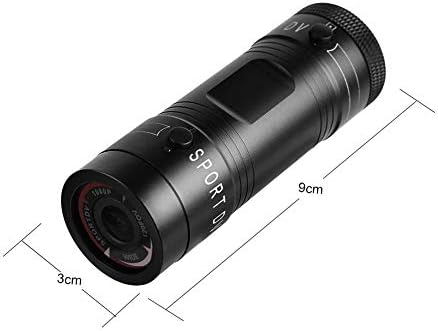
Image 9.1: Physical dimensions of the camera, showing a length of 9cm and a diameter of 3cm.
10. Warranty and Support
For warranty information and technical support, please refer to the documentation provided with your purchase or contact the retailer/manufacturer directly. Keep your proof of purchase for warranty claims.
Manufacturer: Zerone
For further assistance, you may visit the Zerone Store on Amazon: Zerone Store