
1. Introduction
This manual provides detailed instructions for the installation, operation, and troubleshooting of your FEASYCOM FSC-BP119 Bluetooth Adapter. This device is designed to add Bluetooth 4.0 capabilities to your Windows computer, enabling wireless connection with various Bluetooth-enabled peripherals.
2. Product Overview
The FEASYCOM FSC-BP119 is a Class 1 Long Range Bluetooth Smart Ready USB Adapter. It utilizes the CSR8510A10 chipset and features a 2 dBi RP dipole antenna, allowing for a transmission range of up to 100 meters (328 feet) in open environments. This adapter provides high-quality music and data transmission at speeds up to 3 Mbps, without significant packet loss or data delay.

Image: The FEASYCOM FSC-BP119 Bluetooth USB Adapter with its detachable antenna.

Image: Size comparison of the FSC-BP119 adapter with a standard pen.
3. Key Features
- Bluetooth 4.0 Technology: Compatible with Bluetooth 4.0/3.0/2.1/2.0 devices.
- High Transmission Rate: Up to 3 Mbps for efficient data and audio transfer.
- Extended Range: Class 1 device with a 2 dBi antenna, offering up to 100 meters (328 feet) transmission in open space.
- CSR8510A10 Chipset: Powered by a robust CSR chipset for reliable performance.
- Wide Compatibility: Supports Windows 10, 8, 7, Vista, and XP (32-bit/64-bit).
- Plug-and-Play (Data/File Transfer): For Windows 7/8/10, basic data and file transfer may work without additional drivers.
- Audio Transfer Support: Requires driver installation for audio functionality on Windows 7/8/10.
- Multiple Profile Support: HFP/AVRCP/A2DP/FTP/GATT/SPP/HID profiles.
- Connects Various Devices: Works with Bluetooth speakers, headsets, keyboards, mice, smartphones, and tablets.
- Multi-Device Connectivity: Supports connecting multiple devices simultaneously.
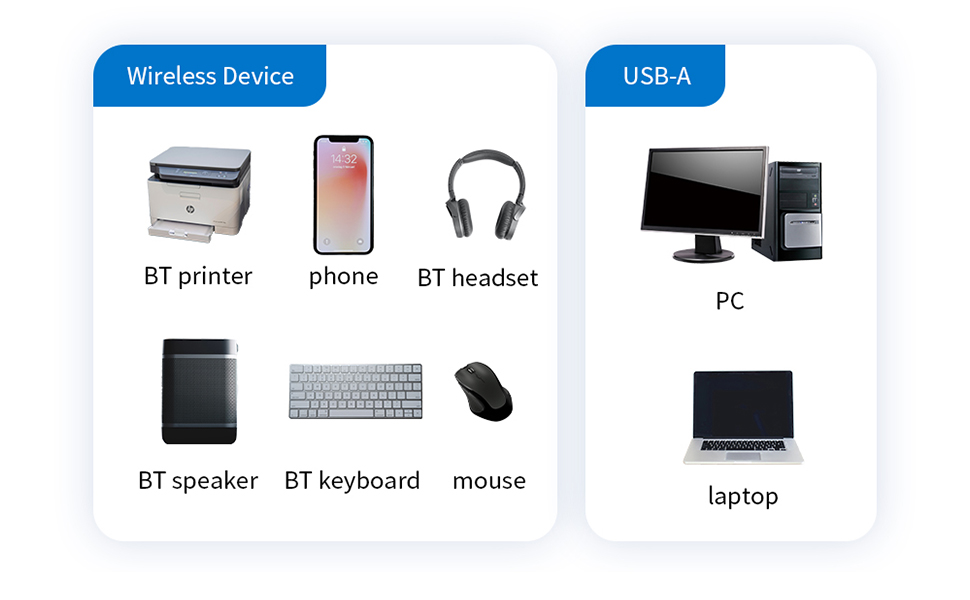
Image: The adapter supports connection to various wireless devices (printers, phones, headsets, speakers, keyboards, mice) and connects to PCs and laptops via USB-A.
4. Package Contents
Verify that all items are present in your package:
- FEASYCOM FSC-BP119 Bluetooth USB Adapter
- Detachable RP Dipole Antenna
- User Manual (this document)
5. Specifications
| Model Number | FSC-BP119 |
| Brand | FEASYCOM |
| Hardware Interface | Bluetooth, USB |
| Data Link Protocol | Bluetooth, USB |
| Data Transfer Rate | 3 Megabits Per Second |
| Compatible Operating Systems | Windows 10, Windows 8, Windows 7, Windows Vista, Windows XP |
| Compatible Devices | Keyboard, Mouse, Speakers, Headphones, Smartphones, Tablets |
| Product Dimensions | 2.4 x 0.63 x 0.63 inches |
| Item Weight | 1.44 ounces |
| UPC | 711005812030 |
6. Setup and Driver Installation
6.1 Initial Hardware Connection
- Carefully screw the detachable RP dipole antenna onto the adapter.
- Plug the FEASYCOM FSC-BP119 Bluetooth USB Adapter into an available USB-A port on your Windows computer.

Image: The Bluetooth adapter connected to a laptop's USB port.
6.2 Driver Installation
For Windows 7, 8, and 10, the adapter may function as "plug and play" for basic data and file transfer. However, for full functionality, especially for audio transfer and specific device compatibility, driver installation is often required.
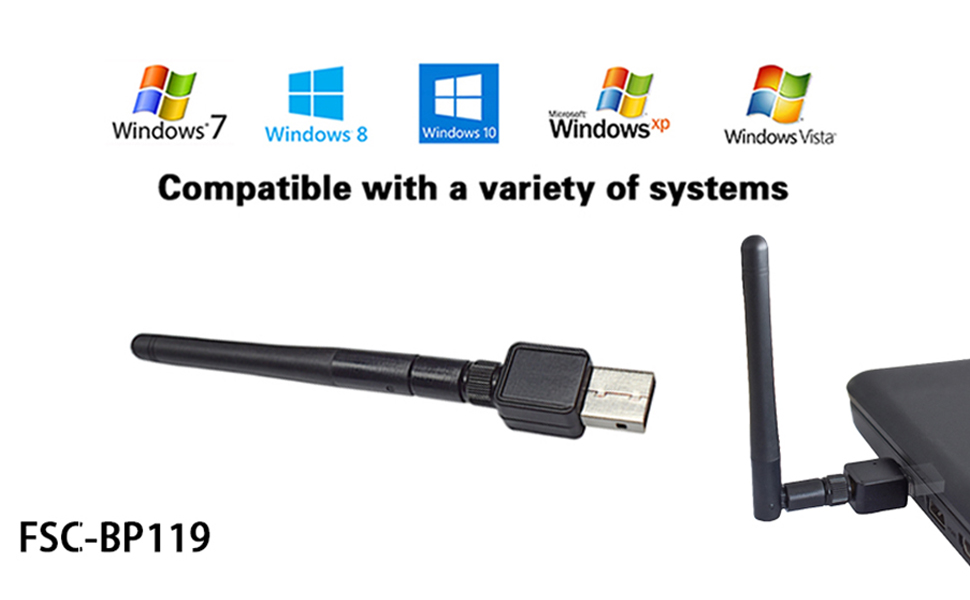
Image: The adapter is compatible with Windows 7, 8, 10, XP, and Vista.
- Obtain Drivers: The necessary drivers, typically the CSR Harmony Wireless Software Stack, can be downloaded from the official FEASYCOM website. A QR code or link may also be provided in the product packaging.
- Install Drivers: Run the downloaded driver installer. Follow the on-screen prompts. During installation, you may encounter options for Discovery Mode, SCMS-T, and Device Type; default values are usually sufficient.
- Verification: After installation, the adapter should be recognized as a "CSR Bluetooth Radio device" in Windows Device Manager.
6.3 Understanding Boot Modes (Advanced Users)
The FSC-BP119 adapter can operate in different boot modes. By default, it may operate in HID Proxy mode, which allows basic Bluetooth Low Energy (BLE) keyboards and mice to function without a full Bluetooth stack. For broader compatibility, especially with game controllers or other specific devices, the adapter often needs to be in Standard Host Controller Interface (HCI) mode.
6.4 Switching to Standard HCI Mode (Temporary - Advanced)
If you experience issues with device compatibility, particularly with non-standard HID devices, you may need to temporarily switch the adapter to HCI mode. This often involves a utility called hid2hcix.exe.
- Uninstall CSR Harmony (if installed): Navigate to Windows Settings > Apps > Apps & features, find "CSR Harmony Wireless Software Stack" and uninstall it.
- Obtain
hid2hcix.exe: This utility can typically be found on the FEASYCOM website or within community resources related to CSR chipsets. - Run
hid2hcix.exe: Execute the utility. You may hear device removal and insertion sounds. - Update Driver in Device Manager:
- Open Device Manager (search in Start Menu).
- Locate the adapter, which might appear as an "Unknown USB Device" under "Universal Serial Bus controllers".
- Right-click the device and select "Update driver".
- Choose "Browse my computer for driver software" then "Let me pick from a list of available drivers on my computer".
- Select "Generic Bluetooth Radio" from the manufacturer "Cambridge Silicon Radio Ltd."
Note: This method may require repeating after each computer reboot or adapter re-insertion.
6.5 Permanently Setting Standard HCI Mode (Advanced)
For a permanent solution to keep the adapter in Standard HCI mode, advanced users can utilize the BlueSuite toolkit, specifically the PSTool, to modify the adapter's persistent store.
- Ensure HCI Mode: The adapter must be in HCI boot mode for PSTool to detect it. If not, follow the steps in Section 6.4.
- Install BlueSuite: Download and install the BlueSuite toolkit (version 2.x recommended) from a reliable source. This toolkit includes PSTool and its own drivers.
- Run PSTool: Navigate to the BlueSuite installation directory (e.g.,
C:\Program Files (x86)\QTIL\BlueSuiteorC:\Program Files (x86)\CSR\BlueSuite). RunPSTool.exeas an administrator. - Connect to Device: In PSTool, select "USB" as the transport and click "OK". Your device should be detected (e.g.,
\\.\csr0). - Modify Boot Mode: In the "Filter" field, type "Initial device bootmode". Select this option.
- Set Value: Change the hexadecimal value from
0002(HID Proxy) to0000(Standard HCI). Click "Set", then "Close". - Verify: Unplug and re-plug the adapter. It should now consistently boot into Standard HCI mode.
7. Operating Instructions
7.1 Pairing Bluetooth Devices
Once the adapter is installed and drivers are configured, you can pair your Bluetooth devices:
- Enable Pairing Mode: Put your Bluetooth device (e.g., headphones, speaker, controller) into pairing mode. Refer to your device's manual for specific instructions.
- Open Bluetooth Settings:
- Windows 10/8: Go to Settings > Devices > Bluetooth & other devices.
- Windows 7/Vista/XP: Access Bluetooth settings via the Control Panel or the Bluetooth icon in the system tray.
- Add Device: Select "Add Bluetooth or other device" (Windows 10/8) or similar option. Choose "Bluetooth" and wait for your device to appear in the list.
- Connect: Select your device and follow any on-screen prompts to complete the pairing process.
If you installed the CSR Harmony Wireless Software Stack, you might manage devices through its dedicated interface in the system tray or Control Panel.
7.2 Using Paired Devices
After successful pairing, your Bluetooth device should connect automatically when in range and powered on. You can then use it for its intended function, such as:
- Streaming audio to headphones or speakers.
- Using a Bluetooth keyboard or mouse.
- Transferring files to/from a smartphone or tablet.
- Connecting game controllers (requires HCI mode, see Section 6.4/6.5).
8. Maintenance
- Cleaning: Use a soft, dry cloth to clean the adapter. Avoid liquid cleaners.
- Antenna Connection: Ensure the antenna is securely screwed onto the adapter to maintain optimal signal strength.
- Storage: When not in use for extended periods, store the adapter in a cool, dry place.
- Physical Protection: Avoid dropping or subjecting the adapter to physical shock, as this can damage internal components or the USB connector.
9. Troubleshooting
9.1 General Issues and Solutions
- Adapter Not Detected:
- Ensure the adapter is plugged into a powered USB port. Some front-panel USB ports may not provide sufficient power.
- Try a different USB port.
- Reinstall drivers as per Section 6.2.
- Cannot Pair Devices / Poor Connection:
- Ensure your target Bluetooth device is in pairing mode.
- Disable internal Bluetooth: If your computer has a built-in Bluetooth module, disable it in Device Manager to prevent conflicts. Expand "Bluetooth" devices, right-click your internal module, and select "Disable device".
- Interference: The adapter's radio may interfere with other wireless devices (e.g., wireless keyboard receivers) if too close. Try relocating the adapter to a different USB port.
- Boot Mode: For certain devices (e.g., game controllers), ensure the adapter is in Standard HCI mode (refer to Sections 6.4 and 6.5).
- Range: While rated for 100m, actual range is affected by obstacles (walls, electronics). Reduce distance between adapter and device.
- Inoperable After Re-insertion/Reboot (Advanced): If the adapter reverts to HID Proxy mode, you may need to re-run
hid2hcix.exeor apply the permanent PSTool modification (Sections 6.4 and 6.5).
9.2 Known Limitations
- This adapter is not usable in car stereos, TVs, or Mac computers. It is designed for Windows operating systems only.
10. Warranty and Support
For warranty information, technical support, or further assistance, please contact FEASYCOM customer service through their official website or the contact information provided with your purchase. Please have your model number (FSC-BP119) and purchase details ready.


