
Sungale DPF710-GB
Sungale 7-inch Digital Picture Frame User Manual
Model: DPF710-GB
Introduction
This manual provides comprehensive instructions for the setup, operation, maintenance, and troubleshooting of your Sungale 7-inch Digital Picture Frame (Model DPF710-GB). This device is designed to display your favorite digital photos with an HD resolution screen, offering a simple and user-friendly experience for all ages.
Please read this manual thoroughly before using the product to ensure proper functionality and longevity.

Image: Front view of the Sungale 7-inch Digital Picture Frame, showcasing its display with a vibrant image of a child and a snowman.
Setup
Follow these steps to set up your digital picture frame for the first time.
- Unboxing: Carefully remove all components from the packaging. Ensure you have the digital picture frame and the power adapter.
- Power Connection: Locate the DC 5V Power Port on the back of the frame. Connect the provided power adapter to this port.
- Power On: Plug the power adapter into a standard electrical outlet. The frame should automatically power on and display the Sungale logo or main menu.
- Insert Storage Device: Insert a USB flash drive into the USB Host Port or an SD/SDHC card into the SD/SDHC card slot on the back of the frame. Ensure the storage device contains compatible image files (e.g., JPEG).
- Initial Display: The frame will automatically detect the inserted storage device and begin displaying images in a slideshow format.

Image: A hand connecting the power cable to the DC 5V Power Port on the back of the digital picture frame.
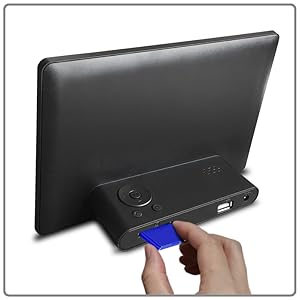
Image: A hand inserting an SD card into the designated slot on the digital picture frame.

Image: Detailed back view of the digital picture frame, highlighting the location of the control buttons, SD/SDHC card slot, USB Host Port, and DC 5V Power Port.
Operating Instructions
This section details how to navigate and use your digital picture frame.
Controls and Navigation
The frame features intuitive buttons on the back for easy control:
- Play/Pause Button: Press to enter/confirm selections or to pause/resume slideshows.
- Direction Keys (Up/Down/Left/Right): Use to navigate through menus and options.
- Back to Home Menu Button: Returns to the main menu screen.
- Back to Last Step Button: Returns to the previous screen or option.
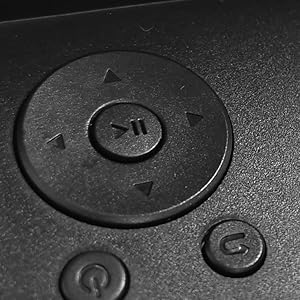
Image: A close-up view of the circular direction keys and other control buttons located on the back of the frame.
Main Menu Overview
Upon powering on or pressing the "Back to Home Menu" button, you will see the main menu with options such as Photo, Calendar, and Setting.
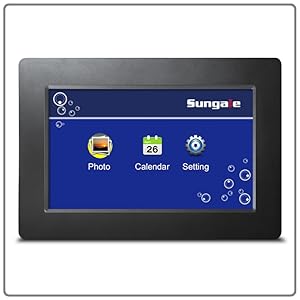
Image: The digital picture frame screen showing the main menu interface with icons for Photo, Calendar, and Setting.
Displaying Photos
- Automatic Slideshow: Once a USB or SD card with photos is inserted, the frame will automatically start a slideshow.
- Manual Photo Selection: From the main menu, select "Photo" to browse your images. Use the direction keys to navigate and the Play/Pause button to select.
- Slideshow Settings: Within the "Setting" menu, you can adjust slideshow intervals, transition effects, and display modes (e.g., Slideshows, Stepshows, Display).
Calendar and Clock Functions
The frame can also display a calendar or clock. Navigate to the "Calendar" option from the main menu to access these features.

Image: The digital picture frame showcasing different display options including a digital clock, a monthly calendar, and an analog clock, often with a small photo preview.
System Settings
Access the "Setting" menu to configure various aspects of your frame, including:
- Time and Date
- Brightness and Contrast
- Language
- Auto On/Off Timer (to conserve energy)
- Photo Playback Mode (e.g., sequential, random)
Maintenance
Proper care and maintenance will ensure the longevity and optimal performance of your digital picture frame.
- Cleaning the Screen: Use a soft, lint-free cloth to gently wipe the screen. For stubborn smudges, slightly dampen the cloth with water or a screen-safe cleaning solution. Avoid harsh chemicals or abrasive materials.
- Cleaning the Frame: Wipe the frame's body with a dry or slightly damp soft cloth.
- Storage: When not in use for extended periods, store the frame in a cool, dry place away from direct sunlight and extreme temperatures.
- Power Off: Always disconnect the power adapter from the wall outlet when cleaning or moving the frame.
Troubleshooting
If you encounter any issues with your digital picture frame, refer to the following common problems and solutions:
| Problem | Possible Cause | Solution |
|---|---|---|
| Frame does not power on. | Power adapter not connected or faulty outlet. | Ensure the power adapter is securely connected to the frame and a working electrical outlet. Try a different outlet. |
| No images displayed. | No USB/SD card inserted, incompatible file format, or corrupted files. |
|
| Images appear distorted or low quality. | Low resolution images or incorrect display settings. | Use higher resolution images. Adjust brightness and contrast settings in the "Setting" menu. |
| Buttons are unresponsive. | Temporary software glitch. | Disconnect the power adapter, wait 10 seconds, then reconnect it to restart the frame. |
Specifications
Detailed technical specifications for the Sungale 7-inch Digital Picture Frame (DPF710-GB).
| Feature | Detail |
|---|---|
| Model Number | DPF710-GB |
| Screen Size | 7 Inches |
| Resolution | 1024 x 600 pixels |
| Product Dimensions | 7.8 x 0.3 x 5.2 inches |
| Item Weight | 13.4 ounces |
| Color | Black |
| Compatible Devices | USB Flash Drives, SD/SDHC Cards |
| Manufacturer | Sungale |
| ASIN | B07KJYKFMV |
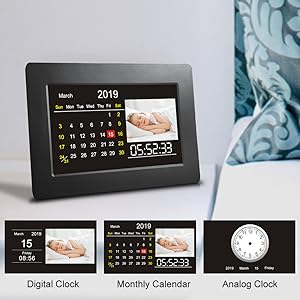
Image: The ultra-thin profile of the digital picture frame, highlighting its slim design (0.24 inches).
Warranty and Support
Sungale provides a limited warranty for this product. Please retain your purchase receipt for warranty claims.
Limited Warranty
The limited warranty set forth below is given by the manufacturer with respect to Sungale brand DPF frames and accessories purchased and used in the United States of America and Canada. The manufacturer warrants this product against defects in material or workmanship as follows:
- Labor: For a period of ninety (90) days from the date of purchase, if this Product is defective, the manufacturer will repair or replace the Product, at its option, at no charge. After this 90-day period up to one year, a labor charge of US$30.00 will be charged for each service.
- Parts: For a period of one (1) year from the date of purchase, the manufacturer will supply, at no charge, new or rebuilt replacement parts in exchange for defective parts. After this one year period, the manufacturer will charge for all parts and shipping costs.
This warranty does not cover: (1) customer instruction, installation or set up; (2) cosmetic damage or damage due to acts of God, accident, misuse, abuse, negligence, commercial use, or modification of, or to any part of the Product; (3) damage due to improper operation, improper maintenance, or connection to an improper voltage supply; (4) attempted repair by anyone other than a facility authorized by the manufacturer to service the Product; (5) consumables (such as fuses and batteries).
The product must be accompanied by a copy of the original retail purchase receipt. If no proof of purchase is provided, the warranty period will be calculated from the date of manufacture.
This warranty is valid with written documentation detailing the complaint to the outside or inside of the Product.
This warranty is invalid if the factory applied serial number has been altered or removed from the Product.
The manufacturer reserves the right to modify any design of this product without prior notice.

Image: A visual representation of the Quick Start Guide and the Limited Warranty Card included with the product.
Customer Support
For technical assistance or warranty inquiries, please contact Sungale customer support. Refer to the contact information provided in your product packaging or visit the official Sungale website for the most current support details.
Note: Specific contact details are not provided in the product data. Please refer to the manufacturer's official channels for support.
Ask a question about this manual
Ask about setup, troubleshooting, compatibility, parts, safety, or missing instructions. Manuals+ will review the question and use this page’s manual context to help answer it.