
symcode 6543841919
Symcode USB Laser Barcode Scanner User Manual
Model: 6543841919
Introduction
Thank you for choosing the Symcode USB Laser Barcode Scanner. This handheld wired barcode scanner is designed for efficient and accurate 1D barcode reading, suitable for various applications including retail, warehouse, and office environments. Its plug-and-play design ensures ease of use across multiple operating systems.

Image: The Symcode USB Laser Barcode Scanner, a black handheld device with a green scan button, shown alongside its attached USB cable.

Image: A comparison highlighting the scanner's compact and streamlined design, which is comfortable to hold and easy to use, contrasting with a larger, heavier alternative.
Package Contents
Upon opening the package, please verify that all components are present:
- 1 x Symcode Laser Barcode Scanner
- 1 x USB Cable (1.5m/5ft)
- 1 x User Manual
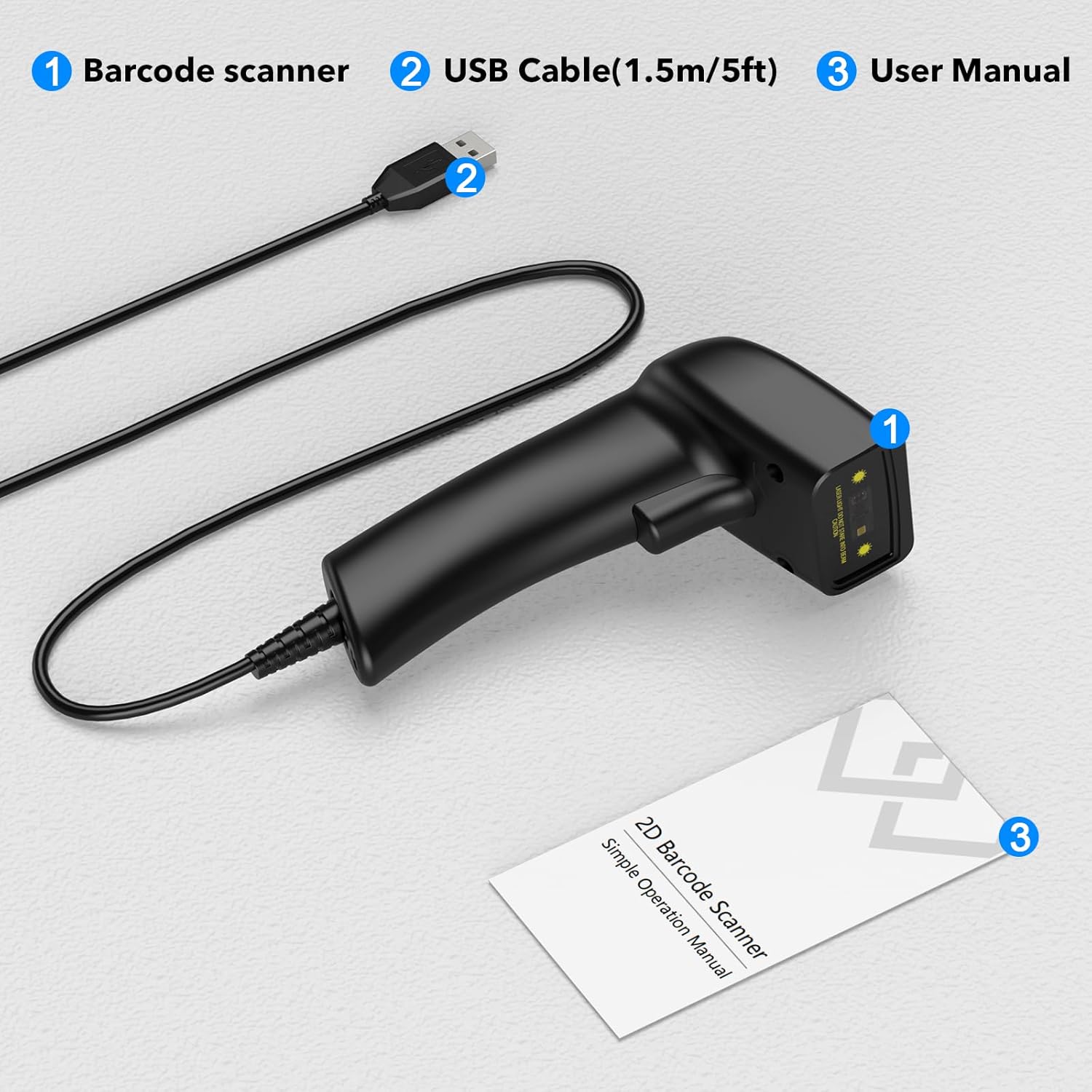
Image: A visual representation of the package contents, clearly labeling the barcode scanner, USB cable, and user manual.
Setup
The Symcode USB Laser Barcode Scanner is designed for simple plug-and-play operation, requiring no additional software or drivers for most systems.
Connecting the Scanner
- Locate an available USB port on your computer (desktop, laptop, or compatible device).
- Insert the USB connector of the scanner's cable firmly into the USB port.
- The scanner will typically be recognized automatically by your operating system (Windows, macOS, Linux, Android, iOS). A confirmation sound or light may indicate successful connection.

Image: The barcode scanner connected via USB to a laptop, illustrating its compatibility with various operating systems including Linux, Windows, iOS, and Android.

Image: A detailed view of the USB cable connection point on the scanner, emphasizing its plug-and-play nature for both data transmission and power.
Operating Instructions
Basic Scanning Operation
- Ensure the scanner is properly connected to your device.
- Open an application where you want the scanned data to appear (e.g., Notepad, Word, Excel, a POS system). The scanner acts as a keyboard input device.
- Point the scanner's laser beam at the barcode you wish to scan. Ensure the entire barcode is within the laser line.
- Press the trigger button. A successful scan will typically be indicated by a beep and/or a green light, and the barcode data will appear in your active application.
Supported Barcode Types
This scanner supports a wide range of 1D barcode symbologies, including but not limited to:
- UPC/EAN (EAN-8/13, UPC-A/E)
- UCC/EAN 128
- Code 39 / Code 39 Full ASCII / Trioptic Code 39
- Code 128 / Code 128 Full ASCII
- Codabar
- Interleaved 2 of 5
- Discrete 2 of 5
- Code 93
- MSI
- Code 11
- RSS variants
- Chinese 2 of 5

Image: An illustration showing the scanner's ability to decode various barcode types, including Data Matrix, QR Code, PDF417, and common 1D barcodes like 20123456789, 6234567890178, 4603146002134, and 1234567890135.
Sound and Vibration Settings
The scanner provides options to customize sound and vibration feedback. Refer to the included user manual for specific barcode configurations to enable or disable these features.
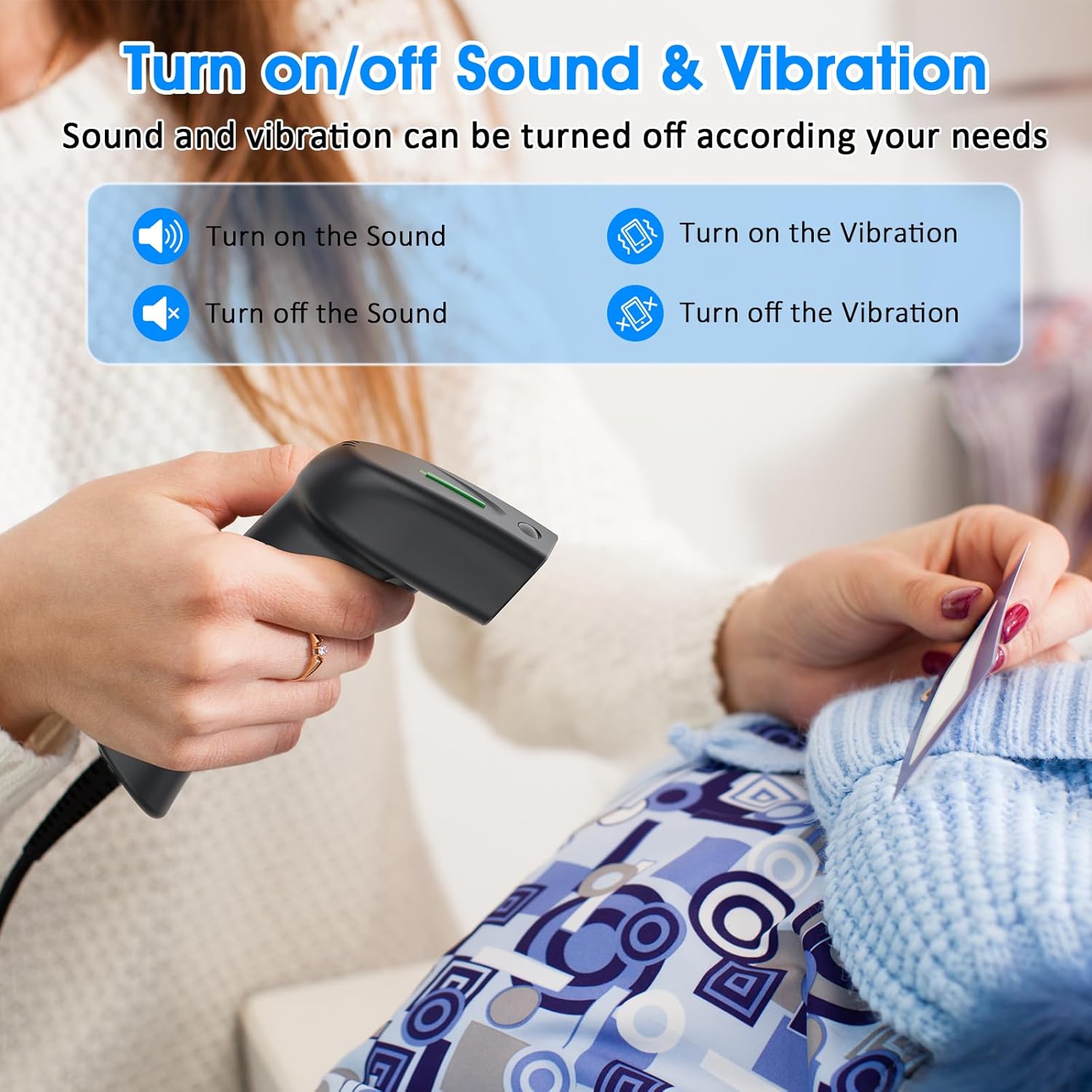
Image: A graphic detailing how to enable or disable sound and vibration feedback on the scanner, indicating user-configurable options.
Maintenance
Proper maintenance ensures the longevity and optimal performance of your barcode scanner.
- Cleaning: Use a soft, dry cloth to clean the scanner's exterior. For the scanning window, use a lint-free cloth lightly dampened with a mild, non-abrasive cleaner. Avoid harsh chemicals or abrasive materials.
- Storage: Store the scanner in a cool, dry place away from direct sunlight and extreme temperatures.
- Cable Care: Avoid bending or twisting the USB cable excessively, as this can damage internal wires.
- Handling: Handle the scanner with care to prevent drops or impacts, which can affect its internal components.
Troubleshooting
| Problem | Possible Cause | Solution |
|---|---|---|
| Scanner not recognized by computer. | Loose USB connection, faulty USB port, or operating system issue. | Ensure the USB cable is securely plugged into both the scanner and the computer. Try a different USB port or a different computer to isolate the issue. Restart your computer. |
| Barcode data does not appear after scanning. | No active input field, incorrect application focus, or unsupported barcode type. | Ensure an application like Notepad, Word, Excel, or a specific POS software is open and has an active text input field. Click into the desired input area. Verify the barcode type is supported by the scanner. |
| Scanner beeps but no data is transmitted. | Output format issue or application compatibility. | Confirm the application is ready to receive keyboard input. Some applications may require specific settings. Refer to the scanner's full user manual for advanced configuration barcodes. |
| Scanner not reading certain barcodes. | Damaged barcode, insufficient print contrast, or barcode type disabled. | Ensure the barcode is clear and undamaged. Check the print contrast. Some barcode types might be disabled by default; refer to the user manual for enabling specific symbologies. |
Specifications
| Feature | Detail |
|---|---|
| Product Dimensions | 5.83 x 3.82 x 3.54 inches |
| Item Weight | 4.2 ounces (156g) |
| Light Source | 650nm~670nm visible laser |
| Scan Speed | 100 scans/sec |
| Read Preciseness | 0.1mm (4mil) |
| Print Contrast | 30% minimum |
| Depth of Field | 0~600mm (0.33mm, PCS 90%) |
| Scan Scope | 10mm~250mm |
| Reading Distance | 2.5~600mm (100% UPC/EAN) |
| Bit Error Rate | 1/5 million |
| Current (Working/Storage) | 85mA (working) / 36mA (storage) |
| Interface | USB |
| Operating Temperature | 0℃~45℃ (32°F~113°F) |
| Storage Temperature | -20℃~60℃ (-4°F~140°F) |
| Humidity | 5%~95% non-condensing |
| Material | ABS+PC |
| Compatible Devices | Laptop, PC, POS systems |
| Power Source | Corded Electric (USB) |
| Operating Voltage | 4.7 Volts |
Warranty and Support
Symcode products are manufactured to high-quality standards. For warranty information, technical support, or service inquiries, please refer to the contact details provided in your product packaging or visit the official Symcode website. Please retain your proof of purchase for warranty claims.
Related documents6543841919


Ask a question about this manual
Ask about setup, troubleshooting, compatibility, parts, safety, or missing instructions. Manuals+ will review the question and use this page’s manual context to help answer it.