
1. Introduction
This manual provides essential information for the proper use and care of your PNY Elite-X Fit USB 3.1 Flash Drive. This device is designed for high-speed data transfer and storage, offering a compact and convenient solution for various computing and media devices.

Image 1.1: Front view of the PNY Elite-X Fit USB 3.1 Flash Drive.
2. Product Overview
The PNY Elite-X Fit USB 3.1 Flash Drive is a micro-sized, low-profile storage device. It features USB 3.1 Gen 1 technology for fast data transfer, with read speeds up to 200MB/s. Its compact design allows it to remain connected to host devices without obstruction, making it suitable for laptops, car stereos, game consoles, and other compatible devices.
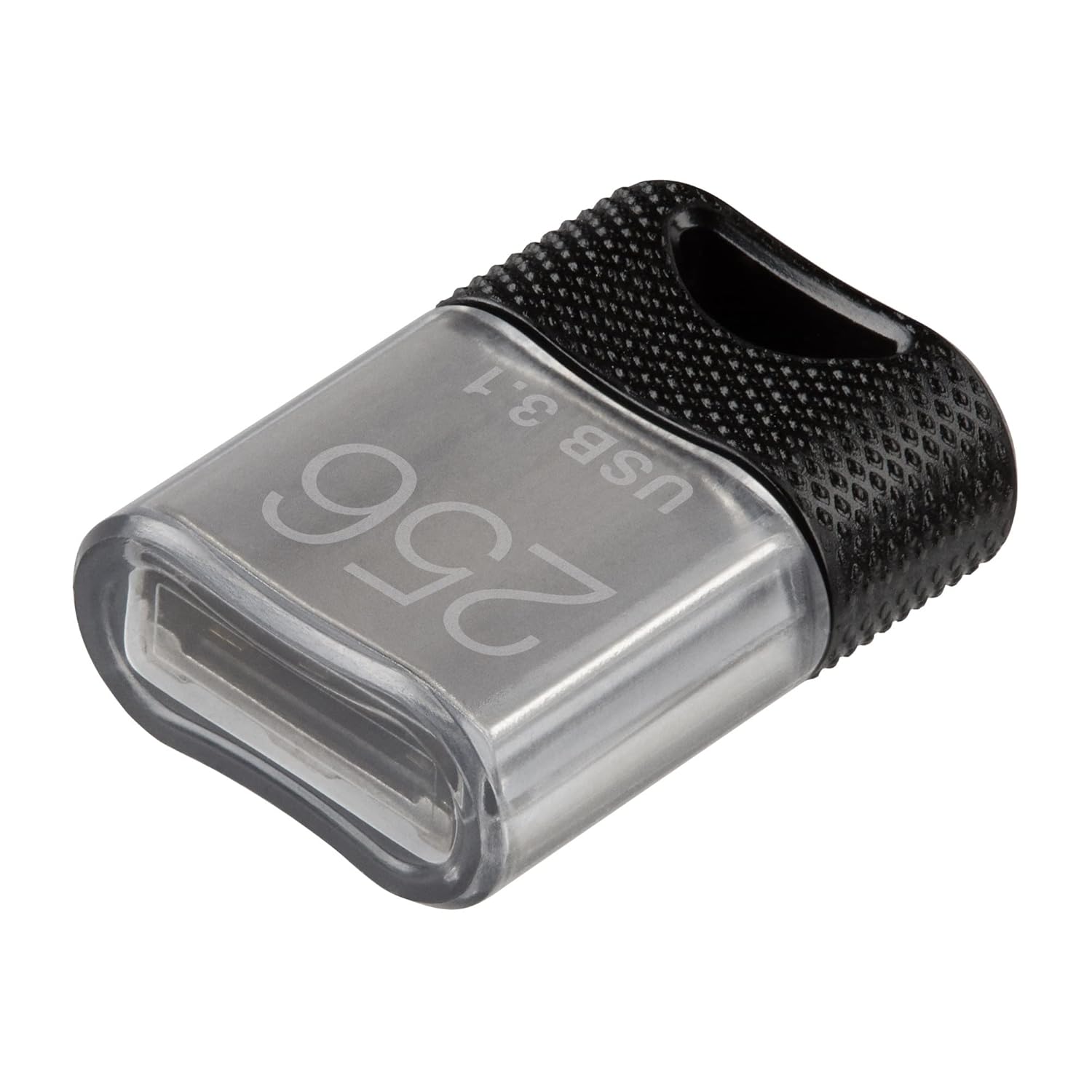
Image 2.1: Angled view of the PNY Elite-X Fit USB 3.1 Flash Drive, highlighting its compact size.
What's in the Box:
- PNY Elite-X Fit USB 3.1 Flash Drive (256GB)
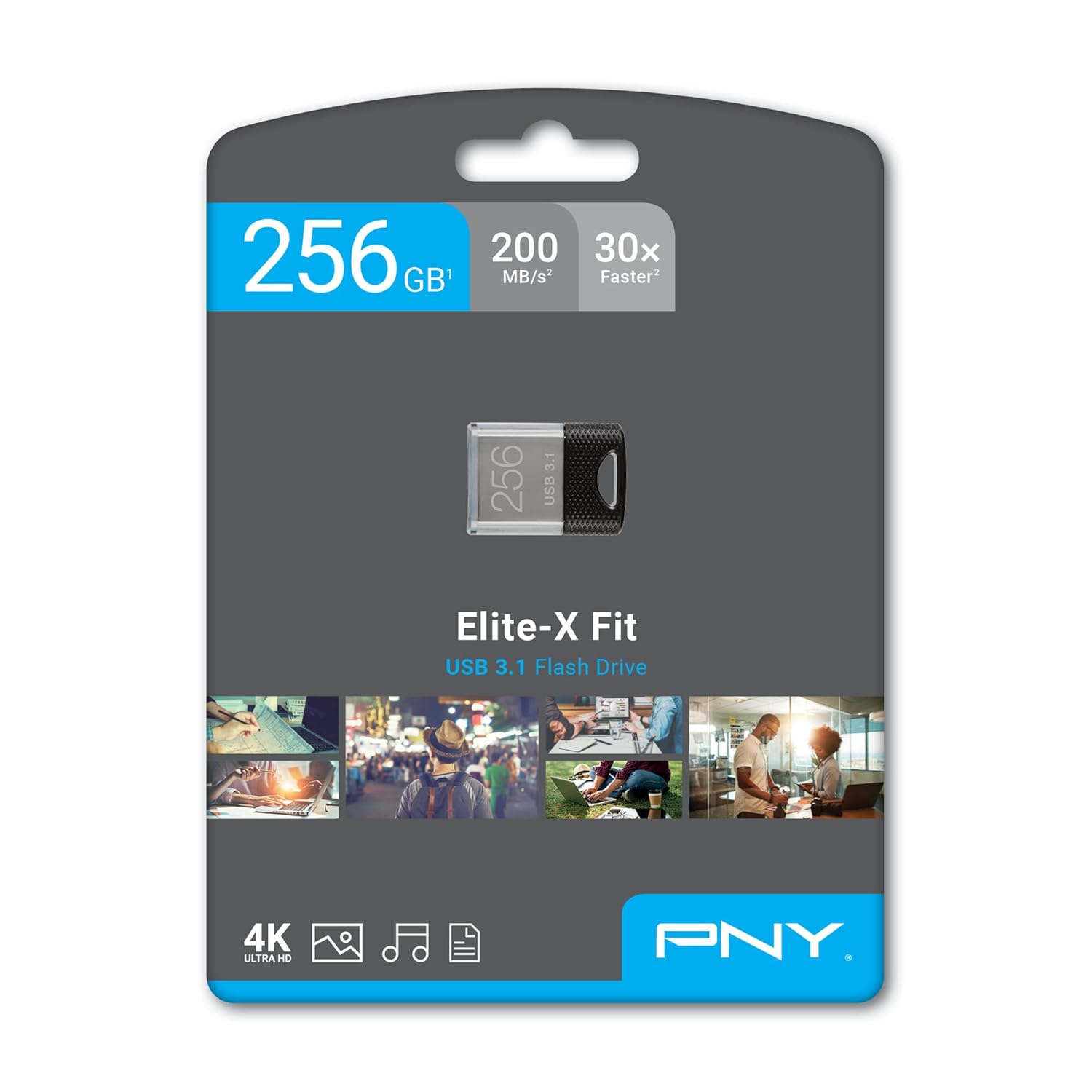
Image 2.2: Retail packaging of the PNY Elite-X Fit USB 3.1 Flash Drive.
3. Setup
The PNY Elite-X Fit USB 3.1 Flash Drive is designed for plug-and-play functionality. No special drivers or software installation are typically required for basic operation on compatible systems.
- Identify a Compatible USB Port: Locate an available USB port on your computer (PC or Mac), car stereo, game console, or other device. The drive is compatible with USB 3.1 Gen 1 (also known as USB 3.0) and is backward compatible with USB 2.0 ports. For optimal performance, use a USB 3.1 Gen 1 or USB 3.0 port.
- Insert the Flash Drive: Carefully insert the PNY Elite-X Fit USB 3.1 Flash Drive into the USB port. Ensure it is fully seated. The low-profile design allows it to remain connected without protruding significantly.
- Device Recognition: Your operating system or device should automatically detect the flash drive. On computers, it will typically appear as a removable drive in 'My Computer' (Windows) or 'Finder' (macOS).

Image 3.1: The PNY Elite-X Fit USB 3.1 Flash Drive inserted into a laptop's USB port.
4. Operating Instructions
4.1. Transferring Files
- Access the Drive: Once recognized, open the flash drive from your computer's file explorer.
- Copy Files: Drag and drop files or folders from your computer to the flash drive, or vice versa. You can also use the 'Copy' and 'Paste' functions.
- Monitor Progress: A progress bar will indicate the transfer status. For large files, transfer times will be significantly faster when connected to a USB 3.1 Gen 1 or USB 3.0 port.
4.2. Safe Removal
To prevent data corruption, always safely remove the flash drive before physically disconnecting it from your computer.
- Windows: Click the 'Safely Remove Hardware and Eject Media' icon in the system tray, then select the PNY flash drive. Wait for the 'Safe to Remove Hardware' notification.
- macOS: Drag the flash drive icon from your desktop to the Trash, or right-click (Control-click) the icon and select 'Eject'.
4.3. Multi-Device Compatibility
The Elite-X Fit USB 3.1 Flash Drive is designed for broad compatibility, allowing use with various devices beyond traditional computers.
- Car Stereos: Use to play music or other media files. Refer to your car stereo's manual for specific instructions on USB media playback.
- Game Consoles: May be used for additional storage or media playback, depending on the console's capabilities. Consult your console's documentation.
- Smart TVs: Connect to compatible TVs for viewing photos, videos, or playing music.
- Printers: Some printers support direct printing from USB flash drives.

Image 4.1: The PNY Elite-X Fit USB 3.1 Flash Drive demonstrating compatibility with various devices.
5. Maintenance
To ensure the longevity and optimal performance of your PNY Elite-X Fit USB 3.1 Flash Drive, follow these maintenance guidelines:
- Physical Care: Keep the drive clean and free from dust and debris. Avoid exposing it to extreme temperatures, moisture, or direct sunlight.
- Data Integrity: Regularly back up important data stored on the flash drive to another storage medium.
- Safe Removal: Always follow the safe removal procedure before disconnecting the drive to prevent data corruption.
- Storage: When not in use, store the drive in a safe place to prevent loss or damage.
6. Troubleshooting
If you encounter issues with your PNY Elite-X Fit USB 3.1 Flash Drive, consider the following common solutions:
| Problem | Possible Solution |
|---|---|
| Drive not recognized by computer. |
|
| Slow data transfer speeds. |
|
| Cannot write files to the drive. |
|
| Data corruption or errors. |
|
7. Specifications
| Feature | Detail |
|---|---|
| Model Name | Elite-X Fit |
| Model Number | P-FDI256EXFIT-GE |
| Capacity | 256GB |
| Read Speed | Up to 200 MB/s |
| Interface | USB 3.1 Gen 1 (backward compatible with USB 3.0 and USB 2.0) |
| Connector Type | USB Type-A |
| Dimensions (L x W x H) | 0.85 x 0.6 x 0.3 inches |
| Weight | 0.48 ounces |
| UPC | 751492623566 |
8. Warranty and Support
PNY offers a limited warranty for its products. For specific warranty terms and conditions, please refer to the official PNY website or the warranty information included with your product packaging. In case of technical issues or inquiries, please contact PNY customer support.
For additional support and resources, visit the official PNY website: www.pny.com/support
PNY also offers optional Photo and Data Recovery Plans for purchase, providing additional protection for your stored data.


