
JOYACCESS JKB2B
JOYACCESS Wireless Keyboard Instruction Manual
Model: JKB2B
1. Introduction
This manual provides detailed instructions for the setup, operation, and maintenance of your JOYACCESS 2.4G Slim and Compact Wireless Keyboard. Please read this manual thoroughly before using the product to ensure proper functionality and longevity.

A full view of the JOYACCESS 2.4G Slim and Compact Wireless Keyboard, showcasing its sleek design and full layout with a numeric pad.
2. Package Contents
- JOYACCESS Wireless Keyboard
- USB Nano Receiver
- User Manual (this document)
- Note: 2 AA batteries are required and not included.
3. Setup Guide
3.1 Battery Installation
The keyboard requires two AA batteries for operation. Follow these steps to install them:
- Locate the battery compartment on the underside of the keyboard.
- Open the battery compartment cover.
- Insert two AA batteries, ensuring correct polarity (+/-).
- Close the battery compartment cover securely.

This image illustrates the location of the battery compartment and the USB nano receiver storage slot on the back of the keyboard. The text "BATTERIES NOT INCLUDED" is visible, along with an arrow pointing to the USB receiver.
3.2 Connecting the Keyboard (Plug and Play)
The JOYACCESS Wireless Keyboard uses a 2.4G wireless connection for easy setup:
- Remove the USB nano receiver from its storage slot in the keyboard's battery compartment.
- Plug the USB nano receiver into an available USB port on your computer (Laptop, PC, MacBook, etc.).
- Turn on the keyboard using the ON/OFF switch, usually located near the battery compartment.
- The keyboard will automatically connect to your computer. No additional drivers or software are required.

This image demonstrates the simple plug-and-play setup, showing the keyboard wirelessly connected to a laptop. It highlights the 2.4G wireless technology and a signal range of up to 33 feet.
4. Operating Instructions
4.1 Basic Usage
Once connected, the keyboard functions like a standard full-size keyboard. The low-profile design and scissor-switch keys provide a comfortable and quiet typing experience.

This image focuses on the scissor-switch key mechanism, illustrating how it provides light, responsive, and quiet typing.
4.2 Indicator Lights
The keyboard features indicator lights for important functions:
- Num Lock: Indicates when the numeric keypad is active.
- Caps Lock: Indicates when Caps Lock is enabled.
- Power/Battery Status: Indicates power status and low battery warning.

This image clearly labels the Num Lock, Caps Lock, and Power indicator lights located on the top right of the keyboard.
4.3 Multimedia and Function Keys
The keyboard includes 10 additional keys for quick access to multimedia and office functions. These are typically accessed by pressing the Fn key in combination with the corresponding F-key (F1-F12).
- Fn + F1-F12: Control volume, media playback, web browser, email, and other common applications. Refer to the key legends for specific functions.
4.4 Auto-Sleep Feature
To conserve battery life, the keyboard will enter a sleep state after 8 minutes of inactivity. To wake the keyboard, simply press any key. It will reconnect automatically.

This diagram visually explains the auto-sleep feature, showing the transition from active to sleep mode and back to active mode upon key press, designed to save battery power.
4.5 Wide Compatibility
The keyboard is compatible with a wide range of operating systems and devices:
- Windows 2000 / ME / XP / Vista / 7 / 8 / 10
- MacBook, desktops, Chromebook, PC, Laptop, Computer, Smart TV, and more.

This image displays icons for various compatible devices and operating systems, including laptops, desktops, Windows, Mac, and MacBook Pro, illustrating the keyboard's broad compatibility.
5. Maintenance
5.1 Cleaning the Keyboard
To maintain the keyboard's appearance and functionality:
- Use a soft, dry cloth to wipe the surface of the keyboard.
- For stubborn dirt, slightly dampen the cloth with water or a mild, non-abrasive cleaner.
- Avoid using excessive liquid or harsh chemicals, as they may damage the electronics.
- Use compressed air to remove dust and debris from between the keys.
5.2 Battery Replacement
When the power indicator light flashes or the keyboard becomes unresponsive, it's time to replace the batteries. Refer to Section 3.1 for battery installation instructions.
6. Troubleshooting
| Problem | Possible Cause | Solution |
|---|---|---|
| Keyboard not responding | Low or dead batteries. USB receiver not properly connected. Keyboard is off. | Replace batteries. Ensure USB receiver is firmly plugged into a working USB port. Turn on the keyboard. |
| Delayed response or intermittent connection | Too far from receiver. Interference from other wireless devices. | Move keyboard closer to the USB receiver (within 33 feet). Move other wireless devices away from the receiver. |
| Specific keys not working | Debris under the key. Software issue. | Clean the key area. Restart your computer. |
| Numeric keypad not working | Num Lock is off. | Press the Num Lock key to activate the numeric keypad. |
7. Specifications
- Model: JKB2B
- Connectivity: 2.4G Wireless (USB Receiver)
- Operating Range: Up to 33 feet (10 meters)
- Power Source: 2 x AA Batteries (not included)
- Key Type: Scissor-Switch
- Number of Keys: 86
- Dimensions: 15.03 x 5.7 x 1.9 inches (38.18 x 14.48 x 4.83 cm)
- Item Weight: 1.21 pounds (0.55 kg)
- Compatibility: Windows 2000/ME/XP/Vista/7/8/10, Mac, PC, Laptop, Chromebook, Smart TV
- Special Features: Ergonomic, Lightweight, Silent, Ultra Slim, Numeric Pad, Multimedia Keys, Auto-Sleep
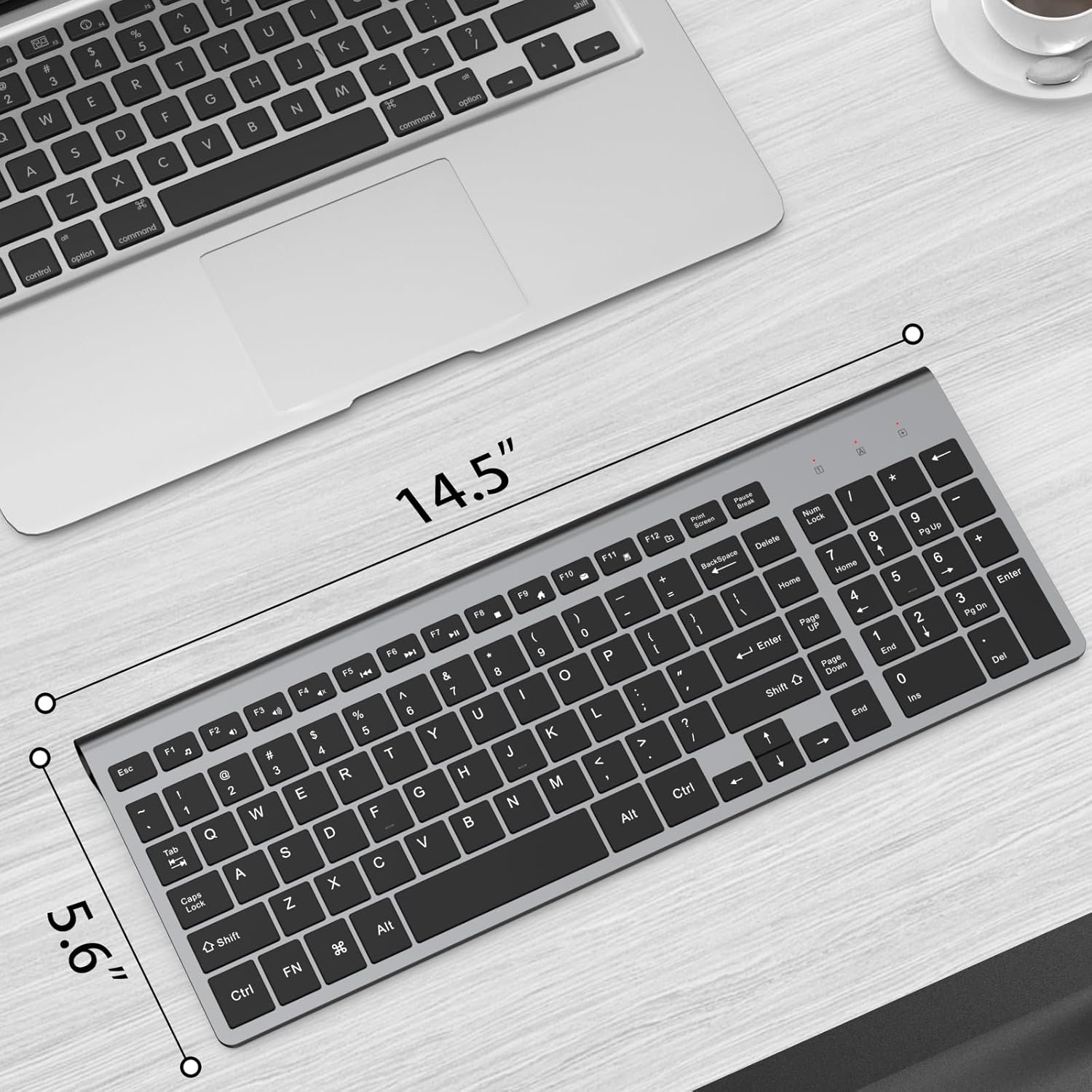
This image provides a visual representation of the keyboard's dimensions, indicating its length and width.

This diagram illustrates the ultra-slim design of the keyboard, showing its minimal thickness at both the front and back edges.
8. Warranty and Support
For warranty information, technical support, or customer service inquiries, please contact JOYACCESS customer support through the retailer's platform or visit the official JOYACCESS website. Please retain your proof of purchase for warranty claims.
Manufacturer: J JOYACCESS
Related documentsJKB2B

Ask a question about this manual
Ask about setup, troubleshooting, compatibility, parts, safety, or missing instructions. Manuals+ will review the question and use this page’s manual context to help answer it.