
JOYACCESS JKB2S
JOYACCESS J Wireless Keyboard Instruction Manual
Model: JKB2S
Brand: JOYACCESS
Introduction
This manual provides detailed instructions for the setup, operation, and maintenance of your JOYACCESS J Wireless Keyboard. Please read this manual thoroughly before using the product to ensure optimal performance and longevity.

Image: JOYACCESS J Wireless Keyboard, silver white model.
Setup Guide
1. Battery Installation
The keyboard requires two (2) AA batteries (not included). Follow these steps to install them:
- Locate the battery compartment on the underside of the keyboard.
- Slide open the battery compartment cover.
- Insert two AA batteries, ensuring correct polarity (+/-).
- Close the battery compartment cover securely.

Image: The underside of the keyboard, highlighting the battery compartment and the storage slot for the USB nano receiver.
2. Connecting the USB Nano Receiver (Plug and Play)
The keyboard connects wirelessly via a 2.4G USB nano receiver. No software installation is required.
- Retrieve the USB nano receiver from its storage slot in the keyboard's battery compartment.
- Plug the USB nano receiver into an available USB port on your computer, laptop, or compatible device.
- The keyboard should automatically connect. Allow a few seconds for your operating system to recognize the device.

Image: The wireless keyboard in use with a laptop, showing the USB receiver plugged into the laptop's port.
Video: Official product video demonstrating the plug-and-play setup of the Joyaccess 2.4G Wireless Keyboard.
Operating Instructions
Responsive and Quiet Typing
The keyboard features high-quality scissor-switch technology, providing smooth keystrokes and low noise. This design is intended to reduce typing fatigue, making it suitable for extended use.

Image: A close-up view illustrating the scissor-switch design of the keyboard keys, emphasizing smooth and quiet operation.
Multimedia and Function Keys
The keyboard includes 10 additional keys for easy control over volume, multimedia functions, and frequently used Office applications. These keys are typically located along the top row (F1-F12) and can be activated directly or in combination with the 'Fn' key, depending on your operating system and settings.
Number Pad
A dedicated numeric keypad is integrated on the right side of the keyboard for efficient data entry and calculations.

Image: A detailed view of the number pad and the indicator lights for Caps Lock, Num Lock, and Power on the keyboard.
Auto-Sleep Function
To conserve battery life, the keyboard will enter a sleep state after 8 minutes of inactivity. To reactivate the keyboard, simply press any key.
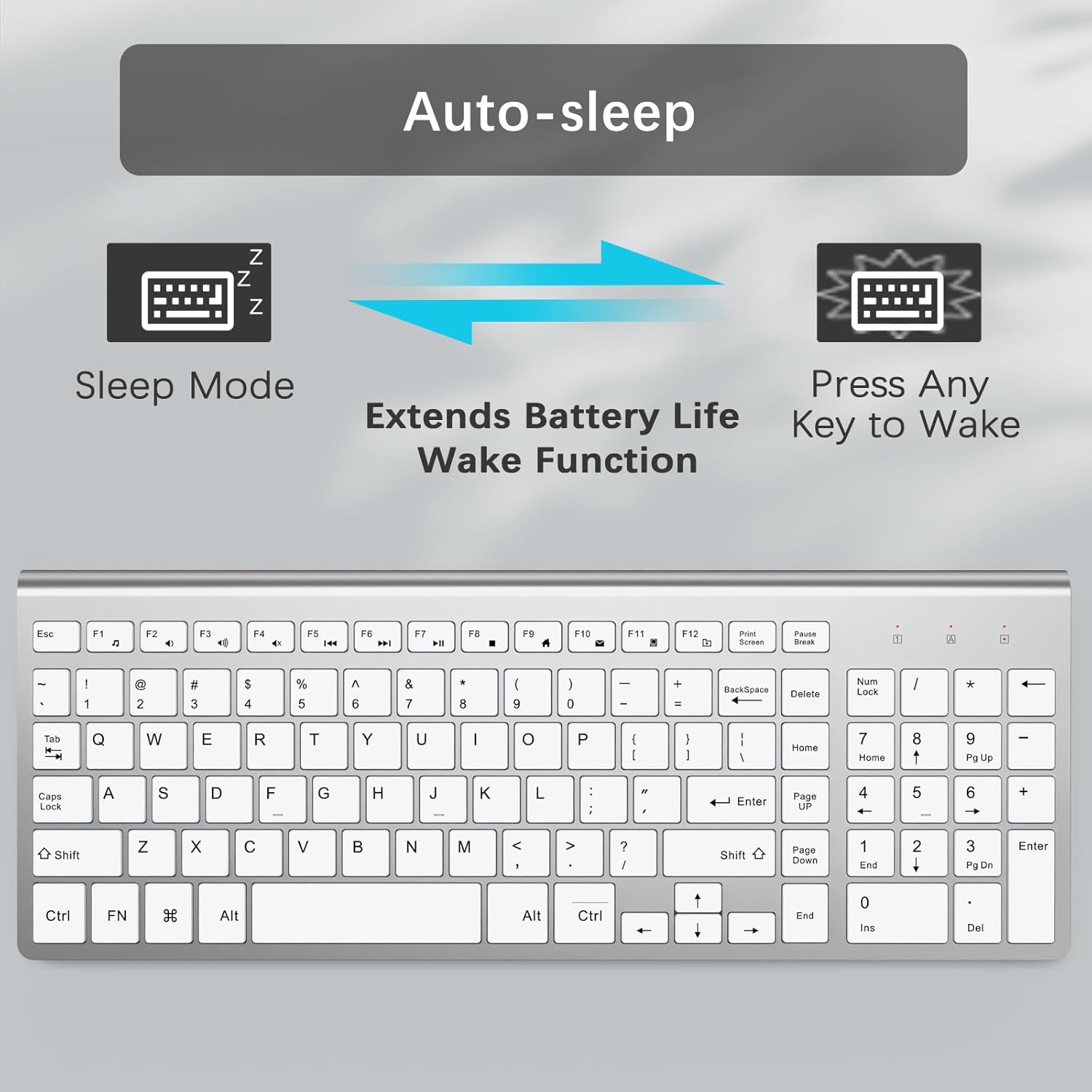
Image: A visual representation of the keyboard's auto-sleep mode and how pressing any key will wake it up, extending battery life.
Maintenance
- Cleaning: Use a soft, dry cloth to clean the keyboard surface. For stubborn dirt, a slightly damp cloth can be used, ensuring no liquid enters the keycaps or internal components.
- Battery Replacement: Replace AA batteries when the power indicator light signals low battery or when performance degrades.
- Storage: When not in use for extended periods, remove the batteries and store the keyboard in a dry, cool place.
Troubleshooting
- Keyboard not responding:
- Ensure the USB nano receiver is securely plugged into a working USB port.
- Check if the batteries are correctly installed and have sufficient charge. Replace if necessary.
- Move the keyboard closer to the USB receiver to rule out range issues (maximum 33 feet).
- Try plugging the USB receiver into a different USB port on your device.
- Restart your computer/device.
- Keys not typing correctly:
- Clean around the affected keys to remove any debris.
- Ensure the keyboard is not in a special mode (e.g., Num Lock or Caps Lock indicators).
- Intermittent connection:
- Ensure there are no large metal objects or other wireless devices causing interference between the keyboard and the receiver.
- Try moving the receiver to a different USB port, preferably one with a clear line of sight to the keyboard.
Specifications
| Feature | Detail |
|---|---|
| Brand | JOYACCESS |
| Model Number | JKB2S |
| Connectivity Technology | 2.4G Wireless (USB Nano Receiver) |
| Compatible Devices | Windows 2000 / ME / XP / Vista / 7 / 8 / 10, MacBook, desktops, Chromebook, PC, Laptop, Computer Smart TV |
| Keyboard Description | Slim and Compact Wireless Keyboard with Numeric Keypad |
| Special Features | Ergonomic, Lightweight, Ultra Slim, Low-Profile Key, Quiet Typing, Auto-Sleep Function |
| Color | Sliver White |
| Product Dimensions | 14.5"L x 5.6"W x 0.8"H |
| Number of Keys | 102 |
| Power Source | Battery Powered (2x AA batteries required) |
| Switch Type | Scissor Switch |
| Keyboard Layout | QWERTY |
| Material | Acrylonitrile Butadiene Styrene |

Image: Visual representation of the keyboard's dimensions (14.5 inches long, 5.6 inches wide, 0.8 inches high).
Warranty and Support
JOYACCESS provides a one-year warranty service for this product. For any support inquiries or warranty claims, please refer to the contact information provided with your purchase or visit the official JOYACCESS website.
Official JOYACCESS Store: Visit the JOYACCESS Store on Amazon
Related documentsJKB2S

Ask a question about this manual
Ask about setup, troubleshooting, compatibility, parts, safety, or missing instructions. Manuals+ will review the question and use this page’s manual context to help answer it.