
Smartbitt NB1800
Smartbitt Interactive UPS 1800VA User Manual
Model: NB1800
1. Introduction
Thank you for choosing the Smartbitt Interactive UPS 1800VA. This Uninterruptible Power Supply (UPS) is designed to provide reliable power backup and surge protection for your electronic devices, safeguarding them against power outages, voltage fluctuations, and power surges. This manual will guide you through the installation, operation, and maintenance of your new UPS.
For more information, visit the official product page: Smartbitt Interactive 1800VA
2. Safety Information
Please read these safety instructions carefully before installing or operating your UPS. Keep this manual for future reference.
- Do not open the UPS casing. There are no user-serviceable parts inside. Refer all servicing to qualified service personnel.
- Do not install the UPS in direct sunlight, near heat sources, or in environments with excessive dust, humidity, or corrosive substances.
- Ensure the UPS is connected to a grounded AC power outlet.
- Do not connect non-computer related items like hair dryers or vacuum cleaners to the UPS outlets.
- In case of fire, use a dry chemical fire extinguisher. Water may cause electrical shock.
- The battery inside the UPS is not user-replaceable. Battery replacement should only be performed by qualified personnel.
3. Package Contents
Verify that all items listed below are included in your package:
- Smartbitt Interactive UPS 1800VA Unit
- User Manual
- USB Communication Cable

Image: Contents of the Smartbitt UPS package, showing the user manual and a USB communication cable alongside the UPS unit.
4. Product Overview
4.1 Front Panel

Image: Front view of the Smartbitt NB1800 UPS, highlighting the power button and the three indicator lights (green, yellow, red) at the top left.
The front panel features the main power button and LED indicators that display the UPS status. The specific appearance may vary slightly between models, as shown in the alternative front view below.

Image: An alternative front view of a Smartbitt UPS, model SBNB1800, featuring a vertical LED battery capacity indicator instead of individual status lights.
4.2 Rear Panel
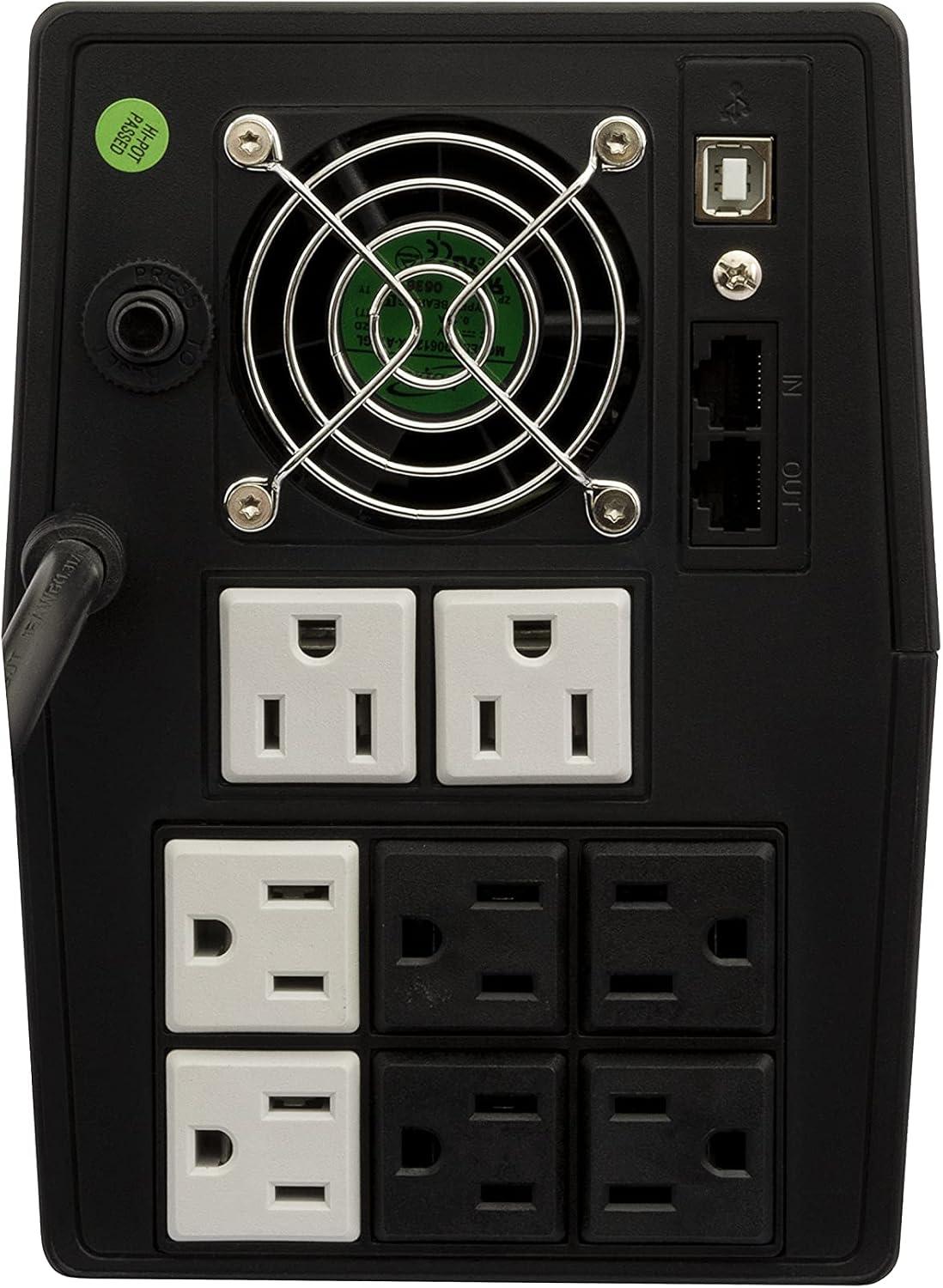
Image: Rear view of the Smartbitt UPS, displaying the various ports and outlets. This includes 8 Nema 5-15R outlets (some with battery backup, some with surge protection only), a USB port for monitoring, and RJ45 ports for telephone line protection.
- AC Input: Power cord to connect to wall outlet.
- Battery Backup & Surge Protected Outlets: (e.g., 4 outlets) Provide power from the battery during outages and protect against surges.
- Surge Protected Outlets Only: (e.g., 4 outlets) Protect against surges but do not provide battery backup.
- USB Port: For connecting to a computer for monitoring and management software.
- RJ45 In/Out Ports: For telephone/network line surge protection.
5. Setup
Follow these steps for initial setup of your Smartbitt UPS:
- Placement: Place the UPS in a cool, dry, and well-ventilated indoor area. Avoid direct sunlight and heat sources. Ensure there is adequate space around the unit for proper airflow.
- Initial Charge: Connect the UPS power cord to a grounded wall outlet. Allow the UPS to charge for at least 8 hours before connecting any devices. This ensures the battery is fully charged and ready to provide maximum backup time.
- Connect Devices:
- Connect critical devices (e.g., computer, monitor, modem) to the Battery Backup & Surge Protected Outlets. These outlets will provide power during an outage.
- Connect non-critical devices (e.g., printer, scanner) to the Surge Protected Outlets Only. These outlets will protect against surges but will not provide power during an outage.
- USB Connection (Optional): Connect the supplied USB cable from the UPS USB port to your computer's USB port. Install the monitoring software (if provided) to enable advanced features like automatic shutdown and status monitoring.
- Telephone/Network Line Protection (Optional): Connect your telephone or network cable to the RJ45 'IN' port on the UPS, then connect another cable from the 'OUT' port to your device (e.g., modem, phone).
6. Operating Instructions
6.1 Powering On/Off
- To Power On: Press and hold the power button for approximately 2 seconds until you hear a beep and the indicator lights illuminate.
- To Power Off: Press and hold the power button for approximately 2 seconds until you hear a beep and the indicator lights turn off.
6.2 LED Indicators
The LED indicators on the front panel provide information about the UPS status:
- Green LED (On): UPS is operating normally, providing AC power to connected devices.
- Yellow LED (Flashing): UPS is operating on battery power (during an outage).
- Red LED (On/Flashing): Indicates a fault, overload, or low battery condition. Refer to the Troubleshooting section.
6.3 Battery Backup Duration
The Smartbitt UPS 1800VA can maintain power to your equipment for up to 50 minutes, depending on the load connected. For example, a typical PC setup with two monitors (approx. 400W PC + 100W monitors) may provide several minutes of backup, allowing ample time to save work and shut down systems properly.
7. Maintenance
Proper maintenance ensures the longevity and optimal performance of your UPS.
- Battery Care: To maximize battery life, keep the UPS connected to an AC outlet at all times. If the UPS is stored for an extended period, recharge the battery every three months for at least 8 hours.
- Cleaning: Disconnect the UPS from the wall outlet and all connected devices before cleaning. Use a soft, dry cloth to wipe the exterior. Do not use liquid or aerosol cleaners.
- Battery Replacement: The battery in this UPS is not user-replaceable. If the battery needs replacement (e.g., after several years of use, or if the UPS fails to hold a charge), contact Smartbitt customer support or a qualified service technician.
8. Troubleshooting
If you encounter issues with your UPS, refer to the table below for common problems and solutions.
| Problem | Possible Cause | Solution |
|---|---|---|
| UPS does not turn on. | No AC input; Low battery; Power button not held long enough. | Ensure UPS is plugged into a live wall outlet. Allow UPS to charge for 8 hours. Press and hold power button for 2 seconds. |
| UPS beeps continuously or frequently. | On battery mode; Low battery; Overload. | This is normal during power outages. Allow UPS to charge. Reduce connected load by unplugging non-essential devices. |
| UPS fan is noisy. | Normal operation during battery mode or high load. | The fan may activate to cool the unit, especially when operating on battery or under heavy load. This is normal. |
| Connected devices lose power during an outage. | Devices connected to surge-only outlets; Overload; Battery depleted. | Ensure critical devices are connected to Battery Backup outlets. Reduce load. Allow battery to recharge. |
9. Specifications
Below are the technical specifications for the Smartbitt Interactive UPS 1800VA:
- Brand: Smartbitt
- Model: NB1800 (or similar 1800VA variant)
- Power Capacity: 1800VA / 900W
- Battery Cell Composition: Lead-Acid, AGM (Absorbent Glass Mat)
- Voltage: 120 Volts
- Color: Black (Home and Office)
- Material: Plastic
- Outlets: 8 Nema 5-15R (combination of battery backup and surge-only)
- Protection: Surge suppression, voltage regulation, battery backup
- Connectivity: USB port for monitoring, RJ45 for telephone line protection
10. Warranty and Support
Smartbitt products are designed for reliability and performance. For warranty information, technical support, or service inquiries, please refer to the warranty card included with your product or visit the official Smartbitt website. Keep your purchase receipt as proof of purchase for warranty claims.
Contact Support: Please visit the Smartbitt website or refer to the contact information provided in your product packaging for assistance.
Related documentsNB1800


Ask a question about this manual
Ask about setup, troubleshooting, compatibility, parts, safety, or missing instructions. Manuals+ will review the question and use this page’s manual context to help answer it.