
KUIYN T6
KUIYN T6 Gaming Keyboard and Mouse Set User Manual
Model: T6 | Brand: KUIYN
Introduction
This manual provides detailed instructions for the KUIYN T6 Gaming Keyboard and Mouse Set. This set includes a 104-key wired gaming keyboard with LED backlighting, a 6-button wired gaming mouse with adjustable DPI, and a mouse pad. Designed for durability and ergonomic comfort, this set is compatible with various operating systems and gaming platforms.
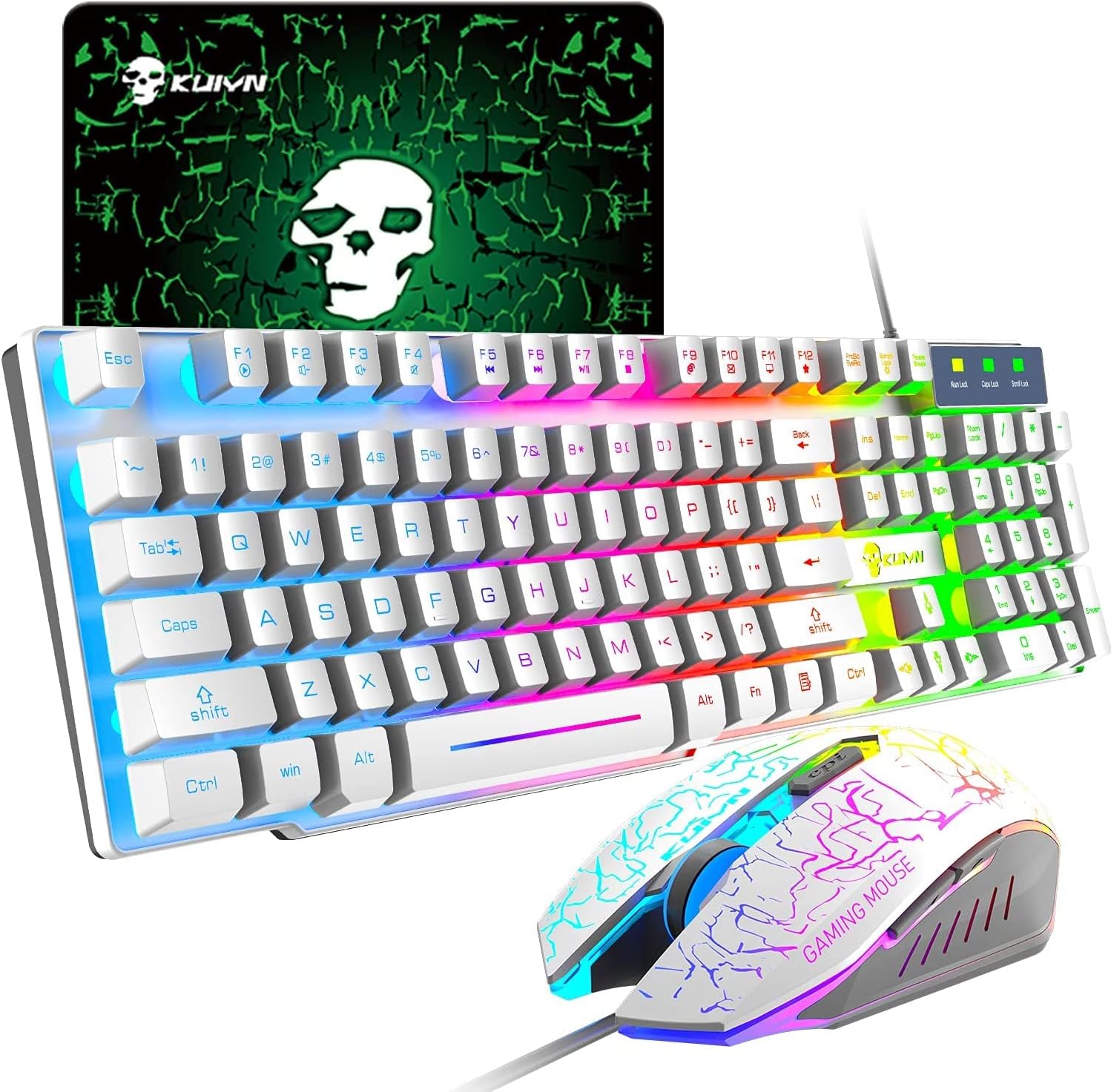
Image: The KUIYN T6 Gaming Keyboard and Mouse Set, featuring a white keyboard with rainbow LED backlighting, a matching gaming mouse, and a mouse pad.
Setup Instructions
- Unpack the Components: Carefully remove the keyboard, mouse, and mouse pad from their packaging.
- Connect the Keyboard: Plug the USB connector of the keyboard into an available USB port on your computer or gaming console.
- Connect the Mouse: Plug the USB connector of the mouse into another available USB port on your computer or gaming console.
- Place the Mouse Pad: Position the mouse pad on your desk for optimal mouse movement.
- System Recognition: Your operating system should automatically detect and install the necessary drivers. No additional software installation is typically required.
- Console Connection (Optional): For Switch, PS4, PS5, or Xbox, an additional converter (not included) may be required to ensure full compatibility and functionality.
Operating Instructions: Keyboard
LED Backlight Control
- The keyboard features a rainbow LED backlight.
- To turn the backlight on or off, locate the Scroll Lock key. Pressing this key toggles the backlight.
- Note: If the backlight does not activate, ensure the keyboard is properly connected.

Image: A close-up view of the KUIYN T6 keyboard, highlighting the illuminated keys and US layout.
Multimedia and Function Keys
The keyboard includes function extension F-keys and a numeric keypad for enhanced productivity and gaming control. Specific multimedia functions can be accessed using the Fn key in combination with other keys (refer to the keycap legends for specific functions).
- Ergonomic Design: The keyboard is designed for comfortable typing and reduced strain during extended use.
- Durable Construction: The exterior utilizes high-quality aluminum alloy for enhanced durability.
- Splash-Proof: The keyboard offers strong splash-proof performance, protecting against accidental spills.
Operating Instructions: Mouse
DPI Adjustment
The gaming mouse features adjustable DPI settings to suit different tasks and preferences. You can cycle through three DPI levels:
- 800 DPI
- 1200 DPI
- 1600 DPI
To change the DPI, press the dedicated DPI switch button located below the scroll wheel.

Image: A diagram illustrating the KUIYN T6 gaming mouse's buttons, including left, right, scroll wheel, DPI switch, and two side buttons.
Mouse Buttons
The mouse is equipped with 6 buttons for versatile control:
- Left Click Button
- Right Click Button
- Scroll Wheel (with 3D anti-slip design)
- DPI Switch Button
- Forward Side Button
- Backward Side Button
Maintenance
- Cleaning: Use a soft, dry cloth to wipe down the keyboard and mouse. For stubborn dirt, a slightly damp cloth can be used, ensuring no liquid enters the devices.
- Avoid Liquids: Despite splash-proof features, avoid submerging the devices in liquid or exposing them to excessive moisture.
- Cable Care: Do not bend or crimp the USB cables excessively to prevent damage.
- Storage: Store the keyboard and mouse in a cool, dry place away from direct sunlight and extreme temperatures when not in use.
Troubleshooting
| Problem | Possible Cause | Solution |
|---|---|---|
| Keyboard/Mouse not responding | Loose USB connection; faulty USB port; driver issue. | Ensure USB cables are securely plugged in. Try a different USB port. Restart your computer. |
| Keyboard LED backlight not turning on | Backlight is off; keyboard not powered. | Press the Scroll Lock key to toggle the backlight. Ensure the keyboard is properly connected to a powered USB port. |
| Mouse cursor movement is erratic or unresponsive | Dirty sensor; unsuitable surface; DPI setting too low. | Clean the mouse sensor. Use the provided mouse pad or a smooth, opaque surface. Adjust DPI using the DPI switch button. |
| Keyboard keys are sticky or unresponsive | Debris under keys; liquid damage. | Gently clean around and under the affected keys. If liquid damage is suspected, disconnect immediately and allow to dry completely before reconnecting. |
Specifications
- Model: T6 (Manufacturer Reference: KYT6)
- Brand: KUIYN (Manufacturer: LexonTech)
- Color: White
- Connectivity: Wired USB
- Keyboard Layout: 104-key (US layout)
- Keyboard Features: Rainbow LED Backlight, Ergonomic Design, Splash-Proof, Aluminum Alloy Exterior
- Mouse Buttons: 6 (Left, Right, Scroll Wheel, DPI Switch, Forward, Backward)
- Mouse DPI: 800 / 1200 / 1600 DPI (Adjustable)
- Mouse Lifespan: 10 million clicks
- Compatible OS: Windows 98/2000/ME/XP 32bit, Vista/Win7/Win8 32/64bit, Mac, Switch*, PS4*, PS5*, Xbox* (*Converter may be required for consoles)
- Product Dimensions (Keyboard): 44.5 x 13.5 x 3 cm
- Product Weight (Set): 832 g
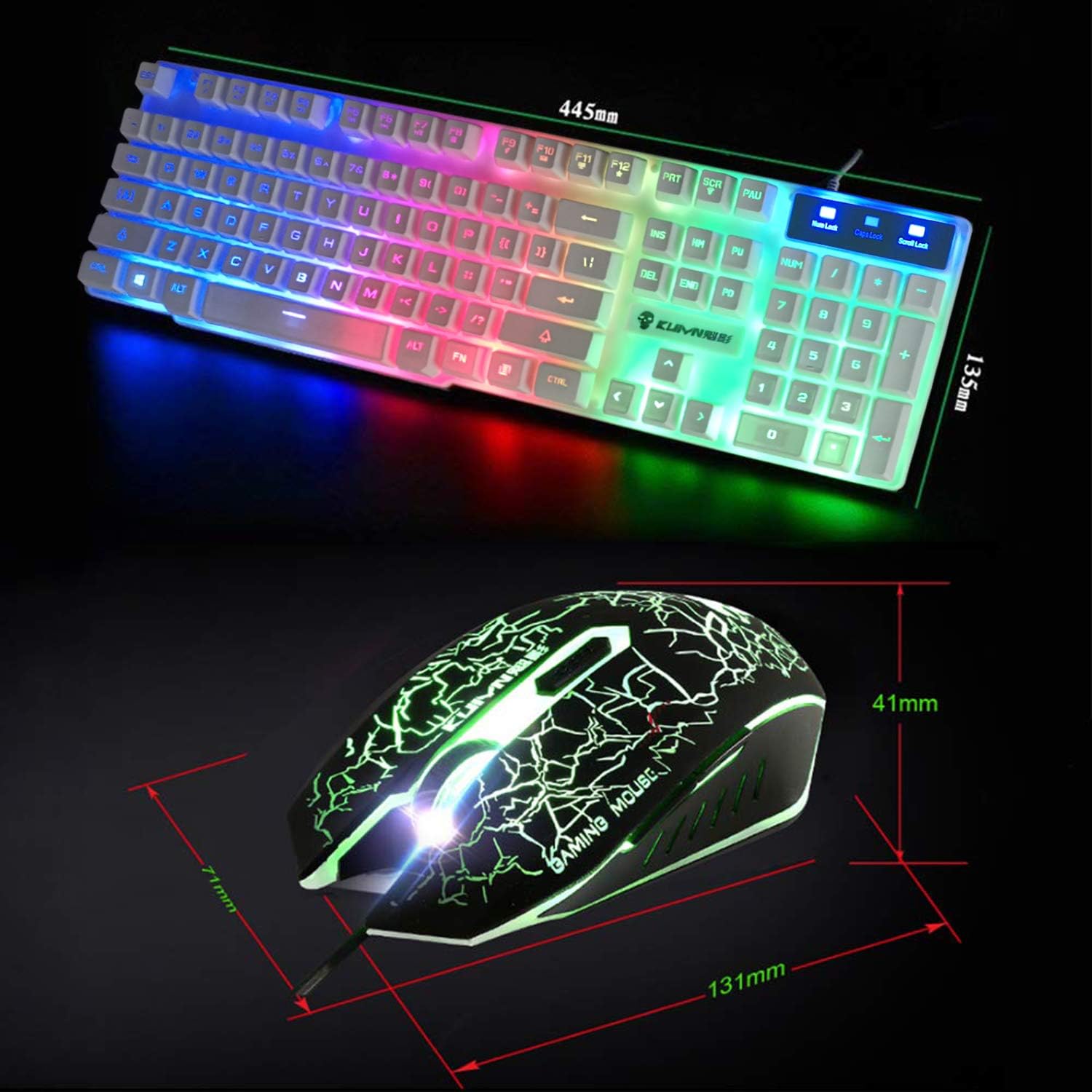
Image: Technical drawing showing the dimensions of the KUIYN T6 keyboard (445mm x 135mm) and mouse (131mm x 71mm x 41mm).
Warranty and Support
Warranty: In the event of a product defect, a product exchange for the same item is available within 30 days from the date of product arrival.
Customer Support: If you have any questions or encounter issues not covered in this manual, please do not hesitate to contact customer support. Refer to your purchase documentation for contact information.
Related documentsT6

Ask a question about this manual
Ask about setup, troubleshooting, compatibility, parts, safety, or missing instructions. Manuals+ will review the question and use this page’s manual context to help answer it.