1. Introduction and Overview
This manual provides essential information for the proper setup, operation, and maintenance of your LG 32UK50T-W 32-inch 4K UHD VA Monitor. This monitor features a 3840 x 2160 resolution VA display, DCI-P3 95% color gamut for accurate color reproduction, and Radeon FreeSync technology for smooth visuals. It also includes On Screen Control and multiple input options for versatile connectivity.
2. Setup
2.1 Unpacking
Carefully remove all components from the packaging. Ensure all parts listed in the packing list are present and undamaged. Retain the original packaging for future transport or service needs.
2.2 Stand Assembly
Attach the stand base to the stand neck, then secure the assembled stand to the monitor panel. Ensure all screws are tightened appropriately. Refer to the diagram below for visual guidance.
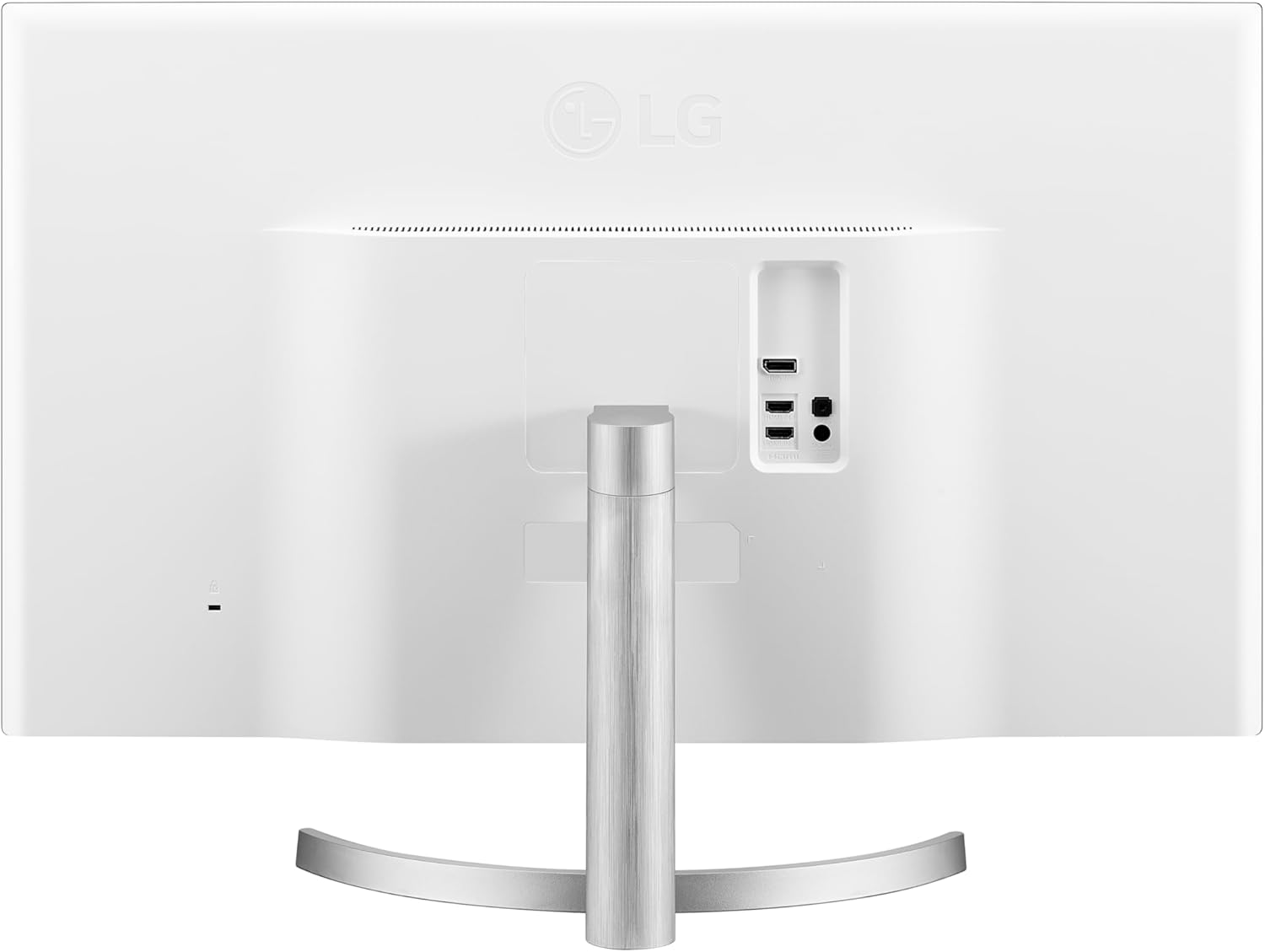
Figure 2.2.1: Rear view of the LG 32UK50T-W monitor with the stand attached, highlighting the connection ports.
2.3 Connecting to Devices
The monitor supports multiple input options. Connect your computer or other devices using the appropriate cables.
- HDMI: Use an HDMI cable to connect to devices with HDMI output. The monitor has two HDMI ports.
- DisplayPort: Use a DisplayPort cable for devices supporting DisplayPort output.
- Headphone Out: Connect headphones or external speakers to the headphone out port.

Figure 2.3.1: Detailed view of the monitor's input ports.
2.4 Power Connection
Connect the power adapter to the monitor's DC-in port, then plug the power cord into a wall outlet.
3. Operating Instructions
3.1 Power On/Off
Press the power button (usually a joystick-like control located at the bottom center of the monitor) to turn the monitor on or off.
3.2 On Screen Control (OSC)
The On Screen Control feature allows you to easily adjust monitor settings using the joystick button. Push the joystick in any direction to access the main menu. Navigate through options by moving the joystick and confirm selections by pressing it.
3.3 Picture Settings
Adjust display settings such as brightness, contrast, sharpness, and color temperature through the On Screen Control menu. The monitor supports DCI-P3 95% color gamut for enhanced color accuracy.
3.4 Radeon FreeSync Technology
This monitor supports Radeon FreeSync, which synchronizes the refresh rate of your monitor with your graphics card's frame rate to reduce screen tearing and stuttering during gaming. Ensure your graphics card supports Radeon FreeSync and enable the feature in both your graphics card settings and the monitor's On Screen Control menu.
3.5 Screen Split
Utilize the Screen Split feature, accessible via On Screen Control, to efficiently arrange multiple windows on your display for improved multitasking.
3.6 Input Selection
To switch between connected devices (e.g., HDMI 1, HDMI 2, DisplayPort), use the On Screen Control menu to select the desired input source.
4. Specifications

Figure 4.1: LG 32UK50T-W Monitor Dimensions.
| Feature | Description |
|---|---|
| Model Number | 32UK50T-W |
| Screen Size | 32 Inches |
| Panel Type | VA Display |
| Resolution | 4K UHD (3840 x 2160) |
| Aspect Ratio | 16:9 |
| Color Gamut | DCI-P3 95% |
| Adaptive Sync | Radeon FreeSync Technology |
| Inputs | HDMI x 2, Display Port x 1, Headphone Out x 1 |
| Screen Surface | Anti-glare, Hard coating (3H) |
| Dimensions (LxWxH) | 28.7 x 8.2 x 20.4 inches |
| Weight | 13.7 pounds |
| Color | Silver |
5. Maintenance
5.1 Cleaning the Monitor
To clean the screen, gently wipe it with a soft, lint-free cloth. For stubborn marks, lightly dampen the cloth with water or a mild, non-abrasive screen cleaner. Avoid using harsh chemicals or abrasive materials that could damage the screen surface.
5.2 General Care
- Avoid placing heavy objects on the monitor or its cables.
- Do not expose the monitor to direct sunlight, excessive heat, or extreme cold.
- Keep the monitor away from liquids and excessive moisture.
6. Troubleshooting
If you encounter issues with your monitor, refer to the following common troubleshooting steps:
- No Power: Ensure the power cable is securely connected to both the monitor and the power outlet. Check if the power outlet is functioning.
- No Signal: Verify that the video cable (HDMI or DisplayPort) is correctly connected to both the monitor and your device. Ensure the correct input source is selected on the monitor.
- Display Issues (e.g., flickering, distorted image): Check the video cable for damage. Try adjusting the resolution or refresh rate settings on your computer. If using Radeon FreeSync, ensure it is properly configured.
- Sound Issues: Confirm that external speakers or headphones are properly connected to the headphone out port. Check volume settings on both the monitor and your connected device.
For more detailed troubleshooting or persistent issues, consult the full user manual available on the LG support website or contact LG customer service.
7. Warranty and Support
Your LG 32UK50T-W monitor is covered by a manufacturer's warranty. For specific warranty terms, conditions, and registration information, please refer to the warranty card included with your product or visit the official LG website. For technical support, service requests, or further assistance, please contact LG customer service through their official channels.