
1.1 Unpacking the Control
Carefully remove the VT9W HE Wall Control from its packaging. Verify that all components are present and undamaged.
- VT9W Wall Control Unit
- Mounting Screws
- Installation Guide (this document)
Model: VT9W | Brand: Broan-NuTone
Carefully remove the VT9W HE Wall Control from its packaging. Verify that all components are present and undamaged.
The VT9W wall control is designed for standard wall box installation. Ensure power to the HE/ERV unit is disconnected before proceeding with installation.
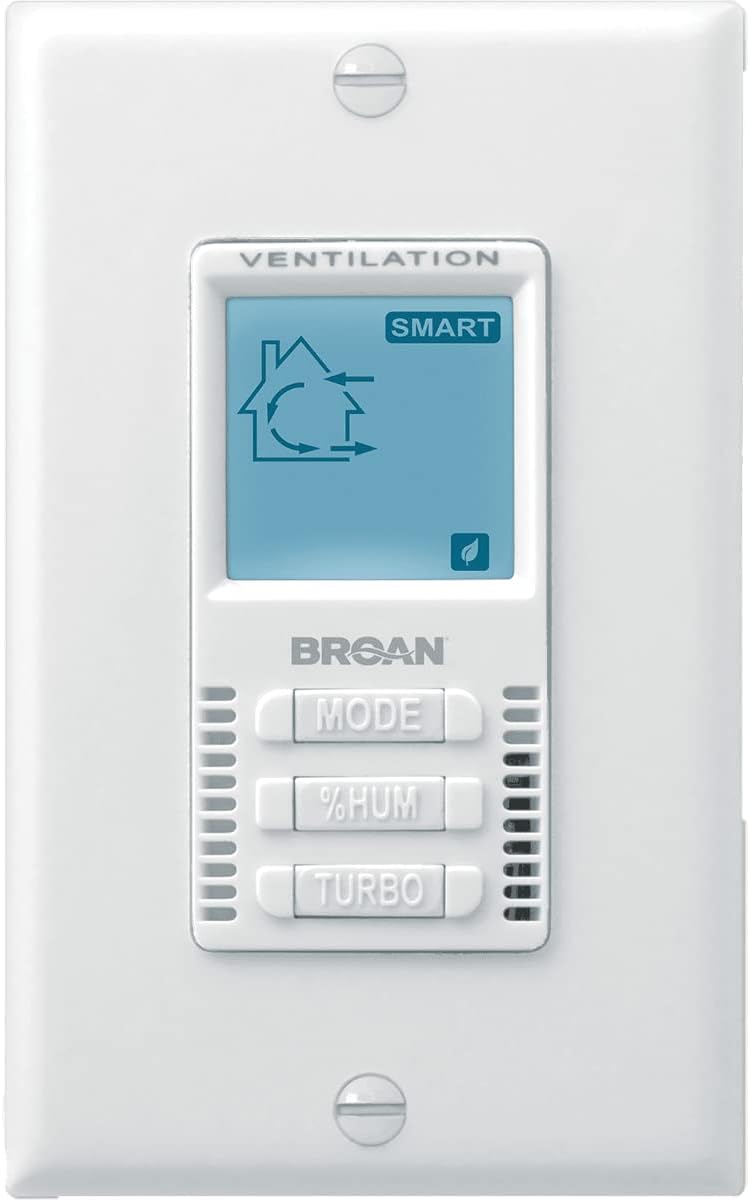
Front view of the Broan VT9W HE Wall Control, showing the digital display with ventilation icons and 'SMART' indicator, along with physical buttons for 'MODE', '%HUM', and 'TURBO'.
Note: Refer to the separate wiring diagram provided with your HE/ERV unit (H/ERV200 ECM or H/ERV250 ECM models) for detailed connection instructions. Incorrect wiring can damage the control or the ventilation unit.
The VT9W control features a digital display and three primary buttons for operation.
Close-up of the Broan VT9W HE Wall Control, illustrating the digital display and the 'MODE', '%HUM', and 'TURBO' buttons.
Press the MODE button to cycle through the available operating modes for your HE/ERV unit. Common modes include:
To set or adjust the desired indoor humidity level, press the %HUM button. The display will show the current humidity setpoint. Repeated presses will cycle through available humidity percentage settings. The system will then work to maintain the indoor humidity near this setpoint.
Press the TURBO button to activate a temporary high-speed ventilation boost. This is useful for quickly clearing odors or excess humidity from a specific area. The turbo function typically runs for a preset duration (e.g., 20, 40, or 60 minutes) and then returns to the previous operating mode. Pressing the button again may cancel the turbo function or extend its duration, depending on the unit's programming.
To maintain the appearance and functionality of your VT9W wall control, clean it periodically.
The VT9W wall control manages your HE/ERV system, which relies on clean filters for optimal performance and air quality. While the control itself does not have filters, regular maintenance of your HE/ERV unit's filters is crucial.
Note: Refer to your main HE/ERV unit's instruction manual (H/ERV200 ECM or H/ERV250 ECM) for detailed filter inspection, cleaning, and replacement instructions.
If you experience issues with your Broan VT9W HE Wall Control, consult the table below for common problems and solutions.
| Problem | Possible Cause | Solution |
|---|---|---|
| Control display is blank | No power to the HE/ERV unit or control; Loose wiring connection. | Check power supply to the HE/ERV unit. Verify all wiring connections are secure. |
| Buttons are unresponsive | Temporary electronic glitch; Control unit malfunction. | Cycle power to the HE/ERV unit (turn off, wait 30 seconds, turn on). If issue persists, contact customer support. |
| System not responding to mode changes | Incorrect wiring; HE/ERV unit fault. | Verify wiring according to the HE/ERV unit's manual. Check the HE/ERV unit for error codes or malfunctions. |
| Humidity not being controlled effectively | Humidity setpoint too high/low; HE/ERV unit not operating correctly; Sensor issue. | Adjust the humidity setpoint. Ensure the HE/ERV unit is running in an appropriate mode. Consult the HE/ERV unit's manual for sensor troubleshooting. |
If the problem persists after attempting these solutions, please contact Broan-NuTone customer support or a qualified service technician.
The following are the technical specifications for the Broan VT9W HE Wall Control:
| Specification | Detail |
|---|---|
| Manufacturer | Broan |
| Part Number | VT9W |
| Item Weight | 5.1 pounds |
| Product Dimensions | 12.3 x 12.3 x 4.8 inches |
| Item Model Number | VT9W |
| Item Package Quantity | 1 |
| Mounting Type | Wall Mount |
| Included Components | No Other Items Included |
| Batteries Required? | No |
| ASIN | B07K1KC45W |
| Date First Available | January 14, 2019 |
The Broan VT9W HE Wall Control is covered by a manufacturer's warranty. For detailed information regarding the terms, conditions, and duration of your warranty, please refer to the warranty card included with your product or visit the official Broan-NuTone website.
For technical assistance, troubleshooting beyond this manual, or to inquire about replacement parts, please contact Broan-NuTone customer service. Have your product model number (VT9W) and purchase date available when contacting support.
Visit the official Broan-NuTone website for the most current contact information and support resources.
Ask about setup, troubleshooting, compatibility, parts, safety, or missing instructions. Manuals+ will review the question and use this page’s manual context to help answer it.