
1. Introduction
This manual provides essential information for the safe and efficient use of your LG 32SE3KE-B Digital Signage Display. Please read it thoroughly before operating the device and retain it for future reference. The LG 32SE3KE-B is a 32-inch Full HD (1920 x 1080) LCD display designed for various business applications, featuring an embedded Content Management System (CMS) and multiple connectivity options.

Figure 1.1: Front view of the LG 32SE3KE-B Digital Signage Display, showcasing its sleek design.
2. Safety Information
Always observe the following safety precautions to prevent electric shock, fire, or damage to the product.
- Do not expose the display to rain or moisture.
- Ensure proper ventilation to prevent overheating.
- Use only the power cord supplied with the unit.
- Do not open the display casing; refer all servicing to qualified personnel.
- Keep the display away from direct sunlight, heat sources, and strong magnetic fields.
- Handle the display with care to avoid physical damage.
3. Setup
3.1 Physical Installation
The LG 32SE3KE-B display can be mounted on a wall or placed on a flat surface. Ensure the mounting surface or table is stable and can support the display's weight (approximately 11.9 pounds).
- Wall Mounting: Use a VESA-compatible wall mount kit (not included) that matches the display's mounting pattern. Follow the instructions provided with the wall mount kit.
- Tabletop Placement: Place the display on a sturdy, level surface. Ensure adequate space around the display for ventilation.
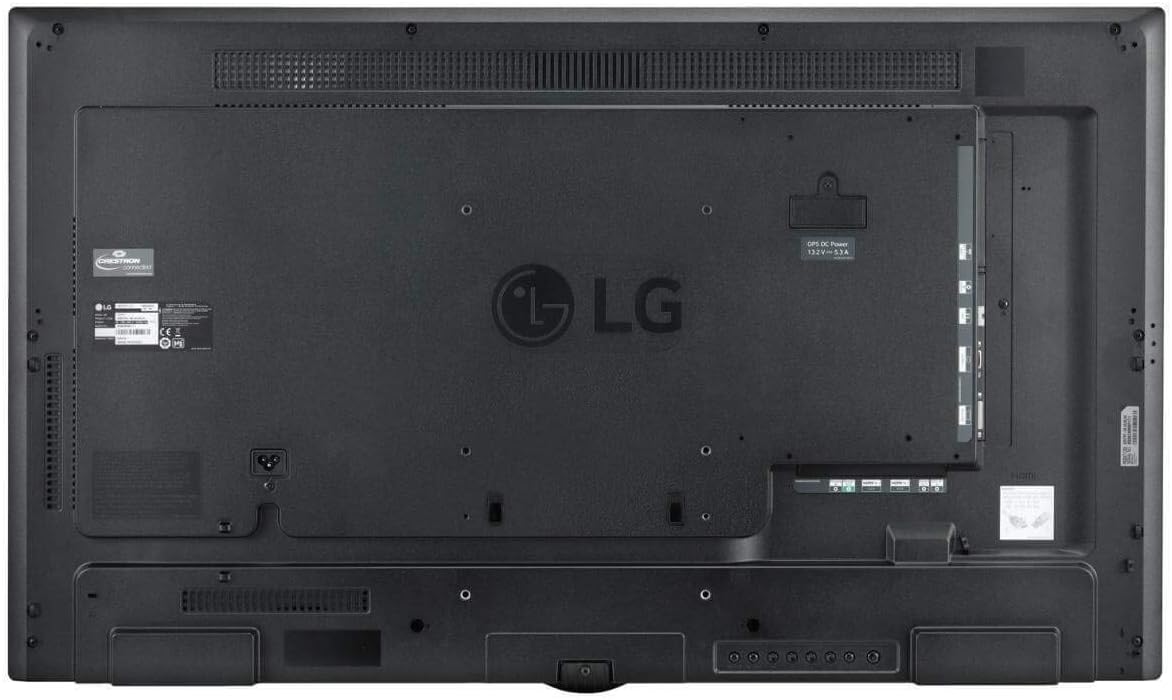
Figure 3.1: Rear view of the display, illustrating the VESA mounting points and various input/output ports.
3.2 Connecting Devices
The display offers a wide range of input/output options for versatile connectivity.
- HDMI: Connect HDMI-compatible devices such as media players or computers.
- USB: Use the USB port for content playback or data cloning.
- DVI: Connect devices using a DVI cable.
- Ethernet (LAN): Connect to a network for remote management and content updates.
- Serial (RS-232C): For professional AV control system integration.

Figure 3.2: Side view of the display, highlighting the accessible input/output ports.
3.3 Power Connection
After connecting all necessary input devices, plug the power cord into the display and then into a grounded electrical outlet.
4. Operating the Display
4.1 Power On/Off
Press the power button on the remote control or on the display's control panel to turn the display on or off.
4.2 Using the Remote Control
The display comes with a remote control for convenient operation. Familiarize yourself with the button layout for navigation, input selection, volume control, and menu access.
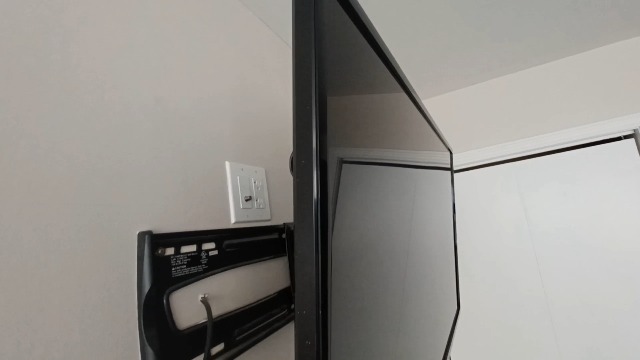
Figure 4.1: The LG remote control for navigating display functions.
4.3 Content Management System (CMS)
The embedded CMS allows users to create, edit, and schedule content directly on the display without an external PC. Access the CMS through the display's main menu.
- Content Creation: Utilize the built-in tools to design your digital signage content.
- Playlist Management: Organize your content into playlists and set desired playback schedules.
4.4 USB Content Scheduling & Data Cloning
For managing multiple displays, content can be scheduled and cloned via USB. This feature streamlines the setup process by allowing you to copy settings and content from one display to others.
- Content Scheduling: Load scheduled content directly from a USB drive.
- Data Cloning: Copy display settings and content to a USB drive, then transfer to other compatible LG displays.
4.5 Stand-by Screen Mode
The Stand-by Screen Mode allows the display to maintain a partial power-on status, enabling network control even when the screen is off. This feature contributes to efficient power management.
4.6 18/7 Operation
The LG 32SE3KE-B is designed for extended operation, capable of running 18 hours a day, 7 days a week, making it suitable for environments requiring long display times.
5. Maintenance
5.1 Cleaning the Display
To clean the display screen, gently wipe it with a soft, lint-free cloth. For stubborn marks, slightly dampen the cloth with water or a mild, non-abrasive screen cleaner. Do not spray cleaner directly onto the screen.
5.2 Preventing Image Sticking (ISM Mode)
The display features an ISM (Image Sticking Minimization) mode to prevent permanent image retention. It is recommended to set up periods and times for the screen to refresh, especially when static images are displayed for long durations. Refer to the display's menu for ISM mode settings.
6. Troubleshooting
If you encounter issues with your display, refer to the following common problems and solutions:
- No Power: Ensure the power cord is securely connected to both the display and a working electrical outlet. Check if the power indicator light is on.
- No Picture: Verify that the correct input source is selected. Check all video cable connections (HDMI, DVI) to ensure they are secure.
- No Sound: Adjust the volume using the remote control. Check audio cable connections if using external speakers. Ensure the audio output is not muted.
- Remote Control Not Working: Check the batteries in the remote control and replace them if necessary. Ensure there are no obstructions between the remote and the display's sensor.
- Image Sticking/Burn-in: Activate the ISM (Image Sticking Minimization) mode in the display settings. Avoid displaying static images for excessively long periods.
For persistent issues, contact LG customer support.
7. Specifications
| Feature | Specification |
|---|---|
| Model Number | 32SE3KE-B |
| Screen Size | 32 inches (81 cm) |
| Display Type | LCD with LED Backlight |
| Resolution | 1920 x 1080 (Full HD) |
| Brightness | 350 Nit |
| Bezel Width (Top/Left/Right) | 0.51 inches |
| Bezel Width (Bottom) | 0.71 inches |
| Item Weight | 11.9 pounds |
| Product Dimensions (LxWxH) | 28.72 x 2.19 x 16.89 inches |
| Connectivity | HDMI, USB, DVI, Serial (RS-232C), Ethernet |
| Operation Hours | 18/7 |
| Touchscreen | Yes |
8. Warranty and Support
For detailed warranty information, please refer to the warranty card included with your product or visit the official LG website. For technical support, service inquiries, or to download the latest drivers and software, please visit the LG support portal or contact their customer service directly.
LG Customer Support: www.lg.com/us/support