
Introduction
This manual provides instructions for the ILIHOME Mirror Dash Cam, Model 8523724435. This device is designed to record video footage while driving, offering features such as dual-channel recording, night vision, and parking assistance. Please read this manual thoroughly before operating the device to ensure proper use and safety.
Product Overview
The ILIHOME Mirror Dash Cam integrates a 7-inch IPS wide touch screen with dual cameras for comprehensive vehicle monitoring. Key features include:
- 7-Inch IPS Wide Touch Screen: Provides a clear and responsive interface for real-time monitoring and settings adjustment.
- Enhanced Night Vision: Upgraded front and rear lenses reduce overexposure and capture details in low-light conditions.
- Advanced Driver Assistance Systems (ADAS): Visual recognition algorithms for features like Lane Departure Warning.
- Dual Channel Recording: 170° wide-angle front lens and 120° rear lens for simultaneous recording.
- Waterproof Rear Camera: IP68 rated rear camera with LED night vision, automatically displaying reverse image with parking guidelines.
- Loop Recording & G-Sensor: Automatically overwrites old footage and locks critical event recordings.
- Parking Monitor & Motion Detection: Records events when the vehicle is parked.

Image: Overview of the ILIHOME Mirror Dash Cam, showing the mirror unit and icons representing its main features: Dual Cams View, IPS Touch Screen, G-Sensor Lock, Loop Recording, Night Vision, Parking Assist, Parking Monitor, and Motion Detection.

Image: The 7-inch wide touch screen of the dash cam displaying a road view. Text indicates "7" WIDE TOUCH SCREEN CONTROL" and explains horizontal and vertical view capabilities.
Package Contents
Please check the package for the following items:
- ILIHOME Mirror Dash Cam Unit
- Rear Camera
- Car Charger
- Mounting Straps/Bands
- User Manual
Installation
Proper installation is crucial for optimal performance. Follow these steps carefully:
- Insert Micro SD Card: Before mounting, insert a high-speed Micro SD card (Class 10 or higher, maximum 32GB) into the designated slot on the dash cam unit.
- Mount the Mirror Dash Cam:
- Attach the mirror dash cam over your existing rearview mirror using the provided mounting straps. Ensure it is securely fastened and does not obstruct your view.
- Adjust the angle of the front camera to capture the road ahead clearly.
- Install the Rear Camera:
- Determine a suitable location for the rear camera, typically above the license plate or inside the rear window.
- Route the rear camera cable to the main dash cam unit, ensuring it is tucked away safely and does not interfere with vehicle operation.
- Connect the rear camera cable to the AV-IN port on the main unit.
- Connect Power:
- Plug the car charger into your vehicle's cigarette lighter socket.
- Connect the other end of the car charger cable to the USB power input on the dash cam unit.
- Route the power cable neatly to avoid obstruction.

Image: A diagram illustrating the dimensions of the mirror dash cam and the location of its ports: GPS, TF (Micro SD card slot), AVIN (for rear camera), and USB (power input).
Operation
Power On/Off
- The dash cam will automatically power on and begin recording when the vehicle's ignition is turned on.
- It will automatically power off when the ignition is turned off.
- To manually power on/off, press and hold the power button located on the unit.
Touch Screen Interface
The 7-inch IPS touch screen allows for easy navigation and control of the dash cam's functions. Tap icons to access menus, change settings, or review footage.
Recording Modes
- Loop Recording: The dash cam continuously records video in segments (e.g., 1, 3, or 5 minutes). When the memory card is full, it automatically overwrites the oldest unlocked footage.
- G-Sensor (Emergency Recording): In the event of a sudden impact or collision, the built-in G-sensor detects the event and automatically locks the current video segment, preventing it from being overwritten by loop recording.
- Parking Monitor: When enabled, the dash cam will automatically start recording if it detects a collision or vibration while the vehicle is parked.
- Motion Detection: When enabled, the dash cam will start recording if it detects movement in front of the vehicle while parked.

Image: An illustration of the Loop Recording and G-Sensor features, showing a car accident scenario and how the dash cam locks footage to prevent loss.
Advanced Driver Assistance Systems (ADAS)
The ADAS feature provides real-time warnings to enhance driving safety.
- Lane Departure Warning: Alerts the driver if the vehicle drifts out of its lane without signaling.

Image: A visual representation of the Lane Departure Warning system, showing a car detecting lane lines and providing a warning.
Rear Camera Functionality
The rear camera provides a wide-angle view of the area behind your vehicle.
- Reverse Image Display: When the vehicle is shifted into reverse gear, the dash cam automatically displays the rear camera feed on the screen, complete with parking guidelines to assist with parking maneuvers.

Image: A top-down view illustrating the dual lens recording angles (170° front, 120° rear) and a separate image showing the parking assist feature with the rear camera display and guidelines.

Image: The mirror dash cam screen displaying the rear camera view with parking guidelines, demonstrating how it aids in parking and lane changes.
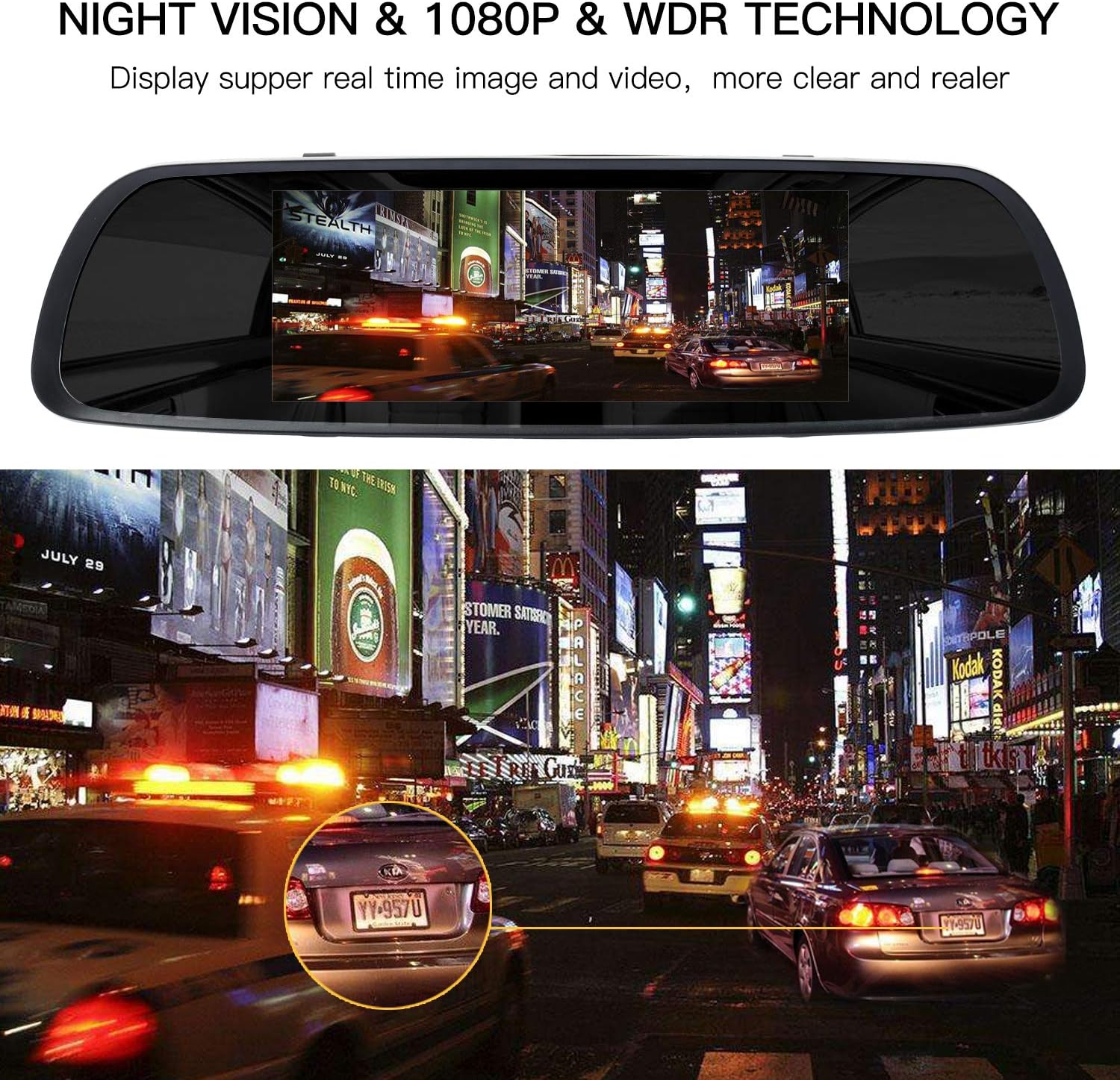
Image: The mirror dash cam screen displaying a clear night scene, highlighting the Night Vision and WDR (Wide Dynamic Range) technology for enhanced low-light recording.
Settings
Access the settings menu via the touch screen to customize various parameters:
- Video Resolution: Adjust the recording quality (e.g., 1080P).
- Loop Recording Duration: Set the length of video segments (e.g., 1/3/5 minutes).
- G-Sensor Sensitivity: Adjust the sensitivity of impact detection. Lower sensitivity is recommended to avoid false alarms.
- Parking Monitor: Enable or disable this feature.
- Motion Detection: Enable or disable this feature.
- Date/Time: Set the correct date and time for accurate timestamps on recordings.
- ADAS: Enable or disable Lane Departure Warning.
Maintenance
- Clean Lenses: Regularly clean the front and rear camera lenses with a soft, lint-free cloth to ensure clear video quality.
- Format SD Card: Periodically format the Micro SD card (at least once a month) to prevent data corruption and ensure optimal recording performance. Back up any important files before formatting.
- Firmware Updates: Check the manufacturer's website for any available firmware updates to improve performance and add new features.
Troubleshooting
| Problem | Possible Cause / Solution |
|---|---|
| Dash cam does not power on. |
|
| Video footage is blurry or unclear. |
|
| "Memory Card Full" error or recording stops. |
|
| ADAS (Lane Departure Warning) gives false alarms. |
|
| Rear camera freezes or stops working. |
|
Specifications
| Feature | Detail |
|---|---|
| Brand | ILIHOME |
| Model Number | 8523724435 |
| Screen Size | 7 Inches |
| Control Method | Touch |
| Video Capture Resolution | 1080p |
| Front Camera Angle | 170 Degrees |
| Rear Camera Angle | 120 Degrees |
| Connectivity Technology | USB |
| Micro SD Card Support | Max 32GB, Minimum Class 10 |
| Rear Camera Waterproof Rating | IP68 |
| Features | Night Vision, WDR, Loop Recording, G-Sensor, Parking Mode, ADAS |
Warranty and Support
For warranty information or technical support, please refer to the contact details provided with your purchase documentation or visit the official ILIHOME website. Keep your purchase receipt as proof of purchase.