1. Introduction
This manual provides detailed instructions for the setup, operation, maintenance, and troubleshooting of your Mad Catz R.A.T. Pro X3 Gaming Mouse. Designed for precision and customization, the R.A.T. Pro X3 offers advanced features to enhance your computing and gaming experience.
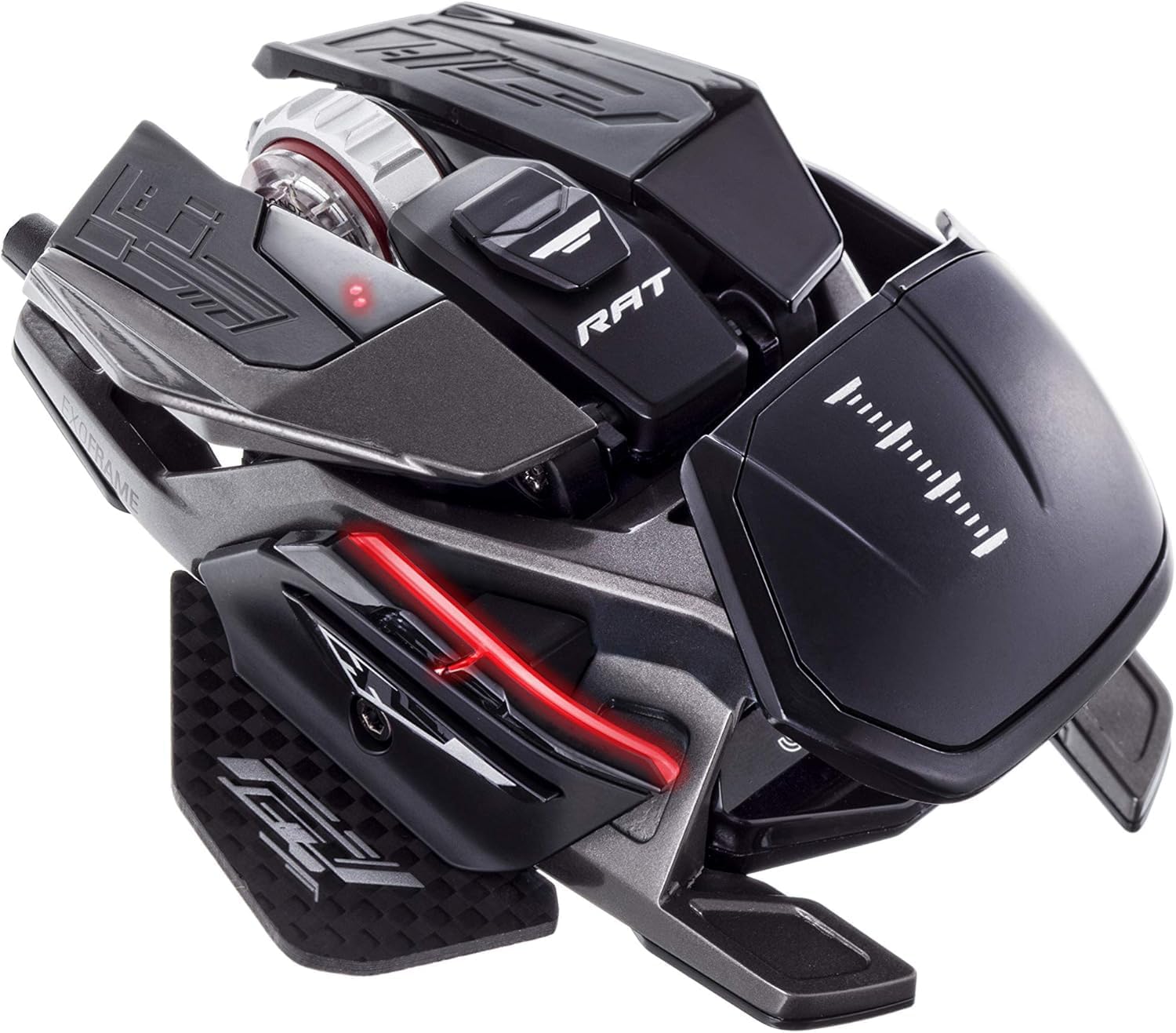
Figure 1: Mad Catz R.A.T. Pro X3 Gaming Mouse
2. Product Overview
2.1 Key Features
- Dynamic Ergonomics: Adjustable components to fit various grip styles and hand sizes.
- Revolution Res Scroll Wheel: Optical technology with analog axis movements for redefined scroll wheel function.
- Pro Slide Technology: Allows adjustment of mouse glide over surfaces.
- Changeable Sensor Modules: Offers flexibility for different performance needs.
- Optical 16,000 DPI Sensor: Provides high precision and tracking accuracy.
- Ultra-Durable OMRON Switches: Rated for 50 million clicks, ensuring longevity and reliable actuation.
2.2 Components and Design
The R.A.T. Pro X3 features a lightweight and strong magnesium alloy chassis, reinforced with titanium screw fittings and a carbon fiber thumb-plate. Super-hydrophobic coatings help maintain grip during intense use.

Figure 2: Key features of the R.A.T. Pro X3
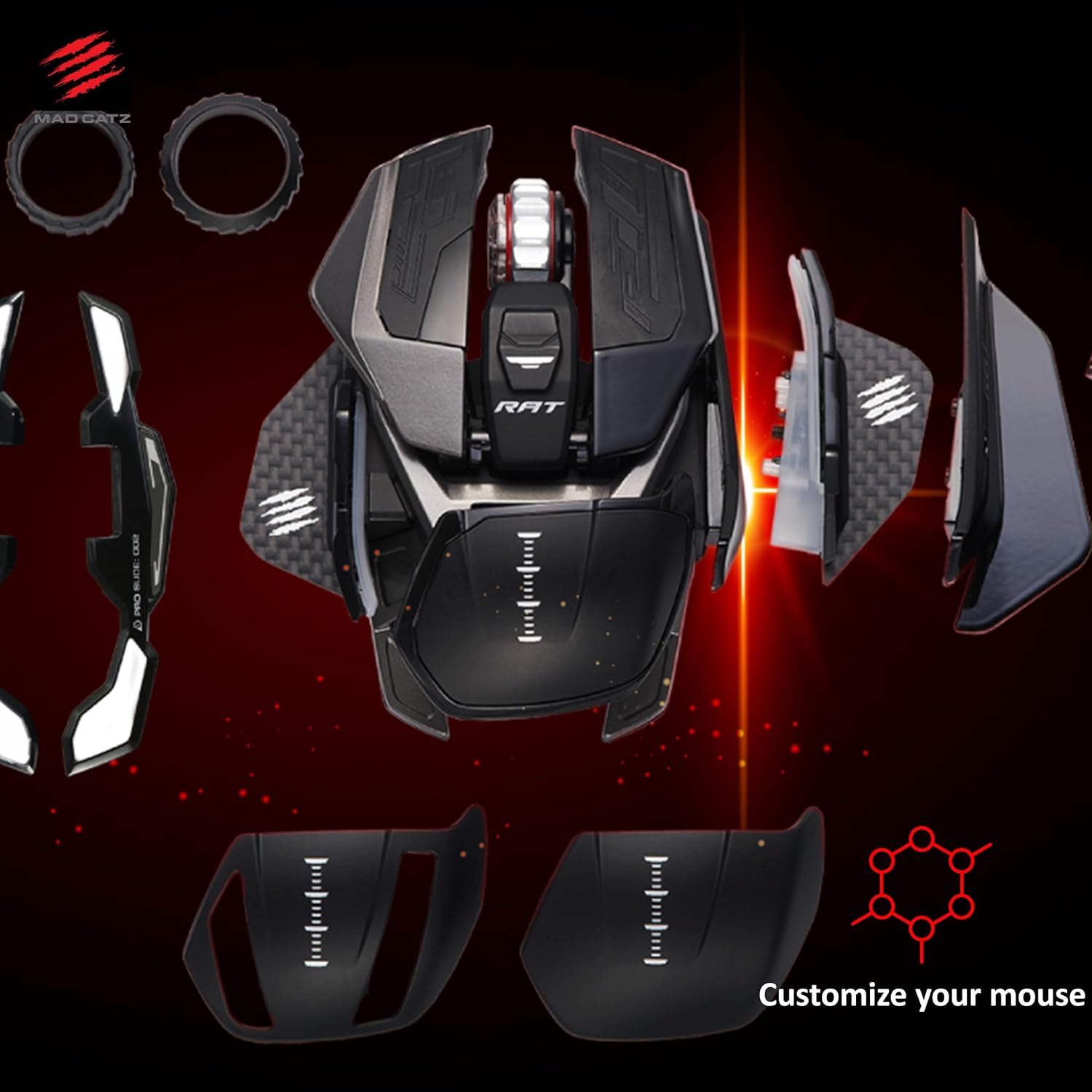
Figure 3: Customizable components of the R.A.T. Pro X3
3. Setup
- Connect the Mouse: Plug the USB connector of the R.A.T. Pro X3 into an available USB port on your computer.
- Driver Installation: Your operating system should automatically detect and install the necessary drivers.
- Software Installation: For full customization of buttons, DPI settings, and profiles, download and install the official Mad Catz software from the Mad Catz support website.
4. Customization
4.1 Ergonomics
The R.A.T. Pro X3 is designed with dynamic ergonomics, allowing users to adjust various parts of the mouse to achieve a personalized fit. This includes adjustable palm rests and thumb-plates, which can be swapped or repositioned to suit different grip styles (palm, claw, fingertip) and hand sizes.
4.2 Programmable Buttons
The mouse features 10 programmable buttons. These buttons can be assigned various functions, macros, or shortcuts using the Mad Catz software to optimize your workflow or gaming performance.
4.3 DPI Settings
Equipped with an optical 16,000 DPI sensor, the R.A.T. Pro X3 allows for precise control over cursor speed and sensitivity. DPI settings can be adjusted on-the-fly using dedicated buttons on the mouse or fine-tuned through the software to match your preferences and game requirements.

Figure 4: Optical 16,000 DPI sensor for precise tracking
4.4 Revolution Res Scroll Wheel
The Revolution Res scroll wheel utilizes optical technology and analog axis movements, offering enhanced control and functionality beyond traditional scroll wheels. Its tactile feedback can be adjusted for different applications, from precise weapon switching in games to rapid document scrolling.

Figure 5: The Revolution Res scroll wheel
5. Software
The Mad Catz R.A.T. Pro X3 is fully supported by the Mad Catz software suite. This software allows you to:
- Program all 10 buttons with custom macros and shortcuts.
- Adjust DPI settings and create multiple DPI profiles for different scenarios.
- Fine-tune the Revolution Res scroll wheel's response.
- Manage and save multiple profiles for various games and applications.
Ensure you download the latest version of the software from the official Mad Catz website for optimal performance and access to all features.
6. Maintenance
To ensure the longevity and optimal performance of your R.A.T. Pro X3 mouse, follow these maintenance guidelines:
- Cleaning: Use a soft, dry cloth to wipe down the mouse regularly. For stubborn dirt, a slightly damp cloth can be used, but ensure no moisture enters the internal components. Avoid harsh chemicals or abrasive materials.
- Sensor Care: Keep the optical sensor area on the underside of the mouse clean and free from dust or debris to prevent tracking issues.
- Cable Management: Avoid sharp bends or excessive pulling on the USB cable to prevent damage.
- Storage: When not in use, store the mouse in a clean, dry environment, ideally in its original packaging or a protective case to prevent dust accumulation and physical damage.

Figure 6: Carrying case and customization parts for safe storage and transport
7. Troubleshooting
If you encounter any issues with your R.A.T. Pro X3 mouse, refer to the following common troubleshooting steps:
- Mouse Not Responding: Try plugging the mouse into a different USB port. Ensure the USB cable is securely connected. Test the mouse on another computer to rule out a system-specific issue.
- Tracking Issues: Clean the optical sensor on the underside of the mouse. Ensure you are using the mouse on a suitable surface (e.g., a mouse pad). Update or reinstall the mouse drivers and software.
- Buttons Not Working: Verify button assignments in the Mad Catz software. Ensure the software is running correctly and profiles are loaded.
- Software Not Detecting Mouse: Reinstall the Mad Catz software. Ensure your operating system is up to date. Temporarily disable any antivirus or firewall software that might be interfering.
If problems persist, consult the Mad Catz support website or contact customer service for further assistance.
8. Specifications
| Feature | Detail |
|---|---|
| Brand | Mad Catz |
| Series | R.A.T. X3 Black |
| Model Number | MR05DCINBL001-0 |
| Hardware Platform | PC |
| Operating System | Linux, Windows 7, Windows XP |
| Item Weight | 4.3 ounces |
| Product Dimensions | 4.31 x 3.44 x 0.1 inches |
| Color | Black |
| Power Source | USB |
| Voltage | 1.5 Volts |
| Connectivity Technology | USB |
| Movement Detection Technology | Optical |
9. Warranty and Support
Mad Catz products are designed for durability and performance. For information regarding warranty coverage, product registration, and technical support, please visit the official Mad Catz website. You can find FAQs, driver downloads, and contact information for customer service there.


