
1. Introduction
This manual provides comprehensive instructions for the setup, operation, and maintenance of your Google Chromecast 3 streaming device. Please read this guide thoroughly to ensure proper use and to maximize your device's capabilities.
1.1. What's in the Box
- Google Chromecast 3 device
1.2. Product Overview
The Google Chromecast 3 is a media streaming device that plugs into the HDMI port of your television. It allows you to cast content from your mobile device or computer to your TV, enabling you to enjoy videos, music, and more on a larger screen.

Figure 1: Front view of the Google Chromecast 3 device, showcasing its compact, circular design with the Google 'G' logo.
2. Setup Instructions
2.1. Connecting Your Chromecast
- Connect to TV: Plug the Chromecast device into an available HDMI port on your television.
- Connect to Power: Connect the USB power cable to the Chromecast device and then plug the other end into a power adapter (not included, typically a standard USB wall adapter) and into a wall outlet. Alternatively, you can plug the USB cable into an available USB port on your TV if it provides sufficient power.
- Select HDMI Input: Turn on your TV and select the HDMI input that your Chromecast is connected to. You should see the Chromecast setup screen.
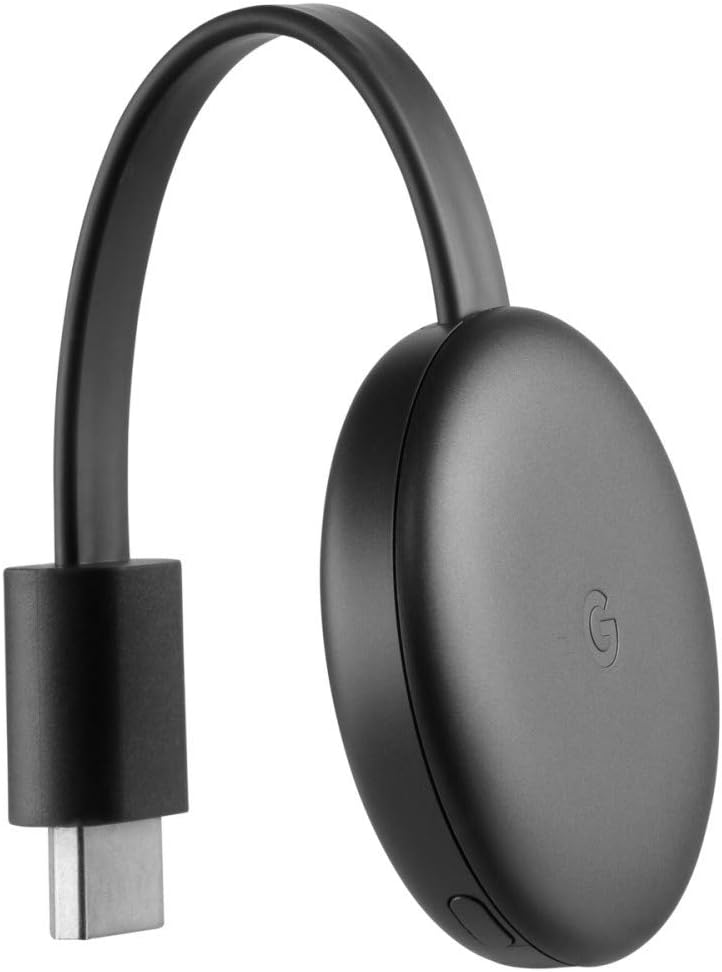
Figure 2: Side view of the Google Chromecast 3, illustrating the integrated HDMI connector ready to plug into a television.

Figure 3: Bottom view of the Google Chromecast 3, highlighting the micro-USB power input port and a small button.
2.2. Initial Configuration
- Download Google Home App: On your smartphone or tablet, download and install the Google Home app from the App Store (iOS) or Google Play Store (Android).
- Open Google Home App: Launch the Google Home app and follow the on-screen instructions to set up your new device. Ensure your mobile device is connected to the same Wi-Fi network you intend to use for Chromecast.
- Connect to Wi-Fi: The app will guide you through connecting your Chromecast to your home Wi-Fi network.
- Link Google Account: You may be prompted to link your Google account to the Chromecast.
3. Operating Instructions
3.1. Casting Content
Once setup is complete, you can begin casting content from compatible applications on your mobile device or computer.
- Open a Compatible App: Launch an application that supports Chromecast, such as Disney Plus, Netflix, Prime Video, Spotify, or YouTube.
- Tap the Cast Icon: Look for the Cast icon ▶︎ (a rectangle with a Wi-Fi signal in the corner) within the app. Tap this icon.
- Select Your Chromecast: A list of available casting devices will appear. Select your Google Chromecast 3 (GA00439-DE) from the list.
- Start Casting: The content from your app will now appear on your TV screen. Your mobile device acts as a remote control.
3.2. Controlling Playback
Playback controls (play, pause, volume, skip) are typically available within the casting app on your mobile device. You can also use the Google Home app for basic controls.
4. Maintenance
4.1. Cleaning
To clean your Chromecast device, gently wipe it with a soft, dry, lint-free cloth. Do not use liquid cleaners or abrasive materials.
4.2. Software Updates
Chromecast devices automatically receive software updates when connected to the internet. Ensure your device remains connected to power and Wi-Fi to receive the latest features and security enhancements.
5. Troubleshooting
5.1. Common Issues and Solutions
- Chromecast Not Found:
- Ensure your mobile device is on the same Wi-Fi network as your Chromecast.
- Verify the Chromecast is powered on and connected to the correct HDMI input on your TV.
- Restart your Wi-Fi router, Chromecast, and mobile device.
- No Display on TV:
- Check that the Chromecast is securely plugged into the HDMI port.
- Ensure the TV is set to the correct HDMI input.
- Try a different HDMI port on your TV.
- Casting Issues (Buffering, Disconnections):
- Check your Wi-Fi signal strength. Move the Chromecast closer to your router if possible.
- Ensure your internet connection is stable and fast enough for streaming.
- Close other applications on your mobile device that might be consuming bandwidth.
- Factory Reset: If issues persist, you can perform a factory reset. With the Chromecast powered on, press and hold the button on the side of the device for at least 15 seconds. The LED light will blink, then change color, and the TV screen will go blank as the device resets.
6. Specifications
| Feature | Detail |
|---|---|
| Model Number | GA00439-DE |
| Brand | |
| Product Dimensions | 2.04 x 2.04 x 0.54 inches |
| Item Weight | 1.4 ounces |
| Connectivity Technology | HDMI, Wi-Fi |
| Connector Type | HDMI |
| Resolution | 1080p |
| Supported Internet Services | Disney Plus, Netflix, Prime Video, Spotify, YouTube |
| Controller Type | App Control |
| Color | Black |
7. Warranty and Support
For warranty information and technical support, please refer to the official Google support website or contact Google customer service. Details regarding your product's warranty period and terms of service can typically be found on the manufacturer's website.
Online Support: support.google.com/chromecast


