
1. Device Setup
Before using your DOOGEE X50L smartphone, please follow these steps to ensure proper setup.
1.1. Package Contents
Verify that your package contains the following items:
- DOOGEE X50L Smartphone
- Battery (2000mAh Lithium-ion)
- USB Cable
- Power Adapter
- User Manual (this document)
1.2. SIM Card and Battery Installation
To install the SIM card(s) and battery:
- Power off the device completely.
- Carefully remove the back cover of the phone.
- Insert your SIM card(s) into the designated slot(s). The DOOGEE X50L supports dual SIM cards.
- Insert the Lithium-ion battery into its compartment, ensuring the contacts align correctly.
- Replace the back cover, pressing gently until it clicks into place.
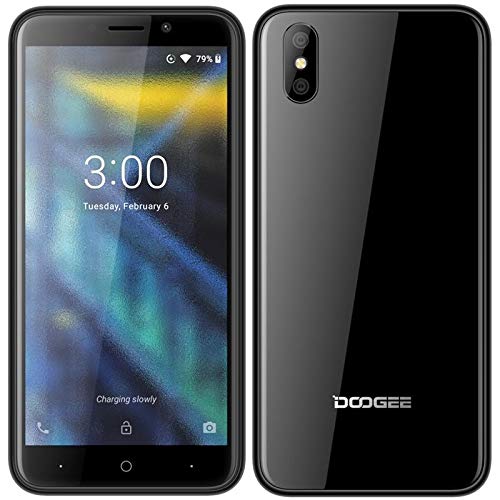
Image: Front and back view of the DOOGEE X50L smartphone, illustrating its compact design and camera placement.
1.3. Initial Power On and Charging
To power on your device for the first time:
- Press and hold the Power button located on the side of the phone until the screen lights up.
- Follow the on-screen prompts to complete the initial setup, including language selection, Wi-Fi connection, and Google account setup.
- For optimal battery life, fully charge the device before its first use. Connect the USB cable to the phone and the power adapter, then plug the adapter into a wall outlet.
2. Basic Operation
Understand the fundamental functions and navigation of your DOOGEE X50L.
2.1. Screen Overview
The DOOGEE X50L features a 5.0-inch IPS capacitive touchscreen with a resolution of 480 x 960 pixels. This display is your primary interface for all interactions.
- Touch Gestures: Tap, swipe, pinch-to-zoom, and long-press are standard gestures for navigating the Android interface.
- Status Bar: Located at the top of the screen, it displays notifications, time, battery level, and signal strength.
2.2. Navigation
Your device runs on Android 8.1 Oreo (Go edition). Key navigation elements include:
- Home Screen: The central hub for your apps and widgets.
- App Drawer: Access all installed applications by swiping up from the home screen or tapping the app drawer icon.
- Navigation Bar: Typically at the bottom of the screen, it includes Back, Home, and Recent Apps buttons.
2.3. Making Calls and Sending Messages
- Calls: Open the Phone app, enter the number, and tap the call icon. To answer an incoming call, swipe up the green phone icon.
- Messages: Open the Messages app, tap the new message icon, enter the recipient's number or select from contacts, type your message, and tap send.
2.4. Connecting to Networks
The DOOGEE X50L supports 4G LTE cellular technology and Wi-Fi connectivity.
- Wi-Fi: Go to Settings > Network & Internet > Wi-Fi. Turn Wi-Fi on, select your desired network, and enter the password if required.
- Mobile Data: Go to Settings > Network & Internet > Mobile network. Ensure Mobile data is enabled for internet access via your SIM card.
2.5. Camera Usage
Your device is equipped with a camera for capturing photos and videos.
- Open the Camera app from your home screen or app drawer.
- Frame your shot using the screen as a viewfinder.
- Tap the shutter button to take a photo.
- Switch to video mode by tapping the video icon to record.
3. Device Maintenance
Proper care and maintenance will extend the lifespan of your smartphone.
3.1. Battery Care
- Avoid exposing the battery to extreme temperatures.
- Use only the original charger or a certified compatible charger.
- Do not fully discharge the battery regularly; partial charges are generally better for Lithium-ion batteries.
3.2. Cleaning Your Device
- Use a soft, lint-free cloth to clean the screen and body of the phone.
- Avoid using harsh chemicals or abrasive materials.
- Keep ports free of dust and debris.
3.3. Software Updates
Regularly check for and install software updates to ensure your device has the latest features, security patches, and performance improvements. Go to Settings > System > System update to check for available updates.
4. Troubleshooting
This section addresses common issues you might encounter with your DOOGEE X50L.
4.1. Common Issues and Solutions
- Device will not turn on: Ensure the battery is charged. Connect the charger and wait a few minutes before attempting to power on again.
- Poor signal or no network: Check if your SIM card is properly inserted. Verify that mobile data is enabled in settings. If indoors, try moving to an open area.
- Apps crashing or freezing: Close and restart the app. Clear the app's cache (Settings > Apps & notifications > App info > [App Name] > Storage & cache > Clear cache). Restart the phone.
- Battery drains quickly: Reduce screen brightness, close unused apps running in the background, and disable features like Wi-Fi, Bluetooth, or GPS when not in use.
- Touchscreen unresponsive: Restart the device. If the issue persists, ensure the screen is clean and free of damage.
5. Technical Specifications
Detailed specifications for the DOOGEE X50L smartphone.
| Feature | Specification |
|---|---|
| Brand | DOOGEE |
| Model Name | X50L |
| Operating System | Android 8.1 Oreo (Go edition) |
| Processor | Quad-core 1.3 GHz Cortex-A7 |
| RAM | 1 GB |
| Internal Storage | 16 GB |
| Display | 5.0 inches IPS Capacitive Touchscreen, 480 x 960 pixels |
| Battery | 2000mAh Lithium-ion |
| Main Camera | 5 Megapixels (effective resolution) |
| SIM Support | Dual SIM |
| Network Technology | 4G LTE |
| Connectivity | Wi-Fi, Bluetooth, Micro USB, 3.5mm Jack |
| Color | Black |
6. Warranty and Support Information
For detailed warranty terms and conditions, please refer to the warranty card included in your product packaging or visit the official DOOGEE website. Keep your proof of purchase for warranty claims.
If you encounter issues not covered in this manual or require further assistance, please contact DOOGEE customer support through their official channels. Support contact information can typically be found on the manufacturer's website or in the product packaging.


