
1. Introduction
Thank you for choosing the SUSAY T95Qmax Android 11.0 TV Box. This device transforms your television into a smart entertainment hub, offering access to a wide range of applications, streaming services, and media content. Powered by an Amlogic S905X4 Quad Core processor, 4GB RAM, and 32GB ROM, it supports 4K Ultra HD video playback, dual-band Wi-Fi, and Bluetooth 4.0 for a seamless user experience. Please read this manual carefully to ensure proper setup, operation, and maintenance of your device.
2. Safety Information
- Do not expose the device to rain, moisture, or extreme temperatures.
- Avoid placing the device near heat sources such as radiators, heat registers, stoves, or other apparatus (including amplifiers) that produce heat.
- Use only the power adapter supplied with the device.
- Do not open the device casing. Refer all servicing to qualified service personnel.
- Ensure proper ventilation around the device to prevent overheating.
- Keep the device away from strong magnetic fields.
3. Package Contents
Please check the package for the following items:
- SUSAY T95Qmax Android TV Box
- Power Adapter
- HDMI Cable
- Remote Control
- User Manual (this document)
4. Product Overview
The T95Qmax TV Box is designed for high-performance media streaming and smart TV functionalities. Below are some key features and components.

Figure 4.1: Overview of the SUSAY T95Qmax TV Box, showcasing its core specifications including the Amlogic S905X4 processor, Android 11.0 operating system, 4K video support, Bluetooth connectivity, dual-band Wi-Fi, and VP9+ decoding capabilities. The image also highlights the 4GB DDR RAM and 32/64GB EMMC storage options.
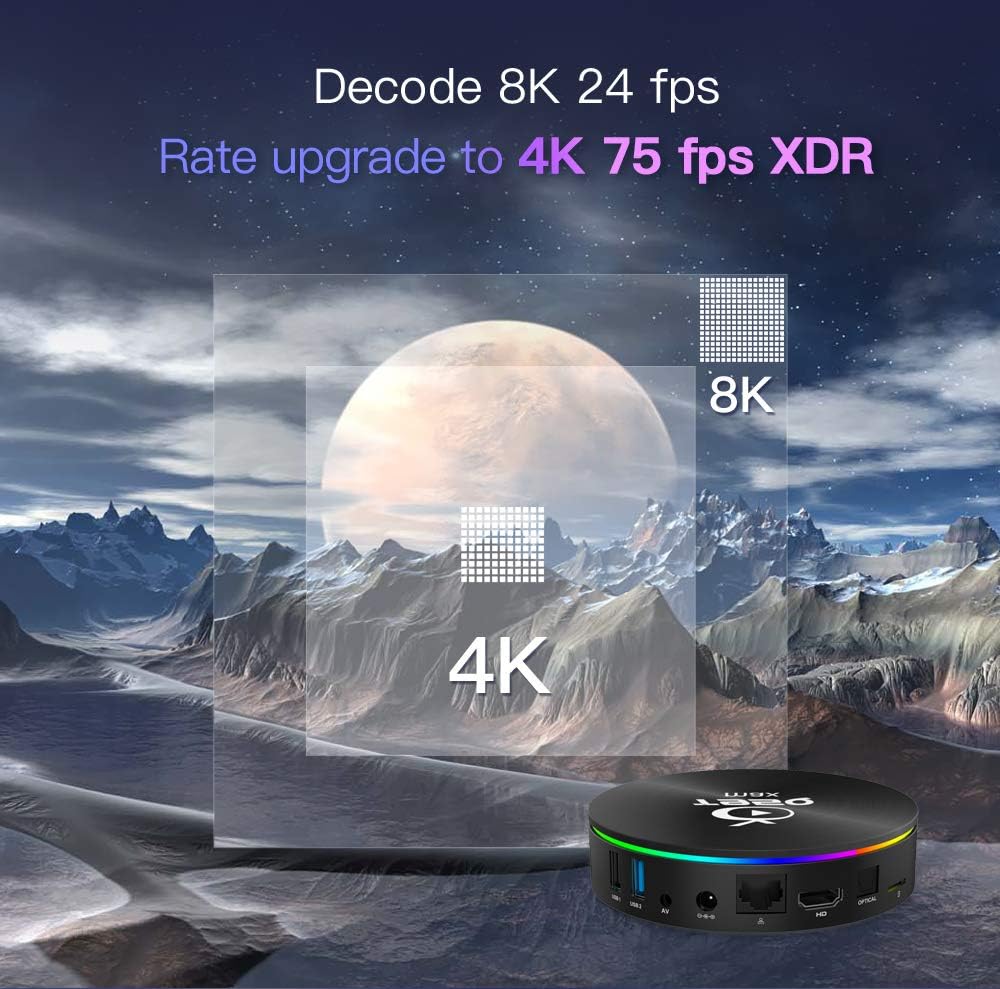
Figure 4.2: Visual representation of the T95Qmax's advanced video decoding capabilities, illustrating its support for 8K resolution at 24 frames per second and an upgraded rate to 4K at 75 frames per second with XDR (Extreme Dynamic Range) technology.

Figure 4.3: This image emphasizes the integrated wireless connectivity features of the T95Qmax, specifically its built-in 5.8G dual-band Wi-Fi and Bluetooth capabilities. It also mentions support for HEVC (H.265) decoding, DLNA, Google TV Remote, LAN, and 3D movie playback.
Ports and Connections:
- HDMI Output: Connects to your TV or display for video and audio.
- USB 3.0 Port: For high-speed data transfer with external storage devices.
- USB 2.0 Port: For connecting peripherals like keyboards, mice, or USB drives.
- Ethernet (RJ45) Port: For wired network connection.
- DC Power Input: Connects to the power adapter.
- AV Output: For connecting to older TVs with analog input.
5. Setup Guide
5.1 Initial Connection
- Connect to TV: Plug one end of the HDMI cable into the HDMI port on the T95Qmax TV Box and the other end into an available HDMI input on your television.
- Connect Power: Insert the DC power adapter into the DC input port on the TV Box, then plug the adapter into a wall outlet.
- Power On: The device should automatically power on. If not, press the power button on the remote control.
- Select Input: On your TV, select the correct HDMI input source using your TV's remote control.
5.2 Network Connection
You can connect your TV Box to the internet via Wi-Fi or Ethernet.
Wi-Fi Connection:
- From the home screen, navigate to Settings.
- Select Network & Internet.
- Turn on Wi-Fi and select your desired network from the list.
- Enter the Wi-Fi password if prompted and select Connect.
Ethernet Connection:
- Connect an Ethernet cable from your router or modem to the Ethernet (RJ45) port on the TV Box.
- The device should automatically detect and connect to the wired network.
6. Operating Instructions
6.1 Navigating the Interface
Use the provided remote control to navigate the Android interface. The directional buttons (up, down, left, right) move the cursor, and the OK button confirms selections. The Back button returns to the previous screen, and the Home button takes you to the main home screen.
6.2 Installing Applications
You can install applications from the pre-installed app store or by sideloading APK files.
Using the App Store:
- From the home screen, open the App Store application.
- Browse or search for your desired application.
- Select the app and follow the on-screen instructions to install it.
Sideloading Applications:
- Download the APK file of the desired application onto a USB drive.
- Insert the USB drive into a USB port on the TV Box.
- Use a file manager app (pre-installed or downloaded) to locate and open the APK file.
- Follow the prompts to install the application. Ensure "Unknown sources" installation is enabled in Security settings if required.
6.3 Media Playback
The T95Qmax supports various media formats for local and streaming content.
- Local Media: Connect a USB drive or external hard drive containing your media files. Use a media player app (e.g., VLC, MX Player) to browse and play content.
- Streaming Services: Install popular streaming apps like Netflix, Hulu, Amazon Prime Video, etc., from the app store and log in with your accounts.

Figure 6.1: The T95Qmax operating on Android 11.0, highlighting its memory configuration of 4GB RAM and storage options of 32GB or 64GB ROM, along with 5G Wi-Fi and Bluetooth connectivity, positioning it as a preferred choice for users.

Figure 6.2: This image illustrates the 3D capabilities of the T95Qmax TV Box, suggesting an immersive viewing experience for compatible 3D content. A rhinoceros appears to emerge from the screen, accompanied by a 3D glasses icon.
7. Maintenance
7.1 Cleaning the Device
Use a soft, dry cloth to clean the exterior of the TV Box. Do not use liquid cleaners or abrasive materials, as they may damage the finish or internal components.
7.2 Software Updates
Periodically check for system updates to ensure optimal performance and access to the latest features and security patches.
- Go to Settings.
- Select About Device or System.
- Choose System Update or Software Update and follow the on-screen instructions.
7.3 Factory Reset
If you encounter persistent issues or wish to clear all personal data, you can perform a factory reset. Warning: This will erase all data and settings on the device.
- Go to Settings.
- Select System > Reset options.
- Choose Erase all data (factory reset) and confirm.
8. Troubleshooting
If you encounter problems with your T95Qmax TV Box, refer to the following common issues and solutions:
- No Power:
- Ensure the power adapter is securely connected to the device and a working power outlet.
- Try a different power outlet.
- No Video/Audio Output:
- Check if the HDMI cable is properly connected to both the TV Box and the TV.
- Verify that your TV is set to the correct HDMI input source.
- Try a different HDMI cable or HDMI port on your TV.
- Wi-Fi Connection Issues:
- Ensure your Wi-Fi router is on and working correctly.
- Check if the Wi-Fi password entered is correct.
- Move the TV Box closer to your Wi-Fi router or try a wired Ethernet connection.
- Restart both the TV Box and your Wi-Fi router.
- Remote Control Not Responding:
- Replace the batteries in the remote control.
- Ensure there are no obstructions between the remote and the TV Box.
- Applications Crashing or Freezing:
- Close and restart the application.
- Clear the app's cache and data in Settings > Apps > [App Name] > Storage.
- Uninstall and reinstall the application.
- Ensure the device has sufficient free storage space.
9. Specifications
| Operating System | Android 11.0 |
| CPU | Amlogic S905X4 Quad Core A53 (Frequency 2G) |
| GPU | ARM G31 MP2 |
| RAM | 4GB |
| ROM | 32GB EMMC |
| Wi-Fi | 2.4GHz/5GHz Dual Band |
| Bluetooth | BT 4.0 |
| LAN | Ethernet: 10/100M, standard RJ-45 |
| USB Ports | 1x High speed USB 3.0, 1x High speed USB 2.0 |
| Video Output | 4K Ultra HD, H.265, RealVideo 8/9/10 up to 1080P@60fps |
| Dimensions | 8.31 x 5.51 x 2.28 inches (Package) |
| Weight | 13.7 ounces |
10. Warranty Information
The SUSAY T95Qmax Android 11.0 TV Box comes with a standard manufacturer's warranty. Please refer to the warranty card included in your package or contact your retailer for specific terms and conditions. The warranty typically covers defects in materials and workmanship under normal use.
11. Customer Support
For technical assistance, troubleshooting, or any questions regarding your SUSAY T95Qmax TV Box, please contact our customer support team. Refer to the contact information provided with your purchase or visit the official SUSAY website for support resources.