
Introduction
Thank you for choosing the MIFA A3 Soundbox Bluetooth Portable Speaker. This manual provides essential information for the safe and efficient use of your device. Please read it thoroughly before operating the speaker and retain it for future reference.
Safety Information
- Do not expose the speaker to extreme temperatures, direct sunlight, or high humidity.
- Avoid dropping or subjecting the speaker to strong impacts.
- Do not disassemble or attempt to repair the speaker yourself. Contact qualified service personnel.
- Keep the speaker away from water and liquids, despite its waterproof rating, to prevent damage to charging ports or internal components.
- Use only the specified charging cable and adapter.
Package Contents
Please check the package for the following items:
- MIFA A3 Bluetooth Portable Speaker
- USB Charging Cable
- AUX Audio Cable
- User Manual (this document)
Product Overview
The MIFA A3 speaker features intuitive touch controls and multiple connectivity options. Familiarize yourself with the speaker's layout:
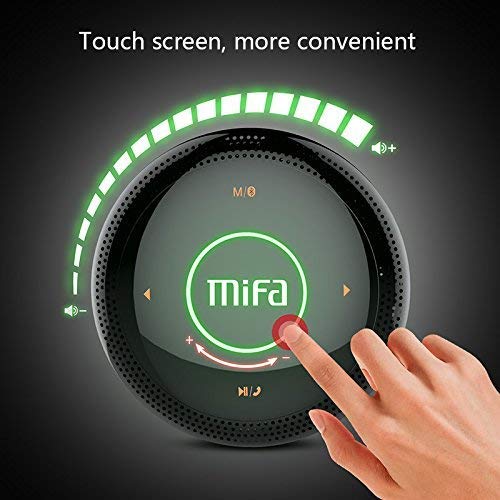
Figure 1: Top view of the MIFA A3 speaker, highlighting the touch-sensitive control panel. The panel displays volume indicators, play/pause, and track navigation buttons. A central 'Mifa' logo is also visible.
- Touch Control Panel: Located on the top surface for volume adjustment, playback control, and mode selection.
- Microphone: For hands-free calling.
- Charging Port: Micro USB port for charging.
- AUX Input: 3.5mm audio jack for wired connection.
- Micro SD Card Slot: For playing music directly from a memory card.
Setup
1. Charging the Speaker
Before first use, fully charge the speaker. Connect the provided USB charging cable to the speaker's charging port and the other end to a USB power adapter (not included) or a computer's USB port.
- The charging indicator light will illuminate during charging.
- The indicator will turn off or change color once fully charged.
- A full charge provides approximately 8 hours of continuous playtime.
2. Power On/Off
- To Power On: Press and hold the Power button (usually integrated into the touch panel or a dedicated button) for 2-3 seconds until you hear an audible prompt or see an indicator light.
- To Power Off: Press and hold the Power button again for 2-3 seconds.
Operating Instructions
1. Bluetooth Pairing
- Ensure the speaker is powered on and in Bluetooth pairing mode (indicated by a flashing blue light or audible prompt).
- On your device (smartphone, tablet, PC), enable Bluetooth and search for available devices.
- Select "MIFA A3" from the list of devices.
- Once paired, the speaker will provide an audible confirmation, and the indicator light will become solid blue.
- The speaker will automatically connect to the last-paired device when powered on, if that device's Bluetooth is active and within range.
2. AUX Connection
For devices without Bluetooth, use the provided 3.5mm AUX audio cable:
- Connect one end of the AUX cable to the speaker's AUX input port.
- Connect the other end to the headphone jack of your audio device.
- The speaker will automatically switch to AUX mode.
3. Micro SD Card Playback
Insert a Micro SD card (up to 32GB, FAT32 format) with music files into the designated slot. The speaker will automatically detect the card and begin playback.
4. Touch Control Operations
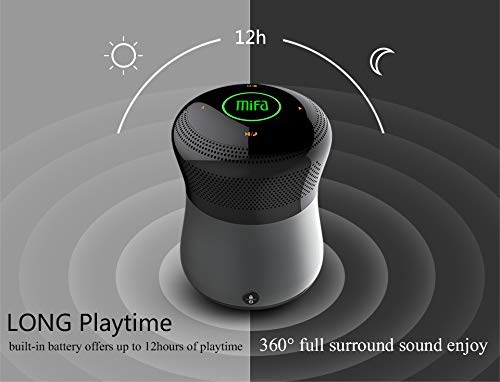
Figure 2: The MIFA A3 speaker shown with an overlay indicating "LONG Playtime" (up to 12 hours) and "360° full surround sound enjoy." This image emphasizes the speaker's battery life and audio dispersion.
- Volume Control: Slide your finger clockwise on the touch panel to increase volume, counter-clockwise to decrease.
- Play/Pause: Tap the central Play/Pause icon.
- Next Track: Tap the "Next" arrow icon.
- Previous Track: Tap the "Previous" arrow icon.
- Mode Switch: Tap the "M/O" icon to cycle between Bluetooth, AUX, and Micro SD card modes.
- Lock Button: Press the lock icon to prevent accidental touch inputs.
5. Call Handling (Bluetooth Mode)
- Answer Call: Tap the Play/Pause icon when a call comes in.
- End Call: Tap the Play/Pause icon again.
- Reject Call: Press and hold the Play/Pause icon for 2 seconds.
Maintenance
- Clean the speaker with a soft, dry cloth. Do not use abrasive cleaners or solvents.
- Store the speaker in a cool, dry place when not in use for extended periods.
- Charge the battery at least once every three months to maintain battery health.
Troubleshooting
| Problem | Possible Solution |
|---|---|
| Speaker does not power on. | Ensure the battery is charged. Connect to a power source and try again. |
| Cannot pair via Bluetooth. |
|
| No sound. |
|
| Poor sound quality. |
|
Specifications
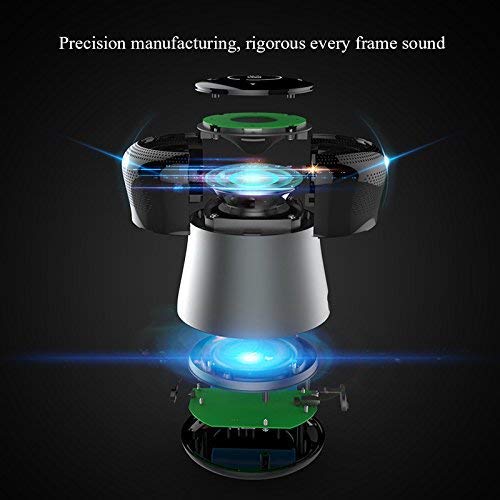
Figure 3: An exploded diagram of the MIFA A3 speaker, illustrating its internal components and structural design, emphasizing precision manufacturing.
| Model | MIFA A3 |
| Output Power | 10W |
| Connectivity | Bluetooth 4.2, AUX, Micro SD Card |
| Battery | 1800 mAh Li-ion |
| Playtime | Up to 8 hours (at 60% volume) |
| Charging Time | Approximately 3-4 hours |
| Microphone | Built-in for hands-free calls |
| Waterproof | Yes (as per product specifications, but general caution advised for ports) |
| Control Method | Touch |
| Compatible Devices | Laptop, PC, Smartphone, Tablet |
Warranty and Support
MIFA products are designed to provide reliable performance. For warranty information or technical support, please refer to the warranty card included with your purchase or visit the official MIFA website. Keep your proof of purchase for warranty claims.
For further assistance, you may contact MIFA customer support through their official channels.


