
Rii USRT61C
Rii K61C Mechanical Gaming Keyboard User Manual
Model: USRT61C
Introduction
Thank you for purchasing the Rii K61C Mechanical Gaming Keyboard. This manual provides detailed instructions for setting up, operating, and maintaining your keyboard. Please read this manual thoroughly before use to ensure optimal performance and longevity of your device.

Image: The Rii K61C Mechanical Gaming Keyboard, showcasing its full 104-key layout and green LED backlighting.
Package Contents
Verify that all items are present in the package:
- Rii K61C Mechanical Gaming Keyboard
- USB Cable (integrated)
- Key Cap Puller
- 4 x Removable Keycaps (G1, G2, G3, G4)
- User Manual

Image: The Rii K61C keyboard packaging, displaying the keyboard, keycap puller, and additional G1-G4 keycaps.
Specifications
| Switch Type | Blue Mechanical Switches |
| Switch Force | 60 ± 15g |
| Switch Travel | 4.0 ± 0.2mm |
| Number of Keys | 104 (Anti-ghosting) |
| Construction | Aircraft-grade Aluminum |
| Cable Type | Braided USB Cable |
| Key Cap Material | Plastics with Laser Etching & UV Coating |
| Product Dimensions | 446 x 188 x 45 mm (17.56 x 7.4 x 1.77 inches) |
| Product Weight | 1250g (2.76 lbs) |
| Connectivity | USB Wired |
| Operating Voltage | 5 Volts |
| Special Features | Backlit, 3 Macro Keys, Integrated Phone/Tablet Cradle |
Setup
- Unpack the Keyboard: Carefully remove the keyboard and all accessories from the packaging.
- Connect to Computer: Plug the integrated USB cable of the Rii K61C keyboard into an available USB port on your computer.
- Driver Installation: The keyboard is plug-and-play. Your operating system (Windows, Mac, Linux) will automatically detect and install the necessary drivers. No additional software installation is required for basic functionality.
- Positioning: Place the keyboard on a stable, flat surface. Adjust the rear feet for your preferred typing angle.
System Requirements:
- Windows OS (PC with USB port)
- Mac OS
- Linux OS
- HID compatible device
Operating Instructions
Function Short Keys:
The Rii K61C keyboard features a range of function keys that can be accessed by pressing the FN key in combination with other keys. Refer to the diagram below for a visual guide.

Image: A detailed view of the Rii K61C keyboard highlighting the FN key combinations for various functions like media control, backlight adjustment, and macro settings.
- FN + F1 = Home
- FN + F8 = Keyboard Lock
- FN + F2 = Previous Track
- FN + WIN = WIN Lock
- FN + F3 = Play/Pause
- FN + Esc = ON/OFF LEDs
- FN + F4 = Next Track
- FN + Print = Light mode
- FN + F5 = Mute
- FN + Scroll = Macro Play
- FN + F6 = Volume -
- FN + Pause = Macro Recording
- FN + F7 = Volume +
- FN + Del = Press 3S, all LEDs flash 3 times, Return to Factory Defaults
- FN + [+] = Adjusting LED brightness +
- FN + [-] = Adjusting LED brightness -
- FN + [=] = Adjusting Flash Frequency +
- FN + [_] = Adjusting Flash Frequency -
Backlight Control:
The Rii K61C keyboard features green LED backlighting with multiple modes and adjustable brightness.
- Change Backlight Mode: Press FN + PrtSc to cycle through the 5 available backlight modes.
- Adjust Brightness: Use FN + ↑ (Up Arrow) to increase brightness and FN + ↓ (Down Arrow) to decrease brightness.
- Adjust Flash Frequency: Use FN + [=] to increase flash frequency and FN + [_] to decrease flash frequency (for dynamic modes).
- Turn LEDs On/Off: Press FN + Esc to toggle the LED backlighting on or off.
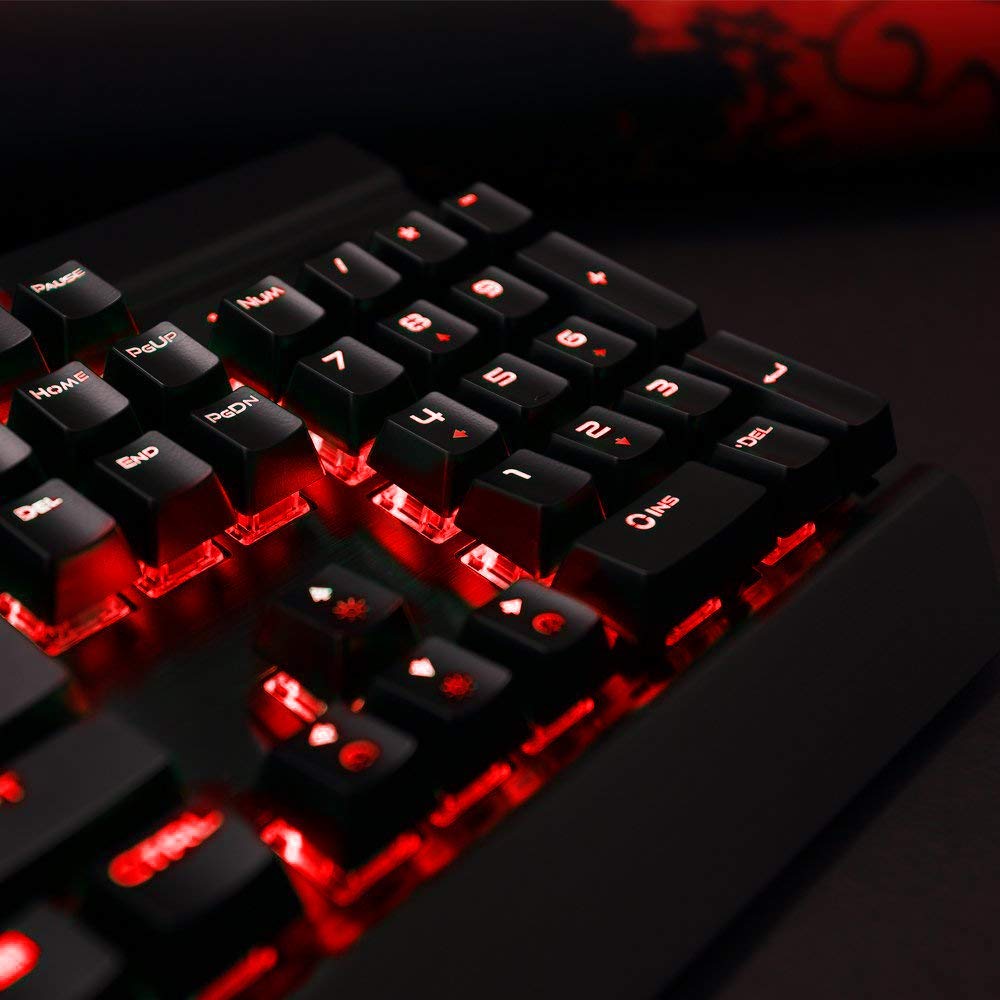
Image: A close-up view of the Rii K61C keyboard's keys illuminated with green backlighting.
Macro Key Programming:
The Rii K61C keyboard supports 3 programmable macro keys (G1, G2, G3) and 4 giveaway keys (G4). Follow these steps to record a macro:
- Enter Macro Mode: Press FN + Scrlk to enter Macro mode.
- Start Recording: Press FN + Pause. The LED indicator will light up, signifying recording status.
- Record Keystrokes: Type the sequence of keys you wish to record for your macro.
- Save Macro: Press FN + Pause again to save the recorded macro.
- Play Macro: To execute a recorded macro, press FN + Scroll.

Image: The underside of the Rii K61C keyboard, highlighting the G1, G2, G3, and G4 macro keys, which can be programmed for custom functions.
Integrated Phone/Tablet Cradle:
The keyboard features an integrated cradle designed to hold your smartphone or tablet, providing a convenient viewing angle while gaming or working.

Image: The Rii K61C keyboard with a smartphone and tablet placed in its integrated top-panel cradle, demonstrating its utility.
Maintenance
- Cleaning:
- Disconnect the keyboard from your computer before cleaning.
- Use a soft, damp cloth to wipe the surface of the keyboard. Avoid harsh chemicals or abrasive cleaners.
- For cleaning between keys, use compressed air to remove dust and debris.
- Keycap Removal:
The keycaps are removable for cleaning or customization. Use the provided keycap puller to gently remove keycaps. Insert the puller onto the keycap and pull straight up. When reattaching, align the keycap with the switch stem and press down firmly until it clicks into place.

Image: A close-up view of the Rii K61C keyboard's mechanical switches with several keycaps removed, demonstrating the blue switch type and the keycap removal process.
- Storage: Store the keyboard in a cool, dry place away from direct sunlight and extreme temperatures.
Troubleshooting
- Keyboard Not Responding:
- Ensure the USB cable is securely plugged into both the keyboard and the computer.
- Try plugging the keyboard into a different USB port on your computer.
- Restart your computer.
- Check if the keyboard is locked by pressing FN + F8.
- Backlight Not Working:
- Ensure the backlight is not turned off by pressing FN + Esc.
- Adjust brightness using FN + ↑ (Up Arrow) or FN + ↓ (Down Arrow).
- Try resetting to factory defaults by pressing FN + Del (hold for 3 seconds).
- Macro Keys Not Recording/Playing:
- Ensure you are correctly following the macro programming steps (FN+Scrlk, FN+Pause, record, FN+Pause).
- Verify that the LED indicator lights up when in recording status.
- Keys Popping Off:
While the keycaps are designed to be removable, if they frequently pop off during normal use, ensure they are pressed down firmly onto the switch stem until they click into place. If the issue persists, contact customer support.
Warranty and Support
For warranty information, technical support, or customer service inquiries, please refer to the contact details provided with your purchase documentation or visit the official Rii website. Keep your proof of purchase for warranty claims.
Related documentsUSRT61C


Ask a question about this manual
Ask about setup, troubleshooting, compatibility, parts, safety, or missing instructions. Manuals+ will review the question and use this page’s manual context to help answer it.