
1. Introduction and Overview
The NETGEAR Nighthawk AC2600 Smart WiFi Router (Model R7450) is designed to provide high-performance wireless connectivity for your home network. It supports MU-MIMO technology for simultaneous data streaming to multiple devices, ensuring less lag and buffering. With Beamforming+, built-in high-powered amplifiers, and external antennas, it offers extended WiFi coverage and minimizes dead spots. The router can be easily set up and managed using the intuitive Nighthawk App.

Figure 1: Front view of the NETGEAR Nighthawk AC2600 Smart WiFi Router (R7450).
2. Setup
2.1 Package Contents
- NETGEAR Nighthawk AC2600 Smart WiFi Router (R7450)
- Ethernet Cable
- Power Adapter
- Quick Start Guide
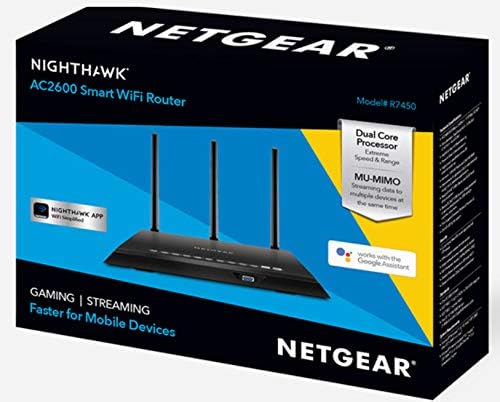
Figure 2: Retail packaging of the NETGEAR Nighthawk AC2600 Smart WiFi Router (R7450).
2.2 Physical Setup
- Position the Router: Place the router in a central location in your home, away from obstructions and electronic devices that may cause interference. Ensure it is on a flat, stable surface.
- Connect Antennas: Screw the three external antennas firmly into the connectors on the back of the router. Adjust them vertically for optimal signal coverage.
- Connect to Modem: Connect one end of the provided Ethernet cable to the yellow Internet port on the router and the other end to an Ethernet port on your modem.
- Power On: Connect the power adapter to the router's power port and plug it into a wall outlet. Press the Power On/Off button if available. Wait for the Power LED to turn solid white.
2.3 Initial Configuration (Using Nighthawk App)
- Download App: Download the NETGEAR Nighthawk App from the Apple App Store or Google Play Store on your mobile device.
- Connect to Router WiFi: On your mobile device, connect to the router's default WiFi network. The WiFi network name (SSID) and password are printed on the label on the bottom of the router.
- Launch App: Open the Nighthawk App and follow the on-screen instructions to set up your router. This typically involves creating a NETGEAR account, detecting your router, and configuring your new WiFi network name and password.
- Complete Setup: The app will guide you through the remaining steps, including updating firmware if necessary, and securing your network.
Alternatively, you can set up the router using a web browser by connecting a computer to the router via Ethernet or WiFi and navigating to www.routerlogin.net.
3. Operating the Router
3.1 Connecting Devices
- Wireless Devices: Search for your new WiFi network name (SSID) on your devices (smartphones, tablets, laptops, smart TVs) and enter the password you created during setup.
- Wired Devices: Connect devices like desktop computers, gaming consoles, or network-attached storage (NAS) to the yellow Gigabit Ethernet LAN ports on the back of the router using Ethernet cables.
3.2 Key Features and Technologies
- Dual-Band WiFi: The router operates on both 2.4 GHz and 5 GHz frequencies, providing flexibility for different device needs. The 2.4 GHz band offers wider coverage, while the 5 GHz band provides faster speeds for demanding applications.
- MU-MIMO: Multi-User, Multiple-Input, Multiple-Output technology allows the router to stream data to multiple devices simultaneously, improving overall network efficiency and performance, especially in multi-device households.
- Beamforming+: This technology intelligently focuses WiFi signals directly to connected devices, enhancing range and reliability.
- Advanced QoS (Quality of Service): Prioritizes network traffic for applications like gaming and streaming, ensuring a smoother, lag-free experience by allocating bandwidth effectively.
- Nighthawk App: Use the Nighthawk App for remote management, parental controls, guest network setup, and network monitoring.
4. Maintenance
4.1 Firmware Updates
Regularly check for and install firmware updates to ensure optimal performance, security, and access to new features. Firmware updates can typically be performed via the Nighthawk App or the router's web interface (www.routerlogin.net) under the 'Advanced' or 'Administration' section.
4.2 Restarting the Router
If you experience network issues, a simple restart can often resolve them. To restart:
- Unplug the power adapter from the router.
- Wait for 10-15 seconds.
- Plug the power adapter back in.
- Wait for the router to fully boot up (LEDs stabilize).
4.3 Security Best Practices
- Use a strong, unique password for your WiFi network (WPA2/WPA3 encryption recommended).
- Change the default administrator password for the router's web interface.
- Enable a guest network for visitors to keep your main network secure.
- Keep router firmware updated.
5. Troubleshooting
5.1 No Internet Connection
- Check Cables: Ensure all Ethernet cables are securely connected to the router and modem.
- Restart Devices: Power cycle your modem first, then the router, and then your connected devices.
- Modem Status: Check the indicator lights on your modem to ensure it has an active internet connection.
- ISP Issue: Contact your Internet Service Provider (ISP) if the modem lights indicate a problem.
5.2 Slow Speeds or Intermittent WiFi
- Router Placement: Move the router to a more central location, away from walls, large metal objects, and other electronics.
- Interference: Other devices (cordless phones, microwaves, Bluetooth devices) can interfere with WiFi. Try changing the WiFi channel in the router settings.
- Band Selection: For speed-critical devices, connect to the 5 GHz band. For devices further away, the 2.4 GHz band might offer better range.
- Too Many Devices: If many devices are active simultaneously, consider enabling QoS settings to prioritize important traffic.
5.3 Cannot Access Router Settings
- Correct Address: Ensure you are typing www.routerlogin.net or the router's IP address (e.g., 192.168.1.1) correctly into your browser.
- Connected to Router: Verify your device is connected to the router's WiFi network or via an Ethernet cable.
- Firewall/Antivirus: Temporarily disable any firewall or antivirus software that might be blocking access.
- Factory Reset: As a last resort, perform a factory reset by pressing and holding the reset button on the router for about 7-10 seconds. Note: This will erase all custom settings.
6. Specifications
| Feature | Detail |
|---|---|
| Model Name | NETGEAR Nighthawk AC2600 (R7450) |
| WiFi Technology | 802.11ac Dual-Band Gigabit |
| WiFi Performance | AC2600 (800Mbps + 1733Mbps) |
| WiFi Range | Large Homes |
| WiFi Band | Dual Band 2.4 & 5GHz |
| Number of Ethernet Ports | 4 x Gigabit Ethernet LAN ports, 1 x Gigabit Ethernet WAN port |
| Number of USB Ports | 1 x USB 3.0 port |
| Processor | Dual-Core Processor |
| Memory | 128 MB Flash and 256 MB RAM |
| Antennas | 3 external antennas |
| Dimensions (L x W x H) | 13.07 x 9.76 x 3.98 inches |
| Weight | 2.95 pounds |
| Security | WPA/WPA2, DoS protection, Double firewall protection (SPI and NAT) |
| Special Features | MU-MIMO, Beamforming+, Advanced QoS, VPN Support, ReadySHARE USB Access |
7. Warranty and Support
7.1 Product Warranty
NETGEAR products typically come with a limited hardware warranty. The exact duration and terms of the warranty may vary by region and product. Please refer to the warranty card included with your product or visit the official NETGEAR website for detailed warranty information.
7.2 Technical Support
For technical assistance, troubleshooting, or further inquiries, please utilize the following resources:
- NETGEAR Support Website: Visit www.netgear.com/support/ for FAQs, downloads (firmware, manuals), and community forums.
- Nighthawk App: The app often provides direct access to support resources and diagnostic tools.
- Contact Support: Information for contacting NETGEAR customer service via phone or chat can be found on their support website.