
1. Introduction
Thank you for purchasing the MACALLY Premium Wired Mac Keyboard (MLUXKEYA). This keyboard is designed to enhance your Mac experience with its full-size layout, integrated USB hub, and Mac-specific function keys. This manual provides detailed instructions for setup, operation, maintenance, and troubleshooting to ensure optimal performance and longevity of your device.
2. Package Contents
Please verify that all items are present in your package:
- MACALLY Premium Wired Mac Keyboard (MLUXKEYA)
- User Manual (this document)
3. Setup
Follow these steps to connect your keyboard to your Mac computer:
- Connect the Keyboard: Locate an available USB-A port on your Mac computer. Insert the USB-A connector of the keyboard's cable into this port. The keyboard features a 5-foot (approximately 1.5 meters) USB-A cable for a reliable wired connection.

Image: The keyboard's USB-A cable ready for connection to a computer.
- System Recognition: Your Mac operating system should automatically detect and configure the keyboard. No additional drivers are typically required.
- Utilize the Integrated USB Hub: The keyboard includes two additional USB-A ports. These ports can be used to connect low-power USB-A peripherals such as a mouse, flash drive, or keyboard light.

Image: Two USB-A devices connected to the integrated USB hub on the keyboard.
The keyboard is compatible with Apple Mac Pro, Mac Mini, MacBook Pro, MacBook Air, and iMac models.
4. Operating Instructions
4.1 Standard Typing
The MLUXKEYA keyboard features a standard 110-key US QWERTY layout. Keys are designed with scissor-flex switches for accurate and stable typing.

Image: Top view of the MACALLY keyboard, showing the full US QWERTY layout.
4.2 Mac-Specific Shortcut Keys
The keyboard includes 21 dedicated macOS shortcut and media keys located on the top row. These keys provide quick access to various system functions and media controls.

Image: The keyboard layout with an illustration of the 21 macOS shortcut keys.
Common shortcut functions include:
- Brightness adjustment
- Mission Control
- Launchpad
- Media playback controls (Play/Pause, Next/Previous Track)
- Volume control (Mute, Volume Up/Down)
- Eject
- Power/Sleep
- Spotlight search
- Force Quit

Image: Visual representation of some intelligent Apple shortcut keys and their functions.
5. Key Features
The MACALLY MLUXKEYA keyboard is engineered with several features for optimal user experience:
- Premium Aluminum Frame: Constructed with a stylish and durable silver metal frame that complements Mac computers and MacBooks.
- Stable Typing Experience: The keyboard's weight, combined with non-slip rubber pads on the base, ensures stability during typing.
- Ultra-Slim Ergonomic Design: With a thickness of less than 0.5 inches (11 mm), the keyboard features a subtle 10° ergonomic slope for comfortable and accurate typing.
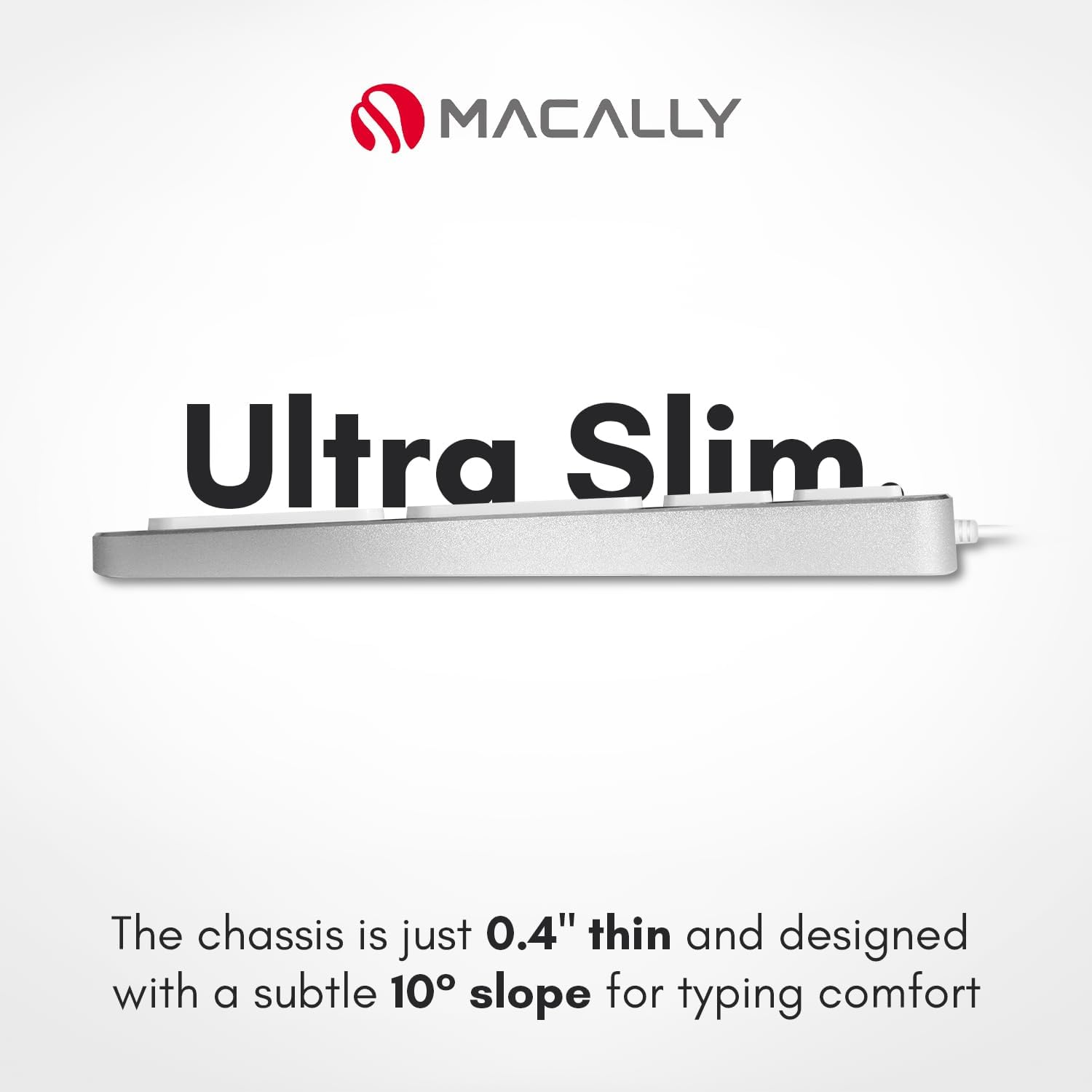
Image: Side view illustrating the keyboard's ultra-slim profile and ergonomic tilt.
- Scissor-Flex Switches: Provides precise typing with no lag, ghosting, or key skips. Supports up to 6 simultaneous keystrokes.

Image: Illustration demonstrating the quiet and efficient scissor-key switch mechanism.
- Integrated 2-Port USB-A Hub: Easily connect low-power USB-A devices directly to your keyboard.
- LED Indicators: Includes LED indicators for Num Lock and Fn Lock status.

Image: Diagram highlighting the location of LED indicators for Num Lock and Fn Lock.

Image: An infographic summarizing the key features of the MACALLY MLUXKEYA keyboard.
6. Maintenance
Proper maintenance ensures the longevity and performance of your keyboard:
- Cleaning: Use a soft, lint-free cloth slightly dampened with water or a mild cleaning solution to wipe the surface of the keyboard. Avoid harsh chemicals or abrasive materials.
- Dust Removal: Use compressed air to remove dust and debris from between the keys.
- Liquid Spills: In case of a liquid spill, immediately disconnect the keyboard from your computer. Turn it upside down to drain any liquid and allow it to dry completely before reconnecting. Do not attempt to use the keyboard if it is still wet.
- Storage: Store the keyboard in a clean, dry environment away from extreme temperatures and direct sunlight.
7. Troubleshooting
If you encounter issues with your MACALLY keyboard, refer to the following common solutions:
| Problem | Solution |
|---|---|
| Keyboard is not responding. |
|
| Keys are not typing correctly or are sticky. |
|
| Devices connected to the USB hub are not working. |
|
| Mac-specific function keys are not working. |
|
8. Specifications
| Brand | Macally |
| Model Number | MLUXKEYA |
| Connectivity Technology | USB-A (Wired) |
| Keyboard Layout | US QWERTY |
| Number of Keys | 110 |
| Switch Type | Scissor Switch |
| Integrated USB Ports | 2 x USB-A 2.0 |
| Compatible Devices | Apple Mac Pro, Mac Mini, MacBook Pro, MacBook Air, iMac |
| Compatible Operating System | macOS |
| Material | Aluminum (Keyboard Plate), Metal (Product Exterior) |
| Color | Silver |
| Dimensions (L x W x H) | 42 cm x 14 cm x 2 cm (17.1" x 4.7" x 0.4") Image: Diagram illustrating the length and width dimensions of the keyboard. |
| Cable Length | 5 feet (approx. 1.5 meters) |
| Product Weight | 1.11 pounds (approx. 0.5 kg) |
| Origin | China |
9. Warranty and Support
Warranty: This MACALLY product is covered by a 2-year warranty from the date of purchase. Please retain your proof of purchase for warranty claims.
Technical Support: For technical assistance or further inquiries, please visit the official Macally website or contact their customer support. Contact information can typically be found on the product packaging or the manufacturer's website.


