
Introduction
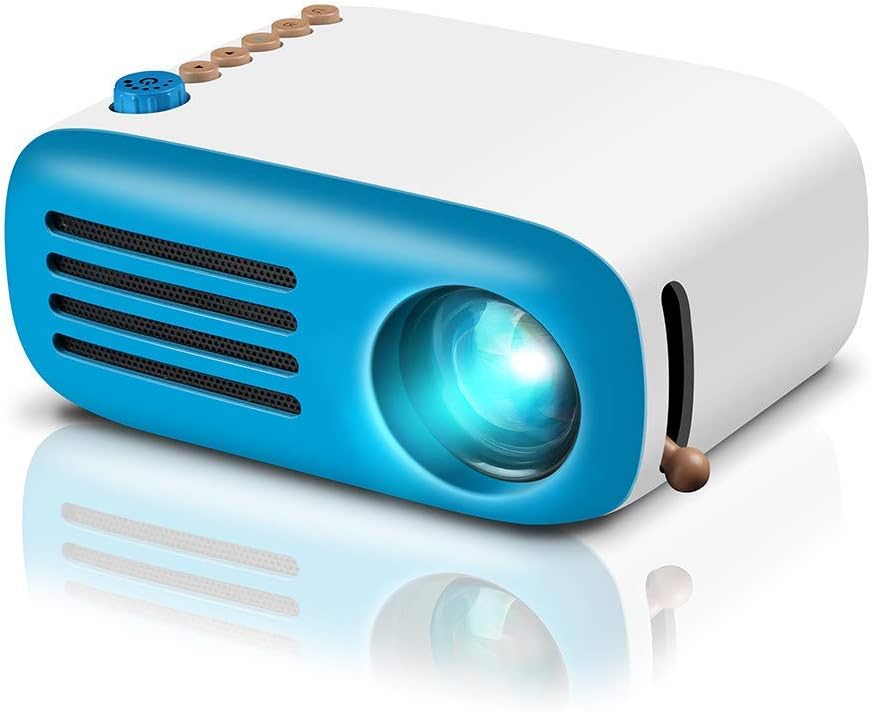
The GooDee Mini Projector (Model YG200) is a compact and portable video projector designed for versatile entertainment and presentation needs. Its small size and lightweight design make it ideal for use in various settings, from home theaters to outdoor gatherings. This manual provides essential information for setting up, operating, maintaining, and troubleshooting your projector.
Setup
Package Contents
- HDMI Cable
- Remote Control
- AV Cable
- Power Adapter
- User Manual
Connecting to Power
Connect the provided power adapter to the projector's DC power input. The projector can also be powered by a portable charger for on-the-go use, offering flexibility for various environments.
Connecting Devices
The projector offers multiple connectivity options for a wide range of devices:
- HDMI: Connect laptops, PCs, gaming consoles (e.g., Nintendo Switch), or streaming devices (e.g., Firestick) using the included HDMI cable.
- USB: Insert a USB flash drive into the USB port to directly play photos and videos.
- Micro SD: Insert a Micro SD card into the dedicated slot to play media files.
- AV: Use the included AV cable to connect older devices with AV output.
- Smartphone Connection: For smartphones, an additional HDMI adapter cable (not included) is required to mirror your device's screen.


Operating
Power On/Off
Press the power button on the projector or the remote control to turn the device on or off. Allow a few seconds for the projector to start up or shut down completely.
Focus Adjustment
Use the manual focus knob located on the side of the projector to adjust the image clarity. Rotate the knob until the projected image appears sharp and clear on your screen or wall.

Projection Distance and Size
The projector offers a flexible projection size from 20 to 60 inches with a recommended projection distance ranging from 0.8 meters to 2.0 meters. Adjust the distance from the projection surface to achieve your desired screen size and optimal image quality.

Input Source Selection
Use the input source button on the projector's control panel or the remote control to cycle through and select between HDMI, USB, Micro SD, or AV inputs, depending on your connected device.
Audio Output
The projector has a built-in powerful speaker that can deliver clear sound for your daily needs. For a more immersive experience or private listening, connect headphones or external speakers to the 3.5mm audio jack.
Maintenance
Cleaning the Lens
To maintain optimal image quality, gently wipe the projector lens with a soft, lint-free cloth. Avoid using abrasive cleaners, solvents, or harsh chemicals that could scratch or damage the lens coating.
Air Vent Cleaning
Regularly check and clean the air vents to ensure proper airflow and prevent overheating. Dust and debris can accumulate and obstruct the vents, impacting performance. Use a soft brush or compressed air to carefully remove any blockages.

Storage
When not in use for extended periods, store the projector in a cool, dry place away from direct sunlight, high humidity, and extreme temperatures. It is recommended to use the original packaging or a protective case to prevent dust accumulation and physical damage.
Troubleshooting
If you encounter issues with your GooDee Mini Projector, refer to the following common problems and their solutions:
No Image or "No Signal" Message
- Ensure the power adapter is securely connected and the projector is turned on.
- Verify that the correct input source (HDMI, USB, AV) is selected on the projector.
- Check all cable connections (HDMI, AV) for looseness or damage. Try re-seating the cables.
- If connecting a smartphone, ensure you are using a compatible HDMI adapter cable and that it is functioning correctly.
Blurry Image
- Adjust the manual focus knob on the side of the projector until the image is clear.
- Ensure the projection surface is flat and smooth. Uneven surfaces can distort the image.
- Adjust the projection distance to be within the recommended range (0.8M-2.0M) for optimal focus.
No Sound
- Check the volume settings on both the projector and the connected device. Ensure they are not muted or set too low.
- Ensure no headphones or external speakers are connected if you intend to use the built-in speaker.
- Verify that the audio cables (if using AV input) are correctly connected to the appropriate ports.
Projector Overheating
- Ensure the air vents are not blocked and have sufficient clearance for airflow. Do not place the projector on soft surfaces that might block vents.
- Operate the projector in a well-ventilated area.
- Turn off the projector and allow it to cool down if it feels excessively hot. Avoid continuous long periods of operation without breaks.
Specifications
| Feature | Detail |
|---|---|
| Brand | GooDee |
| Model Number | YG200 |
| Item Weight | 9.5 ounces |
| Product Dimensions | 5.31 x 3.94 x 2.36 inches |
| Display Resolution | 320 x 240 |
| Display Type | DLP |
| Connectivity Technology | USB, HDMI |
| Special Feature | Portable |
| Speaker Type | Built-In |
| Lamp Life | 30,000 hours |
| Projection Size | 20-60 inches |
| Projection Distance | 0.8M-2.0M |
Warranty and Support
GooDee provides an 18-month warranty for this projector, ensuring peace of mind with your purchase.
If you are not completely satisfied with your order or encounter any issues, please contact GooDee via Amazon. A refund or replacement can be offered alternatively within the first 2 months of purchase.
For further assistance, product information, or to explore other GooDee products, please visit the official GooDee Store on Amazon: GooDee Store.


