
Rii RM200
Contents
Rii RM200 2.4G Wireless Mouse User Manual
Model: RM200
Introduction
This manual provides detailed instructions for setting up, operating, and maintaining your Rii RM200 2.4G Wireless Mouse. Please read this manual thoroughly before using the product to ensure proper function and longevity.
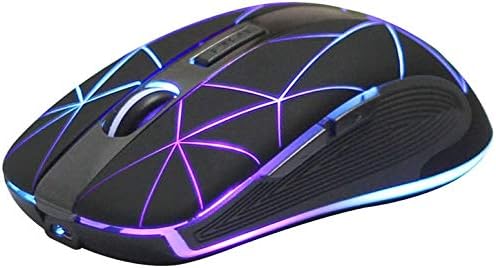
Image: The Rii RM200 wireless mouse, showcasing its ergonomic design and vibrant RGB lighting.
Features
- LED Wireless Mouse: Rii RM200 2.4G Portable Mobile Optical Office Mouse with 7 different color RGB backlit changes randomly while in use, offering soothing lighting, creating cool and fancy atmosphere for work and play.
- Built-in Lithium Battery: Rechargeable wireless Mouse RM200 with built-in durable rechargeable battery, it can be easily charged using the included USB charging cable.
- Plug-and-Play: No need to install any driver, just plug the USB receiver into your laptop, this RM200 2.4G Portable gaming wireless mouse can work well.
- Reliable Wireless Connection: 2.4GHz wireless technology provides powerful and reliable connection, effective up to 10 meters of range.
- Energy Saving: This computer wireless mouse will enter sleep mode in 5 minutes of inactivity. The LED light can be turned off by the light switch button at the back cover.
- Wide Compatibility: Works with Windows XP, Vista, 7, 8, and 10 / Windows Vista / Windows ME etc. Fits for desktop, laptop, PC, Macbook and other devices.

Image: The Rii RM200 mouse displaying its multi-color RGB lighting effects.

Image: Close-up of the Rii RM200 mouse, highlighting the DPI adjustment button.

Image: The Rii RM200 mouse connected for charging via its USB cable.

Image: The underside of the Rii RM200 mouse, showing the storage slot for the USB nano receiver and the power switch.
What's in the Box
- Rii RM200 2.4G Wireless Mouse
- USB Nano Receiver (stored inside the mouse)
- USB Charging Cable
- User Manual
For a visual guide on what's included and initial setup, please watch the official product video below:
Video: An official overview of the Rii RM200 Wireless Mouse, including unboxing and demonstration of its multi-color RGB backlit feature.
Setup
- Locate the USB Nano Receiver: The receiver is stored in a compartment on the underside of the mouse. Gently slide open the compartment cover to retrieve it.
- Plug the Receiver into your Computer: Insert the USB Nano Receiver into an available USB port on your desktop, laptop, PC, or Macbook.
- Turn on the Mouse: On the underside of the mouse, locate the power switch. Slide it to the "ON" position. For RGB lighting, slide it to the "ON/Lights On" position.
- Automatic Connection: The mouse should automatically connect to your computer. No additional drivers are required for basic functionality.
Operating Instructions
Basic Functions:
- Left Click: Primary selection and activation.
- Right Click: Opens contextual menus.
- Scroll Wheel: Scrolls up and down documents or web pages. Can also be clicked for middle-click functionality.
Advanced Functions:
- DPI Adjustment: The DPI button (located behind the scroll wheel) allows you to adjust the mouse sensitivity. Press it to cycle through different DPI settings (800, 1200, 1600 DPI) to match your preference for precision or speed.
- LED Backlight Control: The power switch on the underside of the mouse has three positions: OFF, ON (mouse on, lights off), and ON/Lights On (mouse on, lights on). Use this to control the RGB lighting.
- Side Buttons: The two side buttons typically function as "Forward" and "Backward" for web browsing or file navigation.
Maintenance
Charging the Mouse:
When the mouse battery is low, the LED lights may dim or the mouse may become unresponsive. Connect the included USB charging cable to the charging port on the front of the mouse and the other end to a USB power source (e.g., computer USB port, USB wall adapter). The mouse features a built-in durable rechargeable battery.
Cleaning:
To clean the mouse, use a soft, dry cloth. For stubborn dirt, a slightly damp cloth can be used, but ensure no moisture enters the internal components. Avoid using harsh chemicals or abrasive materials.
Energy Saving:
The mouse is designed with an energy-saving feature. It will automatically enter sleep mode after 5 minutes of inactivity to conserve battery life. To wake the mouse, simply move it or click any button.
Troubleshooting
| Problem | Solution |
|---|---|
| Mouse not responding. |
|
| LED lights are off. |
|
| Mouse movement is erratic or slow. |
|
Specifications
| Feature | Detail |
|---|---|
| Product Dimensions | 6.22 x 1.85 x 0.1 inches |
| Item Weight | 4.6 ounces |
| Connectivity Technology | 2.4G Wireless (USB Nano Receiver) |
| Movement Detection Technology | Optical |
| DPI Settings | Adjustable (800, 1200, 1600) |
| Special Feature | 7-Color RGB Backlit (randomly changing) |
| Battery Type | Built-in Lithium Ion (rechargeable) |
| Compatibility | Windows XP/Vista/7/8/10, Mac, PC, Laptop |
Warranty and Support
The Rii RM200 Wireless Mouse comes with a 24-Month warranty. If you encounter any problems or have questions regarding your product, please contact Rii customer support for assistance.
For further support, please visit the official Rii Store: Rii Official Store
Ask a question about this manual
Ask about setup, troubleshooting, compatibility, parts, safety, or missing instructions. Manuals+ will review the question and use this page’s manual context to help answer it.