
1. Introduction
Thank you for choosing the Hikvision HK-HDD10T Surveillance Hard Disk Drive. This manual provides essential information for the proper installation, operation, and maintenance of your new hard drive. The HK-HDD10T is designed for reliable performance in demanding surveillance environments, offering 10TB of storage capacity for continuous recording.
Please read this manual thoroughly before installation and keep it for future reference.
2. Safety Information
- Static Electricity: Always handle the hard drive by its edges and avoid touching the circuit board components. Use an anti-static wrist strap when installing or removing the drive to prevent damage from electrostatic discharge.
- Power Supply: Ensure your system's power supply is adequate and stable. Incorrect voltage or power fluctuations can damage the drive.
- Physical Handling: Avoid dropping or subjecting the hard drive to strong impacts. Hard drives are delicate precision instruments.
- Environment: Install the drive in a well-ventilated area, away from direct sunlight, heat sources, and excessive moisture.
- Data Backup: Regularly back up important data. No storage device is immune to failure.
3. Package Contents
Verify that all items are present in the package:
- Hikvision HK-HDD10T 10TB Hard Disk Drive
- User Manual (this document)
Note: SATA data cables and power cables are typically supplied with your computer or surveillance system and are not included with the hard drive.
4. Product Overview
The Hikvision HK-HDD10T is a 2.5-inch mechanical hard disk drive designed for internal use in desktop computers and surveillance systems. It features a Serial ATA (SATA) interface for data and power connectivity.
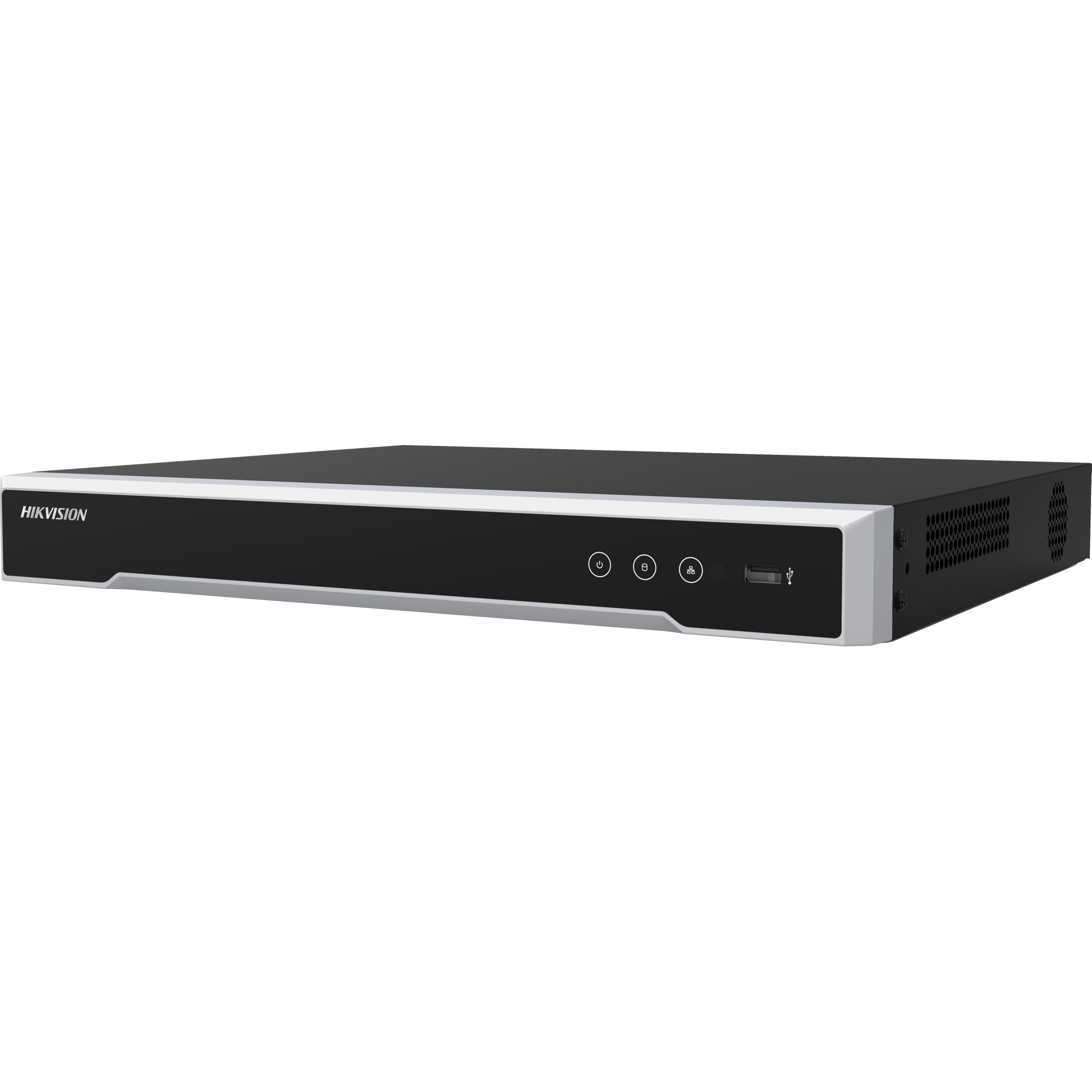
Figure 1: Hikvision HK-HDD10T Hard Disk Drive. This image shows the top view of the hard drive, typically displaying the product label with model information and the standard SATA data and power connectors on one end.
5. Setup
5.1 Physical Installation
- Power Off: Ensure your computer or surveillance system is completely powered off and unplugged from the electrical outlet.
- Open Case: Open the system case to access the internal drive bays.
- Mount Drive: Securely mount the HK-HDD10T into an available 2.5-inch drive bay using appropriate screws. If your system only has 3.5-inch bays, you may need a 2.5-inch to 3.5-inch adapter bracket (not included).
- Connect Cables:
- Connect one end of a SATA data cable to the SATA data port on the hard drive and the other end to an available SATA port on your system's motherboard or DVR/NVR.
- Connect a SATA power cable from your system's power supply unit (PSU) to the SATA power port on the hard drive.
- Close Case: Carefully close the system case and reconnect all external cables.
5.2 System Recognition and Formatting
- Power On: Power on your computer or surveillance system.
- BIOS/UEFI Check: Enter your system's BIOS/UEFI settings (usually by pressing DEL, F2, or F10 during startup) to confirm that the hard drive is detected.
- Initialize and Format:
- For Windows: Go to Disk Management (right-click Start button > Disk Management). Locate the new drive, initialize it (GPT for drives larger than 2TB), and then create and format a new simple volume.
- For Surveillance Systems (DVR/NVR): The system will typically detect the new drive automatically and prompt you to format it. Follow the on-screen instructions. Refer to your DVR/NVR manual for specific steps.
6. Operating
Once installed and formatted, the Hikvision HK-HDD10T will function as a standard storage device within your system. For surveillance applications, the drive is optimized for continuous read/write operations typical of video recording.
- Data Storage: The drive will be available for storing data, such as video recordings from connected cameras.
- Performance: Designed for 24/7 operation, the drive provides reliable performance for high-definition video streams.
- Capacity Management: Monitor your system's storage usage to ensure sufficient space for new recordings. Most surveillance systems offer settings for overwriting old footage when the drive is full.
7. Maintenance
- Environmental Control: Maintain a stable operating environment. Avoid extreme temperatures, high humidity, and excessive dust.
- Ventilation: Ensure adequate airflow around the drive to prevent overheating.
- Data Integrity: While the drive is robust, regular data backups are recommended for critical information, especially if the drive is used in a non-surveillance context.
- Firmware: Hard drives generally do not require frequent firmware updates. If an update is recommended by Hikvision, follow their specific instructions carefully.
8. Troubleshooting
Common Issues and Solutions:
- Drive Not Detected:
- Check all SATA data and power cable connections. Ensure they are securely seated.
- Verify the drive is enabled in the system's BIOS/UEFI settings.
- Try connecting the drive to a different SATA port or with different cables.
- Ensure the power supply unit (PSU) has enough wattage and available connectors.
- Drive Detected but Not Accessible (Windows):
- Go to Disk Management. The drive may need to be initialized and formatted (see Section 5.2).
- Check for driver updates for your motherboard's SATA controller.
- Slow Performance:
- Ensure the drive is connected to a SATA 3.0 Gb/s compatible port for optimal speed.
- Check system resources (CPU, RAM) for bottlenecks.
- Verify the drive is not nearly full, which can impact performance.
- Unusual Noises:
- Clicking, grinding, or loud whirring noises can indicate a failing drive. Back up data immediately and consider replacing the drive.
If you continue to experience issues, contact Hikvision technical support or your system integrator.
9. Specifications
| Feature | Specification |
|---|---|
| Model Number | HKHDD10T |
| Digital Storage Capacity | 10000 GB (10 TB) |
| Hard Disk Interface | Serial ATA |
| Connectivity Technology | SATA |
| Brand | Hikvision |
| Special Feature | Portable (Note: Refers to its 2.5-inch form factor, typically used internally or in portable enclosures.) |
| Hard Disk Form Factor | 2.5 Inches |
| Hard Disk Description | Mechanical Hard Disk |
| Compatible Devices | Desktop |
| Installation Type | Internal Hard Drive (Corrected from 'External' based on product context.) |
| Specific Uses For Product | Surveillance Systems |
| Hardware Connectivity | SATA 3.0 Gb/s |
| Item Weight | 2 Pounds |
| Manufacturer | HIKVISION USA INC |
| UPC | 842571118841 |
10. Warranty and Support
Hikvision products are covered by a limited warranty. For specific warranty terms and conditions, please refer to the official Hikvision website or the warranty card included with your purchase (if applicable).
For technical support, product inquiries, or service requests, please contact Hikvision customer support through their official channels. You may need to provide your product model number (HK-HDD10T) and serial number (located on the drive's label) when seeking assistance.
Hikvision Official Website: www.hikvision.com


