
KitVision KVOBS72
KitVision Observer 720p Dash Cam User Manual
Model: KVOBS72
Introduction
The KitVision Observer 720p Dash Cam is designed to record your journeys, providing a reliable record of events on the road. This device features automatic recording upon vehicle ignition, loop recording to manage storage efficiently, and a built-in G-sensor for collision detection. It also includes motion detection and parking mode functionalities for enhanced surveillance. Footage can be reviewed on the integrated 2.45-inch LCD screen.
Product Features
- Automatic Recording: Starts recording automatically when the vehicle is powered on.
- Loop Recording: Continuously records, overwriting the oldest unlocked footage to ensure memory card space is utilized efficiently.
- G-Sensor: Detects sudden impacts or collisions and automatically locks the current video footage to prevent it from being overwritten.
- Motion Detection: Records when motion is detected in front of the camera, useful for monitoring while parked.
- Parking Mode: Provides surveillance when the vehicle is parked.
- 720p HD Video: Records video at 720p resolution and 30 frames per second.
- 140-Degree Wide-Angle Lens: Captures a broad view of the road.
- 2.45-inch LCD Screen: Allows for immediate playback and menu navigation.
- WDR (Wide Dynamic Range) Technology: Enhances video quality in varying light conditions, improving night and day recording.
- 5-Megapixel Photo Mode: Captures still images for detailed documentation.
Package Contents
Please check the box for the following items:
- KitVision Observer 720p Dash Cam
- Suction Cup Mount
- Car Charger
- USB Cable
- User Manual
- Memory card (may be sold separately)

Image: KitVision Observer 720p Dash Cam and its retail packaging.
Setup Guide
1. Installation
Attach the suction cup mount to a clean, dry area on your windshield, ideally behind the rearview mirror to avoid obstructing your view. Ensure the camera lens has a clear line of sight to the road ahead. Secure the mount by pressing the suction cup firmly against the glass and engaging the locking mechanism.
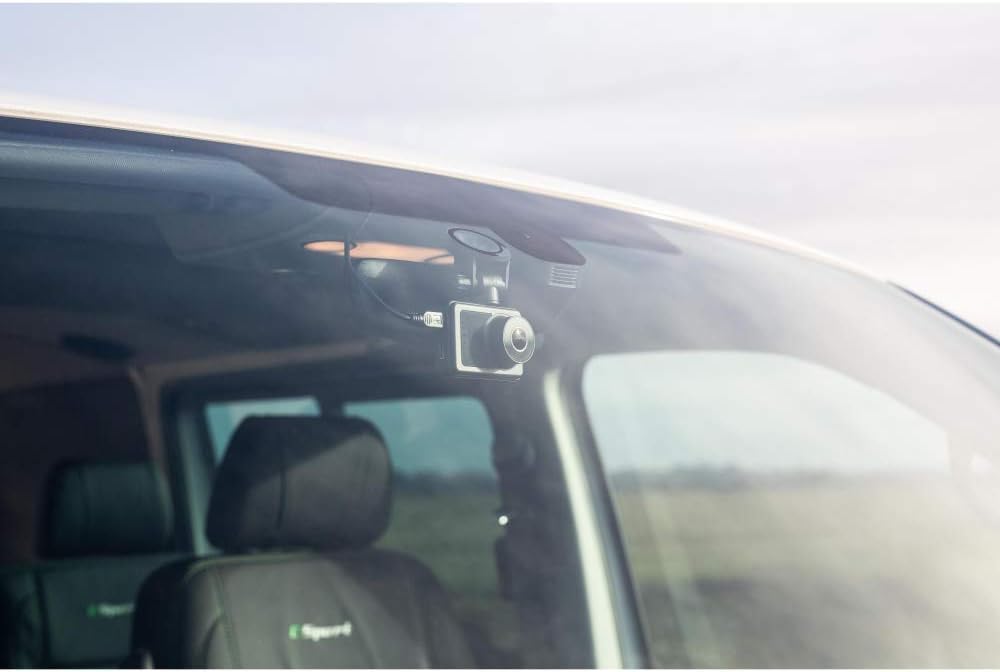
Image: Dash Cam installed on a car windshield, showing optimal placement.
2. Inserting the Micro SD Card
Locate the Micro SD card slot on the side of the dash cam. Insert a compatible Micro SD card (up to 32GB, Class 10 or higher recommended) into the slot until it clicks into place. Ensure the card is inserted correctly to prevent damage.

Image: Rear view of the dash cam, highlighting the screen and control buttons. The Micro SD card slot is typically on the side.
3. Powering On
Connect the car charger to the dash cam's power input port and plug the other end into your vehicle's 12V power outlet (cigarette lighter socket). The dash cam will typically power on automatically when your vehicle starts and begin recording.

Image: Side view of the dash cam, illustrating the USB and HDMI ports for power and connectivity.
Operating Instructions
1. Basic Recording
Once powered on, the dash cam will automatically start recording. A recording indicator (e.g., a flashing red dot or icon) will appear on the screen. To manually stop/start recording, press the designated record button (refer to your device's button layout).
2. Loop Recording
The dash cam records video in continuous loops (e.g., 1, 3, or 5-minute segments). When the memory card is full, the oldest unlocked video files will be overwritten by new recordings. This ensures continuous recording without manual intervention.
3. G-Sensor (Emergency Recording)
The built-in G-sensor detects sudden acceleration, braking, or collisions. When triggered, it automatically locks the current video segment, preventing it from being overwritten by loop recording. These locked files are typically stored in a separate folder on the SD card.
4. Motion Detection
When enabled in the settings, motion detection allows the dash cam to start recording automatically if it detects movement in its field of view while the vehicle is parked. This feature requires continuous power or a sufficiently charged internal battery.
5. Parking Mode
Parking mode, when activated, provides surveillance when your vehicle is parked. It often works in conjunction with the G-sensor or motion detection to record incidents while the car is stationary. Ensure your dash cam has a power source (e.g., hardwired kit) for extended parking mode use.
6. Playback
To review recorded footage, stop recording (if active) and enter playback mode via the menu options. Use the navigation buttons to browse through files and select a video to watch on the 2.45-inch LCD screen. You can also remove the Micro SD card and view files on a computer.

Image: Front view of the dash cam, showing the screen displaying live road footage.
Maintenance
1. Cleaning
Wipe the camera lens and screen periodically with a soft, lint-free cloth. Do not use abrasive cleaners or solvents, as these can damage the surfaces. Ensure the suction cup mount is clean for optimal adhesion.
2. Storage
If storing the dash cam for an extended period, remove the Micro SD card and store the device in a cool, dry place away from direct sunlight and extreme temperatures. Fully charge the internal battery before storage to maintain its lifespan.
Troubleshooting
| Problem | Possible Solution |
|---|---|
| Dash cam does not power on. | Check the car charger connection to both the dash cam and the vehicle's power outlet. Ensure the vehicle's power outlet is functioning. The internal battery may be depleted; charge it for a few hours. |
| Recording stops unexpectedly. | The Micro SD card may be full. Ensure loop recording is enabled. The card may be faulty or too slow; try formatting the card or using a new Class 10 (or higher) Micro SD card. |
| Video footage is blurry or unclear. | Clean the camera lens. Ensure the protective film has been removed from the lens. Check if the camera is securely mounted and not vibrating. |
| Suction cup mount does not stick. | Clean both the windshield and the suction cup thoroughly. Ensure the surface is dry. Apply slight moisture to the suction cup before pressing firmly and engaging the lock. Warm the suction cup slightly if in cold conditions. |
| G-sensor is too sensitive/not sensitive enough. | Adjust the G-sensor sensitivity setting in the dash cam's menu. |
| Date and time are incorrect. | Set the correct date and time in the dash cam's system settings. |
Technical Specifications
- Brand: KitVision
- Model Name: KVOBS72
- Video Capture Resolution: 720p (1280x720)
- Frame Rate: 30 fps
- Video Format: MP4
- Photo Resolution: 5 Megapixels
- Field of View: 140 degrees
- Screen Size: 2.45 inches
- Display Type: LCD
- Storage: Supports Micro SD cards up to 32GB (Class 10 recommended)
- Special Features: Motion Detection, Night Vision, G-Sensor, WDR
- Mounting Type: Suction Cup Mount
- Power Source: Car Charger (12V), Internal Lithium-Ion Battery
- Color: Black
- Item Weight: 56 grams
Warranty Information
This product is covered by a standard manufacturer's warranty. Please refer to the warranty card included in your package or visit the official KitVision website for detailed terms and conditions regarding warranty coverage and claims.
Customer Support
For technical assistance, troubleshooting, or further inquiries, please contact KitVision customer support. Contact details can typically be found on the product packaging, the official KitVision website, or the warranty card.
Ask a question about this manual
Ask about setup, troubleshooting, compatibility, parts, safety, or missing instructions. Manuals+ will review the question and use this page’s manual context to help answer it.