1. Introduction
The Optex ORT 8930-HD is a digital terrestrial receiver designed to receive free-to-air digital programs broadcast in MPEG2/MPEG4 format, compatible with DVB-T2 and HEVC/H.265 standards. This device connects to your television via HDMI or SCART. It features a USB input for future software updates, multimedia file playback (photos, music, videos), and direct recording to an external USB storage device (not included).
This manual provides detailed instructions for the proper installation, operation, and maintenance of your Optex ORT 8930-HD receiver. Please read it thoroughly before use to ensure optimal performance and to prevent damage.
2. Safety Information
- Ensure proper ventilation around the device to prevent overheating.
- Do not expose the receiver to rain, moisture, or extreme temperatures.
- Avoid placing the device near heat sources such as radiators or stoves.
- Use only the power adapter supplied with the unit.
- Do not open the casing; refer all servicing to qualified personnel.
- Disconnect the power plug from the wall outlet during lightning storms or when unused for long periods.
3. Package Contents
Verify that all items are present in the package:
- 1 x Optex ORT 8930-HD Digital Receiver
- 1 x Remote Control
- 1 x User Manual
4. Product Overview
4.1 Front Panel

Image 1: Front view of the Optex ORT 8930-HD receiver, showing the display, USB port, and control buttons.
The front panel includes a digital display for channel numbers, a USB 2.0 port for external storage, and basic control buttons (CH+, CH-, Power).
4.2 Rear Panel
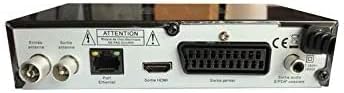
Image 2: Rear view of the Optex ORT 8930-HD receiver, displaying various connectivity ports.
The rear panel provides the following connections:
- Antenna In/Out: IEC 9.52 mm connectors for terrestrial antenna.
- HDMI Output: For connecting to an HD television.
- SCART Connector: For connecting to older televisions.
- S/PDIF Coaxial Audio: Digital audio output.
- Power Input: For the external power adapter.
4.3 Remote Control

Image 3: The remote control unit for the Optex ORT 8930-HD receiver.
The remote control allows full operation of the receiver, including power, channel selection, volume, menu navigation, recording functions, and multimedia playback controls.
5. Setup
5.1 Connecting the Antenna
- Connect your terrestrial antenna cable to the "Antenna In" port on the rear panel of the receiver.
- If you wish to loop the antenna signal to another device, connect a coaxial cable from the "Antenna Out" port to the input of the next device.
5.2 Connecting to Your Television
Choose one of the following connection methods:
- HDMI (Recommended for HD): Connect an HDMI cable from the "HDMI Output" port on the receiver to an available HDMI input on your television.
- SCART: Connect a SCART cable from the "SCART Connector" on the receiver to the SCART input on your television.
5.3 Power Connection
- Connect the power adapter to the power input port on the receiver.
- Plug the power adapter into a suitable wall outlet.
5.4 Initial Channel Scan
- Turn on your television and select the correct input source (HDMI or SCART) corresponding to your connection.
- Power on the Optex ORT 8930-HD receiver.
- The first-time setup wizard should appear. Follow the on-screen instructions to perform an automatic channel search. This will scan for all available digital terrestrial channels in your area.
- If the wizard does not appear, navigate to the "Menu" > "Installation" > "Automatic Search" using the remote control.
6. Operating Instructions
6.1 Basic Operation
- Power On/Off: Press the POWER button on the remote control or front panel.
- Channel Selection: Use the CH+ / CH- buttons or enter the channel number directly using the numeric keypad.
- Volume Control: Use the VOL+ / VOL- buttons.
- Mute: Press the MUTE button to temporarily silence the audio.
6.2 Channel Management
- Automatic/Manual Search: Access through Menu > Installation to rescan for channels.
- LCN Function: The Logical Channel Numbering (LCN) function automatically sorts channels into a logical order. This can usually be enabled/disabled in the installation menu.
- Favorite List: Create personalized lists of your preferred channels for quick access. Refer to the on-screen menu for instructions on adding and managing favorite channels.
6.3 Recording and Playback
To use recording and multimedia playback features, connect a USB storage device (e.g., USB flash drive or external hard drive) to the USB port on the front panel.
- USB Recording: Press the REC button on the remote control to start recording the current program. Press STOP to end recording.
- Timeshift Function: This allows you to pause live TV and resume watching later. Activate Timeshift via the remote control (usually a dedicated button or through the menu).
- Multimedia Playback: Access the multimedia player via the Menu. You can browse and play music, photo, and video files stored on your connected USB device.
6.4 Electronic Program Guide (EPG)
Press the EPG button on the remote control to view the Electronic Program Guide, which displays program schedules for upcoming broadcasts.
6.5 Parental Lock
Set up a parental lock to restrict access to certain channels or programs. This feature is typically found in the Menu > System Settings > Parental Control section.
6.6 Timer Function
The timer function allows you to schedule the receiver to turn on/off or record a specific program at a set time. Access this feature through the Menu.
6.7 Software Update via USB
Periodically check the manufacturer's website for available software updates. Download the update file to a USB drive and follow the instructions in the Menu > System Settings > Software Update section to install it.
7. Maintenance
- Cleaning: Use a soft, dry cloth to clean the exterior of the receiver. Do not use liquid or aerosol cleaners.
- Ventilation: Ensure that the ventilation slots on the device are not blocked to prevent overheating.
- Software: Keep the receiver's software updated to ensure optimal performance and access to the latest features.
8. Troubleshooting
| Problem | Possible Cause | Solution |
|---|---|---|
| No power | Power cable disconnected; power outlet faulty. | Check power cable connection; try a different outlet. |
| No signal / No channels | Antenna not connected; incorrect input source on TV; no channel scan performed. | Check antenna connection; select correct TV input; perform an automatic channel scan. |
| Remote control not working | Batteries depleted; obstruction between remote and receiver. | Replace batteries; ensure clear line of sight to the receiver's IR sensor. |
| USB recording not working | USB device not connected or formatted incorrectly; insufficient storage space. | Ensure USB device is properly connected; format USB device (FAT32/NTFS); check available space. |
| Device freezes or becomes unresponsive | Temporary software glitch. | Disconnect power for a few seconds, then reconnect. If problem persists, check for software updates. |
9. Specifications
| Feature | Detail |
|---|---|
| Model | ORT 8930-HD |
| Brand | Optex |
| Tuner Type | Terrestrial (DVB-T2) |
| Video Decoding | HEVC/H.265, MPEG-2.5 |
| Connectivity | 1x HDMI, 1x SCART, 1x USB 2.0, 1x S/PDIF Coaxial Audio, Antenna In/Out |
| Channel Capacity | Over 1000 channels |
| Recording | External USB media (PVR function) |
| Multimedia Playback | Music, Photos, Videos |
| Special Features | Timeshift, EPG, Parental Lock, Favorite List, Multi-language Menu, LCN, 5V Antenna Power, Timer Function, Dolby Digital+ compatible |
| Audio Output Mode | [SOM] |
| Speaker Surround Sound Configuration | 5.1 |
| Power Output | 5 Watts |
| Product Weight | 600 g |
10. Warranty and Support
Specific warranty information is not provided within this manual. Please refer to the warranty card included with your purchase, contact your retailer, or visit the official Optex website for detailed warranty terms and conditions.
For technical support or service inquiries, please contact your local Optex distributor or the customer service department as indicated on the product packaging or manufacturer's website.


