
1. Introduction
This user manual provides detailed instructions for the installation, operation, and maintenance of your ZOTAC GAMING GeForce RTX 2070 AMP Extreme graphics card. Please read this manual thoroughly before proceeding with installation to ensure proper setup and optimal performance.

Figure 1: ZOTAC GAMING GeForce RTX 2070 AMP Extreme Graphics Card and its retail packaging.
2. Package Contents
Verify that all items listed below are included in your product package. If any items are missing or damaged, please contact your retailer or ZOTAC support.
- ZOTAC GAMING GeForce RTX 2070 AMP EXTREME graphics card
- Dual 6-pin to 8-pin power cable
- Dual 4-pin to 6-pin power cable
- User Manual (this document)
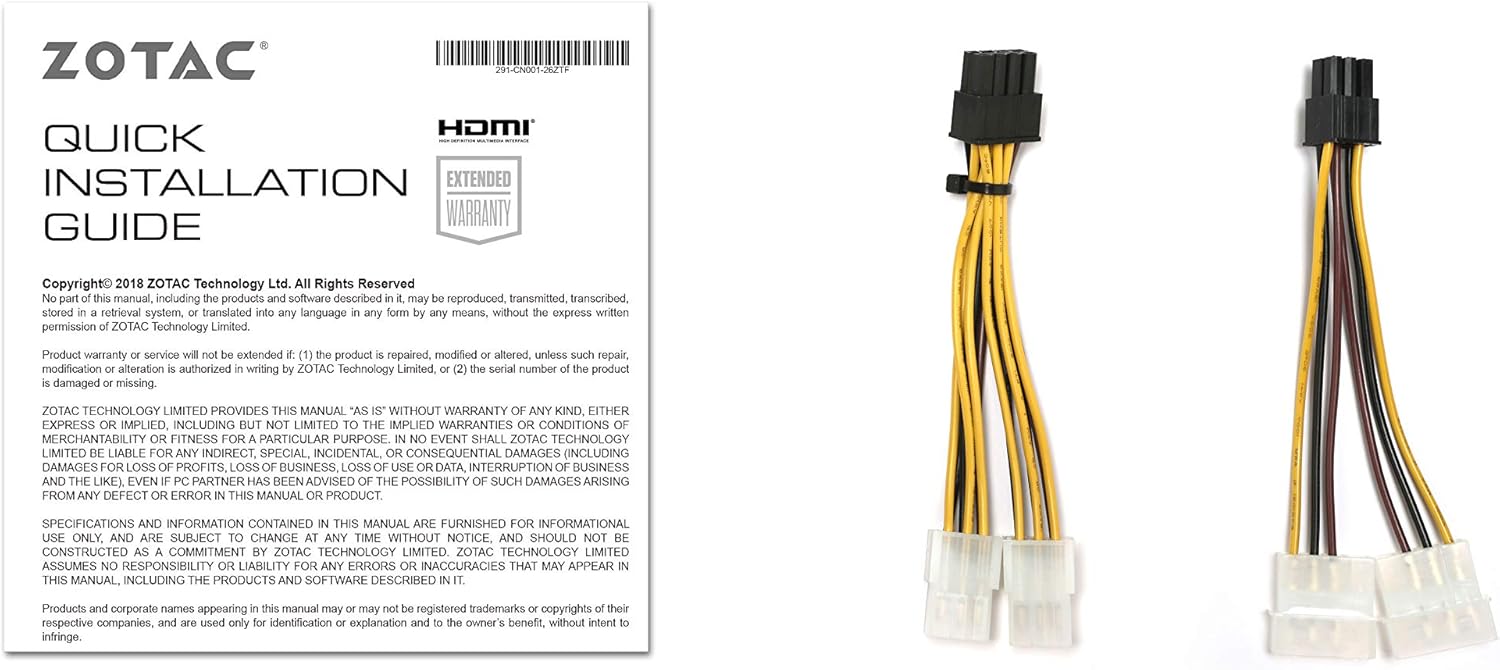
Figure 2: Included Quick Installation Guide and power adapter cables.
3. Product Features
The ZOTAC GAMING GeForce RTX 2070 AMP Extreme graphics card is engineered with advanced technologies to deliver superior gaming performance and visual fidelity.
- New Turing Architecture: Features real-time ray tracing and DLSS with deep learning AI.
- High-Performance Memory: Equipped with 8GB 256-Bit GDDR6 memory.
- Factory Overclocked: Boost Clock of 1860 MHz, making it ZOTAC GAMING's fastest 2070 factory overclocked graphics card.
- Ice Storm 2.0 Cooling: Our strongest cooling solution, featuring a full board die-cast metal PCB jacket for structural strengthening and active fan control.
- Display Outputs: Supports 4K resolution and up to 4 displays with 3 x DisplayPort 1.4, 1 x HDMI 2.0B, and 1 x USB Type-C.
- SPECTRA LED Lighting: Customizable RGB LED lighting for personalized aesthetics.

Figure 3: Card dimensions (308mm / 12.13in length, 113mm / 4.45in height) and available display outputs including 3x DisplayPort 1.4, 1x HDMI 2.0b, and 1x USB Type-C. Requires 6+8-pin PCIe power connectors.

Figure 4: Ice Storm 2.0 cooling system, designed for cooler, quieter, and stronger game performance through enhanced heatpipe layout and aluminum array heatsink.

Figure 5: Active Fan Control allows independent adjustment of fan rotations, directing increased airflow only where and when needed.

Figure 6: The SPECTRA lighting system offers customizable color selection for the integrated RGB LEDs on the card.

Figure 7: The card features a full board die-cast metal jacket and a redesigned wraparound backplate for enhanced structural integrity and additional heat dissipation.
Video 1: Official ZOTAC GAMING GeForce Graphics Card overview, highlighting key features such as cooling, connectivity, and lighting.
4. Installation Guide
Follow these general steps for installing your ZOTAC GAMING GeForce RTX 2070 AMP Extreme graphics card. For detailed visual instructions, refer to the included Quick Installation Guide.
- Prepare Your System: Power off your computer and unplug all cables. Open your computer case.
- Locate PCIe Slot: Identify an available PCIe x16 slot on your motherboard.
- Remove Slot Covers: Remove the necessary expansion slot covers from your computer case.
- Insert Graphics Card: Carefully align the graphics card with the PCIe slot and press down firmly until it is securely seated.
- Secure Card: Secure the graphics card to the case with screws.
- Connect Power: Connect the appropriate PCIe power cables from your power supply to the graphics card. This model requires both 6-pin and 8-pin connectors. Use the included adapter cables if necessary.
- Close Case and Connect Peripherals: Close your computer case, reconnect all cables, and connect your display to one of the graphics card's output ports.
- Install Drivers: Power on your computer. Once the operating system loads, install the latest graphics drivers from the official NVIDIA or ZOTAC website.
5. Software and Utilities
To unlock the full potential of your ZOTAC GAMING GeForce RTX 2070 AMP Extreme, install the ZOTAC FireStorm utility. This software allows for fine-tuning of your graphics card, including fan control, monitoring, and customization of the SPECTRA LED lighting.
- FireStorm Utility: Provides an intuitive interface for overclocking, fan speed adjustment (Active Fan Control), and monitoring GPU parameters.
- SPECTRA Control: Customize the RGB LED lighting effects and colors to match your system's aesthetic.
- Driver Updates: Regularly check the official ZOTAC or NVIDIA website for the latest graphics drivers to ensure optimal performance and compatibility.
6. Specifications
Below are the key technical specifications for the ZOTAC GAMING GeForce RTX 2070 AMP Extreme graphics card:
| Feature | Specification |
|---|---|
| Graphics Coprocessor | NVIDIA GeForce RTX 2070 |
| Video Memory | 8 GB GDDR6 |
| Memory Interface | 256-bit |
| Boost Clock | 1860 MHz |
| Memory Speed | 14400 MHz |
| Max Resolution | 3840 x 2160 (4K) |
| Display Outputs | 3 x DisplayPort 1.4, 1 x HDMI 2.0B, 1 x USB Type-C |
| Item Dimensions (LxWxH) | 12.13 x 2.24 x 4.45 inches |
| Item Weight | 2.78 pounds |
| Operating System Support | Windows 10 / 7 x64 |
7. Troubleshooting
If you encounter issues with your graphics card, consider the following troubleshooting steps:
- No Display Output:
- Ensure the graphics card is fully seated in the PCIe slot.
- Verify that all necessary power cables (6-pin and 8-pin) are securely connected from the power supply to the graphics card.
- Check that your display cable is connected to the graphics card's output port, not the motherboard's integrated graphics port.
- Test with a different display cable or monitor if possible.
- Driver Issues:
- Download and install the latest drivers directly from the official NVIDIA or ZOTAC website.
- Use a display driver uninstaller (DDU) to completely remove old drivers before installing new ones.
- Performance Issues / Crashing:
- Ensure your power supply unit (PSU) meets the minimum wattage requirements for the RTX 2070.
- Monitor GPU temperatures using the FireStorm utility or other software. Ensure adequate case airflow.
- Check for system stability by running benchmarks or stress tests.
- If overclocked, revert to default settings to rule out instability caused by overclocking.
- Fan Noise / Rattling:
- Ensure no cables are obstructing the fan blades.
- Clean dust from the heatsink and fans using compressed air.
- Adjust fan curves using the FireStorm utility to find a balance between cooling and noise.
8. Warranty and Support
ZOTAC products are designed for reliability and performance. For information regarding your product's warranty, including terms, conditions, and registration, please refer to the official ZOTAC website or the warranty information provided in your product packaging.
Many ZOTAC products, including this graphics card, may be eligible for an extended warranty upon registration. Please visit ZOTAC Support for the latest support resources, driver downloads, and contact information.