
1. Introduction
This manual provides detailed instructions for the setup, operation, maintenance, and troubleshooting of your DOGNESS Smart Cam Black Treater (Model T03BK). This device allows you to interact with your pet remotely by dispensing treats and monitoring them via a built-in camera and two-way audio.

Image 1.1: DOGNESS Smart Cam Black Treater in use with a dog.
2. Safety Information
- Read all instructions before using the device.
- Keep the device away from water or excessive moisture.
- Use only the provided power adapter.
- Do not attempt to disassemble or repair the device yourself. Contact customer support for assistance.
- Ensure the device is placed on a stable surface to prevent tipping. The integrated suction cups can assist with stability.
- This device is intended for indoor use only.
- Keep out of reach of small children and pets when not in use or supervised.
3. Package Contents
Verify that all items are present in the package:
- DOGNESS Smart Cam Black Treater (Model T03BK)
- Power Adapter (AC/DC)
- Instruction Manual
4. Product Overview
Familiarize yourself with the components of your Smart Cam Treater:
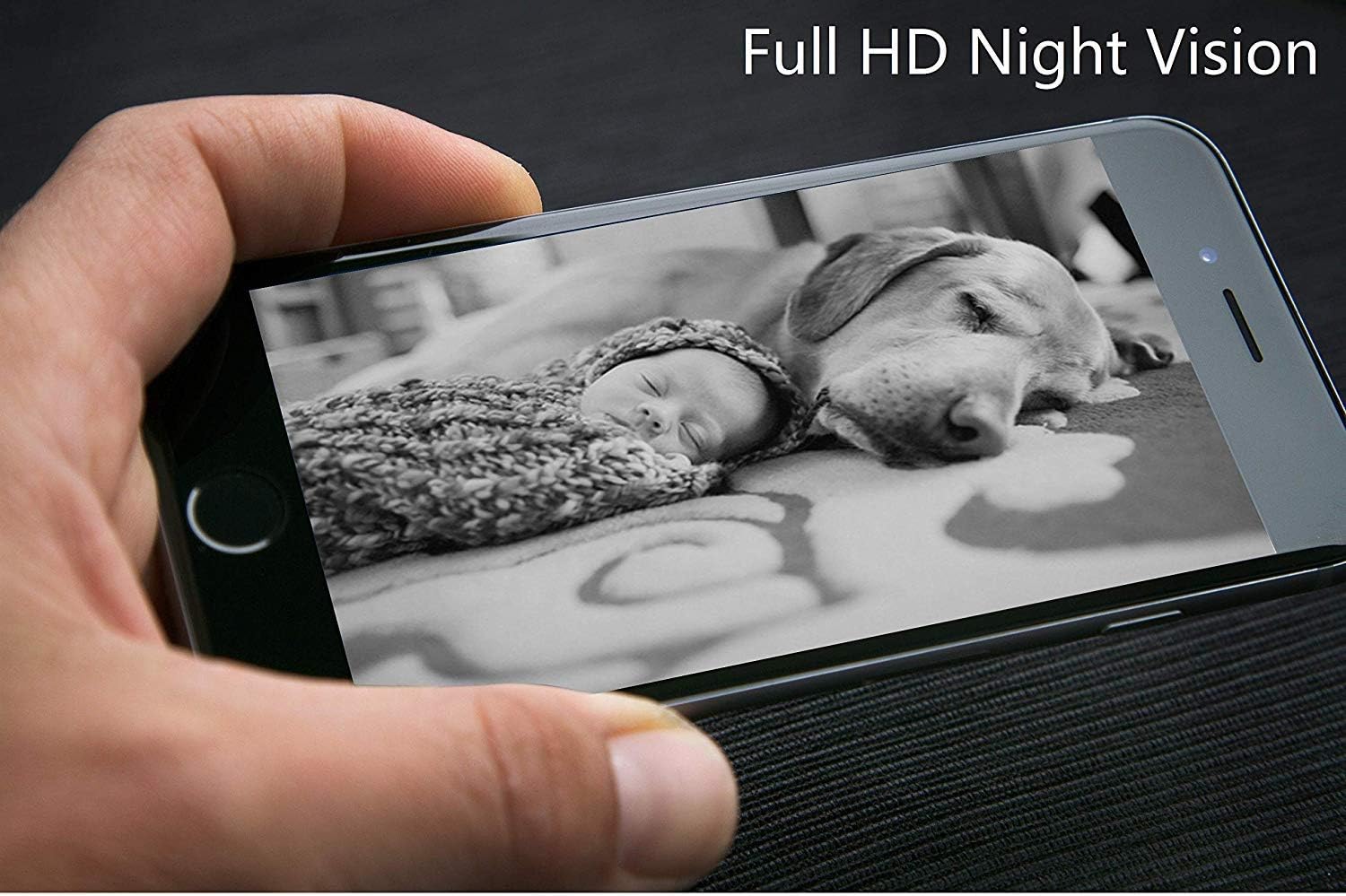
Image 4.1: Labeled diagram of the DOGNESS Smart Cam Black Treater components.
- WiFi Indicator Light: Shows the device's network connection status.
- Natural Bamboo Lid: Covers the treat compartment.
- 165° HD Camera with Night Vision: Provides a wide-angle view of your pet, even in low light conditions.
- Microphone: Allows you to listen to your pet and surroundings.
- Speaker: Enables two-way audio communication with your pet.
- SET Button / Manual Treating Button: Used for Wi-Fi setup and manual treat dispensing.
- Snack Outlet: Where treats are dispensed.
5. Setup
5.1 Power Connection
- Place the device on a flat, stable surface. The suction cups on the bottom help secure it.
- Connect the power adapter to the device's power input port.
- Plug the power adapter into a standard electrical outlet. The device will power on automatically.
5.2 App Download and Installation
- Download the "DOGNESS" app from your smartphone's app store (iOS App Store or Google Play Store).
- Install the app and create an account if you are a new user, or log in with your existing credentials.
5.3 Wi-Fi Connection
Ensure your smartphone is connected to a 2.4GHz Wi-Fi network. The device does not support 5GHz Wi-Fi networks.
- Open the DOGNESS app and follow the on-screen instructions to add a new device.
- Select the Smart Cam Treater from the list of devices.
- Press and hold the SET button on the device until the Wi-Fi indicator light blinks rapidly, indicating it's in pairing mode.
- Enter your Wi-Fi network name and password into the app.
- The app will generate a QR code. Hold your smartphone screen in front of the device's camera (approximately 4-8 inches away) until you hear a confirmation sound from the treater.
- Once connected, the Wi-Fi indicator light will turn solid.
5.4 Filling Treats
- Remove the natural bamboo lid from the top of the device.
- Fill the treat compartment with dry, crunchy treats that are approximately 0.2-0.6 inches (0.5-1.5 cm) in diameter. Avoid soft, sticky, or oversized treats that may cause jamming.
- Replace the lid securely.
6. Operating Instructions
6.1 Using the DOGNESS App
The DOGNESS app provides full control over your Smart Cam Treater.

Image 6.1: DOGNESS app interface showing live video feed.
- Live Video Feed: Access real-time video from the 165° HD camera.
- Two-Way Audio: Use the microphone and speaker icons in the app to speak to your pet and hear their responses.
- Treat Dispensing: Tap the treat icon in the app to remotely dispense treats.
- Photo/Video Capture: Capture photos or record videos of your pet directly from the app.
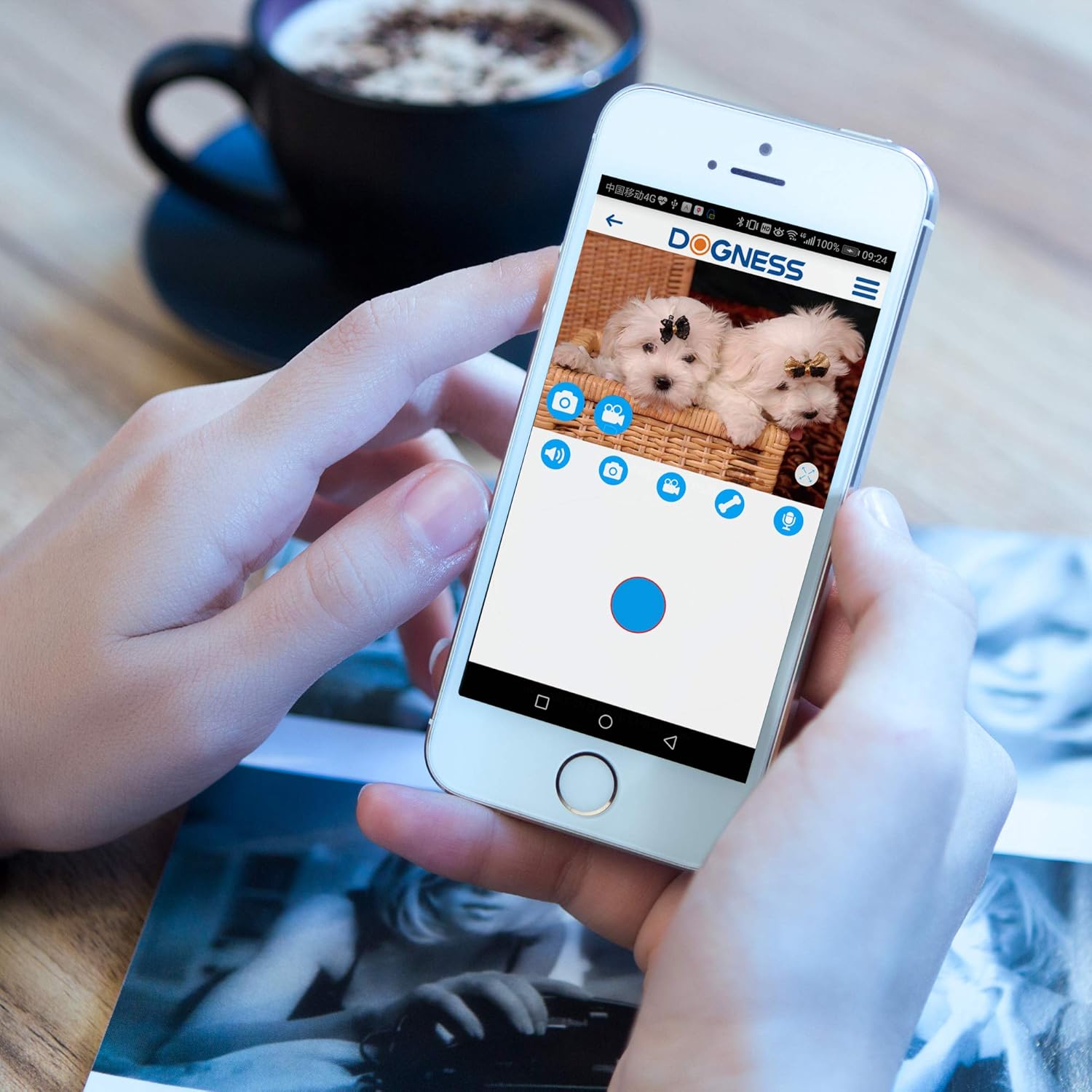
Image 6.2: DOGNESS app control panel for interaction.
6.2 Night Vision
The device automatically switches to night vision mode in low-light conditions, providing clear monitoring capabilities 24/7.

Image 6.3: Example of Full HD Night Vision.
6.3 Manual Treat Dispensing
Press the SET button on the front of the device to manually dispense a treat without using the app.
7. Maintenance
7.1 Cleaning
- Unplug the device before cleaning.
- Wipe the exterior of the device with a soft, damp cloth. Do not use abrasive cleaners or immerse the device in water.
- Clean the treat compartment regularly to prevent residue buildup. Ensure it is completely dry before refilling with treats.
- Gently wipe the camera lens with a soft, dry cloth to maintain clear image quality.
7.2 Treat Refilling
Refer to Section 5.4 for instructions on refilling the treat compartment.
8. Troubleshooting
| Problem | Possible Cause | Solution |
|---|---|---|
| Device not powering on | Power adapter not connected or faulty outlet. | Ensure the power adapter is securely connected and the outlet is functional. Try a different outlet. |
| Unable to connect to Wi-Fi | Incorrect Wi-Fi password; device too far from router; 5GHz Wi-Fi network used; Wi-Fi indicator not blinking. |
|
| Treats not dispensing | Treats jammed; treat compartment empty; incorrect treat size. |
|
| Poor video quality or no image | Dirty camera lens; poor Wi-Fi signal; app issue. |
|
| Audio issues (cannot hear or speak) | Microphone/speaker blocked; app settings; poor network connection. |
|
9. Specifications
| Feature | Detail |
|---|---|
| Model Number | T03BK |
| Dimensions (L x W x H) | 5.75 x 5.75 x 11.42 inches |
| Item Weight | 3.24 pounds |
| Power Source | AC/DC Adapter |
| Connectivity Protocol | Wi-Fi (2.4GHz only) |
| Video Capture Resolution | 1080p, 720p |
| Effective Video Resolution | 1080 Pixels |
| Viewing Angle | 165 Degrees |
| Special Features | Motion Sensor, Night Vision, Two-Way Audio |
| Compatible Devices | Smartphone (iOS/Android) |
| International Protection Rating | IP54 |
| GTIN/UPC | 843775107099 |
10. Warranty and Support
For warranty information and technical support, please refer to the warranty card included with your product or visit the official DOGNESS website. You can also contact customer service via the DOGNESS app or through the contact details provided on their website.
Website: www.dogness.com (Note: This is a placeholder URL, please refer to your product packaging for the correct website.)