
1. Product Overview
The Elecom M-FBL01DBXSBK is a 5-button wireless mouse designed for comfortable and quiet operation. It features a Blue LED sensor for versatile surface compatibility and a compact USB receiver.

Image 1.1: Elecom M-FBL01DBXSBK Wireless Mouse with its compact USB receiver.
2. Package Contents
- Elecom M-FBL01DBXSBK Wireless Mouse
- USB Wireless Receiver
- AA Alkaline Battery (for operation confirmation)
- User Manual (this document)
3. Setup Instructions
3.1. Battery Installation
- Locate the battery compartment cover on the underside of the mouse.
- Slide or lift the cover to open the compartment.
- Insert one AA alkaline battery, ensuring the positive (+) and negative (-) terminals align correctly with the markings inside the compartment.
- Close the battery compartment cover securely.

Image 3.1: The underside of the mouse, indicating the battery compartment and power switch.
3.2. Connecting the USB Receiver
- Remove the compact USB receiver from its storage slot on the underside of the mouse.
- Plug the USB receiver into an available USB-A port on your computer.
- Your computer should automatically detect and install the necessary drivers. This may take a few moments.
3.3. Powering On the Mouse
After installing the battery and connecting the receiver, locate the power switch on the underside of the mouse and slide it to the 'ON' position. The mouse is now ready for use.
3.4. OS Compatibility
The Elecom M-FBL01DBXSBK Wireless Mouse is compatible with:
- Windows 11, Windows 10, Windows RT8.1, Windows 8.1, Windows 7, Windows Vista
- macOS High Sierra 10.13 and later
Ensure your operating system is updated to the latest version and any service packs are installed for optimal performance.
4. Operating the Mouse
4.1. Basic Functions
The mouse features five buttons and a scroll wheel:
- Left Button: Primary click function.
- Right Button: Secondary click function (context menu).
- Scroll Wheel: Scrolls documents and web pages vertically. Can also be pressed for a middle-click function.
- Forward Button: Navigates forward in web browsers or file explorers.
- Back Button: Navigates backward in web browsers or file explorers.

Image 4.1: The five buttons of the Elecom M-FBL01DBXSBK mouse, including the scroll wheel.
4.2. Quiet Click Feature
All five buttons incorporate a silent switch mechanism, significantly reducing clicking noise. This allows for quiet operation in various environments.

Image 4.2: The silent switch design minimizes operational noise.
4.3. Blue LED Sensor
The mouse is equipped with a Blue LED optical sensor, which provides accurate tracking on a variety of surfaces, including those with slight unevenness or dust. This enhances usability in diverse settings.

Image 4.3: The Blue LED sensor allows for comfortable use on various surfaces.
4.4. Wireless Connectivity
The mouse utilizes a 2.4 GHz wireless band for stable communication. The effective radio distance is approximately 3 meters (9.8 feet) on magnetic surfaces (e.g., steel desks) and up to 10 meters (32.8 feet) on non-magnetic surfaces (e.g., wooden desks).
4.5. Battery Indicator
An integrated battery indicator light notifies you when the battery level is low, signaling that a replacement is needed.
4.6. Elecom Mouse Assistant Software
Button functions can be customized using the free downloadable Elecom Mouse Assistant software. This allows users to reassign functions to the mouse buttons for improved workflow efficiency.
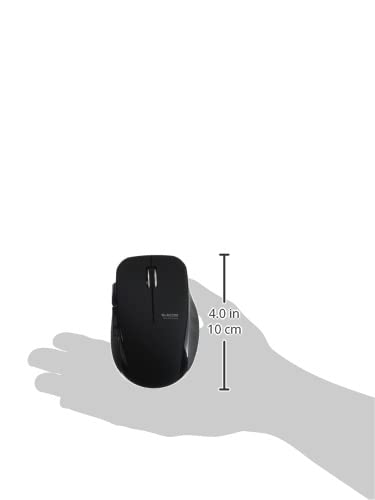
Image 4.4: The Elecom Mouse Assistant software enables button customization.
5. Maintenance
5.1. Battery Replacement
When the battery indicator signals low power, replace the AA battery with a new AA alkaline, manganese, or NiMH battery. Follow the battery installation steps outlined in Section 3.1.
5.2. Cleaning
To clean the mouse, gently wipe its surface with a soft, dry cloth. Avoid using harsh chemicals or abrasive materials, as these can damage the finish. Ensure no liquid enters the mouse.
5.3. Receiver Storage
The USB receiver can be stored inside the mouse body when not in use or during transport. This helps prevent loss of the receiver.
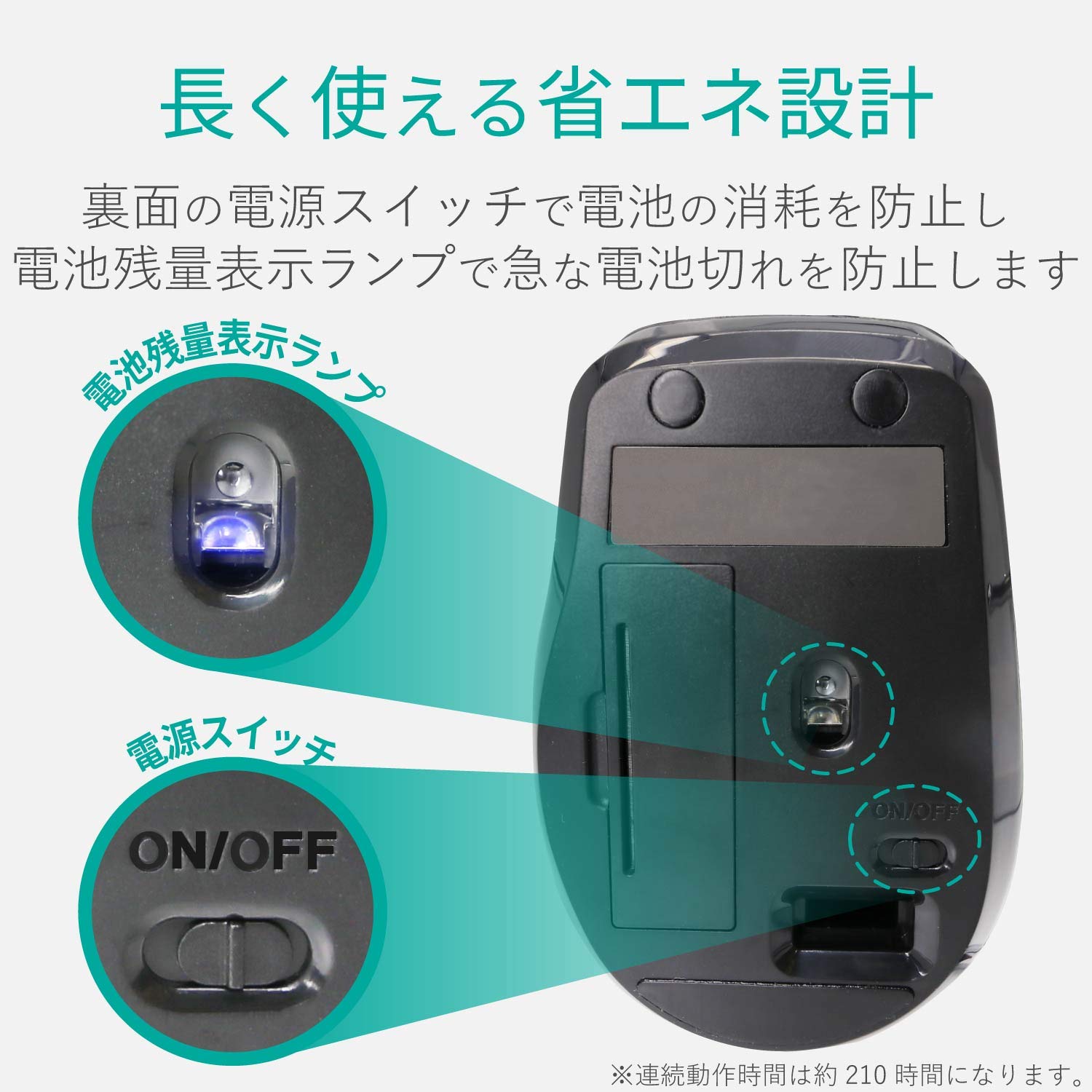
Image 5.1: The compact receiver can be stored within the mouse for convenience.
6. Troubleshooting
- Mouse not responding:
- Check if the mouse is powered on (power switch on the underside).
- Ensure the battery is correctly installed and not depleted. Replace if necessary.
- Verify the USB receiver is securely plugged into a working USB port on your computer. Try a different USB port.
- Restart your computer.
- Erratic cursor movement:
- Clean the optical sensor area on the underside of the mouse.
- Ensure you are using the mouse on a suitable surface. Avoid highly reflective or transparent surfaces.
- Check for interference from other wireless devices. Move the mouse closer to the receiver.
- Buttons not functioning correctly:
- If using Elecom Mouse Assistant, ensure button assignments are correct.
- Reinstall the Elecom Mouse Assistant software if issues persist.
7. Specifications
| Interface | USB |
| Connector Shape | USB-A Male |
| Compatible OS | Windows 11, 10, RT8.1, 8.1, 7, Vista; macOS High Sierra 10.13+ |
| Resolution | 1600 count |
| Communication Method | GFSK method |
| Radio Frequency | 2.4GHz band |
| Radio Distance | Magnetic objects: 3m (9.8 ft); Non-magnetic objects: 10m (32.8 ft) |
| Reading Method | Optical sensor system (Blue LED) |
| Number of Buttons | 5 (including wheel button) |
| Number of Wheels | 1 |
| Receiver Storage | Yes |
| Continuous Operating Time | Approx. 210 hours |
| Standby Time | Approx. 1666 days |
| Estimated Battery Usage Time | Approx. 478 days |
| Power Supply (Main Unit) | 1 AA alkaline, manganese, or NiMH battery |
| Rated Voltage (Body) | 1.5V |
| Color | Black |
| Weight (Mouse) | Approx. 62g (without battery) |
| External Dimensions (Receiver) | 14.5 x 18.0 x 6.3 mm |
| Weight (Receiver) | Approx. 2g |
8. Warranty and Support
8.1. Warranty Period
This product comes with a 6-month warranty from the date of purchase.
8.2. Product Inquiries
For product inquiries or technical support, please contact the Elecom General Information Center:
- TEL: 0570-084-465
- FAX: 0570-050-012
- Reception Time: 10:00 - 19:00 (24/7)


