
1. Introduction
Thank you for choosing the WIMAXIT 15.6-inch Portable Touch Screen Monitor. This device is designed to enhance your productivity and entertainment by providing an additional display for your laptops, smartphones, and gaming consoles. Its lightweight design, full HD resolution, and versatile connectivity options make it an ideal companion for both work and leisure.
This manual provides detailed instructions on how to set up, operate, and maintain your portable monitor. Please read it thoroughly before using the product to ensure optimal performance and longevity.
2. Product Features
- 15.6-inch Full HD IPS Display: Enjoy vibrant visuals with a 1920x1080 native resolution, 16:9 aspect ratio, 250cd/m2 brightness, and 800:1 contrast ratio.
- Versatile Connectivity: Features two full-function USB-C ports (for video, power, and touch) and one HDMI input (for video). Also includes a Micro USB OTG port.
- Single Cable Solution: A single USB-C 3.1 Gen 2 cable can deliver power, touch, and video signals from compatible devices. Additional power may be required for some mobile devices.
- Touch Screen Functionality: Responsive touch input supported on Windows OS and compatible Android phones.
- Integrated Audio: Built-in dual rear speakers and a 3.5mm earphone jack for audio output.
- Durable and Portable Design: Full aluminum housing with a protective wraparound magnetic easel cover that doubles as a stand.
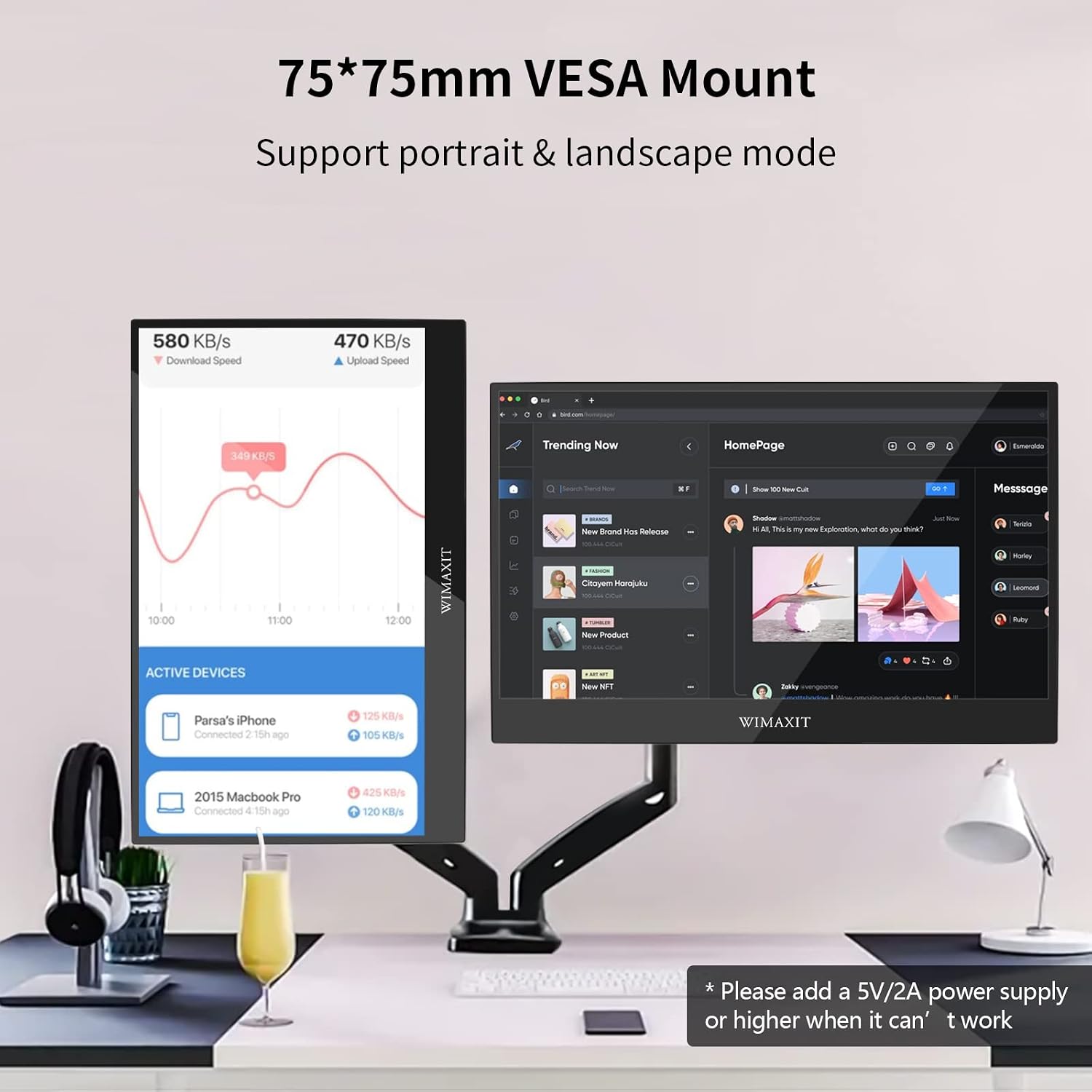
- VESA Mount Compatible: Features 75x75mm VESA mounting holes for flexible installation options.
3. Package Contents
Please check the box for the following items:
- WIMAXIT 15.6-inch Portable Touch Screen Monitor
- Magnetic Smart Cover
- USB-C to USB-C Cable
- USB-A to USB-C Cable
- HDMI to Mini HDMI Cable
- Power Adapter (USB Wall Charger)
- Screen Protector
- Cleaning Cloth
- User Manual (this document)
4. Physical Overview
Familiarize yourself with the monitor's ports and controls:
- Left Side:
- 3.5mm Earphone Jack: For connecting external headphones or speakers.
- Menu Buttons: Key buttons for navigating the On-Screen Display (OSD) menu.
- Exit Button: To exit OSD menu or go back.
- Right Side:
- Micro USB OTG: For connecting USB peripherals.
- Type-C Input (Power Only): Dedicated port for power input.
- Type-C Input (Video/Power/Touch): Full-function USB-C port for connecting compatible devices.
- HDMI Input (Video): For connecting devices via HDMI.
- Rear:
- VESA Mount (75x75mm): For mounting the monitor to compatible stands or arms.
5. Setup Instructions
Follow these steps to connect your WIMAXIT portable monitor to various devices:
5.1. Using the Magnetic Cover as a Stand
The included magnetic cover can be folded to create a stable stand for your monitor, allowing for various viewing angles.

For a visual guide on setting up the cover stand, please refer to the video below:
Video: A short demonstration on how to correctly fold and use the magnetic cover to prop up the WIMAXIT portable monitor as a stand.
5.2. Connecting to a Laptop/PC
There are two primary ways to connect your monitor to a laptop or PC:
- Via USB-C (Full-Featured): If your laptop has a full-featured USB-C port (Thunderbolt 3 or USB 3.1 Gen 2), you can use a single USB-C to USB-C cable for video, power, and touch functionality. Connect one end of the USB-C cable to your laptop's USB-C port and the other end to the monitor's full-function Type-C port.
- Via HDMI and USB-A/USB-C (for power/touch): If your laptop does not have a full-featured USB-C port, or if you prefer HDMI for video, connect the HDMI to Mini HDMI cable from your laptop to the monitor's HDMI port. Then, connect the USB-A to USB-C cable from your laptop's USB-A port to the monitor's power-only Type-C port for power, or to the full-function Type-C port for power and touch.

5.3. Connecting to an Android Smartphone
For compatible Android phones (requiring USB-C 3.1 Gen 2), you can connect using a single USB-C to USB-C cable for video, power, and touch. Ensure your phone supports video output via USB-C (e.g., Samsung DeX mode, Huawei EMUI Desktop).
- Connect one end of the USB-C to USB-C cable to your smartphone and the other end to the monitor's full-function Type-C port.
- If the phone's power supply is insufficient, connect the USB-A to USB-C power cable from a power adapter (or power bank) to the monitor's power-only Type-C port.

5.4. Connecting to Gaming Consoles (e.g., Nintendo Switch, PS4/Xbox)
To connect gaming consoles:
- Connect the HDMI to Mini HDMI cable from your console to the monitor's HDMI port.
- Connect the USB-A to USB-C cable from the console's USB port (or a separate power adapter) to the monitor's power-only Type-C port to provide power. For Nintendo Switch, it is recommended to use the original Switch power adapter.

See the video below for a demonstration of connecting to a Nintendo Switch:
Video: A detailed review of the WIMAXIT 15.6-inch monitor, including an unboxing, a look at its various ports, and a demonstration of connecting it to a Nintendo Switch for gaming.
6. Operating Instructions
6.1. Power On/Off
- To power on the monitor, ensure it is connected to a power source (either via a full-function USB-C connection or the dedicated power input) and press the power button (usually integrated with the menu buttons).
- To power off, press and hold the power button until the screen turns off.
6.2. On-Screen Display (OSD) Menu
Use the menu buttons on the side of the monitor to navigate and adjust settings such as brightness, contrast, color temperature, input source, and audio volume.
6.3. Touch Screen Functionality
The monitor supports 10-point multi-touch input. This feature is compatible with Windows OS and specific Android phones that support touch input over USB-C. Ensure your device is properly connected via a full-function USB-C cable for touch to work.

6.4. Audio Output
Audio is output through the built-in dual rear speakers. You can also connect external headphones or speakers via the 3.5mm earphone jack for private listening or higher quality audio.
7. Maintenance
- Cleaning: Use the provided cleaning cloth or a soft, lint-free cloth to gently wipe the screen. For stubborn smudges, lightly dampen the cloth with water or a screen-safe cleaner. Avoid harsh chemicals or abrasive materials.
- Storage: When not in use, store the monitor in its magnetic cover to protect the screen from scratches and impacts. Keep it in a cool, dry place away from direct sunlight and extreme temperatures.
- Handling: Handle the monitor with care. Avoid dropping it or applying excessive pressure to the screen.
8. Troubleshooting
| Problem | Possible Cause | Solution |
|---|---|---|
| No Signal | Incorrect input source selected; loose cable connection; device not outputting video. | Check all cable connections. Ensure the correct input source is selected in the OSD menu. Verify your device is configured to output video. |
| Monitor does not power on | Insufficient power supply; faulty cable/adapter. | Ensure the monitor is connected to a sufficient power source (e.g., wall adapter). Try a different USB-C cable or power adapter. |
| Touchscreen not working | Device incompatibility; incorrect connection; driver issue. | Ensure your device (Windows PC or Android phone) supports touch input over USB-C. Connect via the full-function Type-C port. For Windows, check display settings and drivers. |
| Screen flickering or unstable image | Cable issue; power issue; resolution/refresh rate mismatch. | Try a different cable. Ensure adequate power supply. Adjust display resolution or refresh rate on your connected device. |
| No audio | Volume too low; incorrect audio output selected on device; faulty speakers/headphones. | Increase monitor volume via OSD. Check audio output settings on your connected device. Test with headphones. |
9. Specifications
| Feature | Detail |
|---|---|
| Brand | WIMAXIT |
| Model Number | M1560CTV2 |
| Screen Size | 15.6 Inches |
| Native Resolution | 1920 x 1080 (FHD 1080p) |
| Aspect Ratio | 16:9 |
| Screen Surface | Matte |
| Contrast Ratio | 800:1 |
| Refresh Rate | 60 Hz |
| Display Type | LED, LCD |
| Viewing Angle | 85 Degrees |
| Brightness | 250 lm |
| Response Time | 15 Milliseconds |
| Connectivity Technology | HDMI, USB, USB 3.0, USB Type C |
| Total HDMI Ports | 1 |
| Item Dimensions (D x W x H) | 0.35"D x 8.82"W x 0.35"H |
| Item Weight | 4 Pounds |
| Additional Features | Portable with VESA mount |
10. Warranty and Support
For any product inquiries, technical support, or warranty information, please contact WIMAXIT customer service.
Customer Support Email: cs@andycine.com
Please have your product model number (M1560CTV2) and purchase details ready when contacting support.