
1. Overview
The Amazon Basics Electronic Keypad Deadbolt Door Lock offers convenient keyless entry with a touch-control keypad, providing enhanced security for your home. It features customizable security codes, an automatic locking function, and dual operation options including a traditional keyed entry. This deadbolt is designed for standard door preparations.

Image: Front view of the Amazon Basics Electronic Keypad Deadbolt, highlighting features such as programmable user codes, automatic locking, compatibility with left and right-handed doors, and dual electronic/keyed entry options.
2. Package Contents
Before beginning installation, please ensure all components are present:
- Deadbolt Keypad Assembly
- Receiver Assembly
- Deadbolt Latch
- Mounting Plate
- Cylinder
- Strike Plate
- Square Corner Latch
- Drive-in Sleeve
- 2 Keys
- Screw Pack (Deadbolt Chassis Screws x2, Machine Screws x3, Wood Screws x5)

Image: All parts included in the Amazon Basics Electronic Keypad Deadbolt package, including the keypad, interior assembly, latch, strike plate, keys, and various screws.
3. Installation
Follow these steps carefully for proper installation. An official installation video is provided below for visual guidance.
Video: Official Amazon Basics installation guide for the Traditional Electronic Keypad Deadbolt. This video demonstrates the complete installation process from start to finish.
3.1 Door Compatibility and Measurements
This lock is designed to fit standard door preparations. Verify your door's dimensions before installation.
- Door Holes: Only suitable for 2-1/8 inches (54.1 mm) center hole.
- Door Thickness: 1-3/8 inches to 1-3/4 inches (35.1 mm to 50.8 mm).
- Backset: 2-3/8 inches or 2-3/4 inches (60.5 mm or 69.9 mm).
- Bore Diameter: 1 inch (25.4 mm).

Image: Diagram illustrating door compatibility, showing required dimensions for door holes, thickness, and backset for the deadbolt installation.
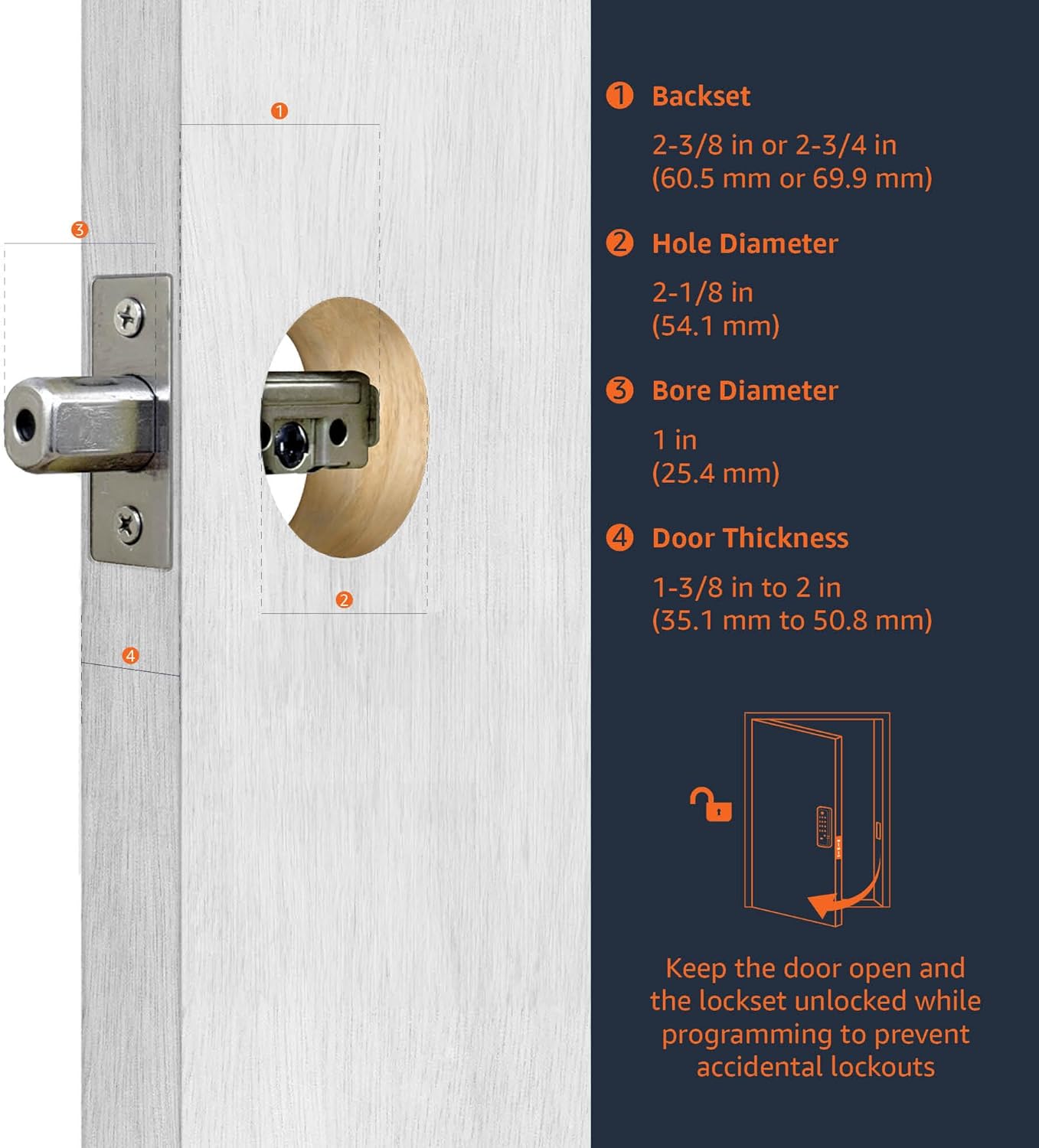
Image: Close-up diagram detailing the backset, hole diameter, bore diameter, and door thickness requirements for installing the deadbolt.
3.2 Latch Installation
Insert the deadbolt latch into the door edge. Ensure it is parallel to the door face. Secure it with the provided wood screws. (Refer to video 0:20-1:00)
3.3 Keypad Assembly Installation
Install the exterior keypad assembly, ensuring the tailpiece passes through the latch. (Refer to video 1:00-1:30)
3.4 Interior Assembly Installation
Attach the interior mounting plate, then connect the inner and outer harness connectors. Secure the interior assembly to the door with screws. (Refer to video 1:30-2:00)
3.5 Battery Installation
Insert 4 (AA) 1.5V alkaline batteries into the interior assembly. Alkaline batteries are recommended for stable power supply. Cover the battery lid. (Refer to video 2:00-2:15)
4. Setup & Programming
After installation, program your lock for optimal functionality. The default Programming Code (PC) is 0000.
4.1 Door Handing Identification Process
The lock needs to learn if it's installed on a right-handed or left-handed door. This is crucial for correct operation. (Refer to video 2:15-2:45)
- Enter PC (0000) then press the Lock/Unlock button.
- Press '0' then press the Lock/Unlock button.
- The lock will perform a self-check to identify door handing.
4.2 Change Programming Code (PC)
Change the default PC for security. Programming Codes should be 4-10 digits in length. (Refer to video 2:45-3:15)
- Enter current PC then press the Lock/Unlock button.
- Press '4' then press the Lock/Unlock button.
- Enter new PC then press the Lock/Unlock button.
4.3 Create New User Code (UC)
Up to 6 sets of user codes can be saved. User codes should be 4-10 digits in length. (Refer to video 3:15-3:45)
- Enter PC then press the Lock/Unlock button.
- Press '1' then press the Lock/Unlock button.
- Enter new UC then press the Lock/Unlock button.
4.4 Delete an Existing User Code (UC)
(Refer to video 3:45-4:00)
- Enter PC then press the Lock/Unlock button.
- Press '2' then press the Lock/Unlock button.
- Enter the UC you want to delete then press the Lock/Unlock button.
4.5 Delete All User Codes (UC) at once
Auto-locking and Keypad locking functions will be invalid when User Codes are deleted. The lock can only be operated by key during that time. (Refer to video 4:00-4:15)
- Enter PC then press the Lock/Unlock button.
- Press '3' then press the Lock/Unlock button.
4.6 Toggle Auto-Lock On/Off
The preset delay-time is 30 seconds. (Refer to video 4:15-4:30)
- Enter PC then press the Lock/Unlock button.
- Press '5' then press the Lock/Unlock button.
4.7 Set Auto-Lock Time Delay
10-99 seconds delay-time available. (Refer to video 4:30-4:45)
- Enter PC then press the Lock/Unlock button.
- Press '6' then press the Lock/Unlock button.
- Enter seconds (10-99) then press the Lock/Unlock button.
4.8 Enable / Disable All User Codes
Auto-locking and keypad locking functions will be invalid when user codes are disabled. The lock can only be operated by key during the time. (Refer to video 4:45-5:00)
- Enter PC then press the Lock/Unlock button.
- Press '8' then press the Lock/Unlock button.
4.9 Create a One-Time User Code
User Codes should be 4-10 digits in length. The one-time user code will automatically cancel after it is used one time. (Refer to video 5:00-5:15)
- Enter PC then press the Lock/Unlock button.
- Press '9' then press the Lock/Unlock button.
- Enter One Time Code then press the Lock/Unlock button.
4.10 Restore Default Settings
The programming is reset back to the original factory codes once you hear 3 long beeps. New installation or restoring default setting: you must run the door handing identification process first. (Refer to video 5:15-5:30)
- Press the 'R' button for more than 5 seconds.
5. Operating Instructions
Once installed and programmed, operating your deadbolt is straightforward:
- To Unlock: Enter your programmed User Code (UC) on the keypad, then press the Lock/Unlock button. The deadbolt will retract.
- To Lock: Press and hold any button on the keypad for a few seconds, or press the Lock/Unlock button. The deadbolt will extend. If auto-lock is enabled, the deadbolt will automatically extend after the set delay time.
- Keyed Entry: Use the traditional key provided as an alternative entry method.
6. Maintenance
Regular maintenance ensures the longevity and optimal performance of your deadbolt:
- Battery Replacement: Replace all four AA alkaline batteries when the low battery indicator appears or when the lock's operation becomes sluggish. To access the battery compartment, slide off the cover on the interior assembly.
- Cleaning: Clean the keypad and exterior surfaces with a soft, damp cloth. Avoid abrasive cleaners or solvents that could damage the finish or electronic components.
- Lubrication: Periodically lubricate the deadbolt latch mechanism with a silicone-based lubricant to ensure smooth operation.
7. Troubleshooting
If you encounter issues with your deadbolt, consider the following common solutions:
- Lock Not Responding: Check the batteries. Ensure they are correctly inserted and have sufficient charge. Replace with new alkaline batteries if necessary.
- Incorrect Code Entry: If the lock flashes red or beeps incorrectly, re-enter your user code carefully. Ensure the correct programming code is used for programming functions.
- Deadbolt Not Extending/Retracting: Verify that the door is properly aligned and not binding. Ensure the door handing identification process was completed correctly after installation or factory reset.
- Forgotten Codes: If you forget your user codes, you can delete all user codes (Step 4.5) or perform a factory reset (Step 4.10) and reprogram.
8. Specifications
| Feature | Detail |
|---|---|
| Brand | Amazon Basics |
| Model Name | PL14910 |
| Special Feature | Keyless |
| Lock Type | Keypad |
| Item Dimensions (L x W x H) | 9.05 x 6.13 x 2.99 inches |
| Style | Traditional |
| Color | Matte Black |
| Number of Pieces | 1 |
| Finish Type | Satin |
| Included Components | Screw pack, latch, strike and keys |
| Controller Type | Hand Control |
| Item Weight | 2.07 pounds (0.94 Kilograms) |
| Control Method | Touch |
| UPC | 193598101164 |
| Batteries Required? | Yes (4x AA, not included) |
9. Warranty and Support
For warranty information and customer support, please refer to the documentation included with your product or visit the official Amazon Basics support page. Keep your purchase receipt for warranty claims.


