
Sortfle AC123-06
Sortfle AC123-06 6 Channel Wireless RF433.92 Controller Transmitter Remote Instruction Manual
Model: AC123-06
Product Overview
The Sortfle AC123-06 is a 6-channel wireless RF433.92 controller transmitter remote designed for electric blinds. It allows for convenient control of individual shades, groups of shades, or all shades within a home, offering flexibility and ease of use.

Figure 1: Sortfle AC123-06 Remote Control
This remote operates on a Radio Frequency (RF) of 433.92MHz, enabling wireless control from various locations within your home. Its ergonomic design ensures comfortable handling and intuitive operation.
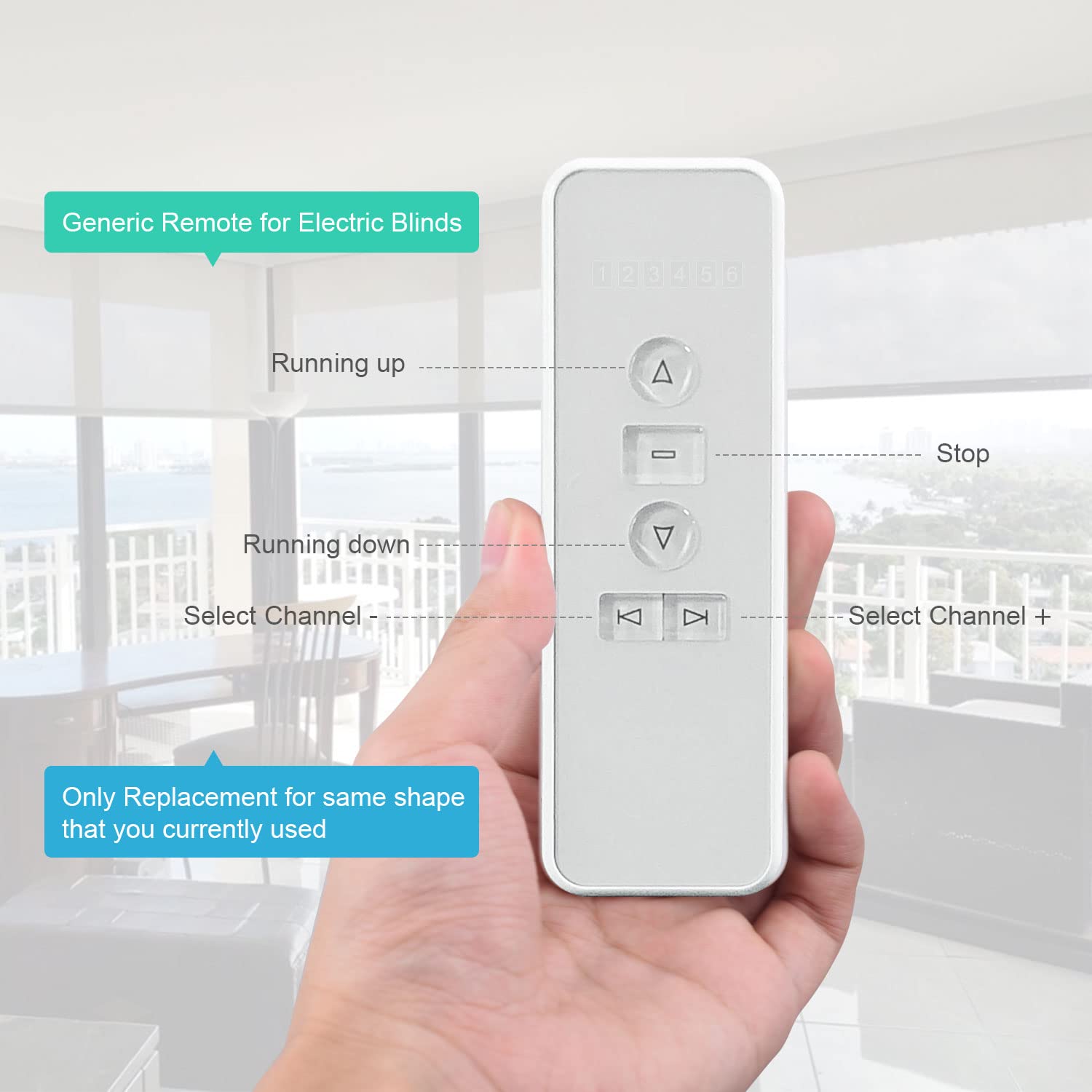
Figure 2: Remote Control Buttons Overview (Running up, Stop, Running down, Select Channel -, Select Channel +)
The package includes the AC123-06 Remote Control, a wall mount base with hardware, and a CR2032 battery.
Compatibility
The AC123-06 remote is compatible with A-OK RF Motors and is designed as a replacement for remotes with the same appearance and functionality. It is compatible with the following remote series: AC114, AC123, AC127, AC136, AC140, AC141, AC145, and AC153 series.
Important Note:
- This remote does NOT work with LEVOLOR Blinds, Hunter-Douglas blinds, or Bali Blinds.
- If your current remote has a different model or shape, this remote may not be compatible.

Figure 3: Compatibility Information
Setup and Pairing
Follow these steps to pair your AC123-06 remote with your electric blinds motor and set the operational limits.
1. Power On and Motor Pairing
- Select the desired channel on your remote (1-6) that you wish to program for your shade.
- Locate the program button on the motor head of your electric blind.
- Press and hold the program button on the motor head until you hear a beep and the shade quickly jogs up and down. This indicates the motor is ready for pairing.
- Immediately press the Up button on your AC123-06 remote. The shade will jog again, confirming successful pairing.
Video 1: How to Program DIY Motorized Blinds AC123 Motor (Relevant segment: 0:00 - 0:21)
This video demonstrates the process of powering on the motor and pairing it with the remote control, including visual cues for successful pairing.
2. Adjusting Motor Direction (if necessary)
If the shade moves in the opposite direction to the Up/Down buttons on your remote, you need to change the motor's direction:
- Press and hold the Stop button on your remote for 5 seconds.
- The motor will jog up and down once.
- Immediately press the Down button. The motor will jog once again, indicating the direction has been successfully changed.
If the direction is already correct, no action is needed.
Video 2: How to Program DIY Motorized Blinds AC123 Motor (Relevant segment: 0:22 - 0:39)
This video demonstrates how to reverse the motor's direction if the Up/Down buttons are not aligned with the shade's movement.
3. Adjusting Upper and Lower Limits
Setting the upper and lower limits ensures your shade stops precisely where you want it.
Setting the Upper Limit:
- Press the PROG button located on the back of your remote control (you may need a small pin or paperclip). The shade will jog, indicating it is in limit setting mode.
- Press the Up button on the remote to move the shade upwards. Stop the shade when it reaches your desired upper position.
- Once the shade is at the desired upper limit, press the PROG button on the back of the remote again. The motor will respond with a jog, confirming the upper limit position is saved.
Setting the Lower Limit:
- Press the PROG button on the back of your remote. The shade will jog, indicating it is in limit setting mode.
- Press the Down button to lower the shade. Stop the shade when it reaches your desired bottom limit.
- Once the shade is at the desired lower limit, press the Stop button, then immediately press the PROG button on the back of the remote again. The shade will jog to confirm that your lower limit is now saved.
Video 3: How to Program DIY Motorized Blinds AC123 Motor (Relevant segment: 0:40 - 2:04)
This video provides a detailed guide on adjusting both the upper and lower operational limits of your electric blinds using the remote control.
Operating Instructions
The AC123-06 remote offers simple and intuitive control over your electric blinds.

Figure 4: Remote Control Functions (Running Up, Stop, Running Down, Select Channel -, Select Channel +)
- Channel Selection: Use the < (Channel -) and > (Channel +) buttons to select the desired channel (1-6). The selected channel number will be indicated on the remote's display.
- Raise Shade: Press the Up button (triangle pointing up) to raise the blinds.
- Lower Shade: Press the Down button (triangle pointing down) to lower the blinds.
- Stop Shade: Press the Stop button (horizontal line) to halt the blinds at any desired position.
Video 4: Sortfle AC123-06D Remote Control (Relevant segment: 0:00 - 0:27)
This short video demonstrates the physical appearance and basic operation of the remote control.

Figure 5: Remote in use for drapery control
Maintenance
Battery Replacement
The remote control uses one CR2032 Lithium Metal battery (included). When the remote's performance degrades or it stops responding, it's likely time to replace the battery.
- Locate the battery compartment on the back of the remote.
- Open the compartment using a small coin or screwdriver if necessary.
- Remove the old CR2032 battery.
- Insert a new CR2032 battery, ensuring the positive (+) side is facing up.
- Close the battery compartment securely.
Cleaning
To clean the remote, wipe it gently with a soft, dry cloth. Do not use abrasive cleaners or immerse the remote in water.
Troubleshooting
| Problem | Possible Cause | Solution |
|---|---|---|
| Remote not responding. | Low or dead battery. | Replace the CR2032 battery. |
| Shade moves in the wrong direction. | Motor direction needs to be reversed. | Follow "Adjusting Motor Direction" steps in the Setup section. |
| Shade does not stop at desired upper/lower limits. | Limits are not set or incorrectly set. | Follow "Adjusting Upper and Lower Limits" steps in the Setup section. |
| Remote not pairing with motor. | Incorrect pairing procedure or motor memory issue. | Ensure correct pairing steps are followed. If issues persist, perform a factory reset. |
| Remote is not compatible with blinds. | Blinds are not A-OK RF Motors or are from an incompatible brand (e.g., LEVOLOR, Hunter-Douglas, Bali). | Verify compatibility with your blinds motor. This remote is specifically for A-OK RF Motors. |
Performing a Factory Reset
A factory reset will erase all existing settings on your motor, including paired remotes and set limits. This is useful if you are experiencing persistent issues or wish to reconfigure your motor from scratch.
- Locate the program button on the motor head.
- Press the program button on the motor head five times (one second per press).
- On the fifth press, hold the button for 3 seconds until the motor jogs twice.
The motor's memory and all presets have now been deleted. You will need to immediately re-pair the motor with your remote and set new upper and lower limits as described in the "Setup and Pairing" section.
Video 5: How to Program DIY Motorized Blinds AC123 Motor (Relevant segment: 2:05 - 2:37)
This video illustrates the procedure for performing a factory reset on the motor, clearing all previous settings.
Specifications
- Model: AC123-06
- Channels: 6
- Radio Frequency: RF 433.92MHz
- Power Source: 1 x CR2032 Lithium Metal battery (included)
- Voltage: 3 Volts
- Product Dimensions: 5 x 1.65 x 0.5 inches
- Weight: 2.89 ounces
- Material: 6 Channel remote
- Manufacturer: 6DUSHOP
- Country of Origin: China
- ASIN: B07J4CDRWJ
- UPC: 612289935937

Figure 6: Remote Control Dimensions
Warranty and Support
For warranty information, technical support, or further assistance, please contact Sortfle customer service through the retailer where the product was purchased or visit the official Sortfle brand store online.
You can find more information and products from Sortfle at their official store: Sortfle Store.
Ask a question about this manual
Ask about setup, troubleshooting, compatibility, parts, safety, or missing instructions. Manuals+ will review the question and use this page’s manual context to help answer it.