
Introduction
The Adesso iMouse T40 is a wireless ergonomic finger trackball mouse designed to provide comfort and precision for users. Its unique trackball design minimizes excessive hand movement, making it suitable for extended use. The mouse operates on a 2.4 GHz radio frequency, offering a wireless range of up to 30 feet. It features a programmable 7-button design and 5 levels of DPI sensitivity (400-4800) for customized control. The optical sensor ensures superior accuracy and smooth motion. The ergonomic contour and large size are intended to help relieve wrist pain and maintain productivity.
Setup
Follow these steps to set up your iMouse T40 trackball mouse:
- Insert Batteries: The iMouse T40 requires two AAA batteries. Locate the battery compartment on the underside of the mouse. Open the compartment, insert the batteries, and close the cover.

Image: Underside view of the iMouse T40, highlighting the battery compartment and the ON/OFF switch. The model number and serial number are also visible.
- Connect USB Receiver: The mouse comes with a Nano USB receiver. This receiver is typically stored inside or alongside the mouse. Insert the USB receiver into an available USB port on your computer.

Image: A diagram illustrating the wireless USB receiver being inserted into a laptop's USB port, indicating the connection process.
- Power On: Flip the ON/OFF switch on the underside of the mouse to the "ON" position.
- Driver Installation (Optional for Customization): The mouse is plug-and-play for basic functionality. For advanced customization, such as changing button assignments, DPI sensitivity, scrolling speed, and macros, you can download the programmable driver from the Adesso website.
Visit https://www.adesso.com/download/iMouse_T40_driver.zip to download the driver. Once downloaded, extract the compressed file and run the setup.exe to begin the installation process. Follow the on-screen prompts to complete the installation.
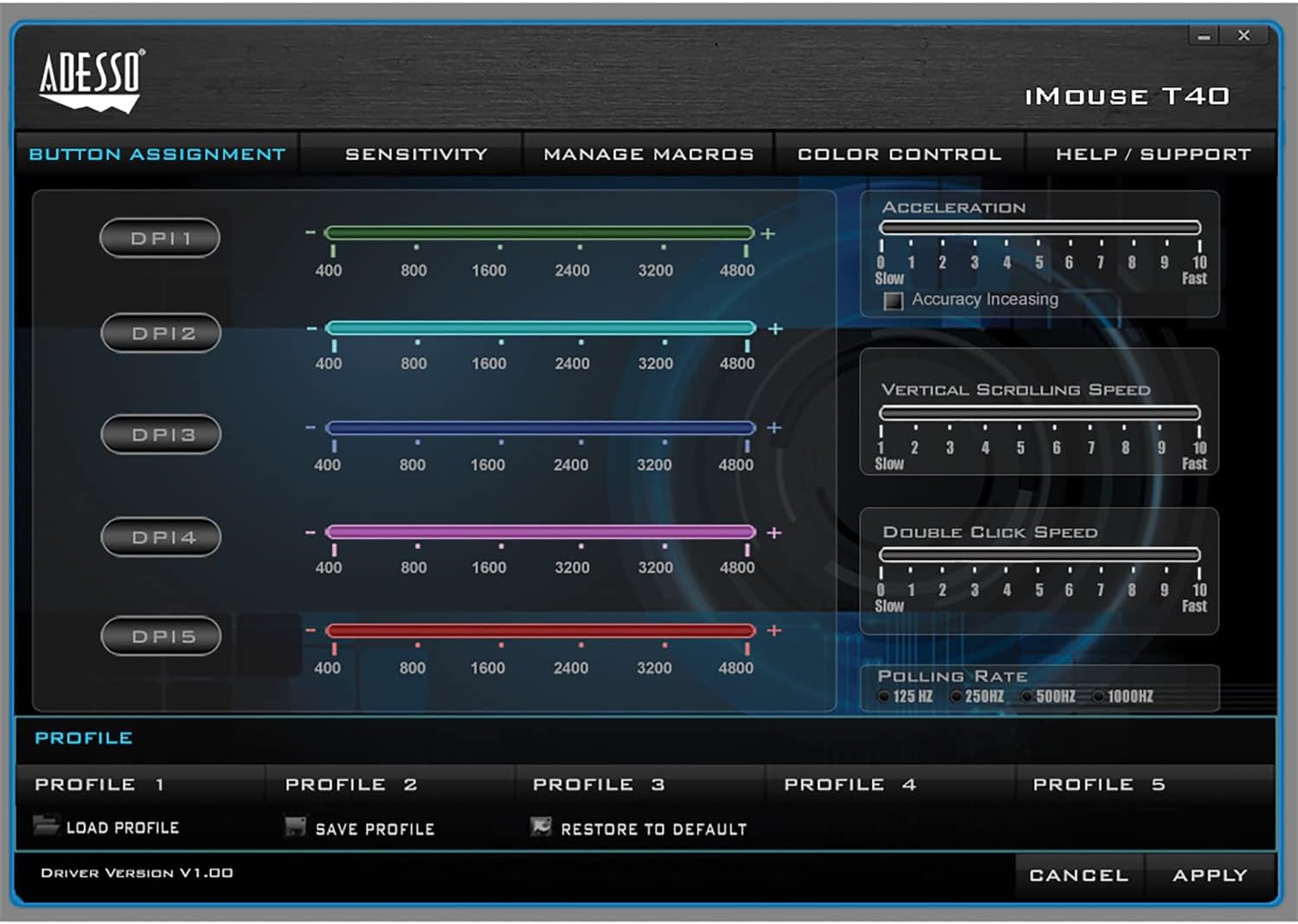
Image: Screenshot of the iMouse T40 driver software, showing the "Button Assignment" tab where users can customize the function of each of the mouse's 7 buttons.
Operating Instructions
The iMouse T40 is designed for intuitive use with its ergonomic shape and strategically placed buttons.

Image: Top-down view of the iMouse T40, clearly labeling the Left Click, Right Click, Middle Click (scroll wheel), DPI Up, DPI Down, Backward, and Forward buttons, along with the central trackball.
- Trackball Control: Use your fingers (typically index, middle, or ring finger) to move the red trackball to control the cursor on the screen. This reduces wrist movement.
- Left/Right Click: The primary left and right click buttons are positioned ergonomically for comfortable access.
- Scroll Wheel (Middle Click): The scroll wheel allows for smooth vertical scrolling. Pressing the scroll wheel typically acts as a middle click.
- DPI Adjustment: Use the DPI Up and DPI Down buttons (located below the scroll wheel) to cycle through 5 levels of DPI sensitivity (400, 800, 1600, 3200, 4800). This allows you to adjust cursor speed to your preference.
- Forward/Backward Buttons: Dedicated buttons on the side of the mouse allow for quick navigation forward and backward in web browsers or file explorers.
- Programmable Buttons: All 7 buttons can be customized using the downloadable driver software to assign specific functions, macros, or hotkeys.
Maintenance
Regular maintenance ensures optimal performance and longevity of your trackball mouse:
- Cleaning the Trackball: Dust and debris can accumulate around the trackball, affecting its smoothness. To clean, simply push the trackball outward from its back. Wipe the trackball and the inside of its socket with a soft, lint-free cloth. Reinsert the trackball firmly into place.
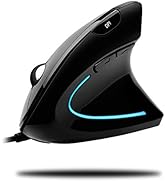
Image: A diagram illustrating the simple process of removing the trackball from the mouse by pushing it from the underside, facilitating easy cleaning.
- Battery Replacement: When the mouse's performance degrades or it stops responding, replace the AAA batteries. Ensure correct polarity when inserting new batteries.
- General Cleaning: Wipe the exterior of the mouse with a soft, damp cloth. Avoid using harsh chemicals or abrasive materials.
Troubleshooting
If you encounter issues with your iMouse T40, try the following solutions:
- Mouse Not Responding:
- Check if the mouse is powered on.
- Ensure the USB receiver is securely plugged into a working USB port. Try a different USB port.
- Replace the batteries with fresh AAA batteries.
- Re-establish connection: Turn off the mouse, remove the USB receiver, wait a few seconds, then reinsert the receiver and turn on the mouse.
- Cursor Movement is Erratic or Slow:
- Clean the trackball and its optical sensor as described in the Maintenance section.
- Adjust the DPI sensitivity using the DPI buttons or through the driver software.
- Ensure there are no obstructions between the mouse and the USB receiver.
- Programmable Features Not Working:
- Ensure the driver software is correctly installed.
- Restart your computer after driver installation.
- Verify button assignments within the driver software and click "Apply".
- Wireless Connection Issues:
- Ensure the mouse is within the 30-foot wireless range of the receiver.
- Minimize interference from other 2.4 GHz wireless devices.
Specifications
| Feature | Detail |
|---|---|
| Brand | ADESSO |
| Model Number | iMouse T40 |
| Connectivity Technology | 2.4 GHz Wireless (up to 30 feet) |
| Movement Detection Technology | Optical Trackball |
| DPI Levels | 5 levels (400, 800, 1600, 3200, 4800) |
| Number of Buttons | 7 (Programmable) |
| Ergonomic Design | Contoured for left and right hand use |
| Trackball Size | 1.5 inches (removable for cleaning) |
| Power Source | 2 AAA batteries (included) |
| Operating System Compatibility | Windows® 2000 / XP / Vista / 7 / 8 / 10 |
| Item Weight | 4.8 ounces |
| Product Dimensions (LxWxH) | 6.6 x 4.5 x 2 inches |
Warranty and Support
For warranty information and technical support, please refer to the documentation included with your product or visit the official Adesso website. The product may be subject to a limited warranty. Keep your purchase receipt for warranty claims.
Legal Disclaimer: This product contains chemicals known to the State of California to cause cancer and birth defects or other reproductive harm.