1. Introduction
This manual provides essential information for setting up, operating, maintaining, and troubleshooting your HP EliteDesk 800 G2 Desktop Mini PC. Please read this guide thoroughly to ensure proper use and longevity of your device.
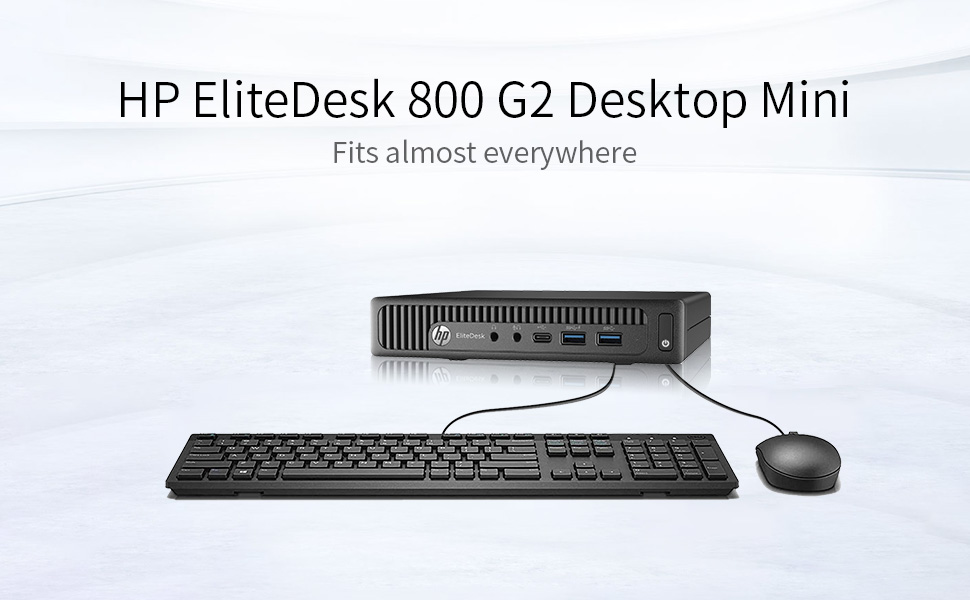
Image 1.1: HP EliteDesk 800 G2 Desktop Mini PC with included peripherals.
This image displays the compact HP EliteDesk 800 G2 Desktop Mini PC alongside a standard keyboard and mouse, illustrating its small form factor and typical desktop setup.
2. Product Overview
The HP EliteDesk 800 G2 Desktop Mini PC is a compact and powerful computing solution designed for business and general use. It features a robust Intel Quad-Core i5-6500T processor, 16GB DDR4 memory, and a 240GB SSD for fast performance. The system comes pre-installed with Windows 11.
2.1 Front Panel Features

Image 2.1: Front view of the HP EliteDesk 800 G2 Desktop Mini PC.
This image shows the front panel of the HP EliteDesk 800 G2, highlighting the power button, audio jacks, and USB ports for easy access.
- Power Button: Used to turn the PC on or off.
- Headphone Jack: Connect headphones or external speakers.
- Microphone Jack: Connect a microphone.
- USB 3.0 Ports (2): For connecting high-speed USB devices.
- USB Type-C Port: For connecting compatible USB-C devices.
2.2 Rear Panel Features

Image 2.2: Rear view of the HP EliteDesk 800 G2 Desktop Mini PC.
This image displays the rear panel of the HP EliteDesk 800 G2, detailing the various video output ports, additional USB ports, and the Ethernet connection.
- USB 3.0 Ports (4): For connecting additional USB devices.
- VGA Port: Connect to a monitor or projector using a VGA cable.
- DisplayPort (DP): Connect to a monitor or display using a DisplayPort cable.
- RJ-45 (Ethernet) Port: Connect to a wired network.
- Power Connector: Connect the power adapter.
3. Setup Instructions
Follow these steps to set up your HP EliteDesk 800 G2 Desktop Mini PC.
3.1 Unpacking
- Carefully remove the PC and all accessories from the packaging.
- Verify that all components are present: HP EliteDesk 800 G2 Mini PC, power adapter, power cord, USB keyboard, and USB mouse.
3.2 Connecting Peripherals
- Connect the Monitor: Use a VGA or DisplayPort cable to connect your monitor to the corresponding port on the rear of the PC.
- Connect Keyboard and Mouse: Plug the USB keyboard and USB mouse into any available USB ports on the front or rear of the PC.
- Connect to Network (Optional): For a wired connection, plug an Ethernet cable into the RJ-45 port on the rear of the PC. For wireless connectivity, ensure a compatible USB Wi-Fi adapter (if not integrated) is connected.
3.3 Powering On
- Connect the power adapter to the power connector on the rear of the PC, then plug the power cord into an electrical outlet.
- Press the power button on the front of the PC. The power indicator light will illuminate.
- The PC will boot up, and the Windows 11 operating system will load.
3.4 Initial Windows Setup
Upon first boot, you may be guided through the Windows 11 Out-of-Box Experience (OOBE) to configure basic settings such as language, region, network connection, and user accounts. Follow the on-screen prompts to complete this process.
4. Operating Instructions
Your HP EliteDesk 800 G2 Desktop Mini PC comes with Windows 11 Pro 64-bit pre-installed, offering a familiar and intuitive user experience.
4.1 Basic Navigation
- Start Menu: Access applications, settings, and power options.
- Taskbar: Pin frequently used applications and view open programs.
- File Explorer: Manage your documents, pictures, and other files.
4.2 Connecting to the Internet
- Wired Connection: If an Ethernet cable is connected, the PC should automatically detect and connect to the network.
- Wireless Connection: If using a Wi-Fi adapter, click the network icon in the taskbar, select your Wi-Fi network, enter the password, and click Connect.
4.3 Using USB Devices
Plug any USB device (e.g., external hard drive, printer, webcam) into an available USB port. Windows 11 will typically install the necessary drivers automatically.
4.4 Display Output
The PC supports multiple displays via its VGA and DisplayPort outputs. You can configure display settings (resolution, orientation, multiple displays) through Windows Display Settings.
5. Maintenance
Regular maintenance helps ensure optimal performance and extends the lifespan of your PC.
5.1 Cleaning
- Exterior: Use a soft, damp cloth to clean the exterior surfaces. Avoid harsh chemicals.
- Vents: Periodically clean dust from the ventilation grilles using compressed air to prevent overheating. Ensure the PC is powered off before cleaning.
5.2 Software Updates
Keep your Windows 11 operating system and drivers updated. Go to Settings > Windows Update to check for and install available updates.
5.3 Data Backup
Regularly back up important data to an external drive or cloud storage to prevent data loss.
6. Troubleshooting
This section addresses common issues you might encounter.
6.1 No Power
- Ensure the power cord is securely connected to both the PC and the electrical outlet.
- Verify the electrical outlet is functional by plugging in another device.
- Check the power adapter for any damage.
6.2 No Display
- Confirm the monitor is powered on and connected correctly to the PC's VGA or DisplayPort.
- Try a different display cable or monitor if available.
- Ensure the correct input source is selected on your monitor.
6.3 Slow Performance
- Close unnecessary applications running in the background.
- Check for and install any pending Windows updates.
- Run a disk cleanup and defragmentation (for HDD, not necessary for SSD).
- Scan for malware or viruses.
6.4 Further Assistance
If you encounter issues not covered here, refer to the official HP support website or contact their customer service for detailed troubleshooting guides and technical assistance.
7. Specifications
Below are the technical specifications for the HP EliteDesk 800 G2 Desktop Mini PC:
| Feature | Specification |
|---|---|
| Processor | Intel Quad-Core i5-6500T (up to 3.1 GHz) |
| RAM | 16 GB DDR4 SDRAM |
| Storage | 240 GB SSD (Solid State Drive) |
| Graphics | Integrated Intel HD Graphics 4000 |
| Operating System | Windows 11 Pro 64-bit |
| Video Output | 1x VGA, 1x DisplayPort |
| USB Ports (Front) | 2x USB 3.0, 1x USB Type-C |
| USB Ports (Rear) | 4x USB 3.0 |
| Network | RJ-45 Ethernet, Bluetooth (Wireless Type) |
| Audio | Headphone jack, Microphone jack |
| Dimensions (LxWxH) | 7.2 x 7.2 x 1.9 inches |
| Weight | 4.1 pounds |
8. Warranty and Support
This HP EliteDesk 800 G2 Desktop Mini PC is a Certified Refurbished product. It is tested and certified to look and work like new. The refurbishing process includes functionality testing, basic cleaning, inspection, and repackaging. The product ships with all relevant accessories and includes a minimum 90-day warranty.
For warranty claims, technical support, or further assistance, please refer to the documentation provided with your purchase or visit the official HP support website.