
Introduction
This manual provides essential instructions for the safe and efficient use of your Maxcom MM134 2G Senior Mobile Phone. Please read this manual thoroughly before operating the device and keep it for future reference.
1. Setup
1.1 Package Contents
Ensure all items are present in the box:
- Maxcom MM134 Mobile Phone
- Battery (Lithium-ion)
- Charger
- USB Cable
- Headset
- User Manual
1.2 Inserting the SIM Card and Battery
- Remove the back cover of the phone.
- Insert your SIM card into the designated slot. The MM134 supports a single SIM card.
- If using, insert a Micro SD card (up to 32GB) into its slot.
- Insert the Lithium-ion battery, ensuring the contacts align correctly.
- Replace the back cover until it clicks into place.
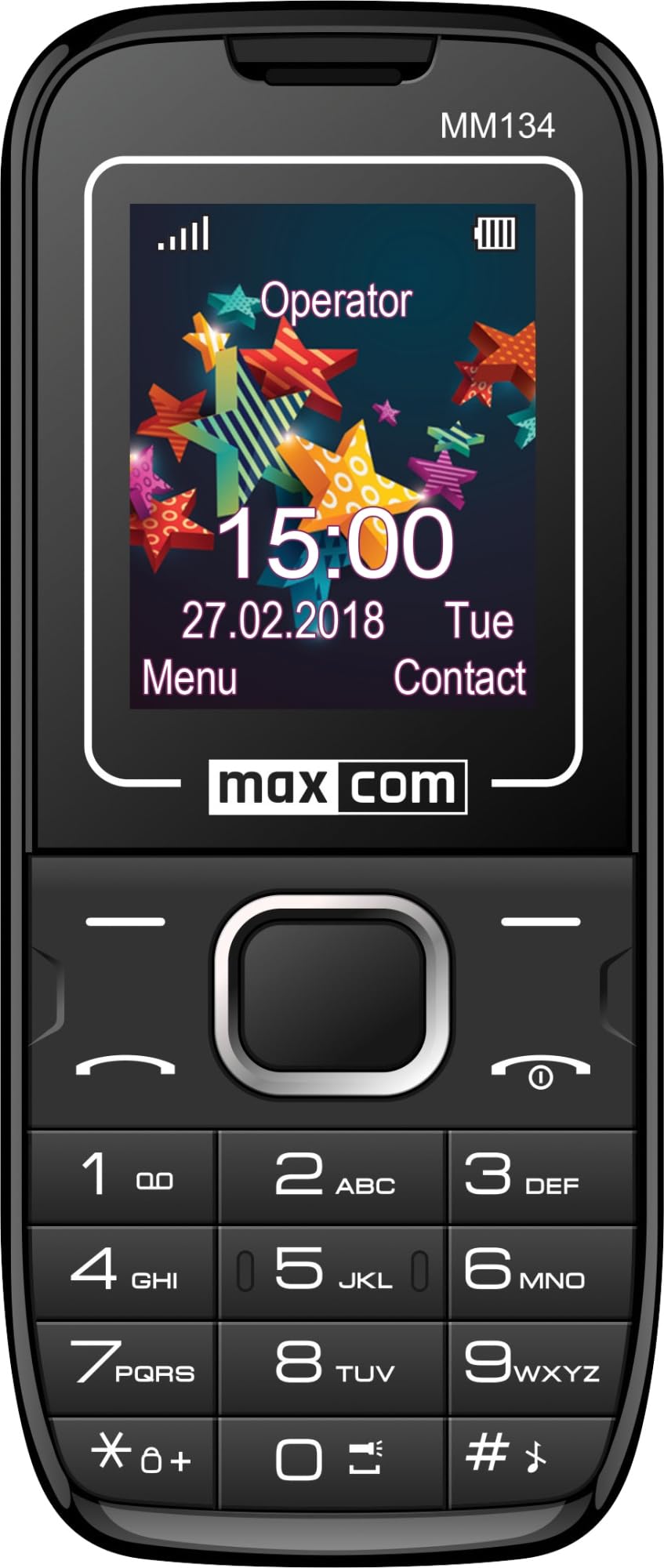
Image 1: Maxcom MM134 2G Senior Mobile Phone. This image shows the front of the phone, highlighting its compact design, screen, and large, easy-to-use buttons.
1.3 Charging the Phone
Connect the charger to the phone's charging port and plug it into a power outlet. The battery indicator on the screen will show charging status. Fully charge the phone before first use. The battery capacity is 800 mAh.
1.4 Powering On/Off
- To power on: Press and hold the Power/End Call button until the screen lights up.
- To power off: Press and hold the Power/End Call button, then confirm shutdown.
2. Operating Instructions
2.1 Making and Receiving Calls
- To make a call: Enter the phone number using the keypad and press the Call button.
- To answer a call: Press the Call button when the phone rings.
- To end a call: Press the Power/End Call button.
2.2 Contacts (Phonebook)
The phonebook can store up to 500 entries. Navigate to the "Contacts" menu to add, edit, or delete entries.
2.3 Sending and Receiving SMS Messages
The phone can store up to 200 SMS messages. Access the "Messages" menu to compose new messages or view received ones.
2.4 Bluetooth Connectivity
To enable Bluetooth, go to the "Settings" menu, then "Connectivity" or "Bluetooth". You can pair with other Bluetooth-enabled devices for hands-free communication or file transfer.
2.5 FM Radio
Plug in the headset (which acts as an antenna) to use the FM Radio function. Navigate to the "FM Radio" application in the menu to scan for stations.
2.6 Flashlight
The phone features a built-in flashlight. Typically, this can be activated by a dedicated button or through a quick access menu option.
2.7 Camera
The phone is equipped with a rear camera (0.08 MP). Access the "Camera" application from the main menu to take photos. Photos will be saved to the phone's memory or the inserted Micro SD card.
3. Maintenance
3.1 Battery Care
- Avoid exposing the battery to extreme temperatures.
- Do not puncture or damage the battery.
- Use only the original charger provided with the phone.
- If the phone will not be used for an extended period, charge it partially before storage and recharge every few months.
3.2 Cleaning
Wipe the phone with a soft, dry cloth. Do not use liquid cleaners or aerosols. The phone is not water-resistant.
4. Troubleshooting
| Problem | Solution |
|---|---|
| Phone does not turn on | Ensure the battery is correctly inserted and charged. Connect the charger and try again. |
| No network signal | Check if the SIM card is properly inserted. Move to an area with better network coverage. Contact your service provider if the issue persists. |
| Cannot make or receive calls | Verify that your SIM card is active and has sufficient credit/plan. Check network signal strength. |
| Battery drains quickly | Reduce screen brightness. Close unused applications. Limit background data usage. Ensure the battery is not old or damaged. The phone has a talk time of approximately 6 hours. |
5. Specifications
| Model Name | Classic MM134 |
| Brand | Maxcom |
| Operating System | Symbian |
| Cellular Technology | 2G (GSM 900/1800 MHz) |
| Connectivity Technology | Bluetooth, USB |
| Screen Size | 1.77 Inches (LCD) |
| CPU Model | Cortex (1.8 GHz) |
| Camera Description | Rear (0.08 MP) |
| Battery Type | Lithium-ion |
| Battery Capacity | 800 mAh |
| Talk Time | Up to 6 Hours |
| SMS Memory | Up to 200 messages |
| Phonebook Capacity | Up to 500 entries |
| Micro SD Card Support | Up to 32 GB |
| SIM Card Slots | Single SIM |
| Dimensions | 13 x 52 x 111 mm |
| Headphone Jack | 3.5 mm Jack |
| Water Resistance | No |
6. Warranty and Support
For warranty information and technical support, please refer to the warranty card included in your product package or visit the official Maxcom website. Keep your proof of purchase for warranty claims.
