
Introduction
Welcome to the user manual for your Maxcom MM135 2G Mobile Phone. This guide provides comprehensive instructions to help you get started, operate, and maintain your device. The Maxcom MM135 is a simple and elegant mobile phone, designed for straightforward communication with essential features.
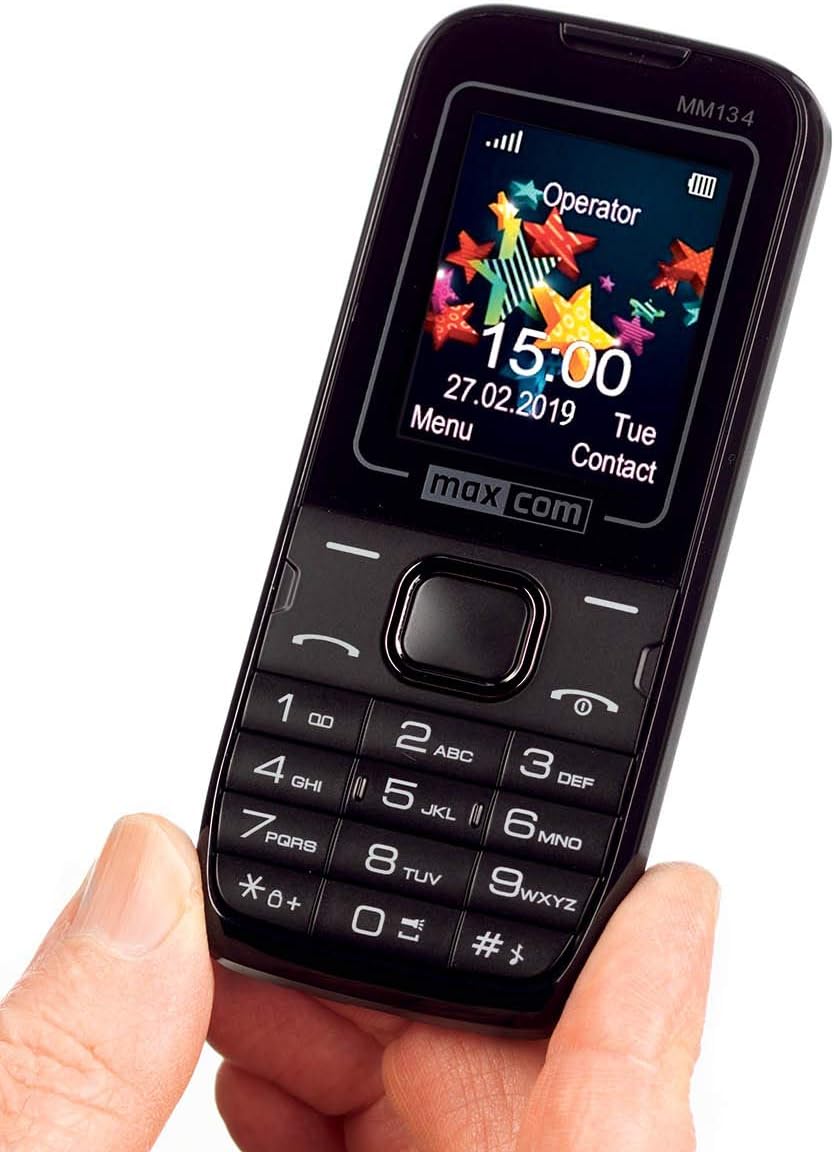
Image: Front view of the Maxcom MM135 mobile phone, showing the display, keypad, and navigation buttons. The screen displays "Operator", time, date, and menu options.
What's in the Box
Please check the contents of your Maxcom MM135 package. It should include:
- Maxcom MM135 Mobile Phone
- Battery (Lithium-ion)
- Charger
- USB Cable
- Headset
- User Manual
Setup
1. Installing the SIM Card and Battery
- Gently remove the back cover of the phone.
- Insert your SIM card(s) into the designated slot(s). The Maxcom MM135 supports Dual SIM.
- If using a microSD card (up to 32 GB), insert it into the memory card slot.
- Insert the Lithium-ion battery into its compartment, ensuring the contacts align.
- Replace the back cover until it clicks securely into place.

Image: Close-up view of the top or bottom edge of the Maxcom MM135, showing the 3.5mm audio jack and the USB charging port.
2. Charging the Battery
- Connect the USB cable to the charger adapter.
- Plug the small end of the USB cable into the charging port on your phone (3.5mm Jack).
- Plug the charger into a power outlet.
- Allow the phone to charge completely before first use. The battery indicator on the screen will show charging status.
Operating Instructions
Power On/Off
- To power on: Press and hold the Power/End Call button until the screen lights up.
- To power off: Press and hold the Power/End Call button, then select "Power off" from the options.
Making Calls
- From the home screen, dial the phone number using the keypad.
- Press the Call button (usually green) to initiate the call.
- To end a call, press the End Call button (usually red).
- To answer an incoming call, press the Call button.
Sending SMS Messages
- Go to Menu > Messages > Write Message.
- Enter your message using the keypad.
- Enter the recipient's phone number or select from contacts.
- Press Send. The phone can store up to 200 messages.
Contacts (Phonebook)
- Access contacts via Menu > Contacts.
- You can store up to 500 entries.
- To add a new contact, select Add New and enter the details.
Special Features
- Bluetooth: To enable Bluetooth, go to Menu > Settings > Connectivity > Bluetooth. You can pair with other Bluetooth-enabled devices for hands-free communication.
- FM Radio: Plug in the headset (which acts as an antenna) and go to Menu > FM Radio to listen to radio stations.
- Flashlight: The phone includes a built-in flashlight. Typically, this can be activated by a dedicated button or a long press on a specific key (e.g., '0' or a side button). Refer to your phone's quick start guide for exact activation.
- Camera: The phone features a 0.08 MP camera. Access it via Menu > Camera to take photos.
Maintenance
- Keep the phone dry. Moisture can damage electronic circuits.
- Do not expose the phone to extreme temperatures.
- Clean the phone with a soft, dry cloth. Avoid using harsh chemicals.
- Handle the phone with care to prevent physical damage.
- Ensure the charging port and headphone jack are free from dust and debris.
Troubleshooting
| Problem | Possible Solution |
|---|---|
| Phone does not power on | Ensure the battery is correctly inserted and fully charged. Try charging the phone for at least 30 minutes. |
| Cannot make or receive calls | Check if the SIM card is properly inserted and activated. Verify network signal strength. Ensure airplane mode is off. |
| Poor sound quality during calls | Check network signal. Ensure the speaker/earpiece is not blocked. Adjust call volume. |
| Battery drains quickly | Reduce screen brightness. Close unused applications. Limit background data usage. Ensure the battery is not old or damaged. |
| Bluetooth not connecting | Ensure Bluetooth is enabled on both devices. Make sure devices are within range. Try restarting both devices. |
Specifications
| Feature | Detail |
|---|---|
| Model Number | MM135 |
| Network Technology | 2G (GSM 900/1800 MHz) |
| Display Size | 1.77 Inches |
| Display Resolution | 160 x 128 pixels |
| SIM Card Slots | Dual SIM |
| Connectivity | Bluetooth, USB |
| Headphone Jack | 3.5 mm |
| Camera | 0.08 MP (Rear) |
| Flash Memory Support | microSD up to 32 GB |
| Phonebook Capacity | Up to 500 entries |
| SMS Memory | Up to 200 messages |
| Battery Type | Lithium-ion |
| Battery Capacity | 800 mAh (estimated) |
| Talk Time | Up to 6 Hours |
| Weight | 68 Grams |
| Dimensions | 111 x 47 x 13 mm (L x W x H) |
| Operating System | Symbian |
| Special Features | FM Radio, Flashlight, Hands-free function |
Warranty and Support
For warranty information and customer support, please refer to the warranty card included in your product package or visit the official Maxcom website. Keep your proof of purchase for any warranty claims.
Note: Information regarding spare parts availability and software updates is not available at this time.


