
GameSir VX1
GameSir VX Aimswitch User Manual
Model: VX1 | Brand: GameSir
Introduction
The GameSir VX Aimswitch is a versatile keyboard and mouse adapter designed to bring PC-like gaming precision to your console experience. It is compatible with mainstream console platforms including Xbox One, PS4, PS3, and Nintendo Switch, offering stable and instant wireless connection. This manual provides detailed instructions for setting up, operating, maintaining, and troubleshooting your device to ensure optimal performance.
Setup Guide
Package Contents
- GameSir VX Aimswitch Keypad
- GameSir GM190 Gaming Mouse
- Agility X 2.4GHz Wireless Dongle
- USB Cable

The GameSir VX Aimswitch package includes the one-handed mechanical keypad, a wired gaming mouse, and a 2.4GHz wireless dongle for seamless connectivity.
Connecting to Consoles
The GameSir VX Aimswitch is compatible with Xbox One, PS4, PS3, and Nintendo Switch. Follow these steps for initial setup:
- Ensure your console's original controller is powered on.
- Turn on the GameSir VX Aimswitch keypad using the power switch.
- Plug the GameSir GM190 gaming mouse into the USB port on the GameSir VX Aimswitch keypad.
- Insert the Agility X 2.4GHz wireless dongle into an available USB port on your console. The LED indicator light on the keypad and dongle should turn solid green, indicating a stable connection.
- Turn off your console's original controller.
- Connect your console's original controller to the GameSir VX Aimswitch keypad using a USB cable.
- On the keypad, press the 'Esc' key to finalize the connection.
This video demonstrates the step-by-step process of connecting the GameSir VX Aimswitch to a PlayStation 4 console, including powering on the keypad, connecting the mouse, inserting the wireless dongle, and linking the original controller.

The GameSir VX Aimswitch is compatible with a wide range of gaming consoles, including Xbox One, PS3, PS4, Nintendo Switch, and PC (Windows 7, 8, 10).

The Agility X 2.4GHz wireless dongle provides a stable and instant wireless connection with a maximum control range of 32.8 feet, requiring no additional drivers.

Scan the QR code or visit gamesir.hk/pages/g-crux to download the G-Crux mobile app for advanced configuration and customization.
Operating Instructions
Keypad Features
The GameSir VX Aimswitch keypad features authentic Blue mechanical switches, providing tactile feedback and a satisfying click for each keypress. Each key is configurable via the GameSir G-Crux mobile app when the keypad is connected to a mobile device.

The keypad utilizes TTC mechanical blue switches, known for their distinct click and tactile feel, preferred by many gamers.
Mouse Features
The included gaming mouse is designed for precision and comfort. It features adjustable DPI settings and configurable side buttons, pre-tuned for optimal compatibility with consoles. The mouse is lightweight and designed for extended gaming sessions.
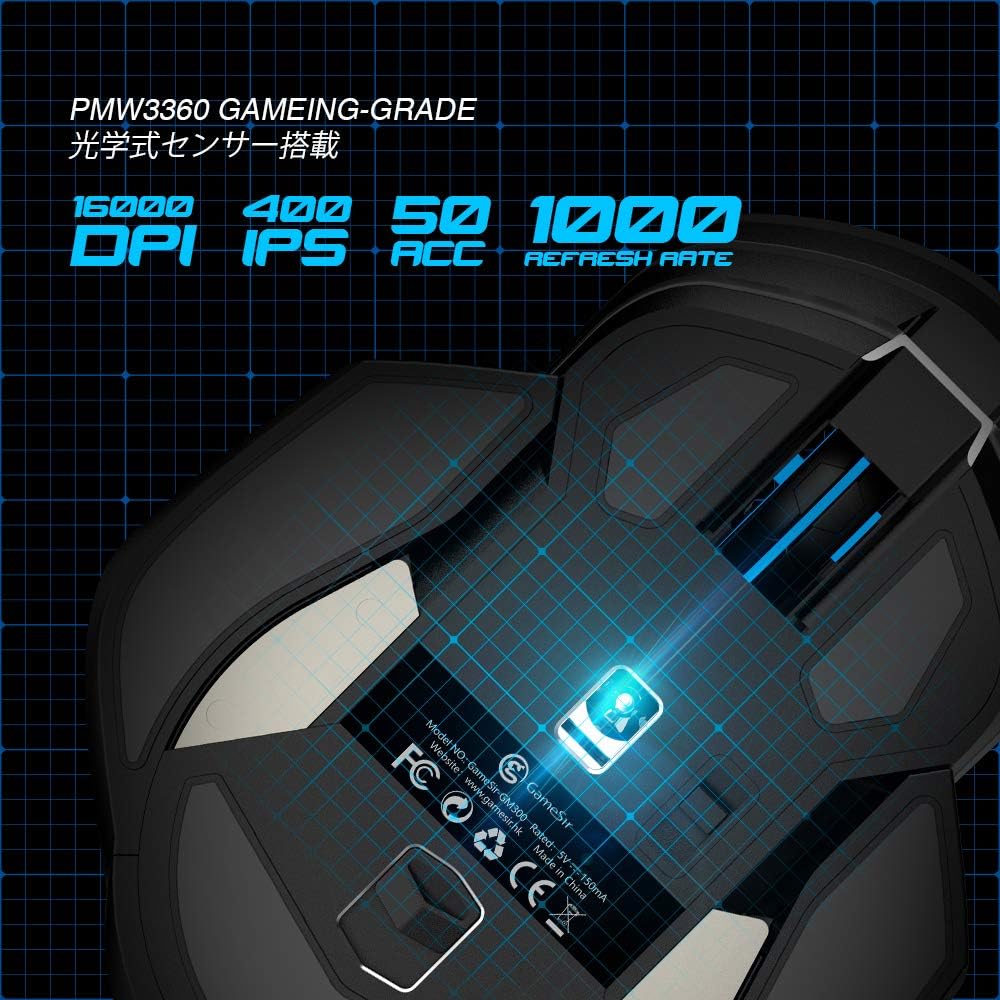
The gaming mouse features a PMW3360 gaming-grade optical sensor, offering up to 16000 DPI, 400 IPS, 50 ACC, and a 1000Hz refresh rate for precise tracking.
Customization with G-Crux App
The GameSir G-Crux mobile app allows for extensive customization of your VX Aimswitch. You can configure individual keys on the keypad, adjust mouse sensitivity (DPI), and fine-tune various settings to suit your gaming style. It is recommended to update the firmware to the latest version via the app for the best experience.

The G-Crux app provides a user-friendly interface for customizing key bindings, mouse settings, and other parameters for an optimized gaming experience.
Care and Maintenance
- Keep the device clean by wiping it with a soft, dry cloth. Avoid using harsh chemicals or abrasive materials.
- Do not expose the device to extreme temperatures, humidity, or direct sunlight.
- Store the device in a cool, dry place when not in use.
- Avoid dropping or subjecting the device to strong impacts.
- Ensure cables are not bent or kinked excessively to prevent damage.
Troubleshooting
- Mouse Delay in Game: Try adjusting the dead zone value via the G-CRUX app.
- Button Customization: While the device can be used out of the box, it is highly recommended to apply the recommended configuration via the G-CRUX app for optimal performance.
- Headset Support: The GameSir VX Aimswitch does not support headset or voice chat functions directly. It is recommended to connect your headset directly to your console (PS3, PS4, Xbox One, Switch).
- Keypad Used Separately: The GameSir VX keypad cannot be used separately from the mouse and dongle. Replacing it with another brand's keyboard is not recommended.
- Game Compatibility: The GameSir VX supports popular FPS games on consoles. If a specific game configuration is not found on G-CRUX, you can customize it yourself or contact GameSir support for assistance.
- Nintendo Switch Connection Issues:
- Ensure "Pro Controller Wired Communication" is enabled on your Switch.
- Enter the "Change Grip/Order" interface and remain there.
- Power on the GameSir VX gaming keypad. The LED indicator light should flash green.
- Plug the GameSir GM190 gaming mouse into the USB port of the keypad.
- Plug the Agility X 2.4GHz wireless dongle into the USB port of the Nintendo Switch. The indicator lights on the keypad and dongle should turn solid green.
- Simultaneously press 'FN' and '5' button on the GameSir VX gaming keypad to connect to Nintendo Switch. The indicator light should turn solid red.
- In the "Change Grip/Order" interface, press 'Q' + 'E' on the keypad and wait for the connection.
- Ensure you have pressed 'Fn+5', not 'Fn+F5'.
Technical Specifications
| Feature | Detail |
|---|---|
| Brand | GameSir |
| Item Model Number | VX1 |
| Hardware Platform | PlayStation 4, Xbox, Nintendo Switch, PS3 |
| Item Weight | 1.89 pounds |
| Product Dimensions | 14.17 x 7.87 x 2.95 inches |
| Color | VX AimSwitch |
| Power Source | Battery Powered |
| Batteries | 2 A batteries required (included) |
| Connectivity Technology | Wireless (2.4G), Wired |
| Special Features | Console Compatibility, Wireless Connectivity, Configurable Keys, Mechanical Switches, Adjustable DPI, Ergonomic Design |
Warranty and Support
GameSir products typically come with a limited warranty covering manufacturing defects. For specific warranty details, please refer to the official GameSir website or the documentation included with your purchase.
For further assistance, technical support, or to download the full user manual in PDF format, please visit the official GameSir support page or refer to the links below:
Related Documents - VX1
 |
GameSir VX2 AimSwitch E-sports Combo User Manual & Guide Comprehensive user guide for the GameSir VX2 AimSwitch E-sports Combo, covering setup, connection to PS4, Xbox, Switch, PC, DPI settings, and troubleshooting. Learn how to use your gaming keypad and mouse. |
 |
GameSir VX2 AimSwitch E-sports Combo - Návod k použití Kompletní návod k použití pro herní set GameSir VX2 AimSwitch E-sports Combo. Zahrnuje informace o obsahu balení, systémových požadavcích, připojení k PC, PS4, Xbox a Nintendo Switch, nastavení DPI a funkcí myši GM400, režim joysticku, bezpečnostní pokyny a záruční podmínky. |
 |
GameSir VX AimBox Multi-Platform Console Adapter User Manual User manual for the GameSir VX AimBox, a multi-platform console adapter that allows keyboard and mouse input for various gaming consoles. Includes setup instructions, compatibility information, and troubleshooting tips. |
 |
GameSir VX2 AimSwitch E-sport Combo Billentyűzet Felhasználói Útmutató Részletes felhasználói útmutató a GameSir VX2 AimSwitch e-sport combo gaming billentyűzet és GM400 egér beállításához, csatlakoztatásához és használatához különböző platformokon (PS4, Xbox, Switch, PC). |
 |
GameSir VX Adapter User Manual - Connect PS5 to Controllers Comprehensive user manual for the GameSir VX Adapter, detailing setup, configuration, compatibility, and troubleshooting for connecting PS5 consoles with various controllers. |
 |
GameSir VX2 AimBox: Multi-Platform Console Adapter User Guide Comprehensive user manual for the GameSir VX2 AimBox, detailing setup, compatibility, and usage instructions for PlayStation, Xbox, and Nintendo consoles. Learn how to connect your keyboard and mouse to various gaming platforms. |
Ask a question about this manual
Ask about setup, troubleshooting, compatibility, parts, safety, or missing instructions. Manuals+ will review the question and use this page’s manual context to help answer it.