1. Introduction
This manual provides essential information for the proper use and maintenance of your Sony DualShock 4 Wireless Controller for PlayStation 4. The controller is designed to enhance your gaming experience with intuitive controls and innovative features.
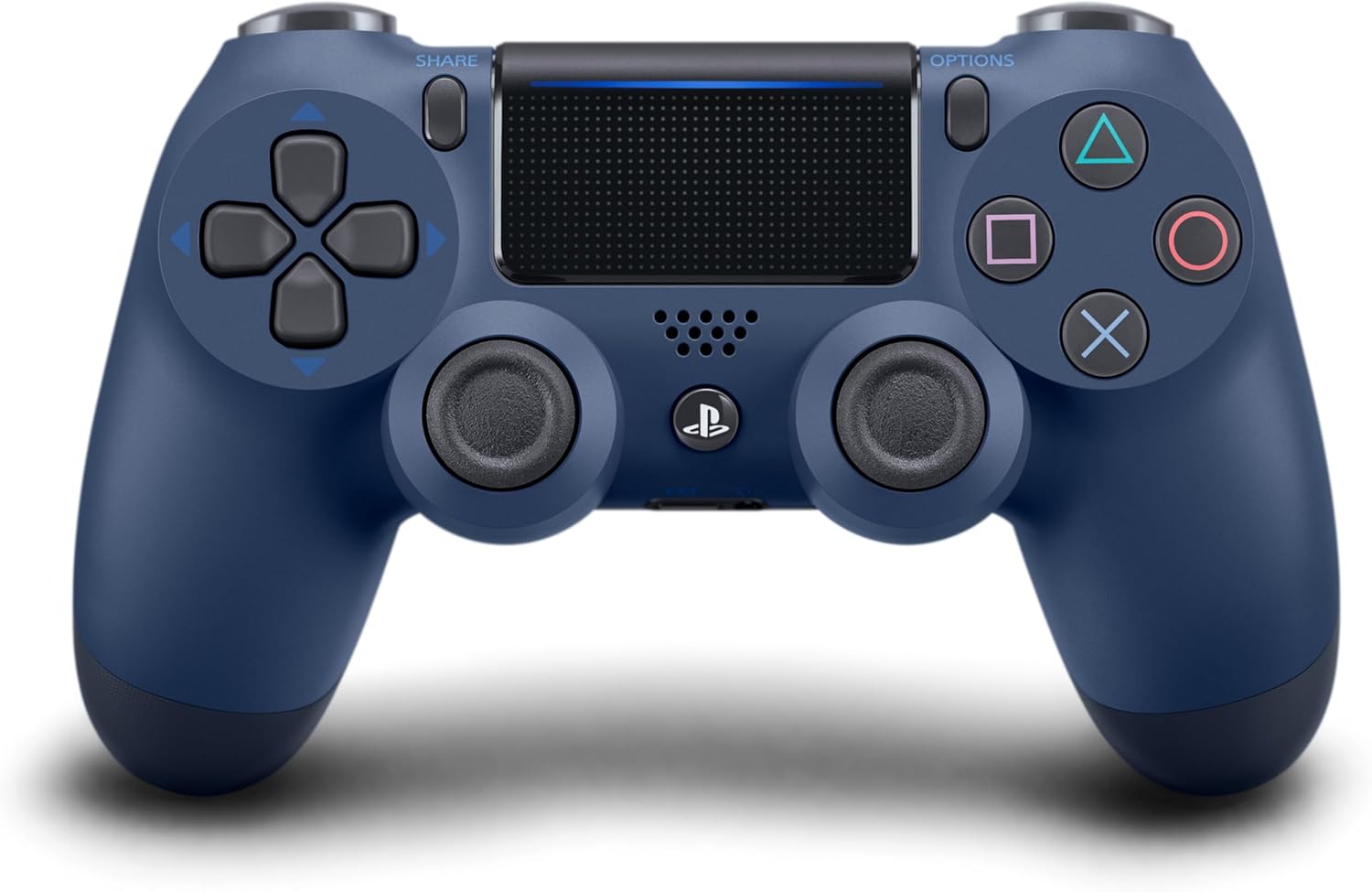
Figure 1.1: Front view of the Sony DualShock 4 Wireless Controller in Midnight Blue. Shows the analog sticks, D-pad, action buttons (triangle, circle, cross, square), PS button, Share button, Options button, and touchpad.
2. Package Contents
Ensure all items are present in the package:
- Sony DualShock 4 Wireless Controller (Midnight Blue)
- Instruction Manual (this document)
Note: A USB charging cable (Type A to micro B) is sold separately and is required for charging and initial setup.
3. Controller Features
Familiarize yourself with the various components of your DualShock 4 controller:
- Analog Sticks: Improved for greater feel and sensitivity, providing precise control.
- Trigger Buttons (L2/R2): Enhanced for responsive gameplay.
- Touch Pad: A multi-touch, clickable surface that expands gameplay possibilities.
- SHARE Button: Allows for instant sharing of gameplay moments.
- OPTIONS Button: Access in-game menus and options.
- PS Button: Powers on the PlayStation 4 system or returns to the home screen.
- Light Bar: Located on the top of the controller, it changes color to identify players and provide in-game information.
- Built-in Speaker: Provides additional audio cues directly from the controller.
- Stereo Headset Jack: Connect a headset for private audio and voice chat.
- Micro USB Port: Used for charging the controller and connecting to the PlayStation 4 system.

Figure 3.1: Angled view of the controller, highlighting the ergonomic design and placement of the analog sticks and trigger buttons.

Figure 3.2: Rear view of the controller, showing the L1/R1 shoulder buttons, L2/R2 trigger buttons, and the light bar.
4. Setup
4.1 Initial Pairing
- Connect the DualShock 4 controller to your PlayStation 4 system using a micro USB cable (sold separately).
- Press the PS button on the controller. The controller will power on and pair with the system.
- Once paired, you can disconnect the USB cable for wireless use.
4.2 Charging the Controller
The controller contains a rechargeable lithium-ion battery. To charge:
- Connect the controller to your PlayStation 4 system using a micro USB cable. The system can be on or in rest mode.
- Alternatively, connect the controller to a standard USB charger (sold separately) using a micro USB cable.
The light bar will slowly blink orange while charging and turn off when fully charged. You can check the battery level on the PlayStation 4 system's home screen.

Figure 4.1: Bottom view of the controller, showing the micro USB port for charging and connection.
5. Operating Instructions
5.1 Basic Controls
The DualShock 4 controller provides standard PlayStation controls:
- Analog Sticks: Control movement and camera.
- D-Pad: Navigate menus and perform specific actions.
- Action Buttons (Triangle, Circle, Cross, Square): Execute in-game commands.
- L1/R1 Buttons: Shoulder buttons for various actions.
- L2/R2 Triggers: Pressure-sensitive triggers for precise input.
5.2 Using the Touch Pad
The touch pad can be used for various in-game interactions, including swiping, tapping, and clicking. Refer to individual game instructions for specific touch pad functionalities.
5.3 SHARE Button Functionality
Press the SHARE button to access sharing options, such as taking screenshots, recording video clips, or broadcasting live gameplay.
5.4 Audio Features
The built-in speaker provides immersive audio effects. Connect a compatible headset to the stereo headset jack for private listening and voice communication with other players.
6. Maintenance
- Cleaning: Wipe the controller with a soft, dry cloth. Do not use harsh chemicals or abrasive materials.
- Storage: Store the controller in a cool, dry place away from direct sunlight and extreme temperatures.
- Battery Care: Avoid fully discharging the battery frequently. Charge the controller regularly to maintain battery health.
- Avoid Impact: Do not drop or subject the controller to strong impacts, as this can damage internal components.
7. Troubleshooting
| Issue | Solution |
|---|---|
| Controller does not turn on or connect. |
|
| Controller does not charge. |
|
| Input lag or disconnection during wireless play. |
|
8. Specifications
- Model Number: 711719519935
- Brand: SIE
- Connectivity: Wireless (Bluetooth)
- Controller Type: Gamepad
- Compatible Devices: PlayStation 4
- Color: Midnight Blue
- Dimensions: 6.75 x 2.5 x 7.25 inches
- Weight: 7.4 ounces
- Battery: 1 A battery (included, rechargeable lithium-ion)
9. Warranty and Support
This product is covered by a manufacturer's warranty. For detailed warranty information, please refer to the documentation included with your purchase or visit the official SIE (Sony Interactive Entertainment) support website.
For technical support, troubleshooting assistance, or service inquiries, please contact SIE customer support through their official channels.


