
Sengled Z02-hub
Sengled Zigbee Smart Hub G2 Instruction Manual
Model: Z02-hub
Product Overview
The Sengled Smart Hub G2 is the central control unit for your Sengled smart home system. It allows you to connect and manage up to 64 Sengled Smart devices, including lights and accessories. This hub is essential for enabling voice control through assistants like Google Assistant and for managing your devices remotely via the Sengled Home app.

Front view of the Sengled Zigbee Smart Hub G2, a white square device with the Sengled logo and three indicator lights.
Package Contents
Ensure all items are present before proceeding with installation:
- Sengled Zigbee Smart Hub G2
- Power Adapter
- Ethernet Cable
- (Optional, depending on kit) Sengled Smart LED Bulbs

Image showing the Sengled Smart Hub G2, two smart bulbs, power adapter, USB cable, and an Ethernet cable, laid out on a white surface.
Setup Guide
- Download the Sengled Home App: Search for "Sengled Home" in your smartphone's app store (iOS or Android) and install it. Register for a new account or log in if you already have one.
- Connect the Hub:
- Connect the provided Ethernet cable from the Sengled Smart Hub G2 to an available LAN port on your Wi-Fi router.
- Plug the power adapter into the hub and then into a power outlet.
- Wait for the hub's indicator lights to show a stable connection (refer to the hub's LED indicator guide for specific states).
- Add Devices:
- Open the Sengled Home app and follow the in-app instructions to add your Sengled Smart Hub G2.
- Once the hub is recognized, you can begin adding your Sengled Smart LED bulbs and other accessories. Screw in your smart bulbs and power them on.
- The app will guide you through the pairing process for each device.
- Personalize Your Lighting: After adding devices, use the app to set schedules, group devices, and customize settings like brightness and color temperature.

A person holding a smartphone displaying the Sengled Home app login screen.

The Sengled Smart Hub G2 connected to a router via an Ethernet cable, with power connected.

A person installing a Sengled Smart LED bulb into a light fixture.

Hands holding a smartphone, interacting with the Sengled Home app to control smart lighting.
Operating Instructions
Using the Sengled Home App
The Sengled Home app provides comprehensive control over your smart devices:
- On/Off Control: Toggle individual devices or groups of devices on or off.
- Brightness Adjustment: Dim or brighten your lights to your desired level.
- Color Control: For multicolor bulbs, select from 16 million colors and thousands of color temperatures.
- Scheduling: Create custom schedules for your lights to turn on/off or change settings at specific times.
- Scenes: Create custom scenes to activate multiple actions with a single tap, such as "Movie Night" or "Good Morning."
- Grouping: Group multiple devices together to control them simultaneously.
- Energy Monitoring: Monitor the energy usage of connected devices (if supported by the device).
A smartphone displaying the Sengled Home app, showing various control options for smart lights.
Voice Control Integration
The Sengled Smart Hub G2 is compatible with popular voice assistants:
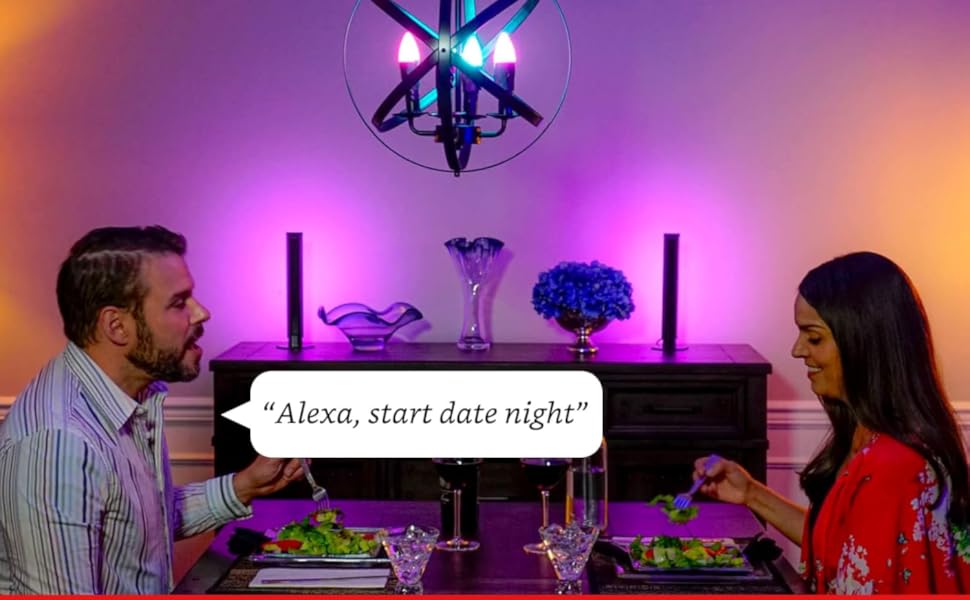
- Amazon Alexa: Link your Sengled account to your Alexa app. Then, use voice commands like "Alexa, turn on the living room lights" or "Alexa, set the bedroom light to blue."
- Google Assistant: Link your Sengled account to your Google Home app. Use commands such as "Hey Google, dim the kitchen lights" or "Hey Google, turn off all lights."

An image illustrating the Sengled Smart Hub G2's compatibility with Amazon Alexa and Google Assistant, showing a smart home setup.
Official video demonstrating how to set up Sengled Multicolor Smart Bulbs with the hub, including app and voice control features.
Maintenance
To ensure optimal performance and longevity of your Sengled Smart Hub G2:
- Keep the hub in a dry, well-ventilated area, away from direct sunlight and extreme temperatures.
- Clean the exterior of the hub with a soft, dry cloth. Do not use liquid cleaners or aerosols.
- Ensure the hub's firmware is always up to date through the Sengled Home app.
- Avoid placing the hub near large metal objects or other devices that may cause wireless interference.
Troubleshooting
If you encounter issues with your Sengled Smart Hub G2, try the following steps:
- Hub Not Connecting:
- Check if the Ethernet cable is securely connected to both the hub and your router.
- Ensure the hub's power adapter is properly plugged in and receiving power.
- Restart your Wi-Fi router and the Sengled Smart Hub G2 by unplugging them for 30 seconds and then plugging them back in.
- Verify your internet connection is active.
- Devices Not Responding:
- Ensure the devices are powered on and within range of the hub.
- Check the device status in the Sengled Home app.
- Try re-pairing the device with the hub if it frequently disconnects.
- Voice Control Issues:
- Confirm your Sengled account is correctly linked in your Alexa or Google Home app.
- Ensure your voice assistant device is online and functioning correctly.
- Try re-discovering devices through your voice assistant app.
- App Issues:
- Ensure your Sengled Home app is updated to the latest version.
- Clear the app's cache or reinstall the app if problems persist.
For further assistance, refer to the Support section or the official Sengled website.
Specifications
| Feature | Detail |
|---|---|
| Model Number | Z02-hub |
| Connectivity | Zigbee HA 1.2.1 |
| Max Devices | Up to 64 Sengled Smart devices |
| Power Input | 120 Volts |
| Item Weight | 7 ounces |
| Dimensions | 5.59 x 3.66 x 2.28 inches |
| Manufacturer | Sengled |
| First Available Date | September 21, 2018 |
| UPC | 840696101755 |
Warranty Information
The Sengled Smart Hub G2 comes with a 3-year warranty from the date of purchase. This warranty covers defects in materials and workmanship under normal use. Please retain your proof of purchase for warranty claims.
For detailed warranty terms and conditions, please visit the official Sengled website or contact customer support.
Support
For additional support, frequently asked questions, or to contact customer service, please visit the official Sengled support page:
You can also find helpful resources and community forums on the Sengled brand store on Amazon.
Related documentsZ02-hub


Ask a question about this manual
Ask about setup, troubleshooting, compatibility, parts, safety, or missing instructions. Manuals+ will review the question and use this page’s manual context to help answer it.